ANAVEM
Languagefr
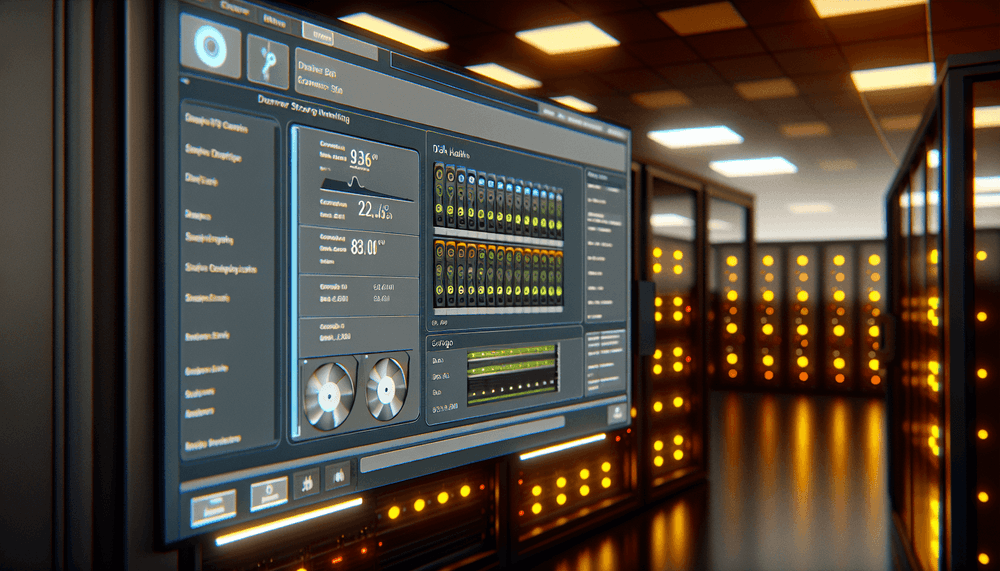
Windows server storage monitoring dashboard displaying disk health and RAID status in a professional data center environment
Event ID 55ErrorFTDISKWindows

Windows Event ID 55 – FTDISK: File System Filter Manager Error

Event ID 55 from FTDISK indicates file system filter manager errors, typically related to disk I/O failures, corrupted file system structures, or driver compatibility issues affecting storage operations.

Emanuel DE ALMEIDAEmanuel DE ALMEIDA
18 March 202612 min read 0
Event ID 55FTDISK 5 methods 12 min
Event Reference

What This Event Means

Event ID 55 represents a critical error condition within Windows' file system filter manager infrastructure, specifically originating from the FTDISK (Fault Tolerant Disk) driver subsystem. This event occurs when the system encounters severe problems during disk I/O operations that cannot be resolved through normal error recovery mechanisms.

The FTDISK driver serves as a crucial component in Windows storage architecture, managing dynamic disks, software RAID configurations, and providing fault tolerance for storage operations. When this driver encounters unrecoverable errors, it generates Event ID 55 to alert administrators of potential data integrity issues or imminent storage failures.

Common scenarios triggering this event include hardware-level disk failures, corrupted file system metadata, incompatible storage drivers, or interference from third-party file system filters. The event often contains specific error codes such as STATUS_DISK_CORRUPT_ERROR, STATUS_UNEXPECTED_IO_ERROR, or STATUS_DEVICE_NOT_READY, which provide valuable diagnostic information for troubleshooting efforts.

In enterprise environments running Windows Server 2022 and 2025, this event frequently correlates with storage subsystem problems affecting virtual machines, database operations, or file server performance. The timing and frequency of these events can indicate whether the issue stems from intermittent hardware problems or systematic configuration errors requiring immediate remediation.

Applies to

Windows 10Windows 11Windows Server 2019/2022/2025
Analysis

Possible Causes

  • Physical disk drive failures or bad sectors preventing successful read/write operations
  • Corrupted file system metadata or Master File Table (MFT) entries causing I/O errors
  • Incompatible or outdated storage controller drivers interfering with disk operations
  • Third-party file system filter drivers creating conflicts with Windows native storage stack
  • Hardware RAID controller malfunctions or firmware bugs affecting disk array integrity
  • Power supply instability causing intermittent disk communication failures
  • Overheating storage devices leading to thermal protection activation and I/O timeouts
  • SATA or NVMe cable connection issues resulting in data transmission errors
  • Windows storage driver corruption or registry configuration problems
  • Antivirus software with aggressive file system monitoring causing filter driver conflicts
Resolution Methods

Troubleshooting Steps

01

Check Event Viewer for Detailed Error Information

Start by examining the complete event details to identify the specific error code and affected volume:

  1. Open Event Viewer by pressing Win + R, typing eventvwr.msc, and pressing Enter
  2. Navigate to Windows LogsSystem
  3. Filter events by Event ID 55 using the Filter Current Log option
  4. Double-click on the most recent Event ID 55 entry to view detailed information
  5. Note the error code, affected drive letter, and any additional parameters in the event description

Use PowerShell to retrieve recent FTDISK events with full details:

Get-WinEvent -FilterHashtable @{LogName='System'; ProviderName='FTDISK'; Id=55} -MaxEvents 20 | Format-List TimeCreated, Id, LevelDisplayName, Message

Export the events for further analysis:

Get-WinEvent -FilterHashtable @{LogName='System'; ProviderName='FTDISK'; Id=55} -MaxEvents 50 | Export-Csv -Path "C:\Temp\FTDISK_Events.csv" -NoTypeInformation
Pro tip: Look for patterns in the timestamps - clustered events often indicate hardware issues, while sporadic events may suggest driver problems.
02

Run Disk Health Diagnostics and CHKDSK

Perform comprehensive disk health checks to identify and repair file system corruption:

  1. Open Command Prompt as Administrator
  2. Check disk health using the built-in CHKDSK utility:
chkdsk C: /f /r /x

For more detailed disk analysis, use PowerShell's storage cmdlets:

# Check disk health status
Get-PhysicalDisk | Select-Object DeviceID, FriendlyName, HealthStatus, OperationalStatus

# Verify file system integrity
Repair-Volume -DriveLetter C -Scan
Repair-Volume -DriveLetter C -SpotFix

Run Windows Storage Spaces diagnostics if applicable:

# Check storage pool health
Get-StoragePool | Get-PhysicalDisk | Where-Object {$_.HealthStatus -ne "Healthy"}

# Verify virtual disk status
Get-VirtualDisk | Select-Object FriendlyName, HealthStatus, OperationalStatus
  1. Schedule a disk check for the next reboot if the system drive requires scanning
  2. Monitor the disk check progress during the next system restart
  3. Review the CHKDSK log file located at C:\Windows\System32\LogFiles\SRT\SRTTrail.txt
Warning: Running CHKDSK with /f parameter on system drives requires a reboot and may take several hours on large volumes.
03

Update Storage Drivers and Check Hardware Compatibility

Ensure all storage-related drivers are current and compatible with your Windows version:

  1. Open Device Manager by pressing Win + X and selecting Device Manager
  2. Expand Storage controllers and Disk drives sections
  3. Right-click each storage controller and select Update driver
  4. Choose Search automatically for drivers

Use PowerShell to identify outdated drivers:

# List all storage-related drivers
Get-WmiObject Win32_PnPSignedDriver | Where-Object {$_.DeviceName -like "*storage*" -or $_.DeviceName -like "*disk*" -or $_.DeviceName -like "*RAID*"} | Select-Object DeviceName, DriverVersion, DriverDate | Sort-Object DriverDate

Check for Windows Updates that include driver updates:

# Install PSWindowsUpdate module if not present
Install-Module PSWindowsUpdate -Force

# Check for available driver updates
Get-WindowsUpdate -Category "Drivers" | Select-Object Title, Size, Description
  1. Visit your motherboard or storage controller manufacturer's website
  2. Download the latest drivers specifically designed for Windows 11 2026 updates
  3. Install drivers in safe mode if experiencing system instability
  4. Verify driver installation using Device Manager or PowerShell:
Get-WmiObject Win32_SystemDriver | Where-Object {$_.Name -like "*disk*" -or $_.Name -like "*storage*"} | Select-Object Name, State, Status, PathName
Pro tip: Create a system restore point before updating critical storage drivers to enable quick rollback if issues occur.
04

Investigate Third-Party Filter Drivers and Disable Conflicting Software

Identify and resolve conflicts with third-party file system filter drivers that may interfere with FTDISK operations:

  1. Use the Filter Manager Control Program to list active filter drivers:
fltmc filters

Generate a detailed filter driver report:

# Create comprehensive filter driver inventory
fltmc filters | Out-File -FilePath "C:\Temp\FilterDrivers.txt"

# Check for known problematic filters
$ProblematicFilters = @("avgflt", "aswSnx", "klif", "epfltlwf")
fltmc filters | Where-Object {$_ -match ($ProblematicFilters -join "|")}
  1. Temporarily disable antivirus real-time protection to test if the issue resolves
  2. Check Windows Defender exclusions and add system volumes if necessary:
# Add system drive to Windows Defender exclusions
Add-MpPreference -ExclusionPath "C:\"

# Verify current exclusions
Get-MpPreference | Select-Object -ExpandProperty ExclusionPath
  1. Identify recently installed software that might include file system filters
  2. Use System Configuration to perform a clean boot:
msconfig
  1. In System Configuration, select Selective startup and uncheck Load startup items
  2. Go to the Services tab, check Hide all Microsoft services, then click Disable all
  3. Restart the system and monitor for Event ID 55 occurrences
  4. If the issue resolves, gradually re-enable services to identify the culprit
Warning: Disabling security software temporarily increases system vulnerability. Only perform this test in controlled environments.
05

Advanced Registry Analysis and System File Integrity Verification

Perform deep system analysis to identify registry corruption or system file integrity issues affecting FTDISK operations:

  1. Run System File Checker to repair corrupted system files:
sfc /scannow

Use DISM to repair the Windows image if SFC finds issues:

DISM /Online /Cleanup-Image /CheckHealth
DISM /Online /Cleanup-Image /ScanHealth
DISM /Online /Cleanup-Image /RestoreHealth
  1. Examine FTDISK-related registry entries for corruption:
# Backup critical registry keys before modification
reg export "HKLM\SYSTEM\CurrentControlSet\Services\FtDisk" "C:\Temp\FtDisk_Backup.reg"

# Check FTDISK service configuration
Get-ItemProperty -Path "HKLM:\SYSTEM\CurrentControlSet\Services\FtDisk" | Format-List
  1. Verify storage-related registry entries:
# Check disk class registry entries
Get-ChildItem -Path "HKLM:\SYSTEM\CurrentControlSet\Control\Class\{4d36e967-e325-11ce-bfc1-08002be10318}" | ForEach-Object {
    Get-ItemProperty -Path $_.PSPath | Select-Object PSChildName, DriverDesc, DriverVersion
}
  1. Use Windows Performance Toolkit to analyze storage I/O patterns:
wpr -start GeneralProfile -filemode
# Reproduce the issue
wpr -stop C:\Temp\storage_trace.etl
  1. Check Event Tracing for Windows (ETW) logs for detailed FTDISK activity:
# Enable FTDISK ETW logging
wevtutil sl Microsoft-Windows-Kernel-StoreMgr/Operational /e:true

# Collect detailed storage events
Get-WinEvent -LogName "Microsoft-Windows-Kernel-StoreMgr/Operational" -MaxEvents 100 | Where-Object {$_.TimeCreated -gt (Get-Date).AddHours(-1)}
Pro tip: Use Process Monitor (ProcMon) to capture real-time file system activity and identify the exact operations triggering Event ID 55.

Overview

Event ID 55 from the FTDISK source represents critical file system filter manager errors that occur when Windows encounters problems with disk I/O operations or file system integrity. This event fires when the fault-tolerant disk driver (FTDISK) detects issues that prevent normal storage operations, such as corrupted metadata, failed disk reads, or incompatible filter drivers interfering with file system access.

The FTDISK component manages fault-tolerant disk configurations including RAID arrays, dynamic disks, and volume management operations. When Event ID 55 appears, it signals that the system has encountered a condition that could potentially lead to data corruption or system instability if not addressed promptly.

This event commonly appears in the System log and requires immediate investigation, as it often precedes more severe storage-related failures. The error typically includes detailed information about the affected volume, the specific operation that failed, and relevant error codes that help identify the root cause of the problem.

Frequently Asked Questions

What does Event ID 55 from FTDISK mean and how serious is it?+
Event ID 55 from FTDISK indicates a critical error in Windows' fault-tolerant disk driver, typically signaling file system corruption, hardware failures, or driver conflicts. This is a serious error that can lead to data loss or system instability if not addressed promptly. The event occurs when the FTDISK driver encounters unrecoverable I/O errors during disk operations, often accompanied by specific error codes like STATUS_DISK_CORRUPT_ERROR or STATUS_UNEXPECTED_IO_ERROR that help identify the root cause.
Can Event ID 55 cause data corruption or system crashes?+
Yes, Event ID 55 can potentially lead to data corruption and system crashes if the underlying issue isn't resolved. The FTDISK driver manages critical storage operations, and when it encounters errors severe enough to generate this event, it indicates that normal I/O operations are failing. This can result in incomplete write operations, corrupted file system metadata, or application crashes when programs cannot access required files. Immediate investigation and remediation are essential to prevent data loss.
How do I determine which disk or volume is affected by Event ID 55?+
The Event ID 55 details typically include information about the affected volume or disk device. Check the event description in Event Viewer for device names, drive letters, or physical disk identifiers. Use PowerShell command 'Get-WinEvent -FilterHashtable @{LogName='System'; ProviderName='FTDISK'; Id=55} | Format-List Message' to see full event details. The message often contains device paths like '\Device\Harddisk0\DR0' or volume GUIDs that can be cross-referenced with disk management tools to identify the specific storage device experiencing problems.
Is Event ID 55 related to RAID configurations or dynamic disks?+
Event ID 55 frequently occurs on systems with RAID configurations or dynamic disks because FTDISK manages these fault-tolerant storage configurations. Software RAID arrays, spanned volumes, striped volumes, and mirrored volumes all rely on FTDISK for proper operation. Hardware RAID controllers with outdated drivers or firmware can also trigger this event. If you're running RAID configurations, check the RAID controller's health status, update drivers, and verify that all member disks are functioning properly using both Windows disk management tools and the RAID controller's management software.
What should I do if Event ID 55 appears frequently on Windows Server 2025?+
Frequent Event ID 55 occurrences on Windows Server 2025 indicate a persistent storage subsystem problem requiring immediate attention. First, check all physical connections and replace any suspect SATA/SAS cables. Run comprehensive disk health diagnostics using 'Get-PhysicalDisk' and 'Get-StoragePool' PowerShell cmdlets. Update all storage controller drivers to versions certified for Server 2025. If running Hyper-V, check virtual disk integrity and storage performance. Consider enabling Storage Spaces Direct health monitoring if applicable. Document the frequency and timing patterns - clustered events suggest hardware issues, while random occurrences may indicate driver or configuration problems.
Documentation

References (2)

Emanuel DE ALMEIDA
Written by

Emanuel DE ALMEIDA

Senior IT Journalist & Cloud Architect

Microsoft MCSA-certified Cloud Architect | Fortinet-focused. I modernize cloud, hybrid & on-prem infrastructure for reliability, security, performance and cost control - sharing field-tested ops & troubleshooting.

Discussion

Share your thoughts and insights

You must be logged in to comment.

Loading comments...