ANAVEM
Languagefr
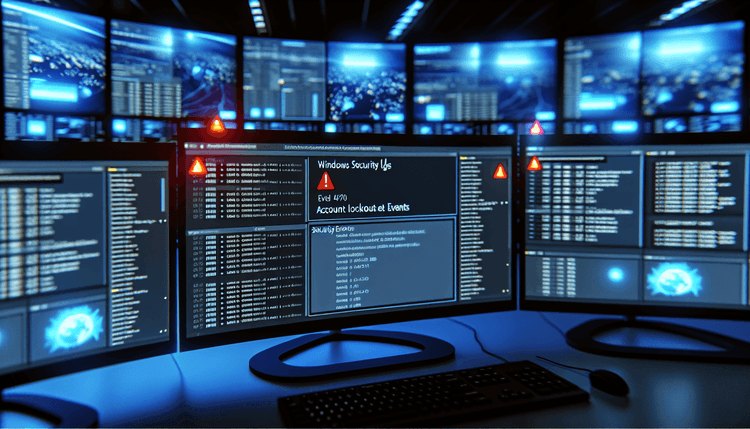
Windows Event Viewer displaying security audit logs on a cybersecurity monitoring dashboard
Event ID 808InformationSecurityWindows

Windows Event ID 808 – Security: Audit Log Cleared

Event ID 808 indicates that the Windows Security audit log has been cleared, typically by an administrator or automated process. This event is critical for security monitoring and compliance tracking.

Emanuel DE ALMEIDAEmanuel DE ALMEIDA
17 March 202612 min read 0
Event ID 808Security 5 methods 12 min
Event Reference

What This Event Means

Event ID 808 represents a critical security audit event that Windows generates whenever the Security event log undergoes a clearing operation. This event serves as an immutable record of log maintenance activities and potential security incidents where attackers attempt to eliminate evidence of their activities.

The event captures comprehensive metadata about the clearing operation, including the Security Identifier (SID) of the user account that initiated the action, the logon session details, and the specific method used to clear the logs. Windows records this information before the actual log clearing occurs, ensuring that evidence of the operation persists even after the target logs are removed.

From a security perspective, Event ID 808 plays a crucial role in maintaining audit integrity. Security teams use this event to detect unauthorized log tampering, track administrative activities, and maintain compliance with regulatory requirements that mandate audit log retention. The event also helps distinguish between scheduled maintenance operations performed by authorized personnel and suspicious activities that might indicate a security breach.

Modern Windows systems in 2026 have enhanced this event with additional context information, including process details and network source information when the clearing operation originates from remote management tools. This enhanced logging capability provides security analysts with more comprehensive forensic data for incident investigation and compliance reporting.


Applies to

Windows 10Windows 11Windows Server 2019/2022/2025
Analysis

Possible Causes

  • Manual clearing of Security logs through Event Viewer by administrators
  • Automated log rotation scripts using PowerShell Clear-EventLog cmdlets
  • Third-party log management tools performing scheduled maintenance
  • System Center Operations Manager (SCOM) or similar monitoring solutions clearing logs
  • Malicious actors attempting to remove evidence of unauthorized activities
  • Group Policy settings triggering automatic log clearing when size limits are reached
  • Backup and archival processes that clear logs after successful backup completion
  • Security software performing log maintenance as part of system optimization
Resolution Methods

Troubleshooting Steps

01

Review Event Details in Event Viewer

Start by examining the specific details of the Event ID 808 occurrence to understand who cleared the logs and when.

  1. Open Event Viewer by pressing Win + R, typing eventvwr.msc, and pressing Enter
  2. Navigate to Windows LogsSecurity
  3. Filter for Event ID 808 by right-clicking the Security log and selecting Filter Current Log
  4. Enter 808 in the Event IDs field and click OK
  5. Double-click the Event ID 808 entry to view detailed information
  6. Review the General tab for timestamp and basic details
  7. Check the Details tab for user SID, logon session, and process information
  8. Document the User, Computer, and Event Time for investigation purposes
Pro tip: The event description will show the user account name and domain that performed the clearing operation, which is crucial for determining if the action was authorized.
02

Query Event History with PowerShell

Use PowerShell to retrieve comprehensive information about all Event ID 808 occurrences and analyze patterns.

  1. Open PowerShell as Administrator
  2. Run the following command to retrieve all Event ID 808 occurrences:
    Get-WinEvent -FilterHashtable @{LogName='Security'; Id=808} | Select-Object TimeCreated, Id, LevelDisplayName, Message | Format-Table -AutoSize
  3. For more detailed analysis, export the events to CSV:
    Get-WinEvent -FilterHashtable @{LogName='Security'; Id=808} | Select-Object TimeCreated, Id, UserId, ProcessId, Message | Export-Csv -Path "C:\Temp\Event808_Analysis.csv" -NoTypeInformation
  4. To check events from the last 30 days:
    $StartDate = (Get-Date).AddDays(-30)
    Get-WinEvent -FilterHashtable @{LogName='Security'; Id=808; StartTime=$StartDate} | Format-Table TimeCreated, Message -AutoSize
  5. Extract user information from the events:
    Get-WinEvent -FilterHashtable @{LogName='Security'; Id=808} | ForEach-Object { [xml]$xml = $_.ToXml(); $xml.Event.EventData.Data | Where-Object {$_.Name -eq 'SubjectUserName'} | Select-Object '#text' }
Warning: If no Event ID 808 entries are found, the Security log itself may have been cleared recently, which could indicate a security incident requiring immediate investigation.
03

Investigate User Account and Session Details

Analyze the user account and logon session information to determine if the log clearing was performed by authorized personnel.

  1. From the Event ID 808 details, note the Subject User Name and Subject Domain
  2. Verify the user account exists and has appropriate permissions:
    Get-ADUser -Identity "username" -Properties MemberOf, LastLogonDate, PasswordLastSet | Select-Object Name, SamAccountName, MemberOf, LastLogonDate, PasswordLastSet
  3. Check if the user is a member of privileged groups:
    Get-ADUser -Identity "username" -Properties MemberOf | Select-Object -ExpandProperty MemberOf | Get-ADGroup | Where-Object {$_.Name -match "Admin|Operator|Backup"}
  4. Review concurrent logon events around the time of log clearing:
    $EventTime = (Get-Date "2026-03-17 10:30:00") # Replace with actual event time
    $TimeWindow = 30 # minutes
    Get-WinEvent -FilterHashtable @{LogName='Security'; Id=4624,4625; StartTime=$EventTime.AddMinutes(-$TimeWindow); EndTime=$EventTime.AddMinutes($TimeWindow)} | Where-Object {$_.Message -match "username"}
  5. Check for any Group Policy or scheduled task that might have triggered the clearing:
    Get-ScheduledTask | Where-Object {$_.Actions.Execute -match "Clear-EventLog|wevtutil"} | Select-Object TaskName, State, LastRunTime
Pro tip: Cross-reference the logon session ID from Event ID 808 with other security events to build a complete timeline of user activities during the log clearing operation.
04

Configure Enhanced Audit Logging and Monitoring

Implement additional monitoring and alerting mechanisms to detect future log clearing activities and strengthen audit trail integrity.

  1. Enable advanced audit policy for object access to track Event Viewer usage:
    auditpol /set /subcategory:"File System" /success:enable /failure:enable
    auditpol /set /subcategory:"Registry" /success:enable /failure:enable
  2. Configure Windows Event Forwarding to send Event ID 808 to a central collector:
    # On the collector server
    wecutil qc /q
    # On source computers
    winrm qc -q
  3. Create a scheduled task to alert on Event ID 808 occurrences:
    $Action = New-ScheduledTaskAction -Execute "PowerShell.exe" -Argument "-Command \"Send-MailMessage -To 'security@company.com' -From 'alerts@company.com' -Subject 'Security Log Cleared' -Body 'Event ID 808 detected' -SmtpServer 'mail.company.com'\""
    $Trigger = New-ScheduledTaskTrigger -AtStartup
    $Settings = New-ScheduledTaskSettingsSet -AllowStartIfOnBatteries
    Register-ScheduledTask -TaskName "SecurityLogClearAlert" -Action $Action -Trigger $Trigger -Settings $Settings
  4. Configure Event Log retention policies to prevent automatic clearing:
    # Set Security log to 1GB with overwrite as needed
    wevtutil sl Security /ms:1073741824 /rt:true
  5. Implement PowerShell script logging to capture any Clear-EventLog commands:
    # Enable PowerShell module logging via Group Policy or registry
    New-ItemProperty -Path "HKLM:\SOFTWARE\Policies\Microsoft\Windows\PowerShell\ModuleLogging" -Name "EnableModuleLogging" -Value 1 -PropertyType DWORD -Force
    New-ItemProperty -Path "HKLM:\SOFTWARE\Policies\Microsoft\Windows\PowerShell\ModuleLogging\ModuleNames" -Name "*" -Value "*" -PropertyType String -Force
Warning: Ensure that enhanced logging doesn't fill up disk space rapidly. Monitor log sizes and implement proper log rotation policies when enabling verbose audit logging.
05

Forensic Analysis and Incident Response

Perform comprehensive forensic analysis when Event ID 808 indicates potential security incidents or unauthorized log tampering.

  1. Create a forensic timeline of events surrounding the log clearing:
    # Export all security events from 24 hours before the incident
    $IncidentTime = (Get-Date "2026-03-17 10:30:00") # Replace with actual time
    $StartTime = $IncidentTime.AddHours(-24)
    $EndTime = $IncidentTime.AddHours(1)
    Get-WinEvent -FilterHashtable @{LogName='Security'; StartTime=$StartTime; EndTime=$EndTime} | Export-Csv -Path "C:\Forensics\SecurityEvents_Timeline.csv" -NoTypeInformation
  2. Check for evidence of lateral movement or privilege escalation:
    # Look for unusual logon patterns
    Get-WinEvent -FilterHashtable @{LogName='Security'; Id=4624,4625,4648,4672} | Where-Object {$_.TimeCreated -ge $StartTime -and $_.TimeCreated -le $EndTime} | Group-Object Id | Select-Object Name, Count
  3. Analyze process execution events that might indicate malicious tools:
    # Check for suspicious process creation events
    Get-WinEvent -FilterHashtable @{LogName='Security'; Id=4688} | Where-Object {$_.Message -match "wevtutil|Clear-EventLog|eventvwr" -and $_.TimeCreated -ge $StartTime}
  4. Review file system access to Event Log files:
    # Check access to .evtx files in System32\winevt\Logs
    Get-WinEvent -FilterHashtable @{LogName='Security'; Id=4656,4658} | Where-Object {$_.Message -match "\.evtx" -and $_.TimeCreated -ge $StartTime}
  5. Generate a comprehensive incident report:
    # Create incident summary
    $Report = @{
        IncidentTime = $IncidentTime
        ClearingUser = "Extract from Event 808"
        ConcurrentEvents = (Get-WinEvent -FilterHashtable @{LogName='Security'; StartTime=$StartTime; EndTime=$EndTime}).Count
        SuspiciousProcesses = "List any unusual processes"
        RecommendedActions = "Immediate containment and investigation steps"
    }
    $Report | ConvertTo-Json | Out-File "C:\Forensics\Event808_IncidentReport.json"
Pro tip: Preserve the current state of the system by creating a memory dump and disk image before making any changes during forensic investigation. Use tools like FTK Imager or built-in Windows tools for evidence preservation.

Overview

Event ID 808 fires when the Windows Security audit log gets cleared, either manually through Event Viewer or programmatically via PowerShell commands. This event appears in the Security log immediately after the clearing operation completes. The event captures critical forensic information including the user account that performed the action, the timestamp, and the workstation from which the operation originated.

Security professionals monitor this event closely because clearing audit logs can indicate legitimate maintenance activities or potentially malicious attempts to cover tracks. The event provides an audit trail that cannot be easily removed, making it valuable for compliance reporting and incident response investigations.

Windows generates this event regardless of whether the log clearing was intentional administrative maintenance or part of a security incident. The event includes details about the clearing process, including the user context and the method used to clear the logs, which helps administrators distinguish between routine operations and suspicious activities.

Frequently Asked Questions

What does Event ID 808 mean and why is it important for security?+
Event ID 808 indicates that the Windows Security audit log has been cleared. This event is critically important for security monitoring because it provides an immutable record of when audit logs were cleared, by whom, and from which system. Security teams use this event to detect potential evidence tampering, track administrative activities, and maintain compliance with audit requirements. The event cannot be easily removed by attackers, making it valuable for forensic investigations even when other evidence has been destroyed.
How can I tell if Event ID 808 was caused by legitimate administration or malicious activity?+
To distinguish between legitimate and malicious log clearing, examine several factors: the user account that performed the action (should be an authorized administrator), the timing (during business hours vs. unusual times), concurrent activities (normal administrative tasks vs. suspicious processes), and whether the action aligns with scheduled maintenance windows. Check if the clearing was performed using standard administrative tools or suspicious methods. Also verify that the user account has appropriate privileges and review their recent logon patterns for anomalies.
Can Event ID 808 be prevented or disabled to stop attackers from clearing logs?+
Event ID 808 cannot and should not be disabled as it serves as a critical security control. Instead of preventing the event, focus on preventing unauthorized log clearing through proper access controls, user account management, and monitoring. Implement least-privilege principles, restrict Event Log management permissions to authorized personnel only, enable Windows Event Forwarding to send logs to a secure central collector, and configure real-time alerting on Event ID 808 occurrences. Consider using write-once storage or SIEM solutions for long-term log retention.
What information does Event ID 808 contain and how can I extract it programmatically?+
Event ID 808 contains the user account (Subject User Name and Domain), logon session ID, process information, timestamp, and workstation details. To extract this information programmatically, use PowerShell with Get-WinEvent and XML parsing: Get-WinEvent -FilterHashtable @{LogName='Security'; Id=808} | ForEach-Object { [xml]$xml = $_.ToXml(); $xml.Event.EventData.Data }. This provides structured access to all event data fields including SubjectUserName, SubjectDomainName, SubjectLogonId, and ProcessName, which can be used for automated analysis and reporting.
How should I respond when I discover unexpected Event ID 808 entries in my environment?+
When discovering unexpected Event ID 808 entries, immediately initiate incident response procedures: preserve the current system state, identify the user account and verify if it's authorized, check for concurrent suspicious activities, review recent logon events for the implicated user, examine process execution logs around the incident time, and determine if any sensitive data or systems were accessed. Implement temporary additional monitoring, consider isolating affected systems if malicious activity is suspected, and document all findings for potential forensic analysis. Contact your security team or incident response provider if the activity appears malicious.
Documentation

References (2)

Emanuel DE ALMEIDA
Written by

Emanuel DE ALMEIDA

Senior IT Journalist & Cloud Architect

Microsoft MCSA-certified Cloud Architect | Fortinet-focused. I modernize cloud, hybrid & on-prem infrastructure for reliability, security, performance and cost control - sharing field-tested ops & troubleshooting.

Discussion

Share your thoughts and insights

You must be logged in to comment.

Loading comments...