ANAVEM
Languagefr
Server room with UPS systems and power monitoring equipment showing critical power infrastructure
Event ID 1038CriticalKernel-PowerWindows

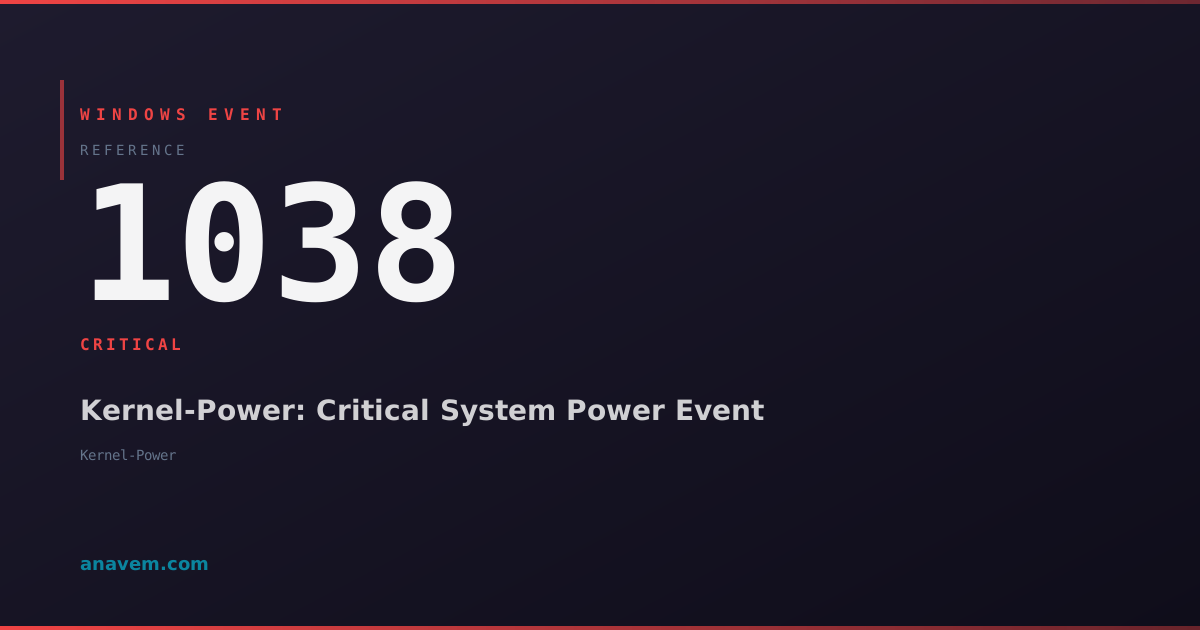
Windows Event ID 1038 – Kernel-Power: Critical System Power Event

Event ID 1038 indicates a critical system power event where Windows detected an unexpected power loss or system shutdown without proper shutdown procedures.

Emanuel DE ALMEIDAEmanuel DE ALMEIDA
18 March 202612 min read 0
Event ID 1038Kernel-Power 5 methods 12 min
Event Reference

What This Event Means

Event ID 1038 serves as Windows' primary mechanism for documenting critical power events that threaten system stability and data integrity. When this event occurs, it indicates that the system experienced a power transition that was either too rapid for normal shutdown procedures or occurred without proper notification to the operating system.

The Kernel-Power source generates this event during the early stages of system startup when the kernel examines the previous session's termination. The event includes detailed power state information, including battery status for laptops, UPS connectivity for desktops and servers, and power policy settings that were active during the event. This data proves invaluable for diagnosing intermittent power issues and hardware failures.

In enterprise environments, Event ID 1038 often correlates with infrastructure problems such as UPS failures, power grid instabilities, or faulty power supplies. The event's timing information helps administrators determine whether multiple systems experienced simultaneous power events, indicating broader electrical issues. Modern Windows versions in 2026 include enhanced power telemetry that provides more granular details about the power event, including voltage fluctuations and power draw patterns leading up to the critical event.

The event also plays a crucial role in Windows' power management diagnostics, helping the system adjust power policies and hardware configurations to prevent future occurrences. Systems with frequent Event ID 1038 entries may trigger automatic power management adjustments or generate recommendations for hardware upgrades through Windows' built-in diagnostic tools.

Applies to

Windows 10Windows 11Windows Server 2019/2022/2025
Analysis

Possible Causes

  • Sudden power outages or electrical grid failures affecting the system
  • UPS (Uninterruptible Power Supply) battery depletion or UPS system malfunction
  • Failing or inadequate power supply units (PSU) unable to maintain stable power delivery
  • Overheating causing emergency thermal shutdowns to protect hardware components
  • Hardware failures in motherboard power regulation circuits or capacitors
  • Power button being held down for forced shutdown during system hang or freeze
  • Critical system errors triggering emergency shutdown procedures
  • Voltage fluctuations or power surges exceeding system tolerances
  • Laptop battery sudden failure or removal during operation without AC power
  • Power management driver conflicts causing improper power state transitions
Resolution Methods

Troubleshooting Steps

01

Analyze Event Details in Event Viewer

Start by examining the specific details of Event ID 1038 to understand the power event context.

  1. Open Event Viewer by pressing Win + R, typing eventvwr.msc, and pressing Enter
  2. Navigate to Windows LogsSystem
  3. Filter the log for Event ID 1038 by right-clicking SystemFilter Current Log → enter 1038 in Event IDs field
  4. Double-click the most recent Event ID 1038 entry to view detailed information
  5. Examine the General tab for power state data, including:
    • System power state at time of event
    • Connected power sources (AC, battery, UPS)
    • Power policy settings active during the event
    • Timestamp correlation with other system events
  6. Check the Details tab for additional diagnostic data including voltage readings and power draw information

Use PowerShell to extract detailed event information:

Get-WinEvent -FilterHashtable @{LogName='System'; Id=1038} -MaxEvents 5 | Format-List TimeCreated, Id, LevelDisplayName, Message
Pro tip: Compare timestamps with Event IDs 41, 6008, and 1074 to build a complete picture of the power event sequence.
02

Check Power Configuration and UPS Status

Verify system power configuration and connected UPS devices to identify potential power infrastructure issues.

  1. Open Control PanelHardware and SoundPower Options
  2. Click Change plan settings for your active power plan, then Change advanced power settings
  3. Review critical power settings:
    • Critical battery action - should be set to Hibernate or Shutdown
    • Low battery level - verify appropriate percentage threshold
    • Critical battery level - ensure sufficient warning time
  4. Check UPS status using PowerShell:
# Check battery/UPS status
Get-WmiObject -Class Win32_Battery | Select-Object Name, BatteryStatus, EstimatedChargeRemaining, EstimatedRunTime

# Check power supply information
Get-WmiObject -Class Win32_PowerSupply | Select-Object Name, TotalOutputPower, TypeOfSwitching
  1. For systems with UPS software installed, check UPS management software logs and configuration
  2. Verify UPS battery health and last maintenance date
  3. Test UPS functionality by safely disconnecting AC power while system is running
Warning: Only perform UPS testing during planned maintenance windows to avoid unexpected shutdowns.
03

Monitor System Temperature and Hardware Health

Investigate thermal-related shutdowns and hardware health issues that can trigger critical power events.

  1. Check system temperature using PowerShell WMI queries:
# Check thermal zone temperatures
Get-WmiObject -Namespace "root/WMI" -Class MSAcpi_ThermalZoneTemperature | Select-Object InstanceName, @{Name="Temperature(C)"; Expression={($_.CurrentTemperature/10)-273.15}}

# Check fan speeds and power consumption
Get-WmiObject -Class Win32_Fan | Select-Object Name, DesiredSpeed, VariableSpeed
  1. Open Device Manager and check for hardware errors:
    • Expand System devices and look for warning icons
    • Check Batteries section for battery health issues
    • Examine Power management devices for driver problems
  2. Use built-in hardware diagnostics:
# Run memory diagnostic (requires restart)
mdsched.exe

# Check disk health
Get-PhysicalDisk | Get-StorageReliabilityCounter | Select-Object DeviceId, Temperature, PowerOnHours
  1. Review Reliability Monitor by typing perfmon /rel in Run dialog
  2. Look for patterns of critical events, hardware failures, or application crashes preceding power events
  3. Check BIOS/UEFI settings for thermal protection thresholds and power management options
Pro tip: Enable verbose power logging by setting HKLM\SYSTEM\CurrentControlSet\Control\Power\PowerLogging to 1 for detailed power transition logs.
04

Analyze Power Policy and Driver Configuration

Examine power management policies and drivers that may cause improper power state transitions.

  1. Generate detailed power configuration report:
# Create comprehensive power report
powercfg /energy /output C:\PowerReport.html

# Generate battery report (laptops)
powercfg /batteryreport /output C:\BatteryReport.html

# Check power requests preventing sleep
powercfg /requests
  1. Review power policy settings using PowerShell:
# List all power schemes
powercfg /list

# Export current power scheme for analysis
powercfg /export C:\CurrentPowerScheme.pow

# Check specific power settings
powercfg /query SCHEME_CURRENT SUB_PROCESSOR PROCTHROTTLEMAX
  1. Examine power management drivers:
    • Open Device ManagerSystem devices
    • Right-click ACPI-Compliant SystemPropertiesDriver tab
    • Check driver date and version, update if outdated
    • Review Power Management tab settings for USB and network devices
  2. Check for conflicting power management software:
    • Review installed programs for third-party power management utilities
    • Disable or uninstall conflicting power management applications
    • Check manufacturer-specific power management software (Dell Power Manager, HP Power Assistant, etc.)
  3. Update system BIOS/UEFI firmware to latest version for improved power management
Warning: BIOS updates carry risk of system failure if interrupted. Ensure stable power and UPS protection before updating firmware.
05

Implement Advanced Power Event Monitoring

Set up comprehensive monitoring and logging to capture detailed power event data for ongoing analysis.

  1. Enable advanced power logging in the registry:
# Enable detailed power logging
Set-ItemProperty -Path "HKLM:\SYSTEM\CurrentControlSet\Control\Power" -Name "PowerLogging" -Value 1 -Type DWord

# Enable power button logging
Set-ItemProperty -Path "HKLM:\SYSTEM\CurrentControlSet\Control\Power" -Name "PowerButtonLogging" -Value 1 -Type DWord
  1. Create custom Event Log monitoring with PowerShell:
# Create scheduled task to monitor power events
$Action = New-ScheduledTaskAction -Execute "PowerShell.exe" -Argument "-File C:\Scripts\PowerEventMonitor.ps1"
$Trigger = New-ScheduledTaskTrigger -AtStartup
$Settings = New-ScheduledTaskSettingsSet -AllowStartIfOnBatteries -DontStopIfGoingOnBatteries
Register-ScheduledTask -TaskName "PowerEventMonitor" -Action $Action -Trigger $Trigger -Settings $Settings
  1. Set up Windows Performance Monitor (PerfMon) counters for power monitoring:
    • Open Performance Monitor from Administrative Tools
    • Add counters: Power MeterPower, Thermal Zone InformationTemperature
    • Configure data collector set to log power metrics continuously
  2. Configure Event Log forwarding for centralized monitoring:
# Configure Windows Event Forwarding (WEF)
wecutil qc /q

# Create custom subscription for power events
wecutil cs PowerEventSubscription.xml
  1. Implement automated alerting using PowerShell and Task Scheduler:
    • Create PowerShell script to check for Event ID 1038 and send email alerts
    • Schedule script to run every 15 minutes during business hours
    • Include power event details, system information, and recommended actions in alerts
  2. Document power event patterns and create baseline metrics for comparison
Pro tip: Use Windows Admin Center's power management dashboard for centralized monitoring of multiple systems' power events and health status.

Overview

Event ID 1038 from the Kernel-Power source represents one of the most critical power-related events in Windows systems. This event fires when the system experiences an unexpected power loss, forced shutdown, or critical power state transition that bypasses normal shutdown procedures. Unlike clean shutdowns that generate Event ID 1074, this event indicates the system was unable to complete its normal shutdown sequence.

The event typically appears in the System log after the system restarts following an unexpected power event. Windows generates this event during the boot process when it detects that the previous session ended abnormally. The event contains crucial diagnostic information including the system's last known power state, any connected UPS status, and timing data that helps determine the cause of the power interruption.

This event is particularly significant for server environments and critical workstations where unexpected shutdowns can lead to data corruption, service interruptions, or hardware damage. System administrators use Event ID 1038 to track power reliability, identify failing UPS systems, and correlate power events with other system issues. The event often appears alongside other critical events like Event ID 41 (system reboot without cleanly shutting down first) and Event ID 6008 (unexpected shutdown).

Frequently Asked Questions

What does Event ID 1038 mean and how serious is it?+
Event ID 1038 is a critical-level event from the Kernel-Power source that indicates your system experienced an unexpected power loss or forced shutdown. This is serious because it means Windows couldn't complete its normal shutdown procedures, potentially leading to data corruption, file system errors, or hardware damage. The event appears after restart when Windows detects the previous session ended abnormally. While occasional occurrences might be due to power outages, frequent Event ID 1038 entries suggest underlying power supply issues, UPS problems, or hardware failures that require immediate attention.
How can I prevent Event ID 1038 from occurring frequently?+
To prevent frequent Event ID 1038 occurrences, focus on power infrastructure stability. Install or upgrade your UPS system with sufficient battery capacity for clean shutdowns. Ensure your power supply unit (PSU) meets system requirements with 20-30% headroom for peak loads. Keep systems cool with proper ventilation and clean dust from fans and heat sinks regularly. Update BIOS/UEFI firmware and power management drivers to latest versions. Configure appropriate power policies with proper battery thresholds for laptops. Monitor system temperatures and address overheating issues promptly. For servers, implement redundant power supplies and ensure electrical infrastructure can handle the load.
What's the difference between Event ID 1038 and Event ID 41?+
Event ID 1038 and 41 are both critical power-related events but occur at different stages. Event ID 41 (Kernel-Power) indicates the system rebooted without cleanly shutting down first - it's logged when Windows detects an unexpected restart during operation. Event ID 1038 specifically documents critical power state transitions and power loss events, often appearing alongside or shortly after Event ID 41. Think of Event ID 41 as 'the system crashed/restarted unexpectedly' while Event ID 1038 is 'here are the power-related details of what happened.' Both events together provide a complete picture of unexpected shutdown scenarios, with 1038 offering more detailed power management context.
Can Event ID 1038 cause data loss or corruption?+
Yes, Event ID 1038 can definitely cause data loss and corruption because it represents situations where Windows couldn't perform proper shutdown procedures. When power is lost suddenly, active file operations may be interrupted, leaving files in inconsistent states. Database applications are particularly vulnerable, as transactions may be incomplete. System files, registry entries, and application data can become corrupted. The Windows page file and hibernation file may contain invalid data. To minimize risk, ensure regular backups, use applications with built-in recovery features, enable System Restore, and implement UPS systems for critical workstations and servers. After experiencing Event ID 1038, run disk checks and verify critical application data integrity.
How do I troubleshoot recurring Event ID 1038 on a server?+
For recurring Event ID 1038 on servers, start with power infrastructure analysis. Check UPS battery health, capacity, and runtime - replace batteries if they're over 3-4 years old. Verify power supply redundancy and load distribution. Monitor server room temperature and ensure adequate cooling. Use PowerShell to analyze event patterns: Get-WinEvent -FilterHashtable @{LogName='System'; Id=1038} | Group-Object {$_.TimeCreated.Date} to identify timing patterns. Check for correlations with high CPU usage, memory pressure, or disk I/O that might cause thermal shutdowns. Review server hardware logs through management interfaces (iDRAC, iLO, etc.). Test UPS functionality during maintenance windows. Consider power quality analysis if multiple servers experience simultaneous events. Implement monitoring solutions to track power consumption trends and proactively identify issues.
Documentation

References (2)

Emanuel DE ALMEIDA
Written by

Emanuel DE ALMEIDA

Senior IT Journalist & Cloud Architect

Microsoft MCSA-certified Cloud Architect | Fortinet-focused. I modernize cloud, hybrid & on-prem infrastructure for reliability, security, performance and cost control - sharing field-tested ops & troubleshooting.

Discussion

Share your thoughts and insights

You must be logged in to comment.

Loading comments...