ANAVEM
Languagefr
Windows Event Viewer displaying system boot completion events on a server monitoring dashboard
Event ID 2InformationKernel-GeneralWindows

Windows Event ID 2 – Kernel-General: System Boot Completion

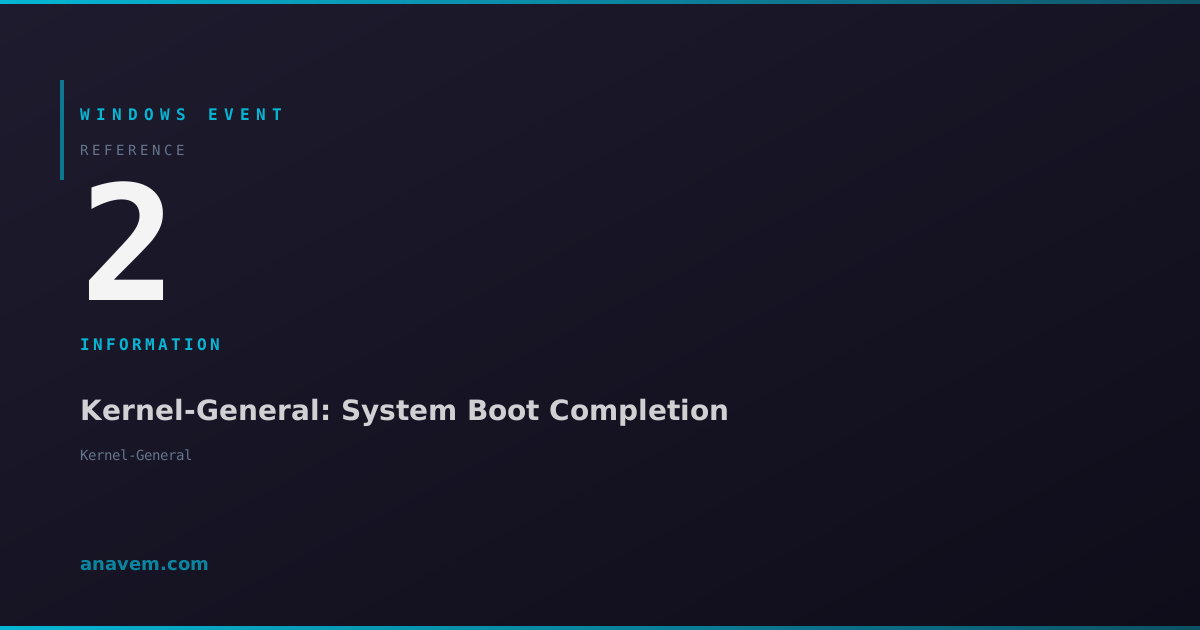
Event ID 2 from Kernel-General indicates successful Windows system boot completion. This informational event logs when the kernel finishes loading and the system is ready for user logon.

Emanuel DE ALMEIDAEmanuel DE ALMEIDA
18 March 20267 min read 0
Event ID 2Kernel-General 5 methods 7 min
Event Reference

What This Event Means

Event ID 2 represents a fundamental checkpoint in the Windows boot architecture. When the Windows kernel completes its initialization sequence, it generates this event to signal that the system has successfully transitioned from the early boot phase to the operational state where user-mode services can begin loading.

The event occurs after hardware abstraction layer (HAL) initialization, device driver loading, and core system service startup. At this point, the kernel has established memory management, process scheduling, and security subsystems. The system is now ready to launch the Session Manager (smss.exe) and begin the user-mode initialization process.

This event is particularly valuable for performance monitoring and capacity planning. Boot time analysis often uses Event ID 2 as the end marker for kernel boot duration calculations. In virtualized environments, this event helps identify resource contention issues that may extend boot times beyond acceptable thresholds.

Modern Windows versions generate additional metadata with this event, including boot type indicators (cold boot, warm boot, fast startup) and performance counters that help administrators optimize system startup behavior across their infrastructure.

Applies to

Windows 10Windows 11Windows Server 2019/2022/2025
Analysis

Possible Causes

  • Normal system startup after power-on or restart
  • Recovery from hibernation or sleep states
  • Fast startup completion in Windows 10/11
  • Virtual machine boot completion
  • System recovery after blue screen restart
  • Scheduled restart completion after Windows Updates
  • Manual restart initiated by administrators
Resolution Methods

Troubleshooting Steps

01

Verify Boot Event Details in Event Viewer

Navigate to Event Viewer to examine the boot completion event and gather baseline information:

  1. Press Windows + R, type eventvwr.msc, and press Enter
  2. Navigate to Windows LogsSystem
  3. Filter the log by clicking Filter Current Log in the Actions pane
  4. Enter Event ID 2 in the Event IDs field and click OK
  5. Double-click the most recent Event ID 2 to view details
  6. Note the timestamp and any additional data in the event description
  7. Check the Details tab for XML data containing boot performance metrics

The event details will show the exact time when kernel initialization completed, which is essential for boot performance analysis.

02

Query Boot Events with PowerShell

Use PowerShell to retrieve and analyze boot completion events programmatically:

# Get the last 10 boot completion events
Get-WinEvent -FilterHashtable @{LogName='System'; Id=2} -MaxEvents 10

# Get boot events from the last 7 days with detailed formatting
Get-WinEvent -FilterHashtable @{LogName='System'; Id=2; StartTime=(Get-Date).AddDays(-7)} | 
    Select-Object TimeCreated, Id, LevelDisplayName, Message | 
    Format-Table -AutoSize

# Export boot events to CSV for analysis
Get-WinEvent -FilterHashtable @{LogName='System'; Id=2; StartTime=(Get-Date).AddDays(-30)} | 
    Select-Object TimeCreated, Id, MachineName, Message | 
    Export-Csv -Path "C:\Temp\BootEvents.csv" -NoTypeInformation

This method provides scriptable access to boot event data for automated monitoring and reporting scenarios.

03

Calculate Boot Performance Metrics

Correlate Event ID 2 with shutdown events to measure complete boot cycles:

# Get shutdown and boot events to calculate boot duration
$ShutdownEvents = Get-WinEvent -FilterHashtable @{LogName='System'; Id=1074} -MaxEvents 5
$BootEvents = Get-WinEvent -FilterHashtable @{LogName='System'; Id=2} -MaxEvents 5

# Calculate boot duration for the most recent cycle
if ($ShutdownEvents -and $BootEvents) {
    $LastShutdown = $ShutdownEvents[0].TimeCreated
    $LastBoot = $BootEvents[0].TimeCreated
    $BootDuration = $LastBoot - $LastShutdown
    Write-Host "Last boot duration: $($BootDuration.TotalSeconds) seconds"
}

# Get Windows boot performance data
Get-WinEvent -FilterHashtable @{LogName='Microsoft-Windows-Diagnostics-Performance/Operational'; Id=100} -MaxEvents 5 | 
    Select-Object TimeCreated, Message

Use this approach to establish boot performance baselines and identify systems with degraded startup performance.

04

Monitor Boot Events Across Multiple Systems

Deploy centralized monitoring for Event ID 2 across your Windows infrastructure:

# Create a scheduled task to monitor boot events
$Action = New-ScheduledTaskAction -Execute 'PowerShell.exe' -Argument '-Command "Get-WinEvent -FilterHashtable @{LogName=\"System\"; Id=2} -MaxEvents 1 | Export-Csv -Path \"C:\\Logs\\BootEvent.csv\" -Append"'
$Trigger = New-ScheduledTaskTrigger -AtStartup
$Principal = New-ScheduledTaskPrincipal -UserId "SYSTEM" -LogonType ServiceAccount
Register-ScheduledTask -TaskName "BootEventLogger" -Action $Action -Trigger $Trigger -Principal $Principal

# Query remote systems for boot events
$Computers = @("Server01", "Server02", "Workstation01")
foreach ($Computer in $Computers) {
    try {
        $BootEvent = Get-WinEvent -ComputerName $Computer -FilterHashtable @{LogName='System'; Id=2} -MaxEvents 1 -ErrorAction Stop
        Write-Host "$Computer last boot: $($BootEvent.TimeCreated)"
    } catch {
        Write-Warning "Failed to query $Computer: $($_.Exception.Message)"
    }
}

This method enables enterprise-wide boot monitoring and helps identify systems with startup issues.

05

Advanced Boot Analysis with WPA and Registry

Perform deep boot analysis using Windows Performance Analyzer and registry inspection:

# Check boot configuration in registry
Get-ItemProperty -Path "HKLM:\SYSTEM\CurrentControlSet\Control\Session Manager\Memory Management" -Name "ClearPageFileAtShutdown"
Get-ItemProperty -Path "HKLM:\SYSTEM\CurrentControlSet\Control" -Name "WaitToKillServiceTimeout"

# Enable boot logging for detailed analysis
bcdedit /set bootlog yes

# Check fast startup configuration
Get-ItemProperty -Path "HKLM:\SYSTEM\CurrentControlSet\Control\Session Manager\Power" -Name "HiberbootEnabled"

# Analyze boot trace with Windows Performance Toolkit
# First, capture a boot trace:
wpr -start GeneralProfile -start CPU
# After reboot:
wpr -stop C:\Temp\BootTrace.etl

# Query boot optimization settings
Get-ItemProperty -Path "HKLM:\SOFTWARE\Microsoft\Windows\CurrentVersion\OptimalLayout" -Name "EnableAutoLayout"
Pro tip: Use Windows Performance Analyzer (WPA) to open the ETL trace file for detailed boot phase analysis including driver load times and service startup delays.

This advanced method provides comprehensive boot performance data for troubleshooting complex startup issues.

Overview

Event ID 2 from the Kernel-General source fires when Windows successfully completes the boot process and the kernel has finished loading all essential components. This event appears in the System log immediately after the kernel initialization phase concludes and before user logon services become available.

The event serves as a critical milestone marker in the Windows boot sequence, indicating that the core operating system components have loaded successfully. System administrators rely on this event to verify clean boot operations and establish baseline boot performance metrics. The timestamp of this event helps calculate total boot duration when correlated with shutdown events.

In Windows 11 and Server 2025 environments, this event has become increasingly important for monitoring fast startup behavior and hybrid boot scenarios. The event provides essential telemetry for boot performance analysis and troubleshooting startup issues in enterprise environments.

Frequently Asked Questions

What does Event ID 2 from Kernel-General indicate?+
Event ID 2 from Kernel-General indicates that Windows has successfully completed the kernel boot process. This informational event marks the point where the kernel has finished loading essential components and the system is ready to begin user-mode service initialization. It serves as a critical milestone in the boot sequence and is commonly used for boot performance monitoring.
How often should Event ID 2 appear in the System log?+
Event ID 2 should appear once for every successful system boot. In normal operations, you'll see this event each time the system starts up, whether from a cold boot, restart, or recovery from hibernation. If you notice missing Event ID 2 entries corresponding to known boot cycles, it may indicate boot process interruptions or logging service issues that require investigation.
Can Event ID 2 help troubleshoot slow boot times?+
Yes, Event ID 2 is essential for boot performance analysis. By correlating the timestamp of this event with shutdown events (Event ID 1074) and other boot-related events, you can calculate kernel boot duration and identify performance bottlenecks. The event serves as an endpoint for measuring how long the kernel takes to initialize, which is crucial for optimizing system startup performance.
What's the difference between Event ID 2 and other boot-related events?+
Event ID 2 specifically marks kernel boot completion, while other events track different boot phases. Event ID 12 (Kernel-General) indicates the start of the boot process, Event ID 100 (Microsoft-Windows-Diagnostics-Performance) provides detailed boot performance metrics, and Event ID 6005 (EventLog) shows when the Event Log service starts. Event ID 2 occurs after hardware initialization but before user logon services become available.
Should I be concerned if Event ID 2 is missing from recent boots?+
Missing Event ID 2 events can indicate several issues: incomplete boot processes due to system crashes, Event Log service problems, or boot interruptions. Check for corresponding blue screen events (Event ID 1001), unexpected shutdown events, or Event Log service errors. In Windows 11 and Server 2025, fast startup can sometimes affect event logging timing, so verify your power management settings and consider disabling fast startup for consistent event logging.
Documentation

References (2)

Emanuel DE ALMEIDA
Written by

Emanuel DE ALMEIDA

Senior IT Journalist & Cloud Architect

Microsoft MCSA-certified Cloud Architect | Fortinet-focused. I modernize cloud, hybrid & on-prem infrastructure for reliability, security, performance and cost control - sharing field-tested ops & troubleshooting.

Discussion

Share your thoughts and insights

You must be logged in to comment.

Loading comments...