ANAVEM
Languagefr
Windows Event Viewer displaying system time change events on a professional monitoring dashboard
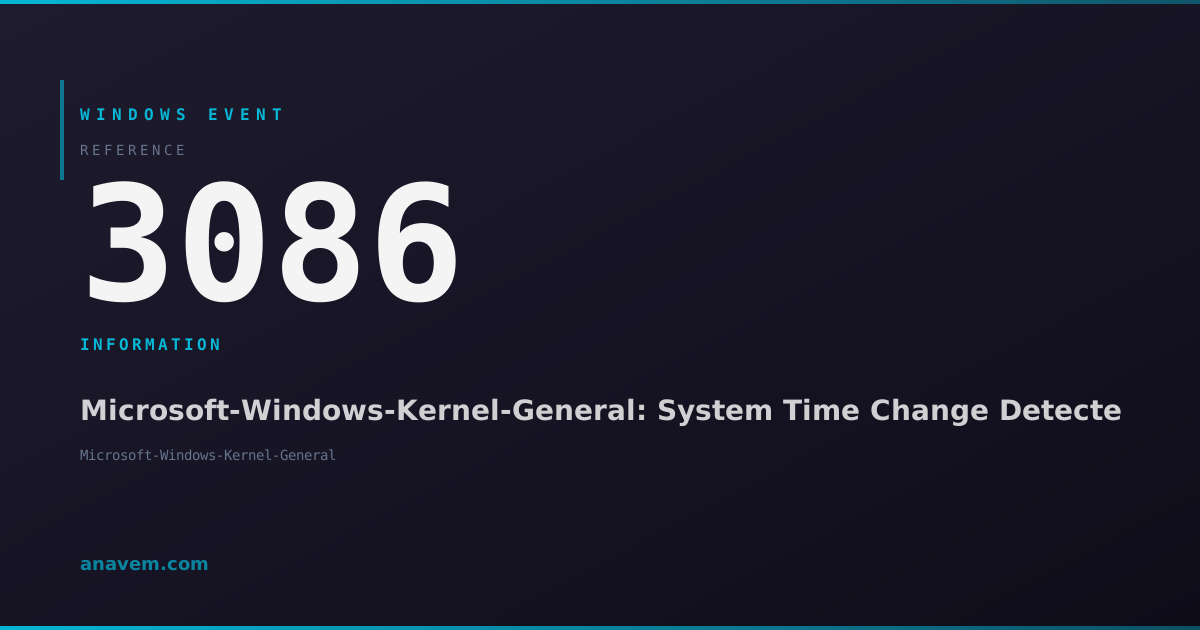
Event ID 3086InformationMicrosoft-Windows-Kernel-GeneralWindows

Windows Event ID 3086 – Microsoft-Windows-Kernel-General: System Time Change Detected

Event ID 3086 fires when Windows detects a significant system time change, either from manual adjustment, NTP synchronization, or hardware clock drift requiring investigation.

Emanuel DE ALMEIDAEmanuel DE ALMEIDA
18 March 20269 min read 0
Event ID 3086Microsoft-Windows-Kernel-General 5 methods 9 min
Event Reference

What This Event Means

Event ID 3086 is generated by the Windows kernel's time management subsystem whenever it detects a time change that exceeds the configured threshold. The event contains detailed information about the time change, including the previous time, new time, and the reason for the adjustment.

This event serves multiple purposes in Windows environments. From a security perspective, it helps administrators track unauthorized time changes that could be used to circumvent time-based security controls or audit logs. From an operational standpoint, it assists in diagnosing time synchronization issues that can cause authentication failures, certificate validation problems, and application malfunctions.

The event typically includes fields such as the old system time, new system time, and sometimes the source of the time change. In Windows Server 2025 and Windows 11 24H2, Microsoft enhanced the event to include additional context about whether the change was initiated by the Windows Time service, a user action, or an external time source.

Understanding this event is crucial for maintaining accurate system time across your infrastructure, especially in environments with strict compliance requirements or applications that depend on precise timestamps.

Applies to

Windows 10Windows 11Windows Server 2019/2022/2025
Analysis

Possible Causes

  • Windows Time service (W32Time) synchronizing with NTP servers or domain controllers
  • Manual time adjustment through Windows Settings or Control Panel
  • Hardware clock drift correction during system startup or resume from sleep
  • Third-party time synchronization software making system time adjustments
  • Virtual machine time synchronization with the hypervisor host
  • BIOS/UEFI firmware updating system time during boot process
  • Network time protocol corrections after network connectivity restoration
  • Daylight saving time automatic adjustments by the operating system
Resolution Methods

Troubleshooting Steps

01

Check Event Viewer for Time Change Details

Start by examining the specific details of Event ID 3086 to understand what triggered the time change.

  1. Open Event Viewer by pressing Win + R, typing eventvwr.msc, and pressing Enter
  2. Navigate to Windows LogsSystem
  3. Filter the log by clicking Filter Current Log in the Actions pane
  4. Enter 3086 in the Event IDs field and click OK
  5. Double-click on recent Event ID 3086 entries to view details
  6. Examine the General tab for old time, new time, and time difference
  7. Check the Details tab for additional XML data about the time source

Use PowerShell to query multiple time change events:

Get-WinEvent -FilterHashtable @{LogName='System'; Id=3086} -MaxEvents 20 | Select-Object TimeCreated, Id, LevelDisplayName, Message | Format-Table -Wrap
Pro tip: Look for patterns in time changes - frequent small adjustments might indicate NTP issues, while large jumps could suggest hardware problems.
02

Verify Windows Time Service Configuration

Check the Windows Time service configuration to ensure proper NTP synchronization settings.

  1. Open an elevated Command Prompt or PowerShell
  2. Check the current time service status:
w32tm /query /status
  1. Review the time source configuration:
w32tm /query /source
  1. Check time service configuration details:
w32tm /query /configuration
  1. For domain-joined computers, verify domain hierarchy:
w32tm /query /peers
  1. Test time synchronization manually:
w32tm /resync /rediscover
  1. Check the Windows Time service registry settings at:

HKLM\SYSTEM\CurrentControlSet\Services\W32Time\Parameters

Warning: Modifying time service settings incorrectly can cause authentication issues in domain environments.
03

Analyze Time Synchronization Logs

Enable detailed time service logging to identify the root cause of frequent time changes.

  1. Enable W32Time debug logging by running:
w32tm /debug /enable /file:C:\Windows\Temp\w32time.log /size:10000000 /entries:0-300
  1. Monitor the log file for time adjustment events:
Get-Content C:\Windows\Temp\w32time.log -Wait -Tail 20
  1. Check the System event log for related W32Time events:
Get-WinEvent -FilterHashtable @{LogName='System'; ProviderName='Microsoft-Windows-Time-Service'} -MaxEvents 50
  1. Review Application and Services Logs for detailed time service information:
  2. Navigate to Event ViewerApplications and Services LogsMicrosoftWindowsTime-Service
  3. Enable Operational and Debug logs if not already active
  4. Disable debug logging when finished:
w32tm /debug /disable
Pro tip: Time service debug logs can grow quickly - monitor disk space and disable logging after collecting sufficient data.
04

Investigate Hardware Clock and BIOS Settings

Check for hardware-related time issues that might cause frequent system time adjustments.

  1. Compare system time with hardware clock:
w32tm /stripchart /computer:time.windows.com /samples:5 /dataonly
  1. Check system uptime to correlate with time change events:
Get-CimInstance -ClassName Win32_OperatingSystem | Select-Object LastBootUpTime, LocalDateTime
  1. For virtual machines, verify time synchronization settings:
# VMware
Get-Service -Name VMTools
# Hyper-V
Get-VMIntegrationService -VMName $env:COMPUTERNAME -Name "Time Synchronization"
  1. Check BIOS/UEFI time settings during next reboot
  2. Verify that the hardware clock is set to UTC (recommended) or local time consistently
  3. For physical servers, consider CMOS battery replacement if time drift is excessive
  4. Review power management settings that might affect hardware clock:
powercfg /query SCHEME_CURRENT SUB_SLEEP
Warning: In virtual environments, disable VM time synchronization if using domain time hierarchy to avoid conflicts.
05

Configure Advanced Time Monitoring and Alerting

Set up comprehensive monitoring for time-related events to proactively identify and resolve issues.

  1. Create a PowerShell script to monitor and alert on excessive time changes:
# TimeChangeMonitor.ps1
$Events = Get-WinEvent -FilterHashtable @{LogName='System'; Id=3086; StartTime=(Get-Date).AddHours(-24)}
foreach ($Event in $Events) {
    $XML = [xml]$Event.ToXml()
    $OldTime = $XML.Event.EventData.Data[0].'#text'
    $NewTime = $XML.Event.EventData.Data[1].'#text'
    Write-Output "Time changed from $OldTime to $NewTime at $($Event.TimeCreated)"
}
  1. Set up a scheduled task to run the monitoring script:
$Action = New-ScheduledTaskAction -Execute 'PowerShell.exe' -Argument '-File C:\Scripts\TimeChangeMonitor.ps1'
$Trigger = New-ScheduledTaskTrigger -Daily -At 9AM
Register-ScheduledTask -TaskName "TimeChangeMonitor" -Action $Action -Trigger $Trigger
  1. Configure Windows Event Forwarding for centralized time event collection:
  2. On collector server, enable Windows Event Collector service:
wecutil qc
  1. Create custom event log views for time-related events:
  2. In Event Viewer, create a Custom View with XML filter:
<QueryList>
  <Query Id="0" Path="System">
    <Select Path="System">*[System[EventID=3086 or EventID=1]]</Select>
  </Query>
</QueryList>
Pro tip: Combine Event ID 3086 monitoring with Event ID 1 (system startup) to correlate time changes with system reboots.

Overview

Event ID 3086 from Microsoft-Windows-Kernel-General appears in the System log whenever Windows detects a significant change in system time. This event fires when the system clock is adjusted by more than a predefined threshold, typically one second or more. The event captures both the old and new time values, making it essential for security auditing and troubleshooting time-related issues.

This event commonly occurs during NTP synchronization, manual time adjustments through the Date & Time settings, or when hardware clock drift is corrected. In domain environments, you'll frequently see this event when workstations synchronize with domain controllers or when servers adjust their clocks based on external time sources.

The event is particularly important for forensic analysis, compliance auditing, and diagnosing authentication issues in Active Directory environments where time synchronization is critical. Kerberos authentication, for example, requires client and server clocks to be within five minutes of each other by default.

Frequently Asked Questions

What does Event ID 3086 mean and when should I be concerned?+
Event ID 3086 indicates that Windows detected a system time change exceeding the configured threshold, typically one second or more. You should be concerned if you see frequent occurrences (multiple times per hour), large time jumps (more than a few minutes), or time changes that correlate with authentication failures or application issues. Occasional events from NTP synchronization are normal, but patterns of frequent adjustments may indicate hardware clock problems, network issues, or misconfigured time services.
How can I determine what caused a specific Event ID 3086 time change?+
To identify the cause, examine the event details in Event Viewer for the old and new time values, then correlate the timestamp with other system activities. Check the Windows Time service logs using 'w32tm /query /status' and review related events in the System log around the same time. Look for user logon events, service starts/stops, or network connectivity changes. In virtual environments, check if VM time synchronization is enabled. The event's XML details may also contain information about the time source or adjustment reason.
Is Event ID 3086 related to security concerns or just informational?+
Event ID 3086 is primarily informational but has security implications. While normal time synchronization generates these events routinely, unauthorized time changes could indicate malicious activity attempting to circumvent time-based security controls, manipulate audit logs, or bypass certificate validity periods. Monitor for unusual patterns like manual time changes outside business hours, large backward time jumps, or time changes that don't correlate with legitimate NTP synchronization. In high-security environments, consider alerting on any manual time adjustments.
How do I stop getting too many Event ID 3086 entries in my logs?+
Excessive Event ID 3086 entries usually indicate underlying time synchronization issues rather than a logging problem. First, fix the root cause by checking your NTP configuration with 'w32tm /query /configuration' and ensuring stable network connectivity to time servers. In virtual environments, disable VM time sync if using domain time hierarchy. If the events are from legitimate but frequent small adjustments, you can't disable this specific event logging, but you can filter it out of custom views or monitoring tools. However, completely ignoring these events isn't recommended as they provide valuable troubleshooting information.
What's the difference between Event ID 3086 and other time-related Windows events?+
Event ID 3086 specifically tracks system time changes detected by the kernel, while other time events serve different purposes. Event ID 1 (system startup) may include time synchronization during boot. W32Time service events (like Event ID 47) focus on NTP synchronization activities and errors. Event ID 4616 in the Security log tracks time changes from a security audit perspective. Event ID 3086 is unique because it captures the actual before/after time values and fires for any significant time adjustment regardless of the source, making it the most comprehensive event for tracking all system time changes.
Documentation

References (2)

Emanuel DE ALMEIDA
Written by

Emanuel DE ALMEIDA

Senior IT Journalist & Cloud Architect

Microsoft MCSA-certified Cloud Architect | Fortinet-focused. I modernize cloud, hybrid & on-prem infrastructure for reliability, security, performance and cost control - sharing field-tested ops & troubleshooting.

Discussion

Share your thoughts and insights

You must be logged in to comment.

Loading comments...