ANAVEM
Languagefr
Windows Event Viewer showing system event logs with error events on a monitoring dashboard
Event ID 4108ErrorMicrosoft-Windows-EventlogWindows

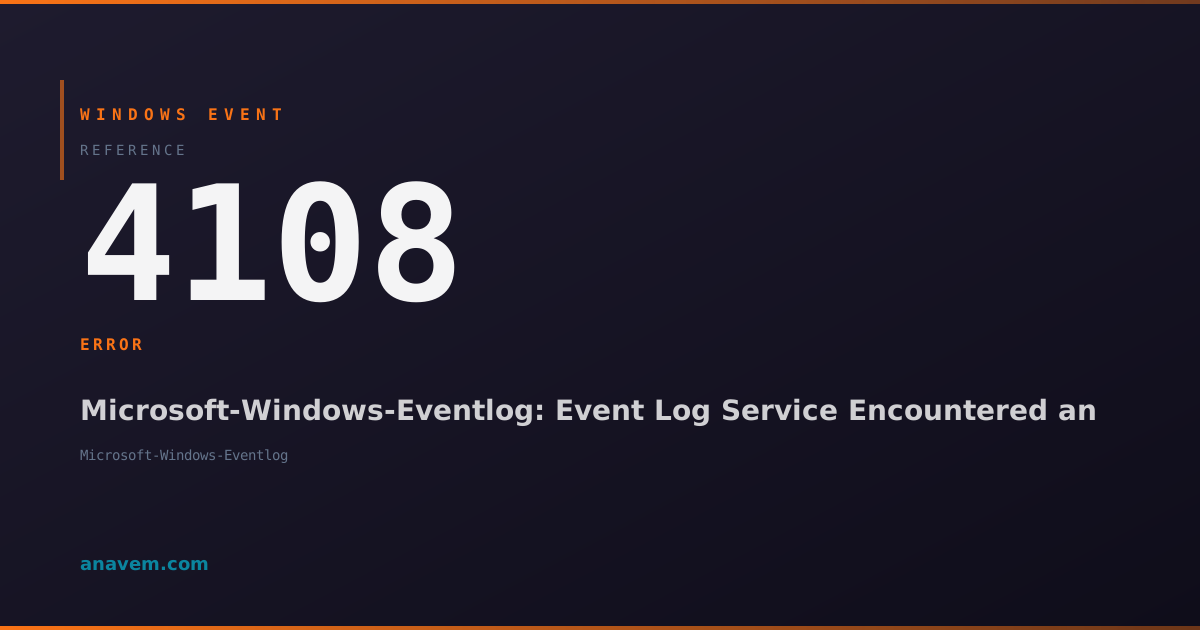
Windows Event ID 4108 – Microsoft-Windows-Eventlog: Event Log Service Encountered an Error

Event ID 4108 indicates the Windows Event Log service encountered an error while processing event logs, often related to log file corruption, disk space issues, or service configuration problems.

Emanuel DE ALMEIDAEmanuel DE ALMEIDA
18 March 20269 min read 0
Event ID 4108Microsoft-Windows-Eventlog 5 methods 9 min
Event Reference

What This Event Means

Event ID 4108 represents a critical error condition within the Windows Event Log service infrastructure. The EventLog service operates as a core Windows component responsible for managing the collection, storage, and retrieval of system events across all Windows logs including System, Application, Security, and custom application logs.

When this event occurs, it typically indicates that the Event Log service encountered an unexpected condition that prevented normal log processing. The error can manifest in several ways: failure to write events to log files, inability to read existing log entries, corruption in log file headers, or problems with log file rotation mechanisms. The event description usually contains specific error codes such as 0x80070070 (insufficient disk space) or 0xC0000188 (log file corrupt).

The timing of Event ID 4108 is crucial for diagnosis. If it occurs during system startup, it may indicate log file corruption from improper shutdown. If it appears during normal operations, it often points to disk space exhaustion or storage subsystem issues. The event can also trigger during scheduled log maintenance operations, suggesting problems with log archival or cleanup processes.

From a system administration perspective, Event ID 4108 requires immediate attention because it can lead to loss of audit trails, inability to troubleshoot other system issues, and potential compliance violations in regulated environments. The event often precedes more severe system instability if the underlying cause involves storage or file system corruption.

Applies to

Windows 10Windows 11Windows Server 2019/2022/2025
Analysis

Possible Causes

  • Insufficient disk space on the drive containing Windows event logs (typically C:\Windows\System32\winevt\Logs)
  • Corrupted event log files (.evtx files) due to improper system shutdown or storage issues
  • Event Log service configuration problems or registry corruption
  • Storage subsystem failures or disk errors affecting log file access
  • Antivirus software interfering with event log file operations
  • Log file size limits reached without proper rotation configured
  • File system permissions issues preventing log file access
  • Memory exhaustion preventing the Event Log service from processing events
  • Third-party applications holding exclusive locks on log files
Resolution Methods

Troubleshooting Steps

01

Check Disk Space and Event Log File Status

Start by verifying available disk space and examining event log file integrity:

  1. Open File Explorer and navigate to C:\Windows\System32\winevt\Logs
  2. Check available disk space on the C: drive. Event logs require at least 100MB free space for normal operations
  3. Run PowerShell as Administrator and execute:
    Get-WinEvent -ListLog * | Where-Object {$_.RecordCount -eq $null -or $_.LogFilePath -eq $null} | Select-Object LogName, LogFilePath, RecordCount
  4. Check for corrupted log files:
    Get-ChildItem "C:\Windows\System32\winevt\Logs\*.evtx" | ForEach-Object { try { Get-WinEvent -Path $_.FullName -MaxEvents 1 -ErrorAction Stop; Write-Host "$($_.Name): OK" -ForegroundColor Green } catch { Write-Host "$($_.Name): CORRUPTED" -ForegroundColor Red } }
  5. If disk space is low, clean up old log files or increase log size limits using Event Viewer
02

Restart Event Log Service and Clear Corrupted Logs

Restart the Event Log service and clear any corrupted log files:

  1. Open Services.msc as Administrator
  2. Locate Windows Event Log service and note any dependent services
  3. Stop the Event Log service:
    Stop-Service -Name "EventLog" -Force
  4. Wait 30 seconds, then restart the service:
    Start-Service -Name "EventLog"
  5. If corruption is detected, clear specific corrupted logs:
    wevtutil cl System
    wevtutil cl Application
  6. Verify service status:
    Get-Service -Name "EventLog" | Select-Object Name, Status, StartType
  7. Check if Event ID 4108 continues to appear in the System log
Warning: Clearing event logs will permanently delete historical log data. Ensure you have backups if audit trails are required.
03

Examine Event Log Registry Configuration

Investigate and repair Event Log service registry settings:

  1. Open Registry Editor (regedit.exe) as Administrator
  2. Navigate to HKLM\SYSTEM\CurrentControlSet\Services\EventLog
  3. Verify the following registry values exist and are correct:
    • ImagePath: %SystemRoot%\System32\svchost.exe -k LocalServiceNetworkRestricted -p
    • Start: 2 (Automatic)
  4. Check individual log configurations at HKLM\SYSTEM\CurrentControlSet\Services\EventLog\System
  5. Export current registry settings for backup:
    reg export "HKLM\SYSTEM\CurrentControlSet\Services\EventLog" "C:\Temp\EventLog_Registry_Backup.reg"
  6. If registry corruption is suspected, restore from a known good backup or reset to defaults
  7. Restart the system to apply registry changes
04

Perform System File Check and Event Log Repair

Use built-in Windows tools to repair system files and event log infrastructure:

  1. Run System File Checker to repair corrupted system files:
    sfc /scannow
  2. Check the SFC log for event log related repairs:
    findstr /c:"[SR]" %windir%\Logs\CBS\CBS.log | findstr /i "event"
  3. Run DISM to repair Windows image:
    DISM /Online /Cleanup-Image /RestoreHealth
  4. Rebuild event log configuration using PowerShell:
    Get-WinEvent -ListLog * | ForEach-Object { if($_.IsEnabled) { wevtutil set-log $_.LogName /enabled:false; wevtutil set-log $_.LogName /enabled:true } }
  5. Check Windows Event Log service dependencies:
    sc qc EventLog
  6. Verify all dependent services are running properly
05

Advanced Troubleshooting with Process Monitor and Event Tracing

Use advanced diagnostic tools to identify the root cause of Event Log service errors:

  1. Download and run Process Monitor from Microsoft Sysinternals
  2. Set filters to monitor EventLog service activity:
    • Process Name: svchost.exe
    • Path contains: winevt
  3. Enable Event Log service tracing:
    wevtutil set-log Microsoft-Windows-Eventlog/Debug /enabled:true
  4. Monitor real-time event log operations:
    Get-WinEvent -FilterHashtable @{LogName='Microsoft-Windows-Eventlog/Debug'} -MaxEvents 50 | Format-Table TimeCreated, Id, LevelDisplayName, Message -Wrap
  5. Check for file system errors on the system drive:
    chkdsk C: /f /r
  6. Analyze Process Monitor logs for file access failures, permission issues, or disk errors
  7. Review Windows Reliability Monitor for correlating system events
  8. Disable Event Log debug tracing after troubleshooting:
    wevtutil set-log Microsoft-Windows-Eventlog/Debug /enabled:false
Pro tip: Schedule regular event log maintenance using Task Scheduler to prevent log file corruption and space issues.

Overview

Event ID 4108 fires when the Windows Event Log service (EventLog) encounters an error during log processing operations. This critical system event typically appears in the System log and indicates problems with event log management, including log file corruption, insufficient disk space, or service configuration issues.

The Event Log service is fundamental to Windows operations, responsible for collecting, storing, and managing all system and application events. When this service encounters errors, it can impact system monitoring, troubleshooting capabilities, and compliance requirements. The event often includes specific error codes and descriptions that help identify the root cause.

This event commonly occurs during log rotation, when logs reach maximum size limits, or when the service attempts to write to corrupted log files. System administrators should investigate this event immediately as it can indicate underlying storage issues or service misconfigurations that may affect system stability and audit trail integrity.

Frequently Asked Questions

What does Event ID 4108 mean and how serious is it?+
Event ID 4108 indicates the Windows Event Log service encountered an error during log processing operations. This is a serious error that can impact system monitoring, troubleshooting capabilities, and audit trail integrity. The event typically appears when there are disk space issues, log file corruption, or service configuration problems. Immediate investigation is required as it can lead to loss of critical system event data and may indicate underlying storage or system issues that could affect overall system stability.
Can Event ID 4108 cause system crashes or performance issues?+
While Event ID 4108 itself doesn't directly cause system crashes, the underlying issues that trigger it can lead to system instability. If the error is caused by disk space exhaustion, it can prevent other system operations from completing successfully. Corrupted event logs can consume excessive CPU and memory resources as the service attempts to process damaged files. Additionally, if the Event Log service fails completely, it may impact other services that depend on event logging functionality, potentially leading to cascading failures.
How do I prevent Event ID 4108 from occurring in the future?+
Prevent Event ID 4108 by implementing proactive event log management: Configure appropriate log size limits and retention policies in Event Viewer to prevent logs from growing too large. Set up disk space monitoring alerts for the system drive, particularly the C:\Windows\System32\winevt\Logs directory. Schedule regular log archival and cleanup using Task Scheduler or PowerShell scripts. Ensure proper system shutdown procedures to prevent log file corruption. Configure antivirus exclusions for event log files and directories. Regularly monitor system health using Performance Monitor and Windows Reliability Monitor to identify potential storage or service issues before they impact event logging.
What information should I collect when Event ID 4108 occurs?+
When Event ID 4108 occurs, collect the following diagnostic information: The complete event details including error codes and descriptions from Event Viewer. Current disk space status on all drives, especially the system drive. List of all event logs and their current status using Get-WinEvent -ListLog. Event Log service status and configuration using Services.msc and sc query commands. Recent system changes including software installations, updates, or configuration modifications. Process Monitor logs showing file system activity for the EventLog service. System file integrity status using sfc /scannow results. Any correlating events in System, Application, and Security logs that occurred around the same time.
Is it safe to clear event logs to resolve Event ID 4108?+
Clearing event logs can resolve Event ID 4108 caused by corruption, but it should be done carefully. Before clearing logs, export important events for backup using wevtutil export-log or Event Viewer's Save All Events feature. Consider regulatory and compliance requirements that may mandate log retention. Clear only the specific corrupted logs identified through testing rather than all logs. After clearing, monitor the system to ensure the error doesn't recur, which would indicate a deeper underlying issue. In production environments, coordinate log clearing with security and compliance teams. Alternative approaches like increasing log size limits or fixing underlying disk/storage issues are often preferable to clearing logs.
Documentation

References (2)

Emanuel DE ALMEIDA
Written by

Emanuel DE ALMEIDA

Senior IT Journalist & Cloud Architect

Microsoft MCSA-certified Cloud Architect | Fortinet-focused. I modernize cloud, hybrid & on-prem infrastructure for reliability, security, performance and cost control - sharing field-tested ops & troubleshooting.

Discussion

Share your thoughts and insights

You must be logged in to comment.

Loading comments...