ANAVEM
Languagefr
Windows Event Viewer displaying system time change events on a professional monitoring dashboard
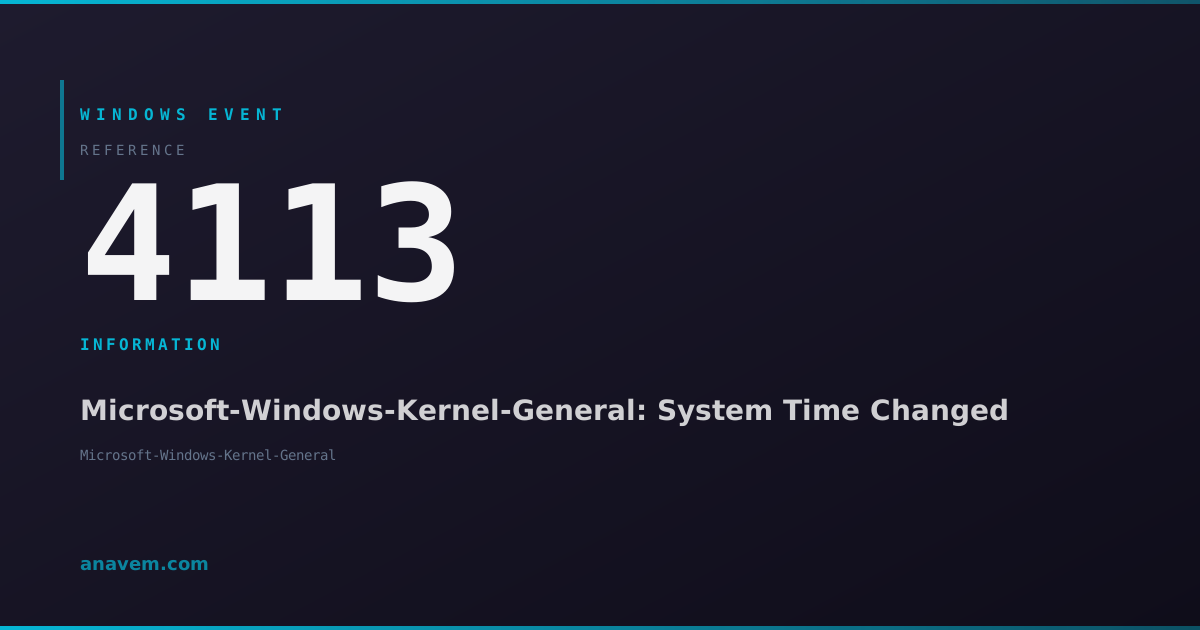
Event ID 4113InformationMicrosoft-Windows-Kernel-GeneralWindows

Windows Event ID 4113 – Microsoft-Windows-Kernel-General: System Time Changed

Event ID 4113 fires when the Windows system time is changed, either manually by a user or automatically by time synchronization services. Critical for security auditing and compliance tracking.

Emanuel DE ALMEIDAEmanuel DE ALMEIDA
18 March 20269 min read 0
Event ID 4113Microsoft-Windows-Kernel-General 5 methods 9 min
Event Reference

What This Event Means

Windows Event ID 4113 is generated by the kernel-level time management subsystem whenever the system clock is adjusted. The event captures comprehensive details including the old timestamp, new timestamp, and the process ID responsible for initiating the change. This granular logging ensures complete visibility into all time modifications on the system.

The event typically occurs during normal operations when the Windows Time service synchronizes with configured NTP servers, but it also triggers when users manually adjust the clock through Control Panel or Settings app. In domain environments, time synchronization is critical for Kerberos ticket validation, which requires all systems to maintain time within a 5-minute tolerance window by default.

Security teams rely on Event ID 4113 to detect potential tampering with system clocks, which could be used to evade log correlation or extend the validity of stolen authentication tokens. The event also helps identify systems with failing CMOS batteries or misconfigured time sources that could impact domain authentication and certificate validation.

Modern Windows systems in 2026 include enhanced time synchronization features with improved accuracy and security, making this event even more valuable for monitoring time-related security controls and compliance requirements in regulated industries.

Applies to

Windows 10Windows 11Windows Server 2019/2022/2025
Analysis

Possible Causes

  • Manual time adjustment through Windows Settings or Control Panel
  • Automatic time synchronization via Windows Time service (W32Time)
  • NTP client synchronization with external time servers
  • Domain controller time synchronization in Active Directory environments
  • Hardware clock drift correction by the operating system
  • Time zone changes that affect the displayed local time
  • Daylight saving time transitions (spring forward/fall back)
  • Third-party time synchronization software making system calls
  • Virtual machine time synchronization with hypervisor host
  • BIOS/UEFI firmware updating the hardware clock during boot
Resolution Methods

Troubleshooting Steps

01

Review Event Details in Event Viewer

Start by examining the specific details of Event ID 4113 to understand what triggered the time change.

  1. Open Event Viewer by pressing Win + R, typing eventvwr.msc, and pressing Enter
  2. Navigate to Windows LogsSystem
  3. Filter the log by clicking Filter Current Log in the Actions pane
  4. Enter 4113 in the Event IDs field and click OK
  5. Double-click on recent Event ID 4113 entries to view detailed information
  6. Note the Old Time and New Time values in the event description
  7. Check the Process ID to identify which process initiated the change

Use PowerShell to query multiple events efficiently:

Get-WinEvent -FilterHashtable @{LogName='System'; Id=4113} -MaxEvents 20 | Format-Table TimeCreated, Id, LevelDisplayName, Message -Wrap
Pro tip: The event message includes both UTC and local time values, helping you distinguish between time zone changes and actual clock adjustments.
02

Identify the Process Responsible for Time Changes

Determine which process or service initiated the time change to understand if it was legitimate or potentially malicious.

  1. From the Event ID 4113 details, note the Process ID (PID) mentioned in the event
  2. Cross-reference this with other system events around the same time
  3. Use PowerShell to correlate the process information:
# Get recent time change events with process details
Get-WinEvent -FilterHashtable @{LogName='System'; Id=4113} -MaxEvents 10 | ForEach-Object {
    $timeChanged = $_.TimeCreated
    $message = $_.Message
    Write-Output "Time: $timeChanged"
    Write-Output "Details: $message"
    Write-Output "---"
}
  1. Check if the change was made by svchost.exe (Windows Time service) or explorer.exe (user action)
  2. Review Security log for Event ID 4616 (System time was changed) for additional context
  3. Verify the user account associated with manual time changes
Warning: Unexpected time changes by unknown processes could indicate malware attempting to evade detection or manipulate audit logs.
03

Analyze Windows Time Service Configuration

Examine the Windows Time service configuration to ensure proper time synchronization and identify potential issues.

  1. Check the current time service configuration:
# Display current W32Time configuration
w32tm /query /configuration

# Show time service status
w32tm /query /status

# Display configured time sources
w32tm /query /peers
  1. Review time service registry settings at HKLM\SYSTEM\CurrentControlSet\Services\W32Time
  2. Check the Event Viewer for W32Time service events:
# Query W32Time service events
Get-WinEvent -FilterHashtable @{LogName='System'; ProviderName='Microsoft-Windows-Time-Service'} -MaxEvents 50
  1. Verify NTP server connectivity and response times:
# Test time server connectivity
w32tm /stripchart /computer:time.windows.com /samples:5

# Force immediate time synchronization
w32tm /resync /force
  1. For domain-joined computers, ensure proper time hierarchy with domain controllers
Pro tip: In 2026, Windows includes enhanced time synchronization with leap second support and improved accuracy for precision timing requirements.
04

Monitor Time Changes with PowerShell Automation

Set up automated monitoring to track and alert on unexpected time changes for security and compliance purposes.

  1. Create a PowerShell script to monitor Event ID 4113 in real-time:
# Monitor time change events
$action = {
    $event = $Event.SourceEventArgs.NewEvent
    $timeChanged = $event.TimeCreated
    $message = $event.Message
    
    # Log to custom file
    "$timeChanged - Time Change Detected: $message" | Out-File -Append C:\Logs\TimeChanges.log
    
    # Send alert if change is significant (more than 1 minute)
    if ($message -match "Old Time: (.+?) New Time: (.+?)") {
        $oldTime = [DateTime]::Parse($matches[1])
        $newTime = [DateTime]::Parse($matches[2])
        $diff = [Math]::Abs(($newTime - $oldTime).TotalMinutes)
        
        if ($diff -gt 1) {
            Write-EventLog -LogName Application -Source "TimeMonitor" -EventId 1001 -Message "Significant time change detected: $diff minutes"
        }
    }
}

# Register event watcher
Register-WmiEvent -Query "SELECT * FROM Win32_NTLogEvent WHERE LogFile='System' AND EventCode=4113" -Action $action
  1. Create a scheduled task to run the monitoring script at startup
  2. Set up Windows Event Forwarding to centralize time change events from multiple systems
  3. Configure SIEM integration to correlate time changes with other security events
Pro tip: Use Windows Event Collector (WEC) to aggregate Event ID 4113 from all domain systems for centralized time change monitoring.
05

Implement Group Policy Controls for Time Management

Use Group Policy to enforce time synchronization policies and restrict unauthorized time changes in enterprise environments.

  1. Open Group Policy Management Console and edit the appropriate GPO
  2. Navigate to Computer ConfigurationAdministrative TemplatesSystemWindows Time Service
  3. Configure the following policies:
    • Global Configuration Settings - Set authoritative time sources
    • Time Providers - Configure NTP client settings
    • Configure Windows NTP Client - Specify time servers and update intervals
  4. Restrict user ability to change system time:
# Check current time change privileges
secedit /export /cfg C:\temp\security.inf
Select-String "SeSystemtimePrivilege" C:\temp\security.inf
  1. Navigate to Computer ConfigurationWindows SettingsSecurity SettingsLocal PoliciesUser Rights Assignment
  2. Modify Change the system time policy to restrict access to authorized accounts only
  3. Enable audit policy for time changes:
# Enable time change auditing via command line
auditpol /set /subcategory:"Security System Extension" /success:enable /failure:enable
  1. Deploy the GPO and verify settings with gpresult /r on target systems
Warning: Overly restrictive time policies can break domain authentication. Test thoroughly in a lab environment before production deployment.

Overview

Event ID 4113 from the Microsoft-Windows-Kernel-General source fires whenever the Windows system time is modified. This event captures both manual time changes performed by users through the Date & Time settings and automatic adjustments made by the Windows Time service (W32Time) during NTP synchronization.

The event records the previous time, new time, and the process responsible for the change. This makes it invaluable for security auditing, compliance monitoring, and troubleshooting time-related issues in domain environments. The event appears in the System log and includes detailed information about the time change source.

In enterprise environments, unexpected time changes can indicate security breaches, misconfigured time services, or hardware clock drift. The event helps administrators track when and why system time modifications occur, which is crucial for maintaining accurate audit trails and ensuring proper Kerberos authentication in Active Directory domains.

Frequently Asked Questions

What does Windows Event ID 4113 mean and when does it occur?+
Event ID 4113 indicates that the Windows system time has been changed. It occurs whenever the system clock is modified, either manually by a user through the Date & Time settings, automatically by the Windows Time service during NTP synchronization, or by third-party applications. The event records both the old and new time values, along with the process responsible for the change, making it essential for security auditing and compliance monitoring.
How can I distinguish between legitimate and suspicious time changes in Event ID 4113?+
Legitimate time changes typically show small adjustments (seconds or minutes) made by svchost.exe representing the Windows Time service, or occur during scheduled maintenance windows. Suspicious changes include large time jumps (hours or days), changes made by unknown processes, modifications outside business hours, or frequent manual adjustments. Check the Process ID in the event details and correlate with user logon events to determine if the change was authorized.
Why is Event ID 4113 important for Active Directory domain security?+
In Active Directory environments, accurate time synchronization is critical for Kerberos authentication, which requires all systems to maintain time within a 5-minute tolerance window. Event ID 4113 helps administrators monitor time changes that could impact domain authentication, certificate validation, and audit log integrity. Attackers sometimes manipulate system time to extend stolen Kerberos tickets or evade time-based security controls, making this event crucial for detecting potential security breaches.
How do I configure automated monitoring and alerting for Event ID 4113?+
Set up automated monitoring using PowerShell scripts with Register-WmiEvent or Windows Event Forwarding to centralize events. Create custom event log entries for significant time changes and integrate with SIEM solutions for correlation analysis. Use scheduled tasks to run monitoring scripts and configure email alerts for unusual time modifications. In enterprise environments, deploy Group Policy to audit time changes and use Windows Event Collector to aggregate events from multiple systems.
What should I do if I see frequent unexpected Event ID 4113 occurrences?+
First, identify the source by examining the Process ID and correlating with other system events. Check if the Windows Time service is misconfigured or experiencing connectivity issues with NTP servers. Verify hardware clock stability, especially in virtual machines where time drift is common. Review user accounts with time change privileges and investigate any unauthorized access. Consider implementing stricter Group Policy controls to limit time change permissions and enable comprehensive auditing to track all time-related modifications.
Documentation

References (2)

Emanuel DE ALMEIDA
Written by

Emanuel DE ALMEIDA

Senior IT Journalist & Cloud Architect

Microsoft MCSA-certified Cloud Architect | Fortinet-focused. I modernize cloud, hybrid & on-prem infrastructure for reliability, security, performance and cost control - sharing field-tested ops & troubleshooting.

Discussion

Share your thoughts and insights

You must be logged in to comment.

Loading comments...