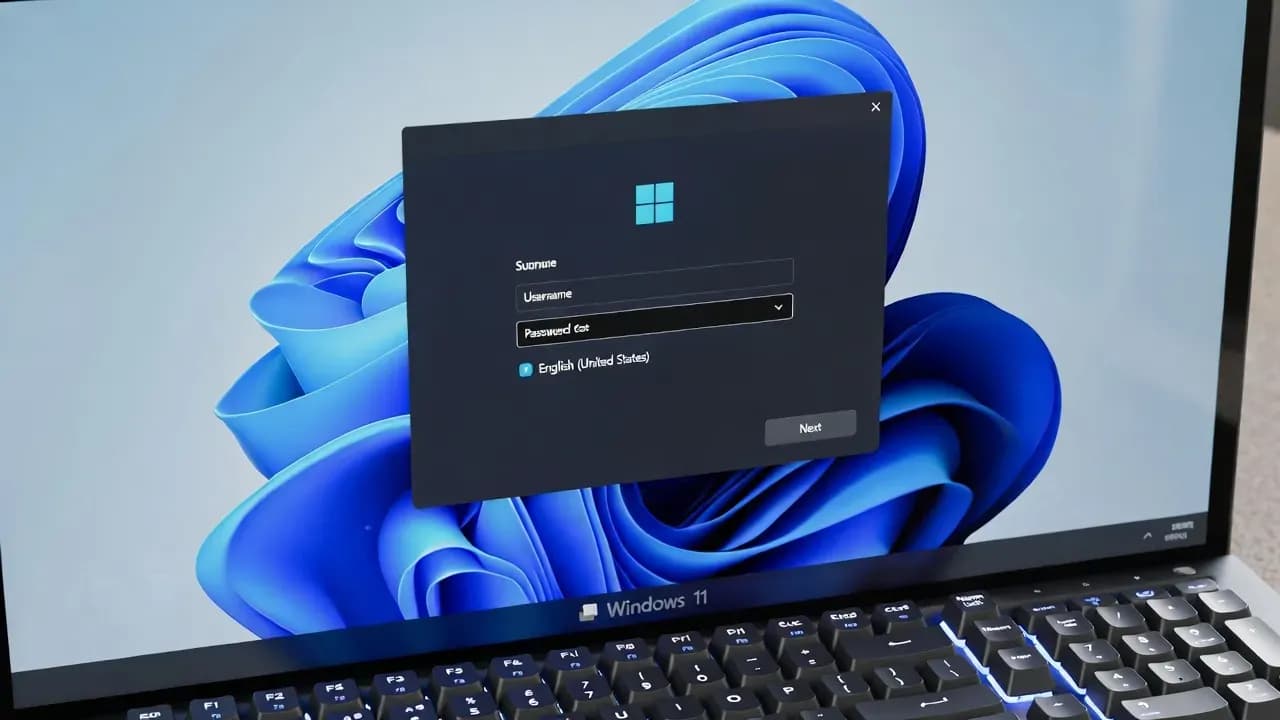
How to Enable the Numeric Keypad Automatically on Windows 11 Startup
Learn how to configure Windows 11 to automatically activate the numeric keypad on startup - improving accessibility, login efficiency, and workstation ergonomics for daily tasks and professional setups.
The Problem
For many users — especially those in accounting, data entry, programming, or administrative roles — the numeric keypad on a keyboard is more than a convenience: it is a productivity essential.
By default, Windows 11 does not automatically enable the numeric keypad on startup, requiring users to toggle it manually at each login.
This guide explains why enabling the numeric keypad automatically matters, and provides clear step-by-step instructions to configure it using both Windows Settings and Registry Editor methods. You’ll also learn how to validate the change and avoid common pitfalls.
Step-by-Step Guide
Verify the Numeric Keypad Status on Your Windows 11 System
Understand whether the numeric keypad is currently enabled or disabled on startup.
- On your Windows 11 PC, press Num Lock once.
- Observe the light indicator on the keyboard (if available).
- Restart your computer.
- Check whether the numeric keypad remains active after login.
If it turns off after restart, continue with the steps below to enable it permanently.
Use Windows Settings to Enable Numeric Keypad Automatically
Activate the built-in setting that preserves the Num Lock state between restarts.
- Press Windows + I to open Settings.
- Go to Accessibility → Keyboard.
- Find the Use numeric keypad option.
- Toggle it On.
Restart your machine to confirm.
Configure Automatic Num Lock Using the Registry
Enforce the numeric keypad state at startup using a registry tweak.
- Press Windows + R and type regedit, then press Enter.
- Navigate to:
HKEY_USERS\.DEFAULT\Control Panel\Keyboard
- Find the InitialKeyboardIndicators value.
- Double-click it and set the Value data to:
2
- Close the Registry Editor and restart your PC.
Confirm Num Lock Behavior Post-Restart
Ensure the configuration persists after reboot.
- Restart the computer.
- At the login screen, check that the numeric keypad is active.
- Log in and test in applications like Excel or Notepad.
How It Works
To verify successful configuration:
- Use Event Viewer if driver or device issues prevent Num Lock persistence.
- In corporate environments, check Group Policy Objects for settings that may override user states.
- On laptops, confirm firmware/BIOS settings do not override keypad behavior.
Frequently Asked Questions
Windows prioritizes default keyboard states for compatibility; it does not remember the last Num Lock state unless explicitly configured.
No - when Num Lock is enabled automatically, it simply determines the default state of the keypad for numeric input.
Yes. Reverse the registry value to “0” or disable the accessibility setting.




Comments
Want to join the discussion?
Create an account to unlock exclusive member content, save your favorite articles, and join our community of IT professionals.
New here? Create a free account to get started.