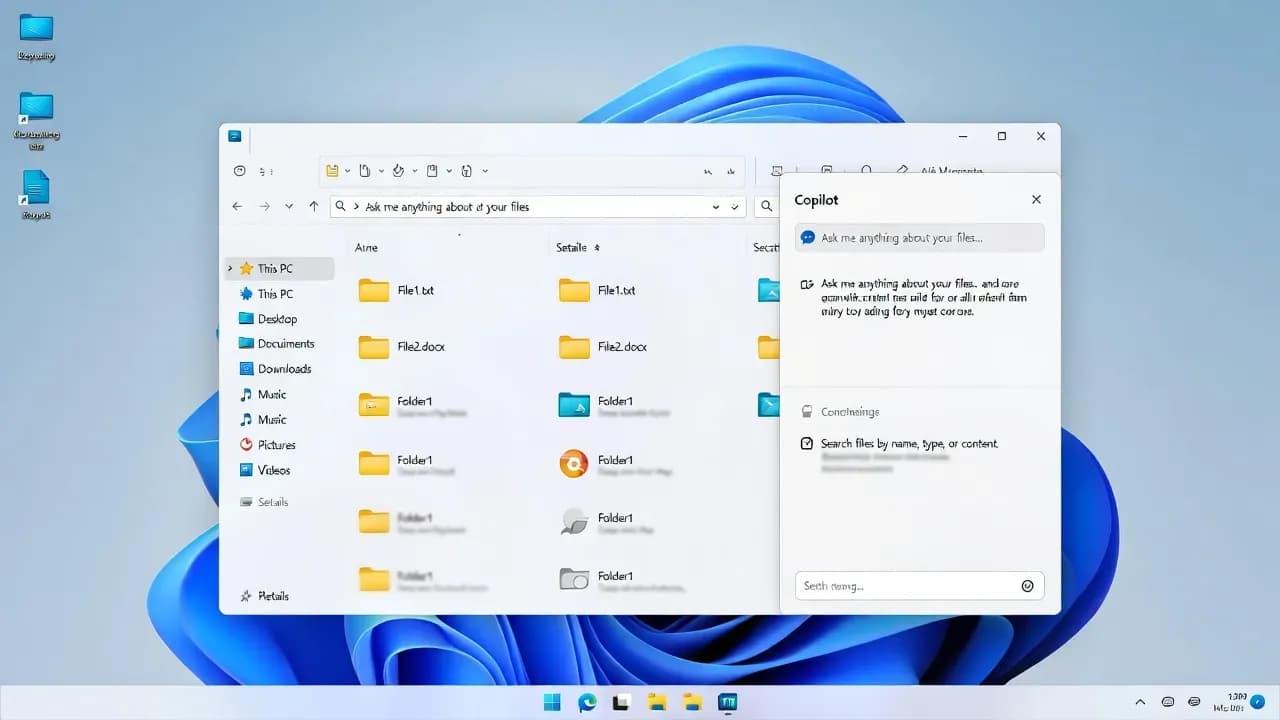
Windows 11 File Explorer "White Flash" in Dark Mode: Fix the Flashbang Bug and Reduce OLED Eye Strain (2026)
If File Explorer briefly flashes bright white in Windows 11 dark mode, you're likely hitting a known regression introduced by the KB5070311 preview update. Microsoft fixed it in KB5072033 (Dec 9, 2025) and also addressed it in recent Insider builds. This guide shows how to confirm you're affected, apply the proper fix, and use safe mitigations to reduce "OLED flashbang" discomfort until your fleet is updated.
The Problem
The "white flash" File Explorer bug is one of those issues that looks minor in a screenshot but feels aggressive in real use, especially on large OLED displays. You open File Explorer or navigate between pages, and the window briefly turns into a bright white panel before the dark UI returns. Users describe it as a "flashbang" because it defeats the entire point of dark mode: reducing glare and eye strain.
Microsoft acknowledged this behavior as a known issue tied to an update, noting that File Explorer can briefly display a blank white screen before loading files and folders when dark mode is enabled. The impact is real in enterprise settings: it affects every navigation action, increases fatigue for users who live in Explorer, and becomes a reliability issue when users start changing themes or rolling back patches without a controlled process.
Step-by-Step Guide
Confirm you're seeing the known "white flash" symptom
Ensure this is the File Explorer dark mode flash regression, not a display/HDR issue.
Reproduce the issue deliberately:
Enable Dark mode (Settings → Personalization → Colors → Choose your mode = Dark).
Open File Explorer and navigate between Home, Gallery, and folders.
Watch for a brief blank white screen during navigation.
Microsoft described the symptom as File Explorer briefly displaying a blank white screen before loading content after certain updates.
Check whether the triggering preview update was installed
Link the regression to the known update path before changing anything.
Open Settings → Windows Update → Update history and look for the December 2025 preview update line (commonly associated with KB5070311) that introduced the known issue. Multiple outlets reported Microsoft confirmed the regression after that preview update.
Get-HotFix | Where-Object { $_.HotFixID -in "KB5070311","KB5072033" } |
Sort-Object InstalledOn -DescendingInstall the official fix KB5072033 (recommended)
Apply Microsoft's documented remediation for the white flash issue.
Microsoft states that KB5072033 fixes the File Explorer issue where it briefly flashes white when navigating between pages after KB5070311. In managed environments, deploy KB5072033 through your normal servicing method (WUfB rings, WSUS, ConfigMgr/Intune). On standalone devices, run Windows Update and install all available cumulative updates until KB5072033 (or a later cumulative that includes the fix) is present.
Reboot once after installation, then retest File Explorer navigation.
If you're on Insider builds, update to a build that includes the fix
Resolve the issue on Canary/Insider channels where the regression appeared "after the previous flight."
Microsoft lists a specific fix in Windows 11 Insider Preview Build 28020.1371 (Canary Channel) for File Explorer's white flash when navigating between pages. Go to Settings → Windows Update and install the latest Insider flight available for your channel, then reboot and validate.
Temporary mitigation: switch to Light mode (short-term)
Stop the "flashbang" effect immediately if you can't patch today.
If patching is blocked (change freeze, travel device, controlled ring not yet reached), switching to Light mode prevents the dark-to-white flash contrast that makes this bug so uncomfortable. It does not fix the underlying issue, but it reduces perceived glare.
This is a usability mitigation only; the actual fix is the cumulative update.
Temporary mitigation: use High Contrast themes to reduce glare spikes
Reduce eye strain on OLED while waiting for the KB rollout.
High Contrast themes can reduce the sensation of sudden white flashes by changing the overall contrast profile of UI surfaces. This won't remove the flash event, but it can make it less aggressive for sensitive users and OLED workflows.
Enable it via Settings → Accessibility → Contrast themes, then retest Explorer navigation.
Restart Explorer to rule out a stuck shell session
Ensure you're not diagnosing a one-off Explorer session glitch.
Restarting Explorer does not "fix" the regression, but it helps confirm you're seeing the real KB-related behavior and not a transient shell state issue. Restart Explorer from Task Manager, reopen File Explorer, and reproduce the navigation actions again.
If the flash persists consistently, proceed with update-based remediation (KB5072033).
If you cannot patch, consider uninstalling the preview update (break-glass)
Restore usability when the issue is severe and patching forward is not immediately possible.
Some coverage noted Microsoft acknowledged the preview update regression and advised affected users to roll back the problematic update if needed. If you're in a situation where eye strain risk is high (OLED, full-screen Explorer workflows) and you cannot deploy KB5072033 quickly, uninstalling the preview update can be used as a short-term break-glass action.
In enterprise environments, this should be controlled, documented, and followed by a plan to reapply security servicing once the fixed cumulative update is available.
Validate the fix (don't rely on "feels better")
Confirm the bug is truly gone after the KB/build change.
After installing KB5072033 (or updating Insider builds), validate with a repeatable checklist:
Navigate Home ↔ Gallery ↔ a folder tree repeatedly
Open new tabs in File Explorer
Toggle the Details pane
Perform a quick copy operation and open "more details" if present
BleepingComputer and other reporting described the bug as triggered by common Explorer actions; validation should mirror those workflows.
Confirm build/KB evidence for your incident notes
Capture proof of remediation for change records and future rollouts.
Record:
OS version/build
Presence of KB5072033 (or later cumulative)
Whether the device previously had KB5070311 installed
This makes future ring rollout decisions easier and prevents repeated "theme tweak" troubleshooting for an update regression.
Get-ComputerInfo | Select-Object WindowsProductName, WindowsVersion, OsBuildNumber
Get-HotFix | Where-Object { $_.HotFixID -in "KB5070311","KB5072033" } |
Sort-Object InstalledOn -DescendingReduce OLED discomfort while rollout completes
Protect users who are sensitive to sudden brightness changes.
If your update rings mean some users will wait days, reduce discomfort for OLED users:
Lower brightness temporarily (especially in HDR)
Use Night light or warmer color temperature during long Explorer sessions
Avoid full-screen Explorer if the flash remains frequent
These measures do not fix the bug, but they reduce the intensity and fatigue risk until the KB reaches the device.
Prevent recurrence with patch governance (rings + preview discipline)
Avoid repeating the same regression fleet-wide next time.
This issue was heavily associated with a preview/optional update path, then fixed in the next cumulative update. To reduce repeat incidents:
Keep preview updates limited to pilot rings
Document UX-impact regressions (especially display/contrast issues) as high priority
Fast-track deployment of the fixed cumulative once validated
How It Works
This bug was widely associated with the KB5070311 optional/preview update and related December 2025 preview servicing, which introduced dark-mode consistency improvements in File Explorer dialogs but also triggered the bright white flash regression.
Microsoft then shipped a fix in the December 9, 2025 cumulative update KB5072033, explicitly stating: File Explorer (known issue) Fixed — it addresses an issue where File Explorer briefly flashes white when navigating between pages, which could occur after installing KB5070311.
For Insiders, Microsoft also called out a specific fix in Windows 11 Insider Preview Build 28020.1371 (Canary Channel): it fixed an issue causing File Explorer to show a white flash when navigating between pages for some Insiders.
The practical takeaway: this is not something you "tune" away with random toggles. The durable fix is installing the right cumulative update (or the right Insider build). Everything else is a temporary mitigation.


Comments
Want to join the discussion?
Create an account to unlock exclusive member content, save your favorite articles, and join our community of IT professionals.
New here? Create a free account to get started.