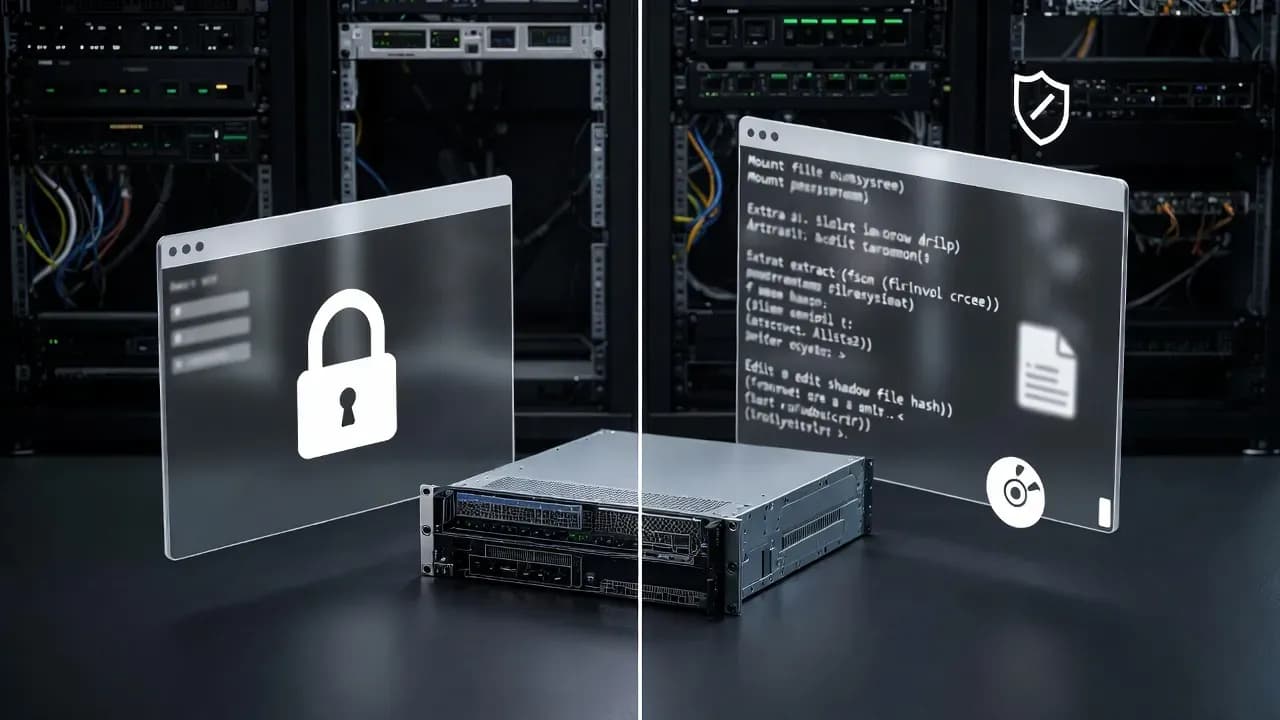
How to Reset ESXi Root Password Using Linux Live CD
Step-by-step guide to reset a forgotten VMware ESXi root password using a Linux Live CD. Works on ESXi 6.x, 7.x, and 8.x.
The Problem
How It Works
What Is an ESXi Root Password Reset?
Losing access to the VMware ESXi management console is a nightmare for any system administrator. Whether due to a forgotten password, inheriting infrastructure without documentation, or following a security incident, being unable to log into the root account can paralyze your entire virtual infrastructure. This guide presents a universal, proven method to reset the root password on ESXi 7.x, which also works on earlier versions of the VMware hypervisor.
Why Losing Root Access to ESXi Is Critical
VMware ESXi is one of the most widely deployed bare-metal hypervisors in datacenters and enterprise environments. The root account is the only native administrator access to the hypervisor, meaning its loss completely blocks host management: you cannot create or modify virtual machines, adjust network configuration, or perform maintenance operations.
This situation occurs more frequently than one might think. Typical scenarios include taking over infrastructure without proper knowledge transfer, poorly documented password rotation policies expiring, or system compromise requiring a complete access reset.
Prerequisites for This Procedure
Before starting, ensure you have the following:
Physical or remote access to the server via IP-KVM (iDRAC, iLO, IPMI) is essential. You will also need an ISO image of a Linux Live CD. This tutorial uses Finnix, a lightweight Debian-based distribution specialized in diagnostics and system recovery, but Ubuntu Live or any other Linux Live CD will work as well.
Note: This procedure requires rebooting the ESXi server, which means temporarily shutting down all hosted virtual machines. Plan this intervention during a maintenance window.
Step 1: Boot from the Live CD
Configure your server to boot from the Live CD ISO image. Via IP-KVM, mount the virtual ISO image then restart the server by modifying the boot order in BIOS/UEFI.
Once Finnix has booted, you will access a root command prompt. If you are working remotely via IP-KVM and latency makes usage uncomfortable, enable the SSH server for a more comfortable connection:
# Set a temporary password for the live system
passwd

# Start the SSH service
service ssh start
Then connect from your workstation using your preferred SSH client:
ssh root@SERVER_IP_ADDRESS
Step 2: Identify the ESXi System Disk
The partition containing ESXi authentication data is exactly 250 MB. Start by listing available disks:
lsblk
The output displays all storage devices. Look for a disk containing multiple partitions, including one of 250 MB. In a typical environment with NVMe drives, it will look like:
nvme0n1       259:1    0  476.9G  0 disk
├─nvme0n1p1   259:3    0      4M  0 part
├─nvme0n1p2   259:4    0      4G  0 part
├─nvme0n1p5   259:6    0    250M  0 part   ← Target partition
├─nvme0n1p6   259:7    0    250M  0 part
└─nvme0n1p9   259:10   0    2.5G  0 part
To confirm, examine the partition table with fdisk:
fdisk -l /dev/nvme0n1
Identify the 250 MB partition that typically starts at sector 8224. On servers with SATA or SAS drives, the path will be /dev/sda or similar.
Step 3: Mount the Partition and Extract Files
Create the necessary working directories:
mkdir /mnt/vmware
mkdir /tmp/vmware
Mount the identified partition (adjust the path according to your configuration):
mount /dev/nvme0n1p5 /mnt/vmware
The partition contains a state.tgz archive that holds system configuration files, including the shadow file containing password hashes. Extract the archives sequentially:
# Extract the main archive
tar -xf /mnt/vmware/state.tgz -C /tmp/vmware/

# Extract the nested archive
tar -xf /tmp/vmware/local.tgz -C /tmp/vmware/

# Delete the intermediate archive (will be recreated)
rm /tmp/vmware/local.tgz
After extraction, the /tmp/vmware/ directory contains a file structure including the familiar Unix etc folder.
Step 4: Remove the Root Password Hash
Open the shadow file with a text editor:
nano /tmp/vmware/etc/shadow
The shadow file stores authentication information in a standardized format. Each line represents a user, with fields separated by colons. The root line looks like:
root:$6$xxxxxxxx$xxxxxxxxxxxxxxxxxxxxxxxxxxxxxxxxxx:18000:0:99999:7:::
The password hash is located between the first and second colons. Delete only this content (the long string starting with $6$) to get:
root::18000:0:99999:7:::
Warning: Do not delete the colons themselves, only the content between them. This modification tells ESXi that the root account has no password set.
Save with Ctrl+O then exit with Ctrl+X (or F3 to save depending on your nano version).
Step 5: Rebuild Archives and Finalize
Repackage the files in reverse order of extraction:
cd /tmp/vmware/

# Recreate the local.tgz archive
tar -czf local.tgz etc

# Recreate the state.tgz archive
tar -czf state.tgz local.tgz

# Move the archive back to the ESXi partition
mv state.tgz /mnt/vmware/
Properly unmount the partition and reboot:
umount /mnt/vmware
reboot
Step 6: Set a New Password
After reboot, ESXi starts normally. Access the vSphere Client web interface (https://ESXI_IP_ADDRESS) and log in with the root user, leaving the password field empty.
Once logged in, immediately set a new secure password via the user menu in the top right corner. ESXi requires a password meeting complexity criteria: minimum 7 characters with at least one uppercase letter, one lowercase letter, one digit, and one special character.
Troubleshooting Common Issues
Partition Mount Error
Verify the exact path with lsblk and fdisk -l. Disks may be named differently depending on the controller (sda, nvme0n1, etc.).
Shadow File Not Found
Ensure you have extracted both archive levels (state.tgz then local.tgz). The full path must be /tmp/vmware/etc/shadow.
Password Not Reset After Reboot
Verify that archives were correctly rebuilt and that the state.tgz file was properly copied to the mounted partition before unmounting.
ESXi No Longer Boots
In rare cases, incorrect manipulation can corrupt the configuration. Restore a backup of state.tgz if you made one before the modification.
Does This Method Work with ESXi 8.x?
The procedure described remains applicable to ESXi 8.x versions, as the configuration file structure has not fundamentally changed. However, VMware has strengthened certain security mechanisms. Test in a lab environment first if possible, and consult official VMware documentation for any specifics of your version.
Post-Intervention Best Practices
After recovering access, document the new password in your enterprise secrets manager (HashiCorp Vault, CyberArk, or equivalent solution). Consider integrating ESXi with Active Directory to centralize authentication and avoid relying solely on the local root account.
Also perform a security audit to verify that no unauthorized changes were made to the hypervisor configuration during the period when access was lost.
Command Summary
# Preparation (optional - SSH access)
passwd
service ssh start

# Disk identification
lsblk
fdisk -l /dev/nvme0n1

# Mounting and extraction
mkdir /mnt/vmware && mkdir /tmp/vmware
mount /dev/nvme0n1p5 /mnt/vmware
tar -xf /mnt/vmware/state.tgz -C /tmp/vmware/
tar -xf /tmp/vmware/local.tgz -C /tmp/vmware/
rm /tmp/vmware/local.tgz

# Edit shadow file
nano /tmp/vmware/etc/shadow

# Rebuild and finalize
cd /tmp/vmware/
tar -czf local.tgz etc
tar -czf state.tgz local.tgz
mv state.tgz /mnt/vmware/
umount /mnt/vmware
reboot
Why This Procedure Matters
Losing the ESXi root password is not an irreversible situation. With a Linux Live CD and some targeted manipulations on the shadow file, you can regain access to your hypervisor in less than 30 minutes. This universal method works on ESXi 6.x, 7.x, and 8.x, making it an essential recovery procedure for any VMware infrastructure administrator.
However, take this situation as a reminder of the importance of rigorous privileged access management and documentation of critical passwords in your infrastructure.

Comments
Want to join the discussion?
Create an account to unlock exclusive member content, save your favorite articles, and join our community of IT professionals.
New here? Create a free account to get started.