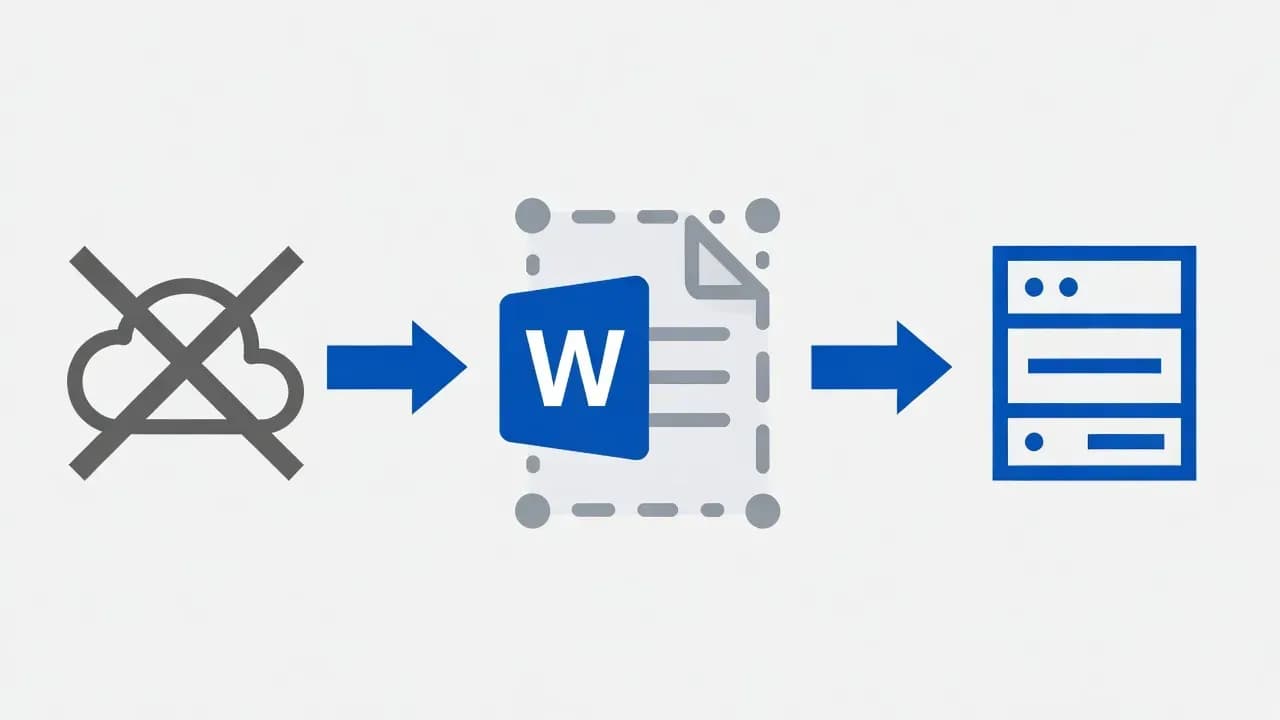
How to Save Microsoft Word Documents Locally by Default Instead of OneDrive
Tired of Word pushing OneDrive every time you save? Here's how to change the default save location to your local PC in just a few clicks.
The Problem
Microsoft Word automatically suggests OneDrive as the default save location whenever you create a new document. While cloud storage offers benefits like remote access and automatic backups, many users prefer saving files locally on their PC first.
There are several legitimate reasons to default to local storage. Privacy-conscious users may not want documents automatically synced to Microsoft's servers. Offline access becomes critical when traveling or during internet outages. Version conflicts can also occur when documents fall out of sync between devices.
Step-by-Step Guide
How to Set Local Storage as Default in Word
Follow these steps to configure Word to save documents locally by default:
Step 1: Open Microsoft Word and click on File in the top menu bar.
Step 2: Select Options at the bottom of the left sidebar. This opens the Word Options dialog.
Step 3: In the left panel, click on the Save tab.
Step 4: Look for the checkbox labeled "Save to Computer by default" and enable it.
Step 5: Click OK to apply your changes.
From now on, whenever you press Ctrl+S or select File > Save on a new document, Word will default to "This PC" instead of OneDrive.
Optional: Change the Default Local Folder
By default, Word saves to your Documents folder. You can customize this location in the same Save options panel:
Step 1: In Word Options > Save, find the field labeled "Default local file location".
Step 2: Click Browse and select your preferred folder.
Step 3: Click OK to confirm.
This is useful if you prefer organizing documents in a specific project folder or on a secondary drive.
How It Works
What About Other Office Apps?
This setting applies only to Microsoft Word. If you want the same behavior in Excel, PowerPoint, or other Office applications, you need to repeat these steps in each program individually.
The option path is identical across all Microsoft 365 apps: File > Options > Save > Save to Computer by default.
When OneDrive Still Makes Sense
Local saving works best for draft documents, sensitive files, or when working offline. However, OneDrive remains valuable for documents you need to access across multiple devices, share with colleagues, or protect with automatic cloud backups.
A balanced approach is to save locally by default, then manually upload important finalized documents to OneDrive when needed.
Frequently Asked Questions
No. This is a local Word setting stored on your PC. You need to configure it separately on each computer you use.
No. This only changes the default location for new documents. Existing files remain where they are saved.



Comments
Want to join the discussion?
Create an account to unlock exclusive member content, save your favorite articles, and join our community of IT professionals.
New here? Create a free account to get started.