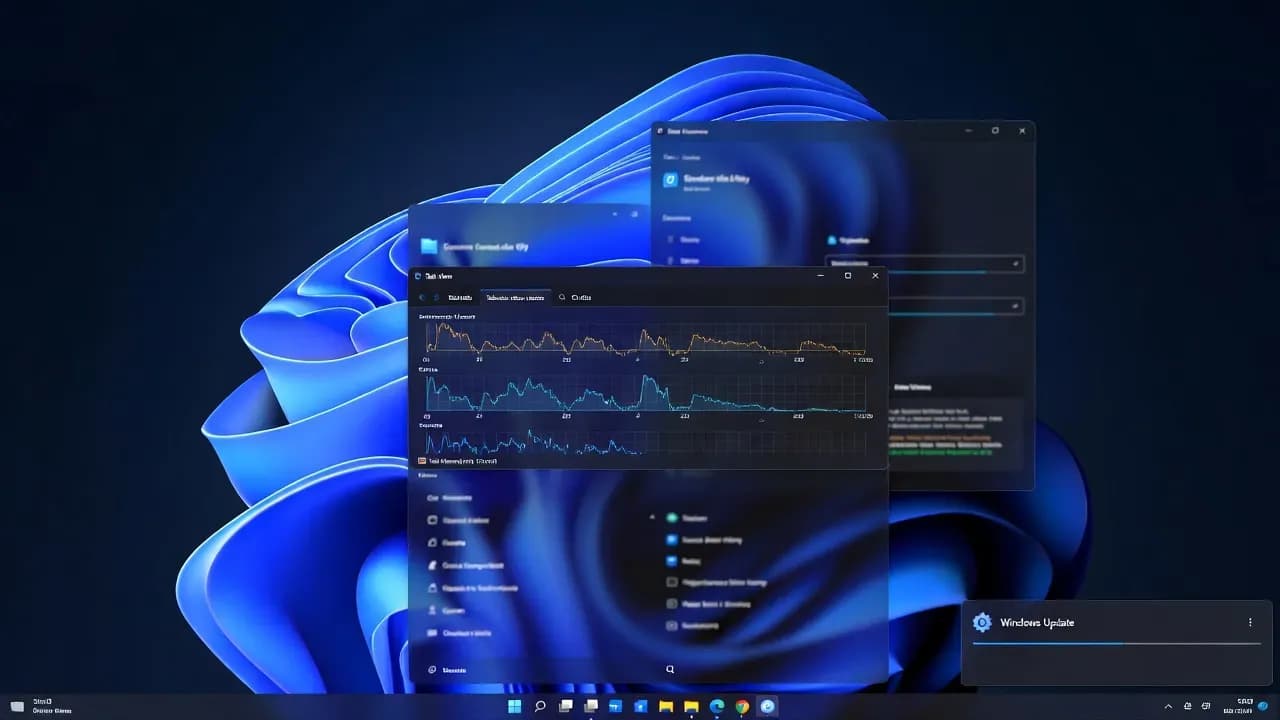
Windows 11 Slow After Update: How to Fix Lag, High CPU, High Disk, and Stuttering (2026)
If Windows 11 became slow right after an update, the cause is usually one of three things: post-update background work (indexing, servicing, Defender scans), a driver regression (GPU, storage, network), or an unhealthy Windows Update/servicing state that keeps the machine busy. This guide follows a safe escalation path to restore performance without random tweaks or risky rollbacks.
The Problem
A Windows 11 cumulative update can change performance overnight. Users often describe it the same way: boot takes longer, the desktop feels heavy, apps open slowly, Task Manager shows spikes that never settle, and the system stutters during simple actions like opening Start or switching windows. The timing makes it tempting to assume the update is "bad," but the reality is more nuanced.
Right after an update, Windows commonly runs legitimate maintenance work in the background. That work can be intense on devices with slower SSDs, limited RAM, or large user profiles. In those cases, performance returns to normal once the system finishes indexing and servicing. The problem is when the slow state never ends, or when it appears only on certain hardware models, which strongly suggests a driver or firmware regression triggered by the update.
This guide is designed to help you separate temporary post-update load from genuine regressions. You will start with validation and observation, then isolate bottlenecks, then fix the specific subsystem causing the slowdown. Only at the end do you consider uninstalling a quality update, and even then, only with a security-aware approach.
Step-by-Step Guide
Confirm the slowdown is persistent, not post-update catch-up
Avoid fixing a system that is simply finishing normal post-update work.
Right after a cumulative update, Windows may rebuild indexing, optimize components, and run security scans. That can make any machine feel slow, especially during the first boot after patching. The easiest way to separate "normal catch-up" from a real regression is to reboot once, plug the device into AC power, then leave it idle for 15 to 30 minutes. After that, test again.
If performance returns to normal, the update was not the problem. The system was finishing maintenance tasks. If the device remains sluggish hours later, treat it as persistent and continue with the next steps.
Identify the bottleneck in Task Manager
Determine whether CPU, disk, memory, or GPU is driving the slowdown.
Open Task Manager and look at what stays high. A short spike is normal. A sustained pattern is what matters. Sort processes by CPU and then disk. Note the top offenders and whether they remain at the top for more than five minutes. This gives you a concrete direction.
If you see heavy CPU from Windows servicing processes or Defender, you may be in catch-up or a servicing loop. If you see sustained disk activity at 100 percent active time, storage pressure or update loops are likely. If the UI stutters while GPU usage is elevated, suspect a graphics driver regression.
Restart Windows Explorer and reduce startup load
Remove shell glitches and reduce immediate background pressure after updates.
Some "slowness" is actually the shell becoming unstable after patching. Restarting Windows Explorer refreshes the taskbar, Start menu, and desktop UI without rebooting. After that, reduce startup apps that are not essential. Post-update boots are when many apps reinitialize, which can make the system feel permanently busy.
Reboot once after reducing startup load. This ensures the next session starts cleaner and lets you measure performance accurately.
Check disk free space and clean update leftovers safely
Eliminate low disk space and storage pressure that amplifies post-update performance drops.
Windows updates need working space. If the OS drive is near full, the system can become slow due to paging, compression, and constant cleanup. Check Storage settings and aim for healthy free space. Then use Temporary files cleanup for safe categories like update caches and temporary data.
If you suspect you may need to roll back an update, do not immediately delete rollback-related files. Cleanups should be deliberate, not aggressive, when you are still in incident response mode.
Stabilize Windows Search indexing if SearchHost is spiking
Fix sluggishness caused by indexing loops or a corrupted index.
If Task Manager shows SearchHost consuming CPU or disk for long periods, the system may be indexing heavily or stuck. Indexing can be normal right after updates, but it should trend down. If it does not, rebuild the index once and then let it complete. This is especially relevant on machines with large user profiles, OneDrive content, or many Outlook/Teams caches.
After rebuilding, keep the PC awake and plugged in. The index needs uninterrupted time.
Fix GPU driver regressions (common cause of stutter and UI lag)
Restore smooth UI rendering after an update triggered a driver change.
When users report stuttering animations, choppy scrolling, or lag when moving windows, GPU drivers are often the culprit. Check Device Manager for the display adapter, then review the driver date and version. If the "Roll Back Driver" option is available and the timing matches the update, rollback is a fast test. Otherwise, install the latest stable driver from the GPU vendor.
After any driver change, reboot once and retest the exact user actions that were previously stuttering.
Repair system files with SFC and DISM
Fix OS corruption that can cause sustained performance problems after patching.
If servicing components or core files are unhealthy, Windows can stay busy attempting repairs or repeatedly failing. SFC checks protected system files. DISM repairs the OS image that SFC depends on. This is a supported baseline repair and is often the turning point when the slowdown is "sticky" and survives multiple restarts.
Run the commands, let them finish, reboot, and then reassess CPU and disk at idle.
sfc /scannow
DISM /Online /Cleanup-Image /RestoreHealthReset Windows Update components if servicing is stuck in a loop
Stop repeated update loops that keep the system busy and slow indefinitely.
If you see persistent Windows Update activity that never finishes, repeated failures, or continuous spikes tied to update components, reset the Windows Update cache folders. This forces Windows to rebuild its working state. It is especially useful when the device is slow because it is constantly trying and failing to finalize updates in the background.
After the reset, reboot once, then check Windows Update again.
net stop wuauserv
net stop bits
net stop cryptsvc
net stop msiserver
ren C:\Windows\SoftwareDistribution SoftwareDistribution.old
ren C:\Windows\System32\catroot2 catroot2.old
net start msiserver
net start cryptsvc
net start bits
net start wuauservTest power mode and confirm performance is not battery-limited
Rule out a post-update power profile change that reduces performance.
Some machines feel slow after updates because they silently shift power behavior. Test on AC power, then temporarily set the power mode to Best performance. If responsiveness returns immediately, the issue is not the update itself, it is power policy or power management behavior. You can then tune policies back to Balanced after confirming the baseline.
This step is especially important on laptops, where battery saver or vendor power utilities can cap CPU and GPU aggressively.
Clean boot to isolate third-party conflicts
Find apps/services that conflict with the new update (AV, overlay tools, shell extensions).
- Perform a clean boot (disable non-Microsoft services + startup apps).
- Reboot and test performance.
- Re-enable items gradually until the slowdown returns.
Common culprits:
- Third-party antivirus
- GPU overlays/recorders
- Old VPN/network filter drivers
- Shell extension packs
Clean boot to isolate third-party conflicts
Identify software that clashes with the new update (AV, overlays, VPN filters).
If the system is only slow in normal mode and seems fine when fewer apps run, isolate it with a clean boot. Updates can expose compatibility issues in security products, GPU overlays, backup agents, or VPN network filter drivers. In a clean boot, the machine runs with minimal non-Microsoft services and startup apps, which makes performance differences easier to attribute.
If performance improves in a clean boot, re-enable items gradually to find the exact trigger.
Uninstall the last quality update only when the regression is proven
Restore performance when the update is clearly the root cause and business impact is high.
Rollback should be a controlled decision, not the default. If you have strong evidence that performance dropped immediately after a specific update, and the device remains slow after driver stabilization and servicing repairs, uninstalling the last quality update can be a valid short-term mitigation.
After rollback, pause updates briefly only to avoid immediate reinstallation while you wait for a fixed patch. Do not pause indefinitely, because you are removing security fixes.
Last resort: in-place repair upgrade (keep files and apps)
Repair Windows without wiping the device when the OS is unstable after updates.
If the device is still slow, servicing is unreliable, and multiple endpoints show similar failures, an in-place repair upgrade can refresh core Windows components while keeping user data and most apps. This is a practical option when you need a clean servicing state but cannot afford full reimaging.
Treat it as a planned maintenance action. Backup critical data, verify BitLocker recovery keys, and execute during a maintenance window.
How It Works
"Slow after update" typically comes from one of these technical categories.
The first category is post-update background activity. Windows Update does not only install files. After reboot, it can trigger component optimization, search indexing catch-up, app updates from the Microsoft Store, and Defender scanning. These tasks often show up as elevated CPU or disk usage and can persist for 10 to 30 minutes, sometimes longer on older machines. The key detail is that they trend downward and eventually stop.
The second category is a driver regression. Updates can coincide with driver changes (delivered via Windows Update or triggered by reboot). GPU drivers are the most common cause of UI stutter and animation lag, while storage and chipset drivers can cause sustained 100 percent disk active time, slow app launches, and long logon times. In these cases, the system does not "calm down" with idle time because the underlying driver behavior is changed.
The third category is servicing health problems. If Windows Update components are stuck in a loop, the system keeps trying to install, repair, or verify packages. That can create repeated CPU and disk spikes that never finish. Resetting Windows Update components and repairing the OS image (SFC and DISM) are the supported ways to restore a stable servicing baseline.
This how-to guide maps each symptom to the subsystem most likely responsible and provides an escalation path that is both effective and safe for enterprise environments.



Comments
Want to join the discussion?
Create an account to unlock exclusive member content, save your favorite articles, and join our community of IT professionals.
New here? Create a free account to get started.