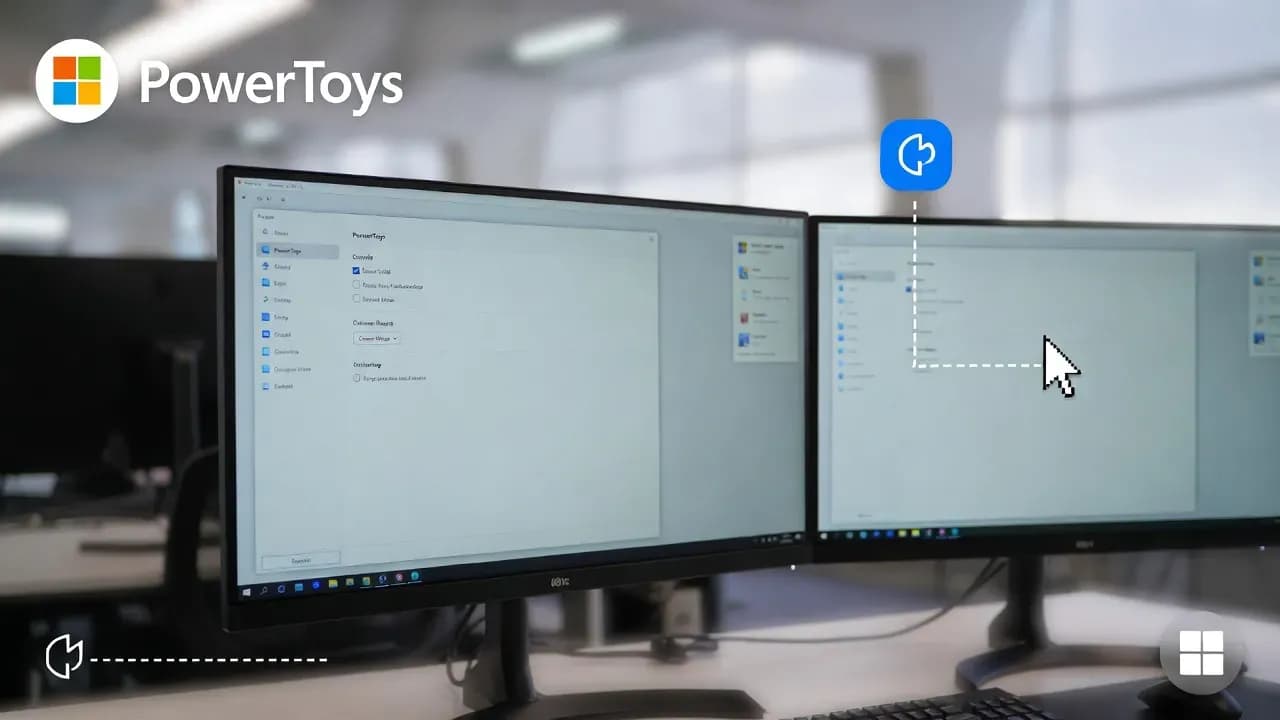
Microsoft PowerToys 0.97 adds CursorWrap to wrap your mouse pointer across screens
PowerToys 0.97 introduces CursorWrap, a new Mouse Utilities feature that wraps the pointer across screen edges to reduce long cursor travel on single and multi-monitor setups.

PowerToys just solved a small but constant multi-monitor annoyance
If you live on a multi-monitor desk, you know the problem: the cursor is always on the "wrong" side at the wrong moment. You are in the middle of a flow, you flick the mouse toward a button on the opposite display, and you end up dragging the pointer across a small continent of pixels. It is not a big problem in isolation, but it is a thousand tiny interruptions that add up during a workday.
Microsoft PowerToys 0.97 targets exactly that kind of friction by adding CursorWrap, a new Mouse Utilities feature that wraps the pointer across screen edges. Move past an edge and the cursor reappears on the opposite side, effectively turning your desktop into a continuous surface rather than a hard rectangle. In the same release, Microsoft also pushes Command Palette forward with deeper customization and tighter integration with other PowerToys utilities, reinforcing PowerToys' role as the "power user layer" on top of Windows.
TL;DR: CursorWrap is a lightweight productivity boost for anyone running one or more displays. It is simple in concept, but its impact is real when your day involves constant pointer travel between windows, monitors, and toolbars.
What CursorWrap actually does in PowerToys 0.97
CursorWrap is easiest to understand if you think of classic "wrap-around" movement in older games or UNIX desktops: reaching the boundary does not stop you, it moves you to the opposite boundary. In PowerToys 0.97, the wrapping happens when the cursor crosses the top, bottom, left, or right edge, and then the pointer is repositioned to the opposite side. On a single monitor, that means left connects to right and top connects to bottom, which can noticeably reduce travel if you are frequently aiming for UI elements near edges.
On multi-monitor setups, the feature follows your logical display layout rather than treating each panel as an isolated island. That distinction matters because most desks are not perfect grids: some monitors are stacked, some are offset, and many users mix different sizes and scaling settings. CursorWrap is designed to wrap based on the "outer perimeter" of your combined desktop area as Windows sees it. In other words, it wraps across the edges of your active monitor topology rather than forcing a fixed, one-size-fits-all mapping.
Microsoft's public description also points to a practical ceiling: CursorWrap is designed to work across a broad range of monitor counts, including high-end rigs, as long as Windows can represent them cleanly in a logical layout. That helps explain why PowerToys positioned it as a Mouse Utilities feature rather than a niche add-on: it is meant to behave consistently for common dual and triple monitor desks, but still remain usable for heavier multi-display setups.
Why this matters: the rise of micro-productivity features in Windows tooling
CursorWrap is not a headline-grabbing Windows feature, and that is exactly why it fits PowerToys. PowerToys succeeds when it takes the rough edges of daily work, the parts Microsoft cannot always justify shipping directly in Windows, and turns them into opt-in utilities. That is why admins and power users keep it installed even if they only actively use a handful of modules.
This release also highlights another pattern: PowerToys is increasingly a front door for community-shaped workflow improvements. The "wrap-around cursor" concept has existed in third-party tools for years, and the PowerToys community has asked for similar behavior repeatedly because it solves a universal complaint on wide and multi-panel desks. Shipping CursorWrap in a stable release is a signal that Microsoft is willing to adopt these "small wins" that materially improve usability for people who spend their day inside Windows.
It also complements the broader direction of PowerToys itself. Command Palette is being treated as more than a launcher, evolving into an orchestration surface for the rest of the suite. When PowerToys utilities become controllable, searchable, and composable through a single interface, the suite starts behaving like a cohesive productivity platform rather than a folder of separate toys.
The trade-offs no one mentions: wrap-around changes muscle memory
A cursor that wraps is immediately satisfying when you want to jump from the far right to the far left. But wrapping also changes how your muscle memory interacts with the edges of the desktop. Many Windows habits depend on the fact that the cursor "stops" at the top or bottom: hitting the top edge to grab a tab strip, reaching the bottom for the taskbar, or snapping to a corner to target window controls. If the top edge suddenly becomes a portal to the bottom, your familiar movements can overshoot until you recalibrate.
Early hands-on feedback captures this tension well. Users who spend a lot of time near the top edge, for example switching browser tabs or aligning windows, may find CursorWrap introduces a precision tax. In practice, that does not mean the feature is bad, it means it needs better configuration granularity so users can align the behavior with their workflow. A common request is the ability to enable wrapping only on the left and right edges while leaving top and bottom untouched.
There is also a multi-device reality PowerToys has to navigate: laptops docked to external displays, clamshell mode, and changing monitor availability across the day. If CursorWrap depends on the current logical layout, any mismatch between what Windows thinks is connected and what is actually active can lead to confusing jumps. That is the kind of bug that tends to surface quickly in a power user tool, and it is also the kind of issue PowerToys often fixes rapidly once it is reported.
The interesting takeaway is not that CursorWrap has rough edges, it is that the wrap-around concept exposes edge cases in modern Windows desk setups. Mixed DPI, display offsets, and hot-plug behavior are all tolerated by Windows, but a utility that warps pointer position will reveal every inconsistency.
How to get PowerToys 0.97 and enable CursorWrap
PowerToys updates are typically straightforward, but it is worth being deliberate if you manage multiple machines. PowerToys can be updated through its built-in update mechanism, via the Microsoft Store, or by downloading installers from the official GitHub release page. The GitHub route is especially useful when you need predictable deployment behavior, such as per-user installs versus machine-wide installs, or when you want to validate a specific version across a fleet.
Once PowerToys 0.97 is installed, CursorWrap lives inside Mouse Utilities. Open PowerToys Settings, navigate to Mouse Utilities, and enable CursorWrap. The immediate best practice is to verify your Windows display arrangement first. CursorWrap follows the logical monitor layout, so if your monitors are misaligned in Windows Settings, the wrap behavior can feel "wrong" even if the utility is doing exactly what it was designed to do. Align the displays in Windows so their arrangement matches your physical desk, then test CursorWrap again.
If you discover that wrapping top and bottom interferes with your workflow, treat CursorWrap like a mode rather than a permanent default. It is the kind of feature you may want enabled during certain tasks, such as moving between monitors while editing, monitoring dashboards, or managing remote sessions, but disabled when you are doing pixel-precise interactions near the edges.
PowerToys 0.97 also makes Command Palette more central to daily use. If you already rely on it, this release adds deeper personalization and the ability to trigger or control other PowerToys utilities from inside the palette. That matters because it moves PowerToys closer to a unified control surface: fewer settings hunts, more workflow execution.
Bottom line: CursorWrap is a productivity win, but it needs configurability
CursorWrap is one of those features that feels obvious the moment you try it. It does not add a new capability to Windows so much as it removes wasted motion from a common setup. For multi-monitor users, especially those with wide desks or high-resolution panels, the time savings is not theoretical. It shows up as fewer interruptions, fewer micro-corrections, and a smoother rhythm when you are moving between tools.
At the same time, wrapping is not universally "better" unless the feature adapts to how people actually use screen edges in Windows. The most likely next step is simple: more settings. Per-edge toggles, temporary activation modes, and smarter behavior during monitor changes would make CursorWrap easier to adopt without forcing users to unlearn years of muscle memory.
PowerToys is built for this kind of iterative evolution. CursorWrap shipped as a practical baseline in 0.97, and the early feedback cycle has already started. If you are the kind of user who lives on multiple displays, this is the sort of update worth installing immediately, then tuning as Microsoft refines it in the next releases.
Comments
Want to join the discussion?
Create an account to unlock exclusive member content, save your favorite articles, and join our community of IT professionals.
New here? Create a free account to get started.