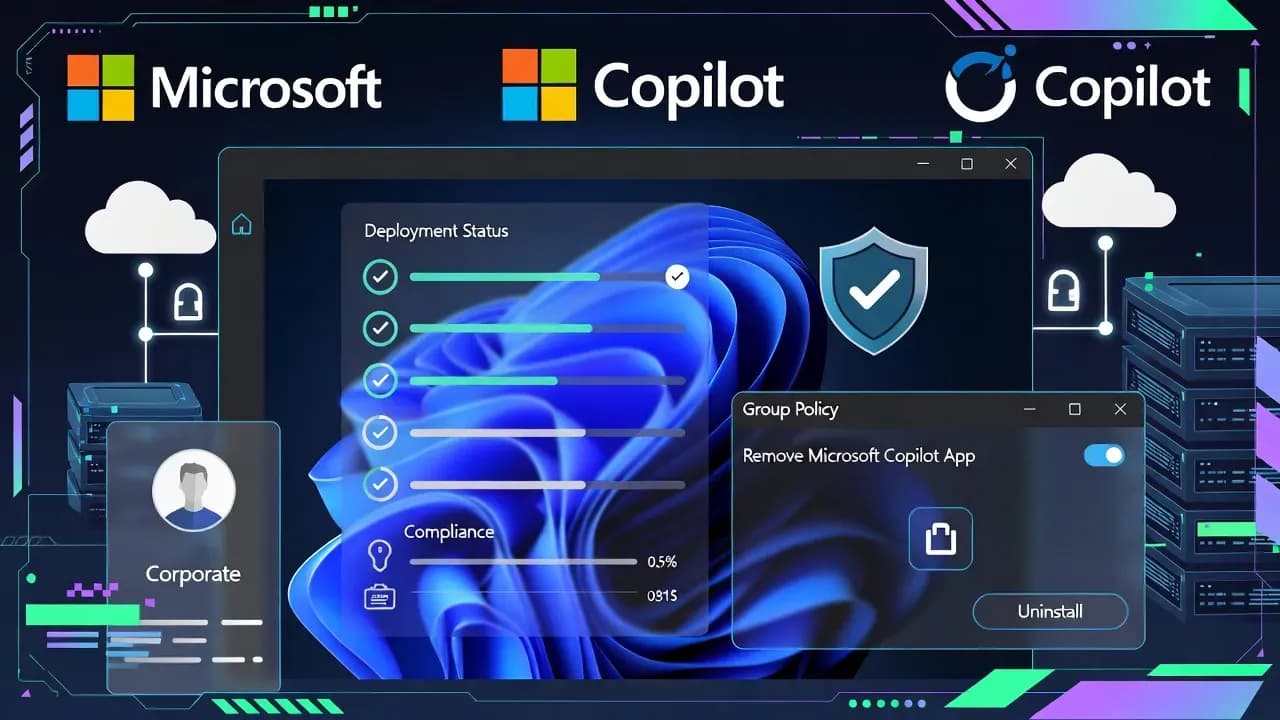
Windows 11 Insider Build 26220.7535 Adds Policy to Uninstall Copilot on Managed Devices
Windows 11 Insider Build 26220.7535 introduces a new targeted policy that can uninstall the Microsoft Copilot app on managed devices, improving admin control and reducing user confusion.

Inactivity threshold before the RemoveMicrosoftCopilotApp policy can trigger uninstallation
What This Update Changes
Microsoft's newest Windows 11 Insider build introduces a change many enterprise admins have been asking for: a supported, policy-driven way to remove the Microsoft Copilot app from managed endpoints. This is not a security hotfix, but it is operationally meaningful because it gives IT teams clearer control over which Copilot experience shows up on corporate devices.
The new capability lands in Windows 11 Insider Preview Build 26220.7535 (KB5072046) for the Dev and Beta channels, so it should be treated as a preview feature with a measured rollout approach. For most organizations, the practical next step is to validate the policy behavior in a representative pilot ring and decide whether it belongs in the standard endpoint baseline.
What Is Included in the Update
The headline addition in this build is a new policy titled RemoveMicrosoftCopilotApp, designed to uninstall the Microsoft Copilot app for a user in a targeted way on managed devices. Microsoft describes three gating conditions that must be true before the policy applies:
- Both Microsoft 365 Copilot and Microsoft Copilot must be installed
- The Microsoft Copilot app must not have been installed by the user
- The Microsoft Copilot app must not have been launched in the last 28 days
If those conditions are met and the policy is enabled, the Microsoft Copilot app is uninstalled and the action is performed once. Users retain the ability to reinstall the app if they choose.
From an admin tooling perspective, Microsoft documents the control in Group Policy: User Configuration → Administrative Templates → Windows AI → Remove Microsoft Copilot App. The policy is available on Enterprise, Pro, and EDU SKUs.
Security Implications
Although this is not labeled as a security update, it has security-adjacent implications because it helps organizations reduce ambiguity about which Copilot experience is present on corporate endpoints.
The new policy's conditional logic reveals Microsoft's intent to minimize disruption. Requiring that the app was not installed by the user avoids undoing an explicit user decision. The "not launched in the last 28 days" condition avoids removing something that is actively used.
Deployment Considerations
Because RemoveMicrosoftCopilotApp is currently surfaced in an Insider build, the first deployment best practice is to treat it like any other pre-release policy. Validate it in a lab where you can reproduce the three documented conditions.
If your goal is to keep the consumer Copilot app out of a regulated environment entirely, the one-time uninstall is better viewed as a hygiene action rather than a compliance guarantee. You may need AppLocker or package removal for permanent blocking.
Known Issues
Forward-Looking Perspective
The larger story behind RemoveMicrosoftCopilotApp is that Microsoft is moving Copilot management from "toggle and hide" toward "govern and curate" across different Copilot entry points. Organizations will need to be explicit about which Copilot experiences are allowed and how users authenticate into them.
For IT teams: track how this policy evolves, watch for signals it is being promoted into broader release channels, and audit your endpoints to understand where the Microsoft Copilot app is present.
Comments
Want to join the discussion?
Create an account to unlock exclusive member content, save your favorite articles, and join our community of IT professionals.
New here? Create a free account to get started.