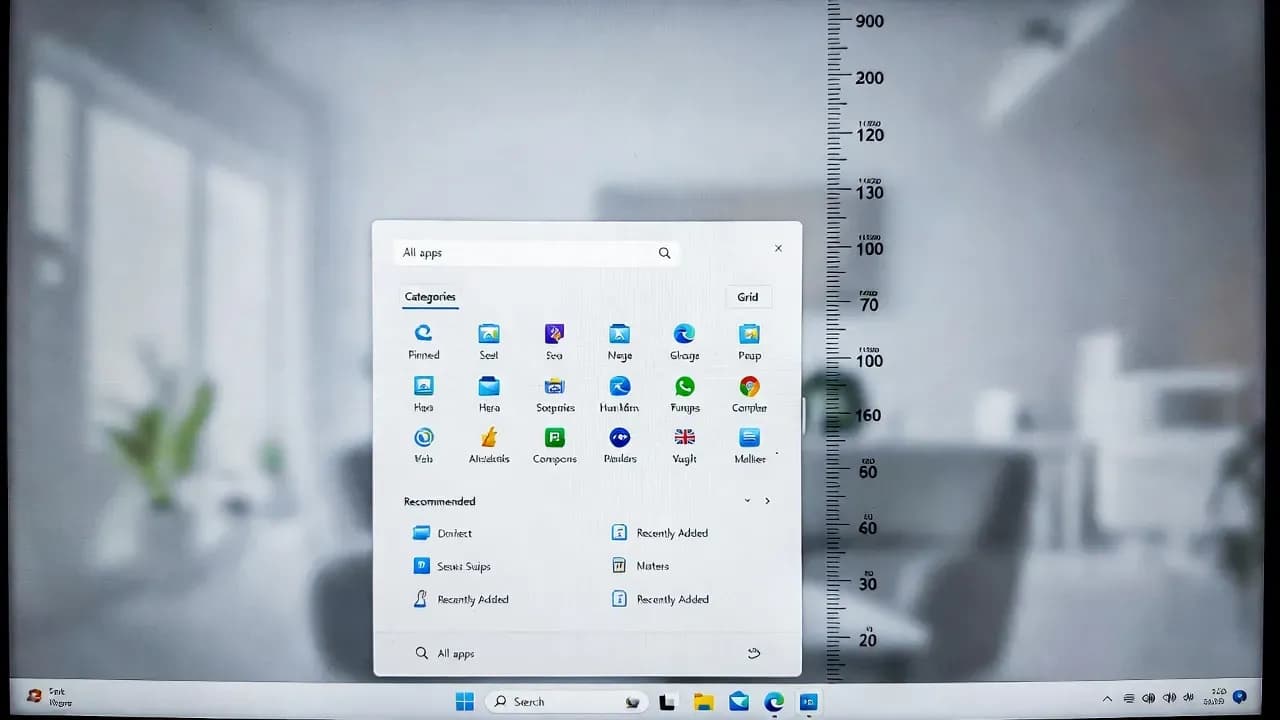
Windows 11's New Start Menu Categories Layout Rolls Out Wider After January 2026 Updates, But the "Too Tall" Design Still Lacks a Resize Control
Windows 11's redesigned Start menu with Categories and Grid views is showing up on more PCs. Why it feels too tall and what users and IT can do now.

Groups installed apps into logical buckets
Alphabetical structure with better horizontal space
Users want a resize handle like Windows 10
What's new in the redesigned Start menu
The updated Start menu shifts Windows 11 toward a single-page, scrollable experience. Instead of switching between separate pages for pinned apps, recommendations, and the full app list, the new layout places these sections in one flow, with the "All apps" area accessible directly inside Start.
Two viewing modes are central to the change:
- Category view, which groups installed apps into logical buckets for faster scanning.
- Grid view, which keeps an alphabetical structure but makes better use of horizontal space.
For many users, this reduces friction. You get to the full app list with fewer clicks, and scanning for installed apps is faster than the classic "list-only" approach.
Why it suddenly shows up for more users
This Start menu refresh has been rolling out in waves rather than landing everywhere on day one. That staged approach is typical for Windows 11: Microsoft ships the underlying update, then enables features gradually as telemetry and feedback support broader rollout.
The practical consequence is that two PCs on the same version and patch level may not display identical UI at the same time. For IT teams, that is not just a curiosity. It impacts helpdesk scripts, user training, screenshots in documentation, and even the consistency of endpoint baselines.
The real complaint: the Start menu looks too tall on some PCs
The "too tall" perception is mainly a layout and scaling problem.
Because the new Start menu is designed as a single page, it must reserve enough vertical space for:
- pinned apps,
- the Recommended section (even when disabled, the menu still aims to maintain stable spacing),
- and a scrollable All apps area (Categories or Grid).
On displays with limited vertical space, or on configurations where scale and resolution reduce usable height, Start can visually dominate the screen. The annoying part is that removing a row of pinned apps or toggling between Categories and Grid does not reliably shrink the menu. It tends to stick to a minimum height target to avoid UI "jumping" during interactions.
Workarounds: what users can actually do today
There is no native resize handle like classic Windows 10 behavior, so the workarounds are indirect:
- Adjust Display scaling (Settings, System, Display). Different scale values can change how large Start feels relative to the screen.
- Disable recommendations if your org policy allows it, to reduce noise and improve focus (and in some cases reclaim space).
- Tune pinned apps density so Start is less visually busy, even if the overall height does not shrink dramatically.
These are not perfect fixes. They are "make it tolerable" adjustments until Microsoft offers finer-grained layout controls.
What IT admins should do
If you manage Windows 11 fleets, treat this as a UX change that will generate tickets even if nothing is broken.
Recommended actions:
- Update your internal documentation with screenshots for both the old and new Start menu layouts.
- Pre-brief support teams on what changed, where Categories and Grid views live, and the practical "scaling workaround" users will ask about.
- Validate user impact across common device profiles (1080p laptops, ultrawides, 4K monitors, VDI) because Start menu sizing perception varies heavily with resolution and scaling.
- Standardize Start settings guidance (recommended toggles, layout expectations) so users get consistent answers.
Frequently Asked Questions
The new layout groups pinned apps into categories like Productivity, Media, Utilities, and others. This replaces the flat grid of pins with a more organized, folder-like structure that helps users find apps faster.
Microsoft is rolling out this feature gradually. During the rollout, you may be able to switch between layouts in Settings > Personalization > Start. However, Microsoft typically makes new UI features the default over time.
The rollout is gradual, starting with Windows Insiders and progressively reaching stable channel users. Not all devices receive the update at the same time due to Microsoft's controlled feature deployment.
Categories are automatically assigned based on app type, but you can still pin, unpin, and rearrange apps within the Start Menu. The exact level of category customization may vary as the feature matures.
Third-party Start Menu tools like Start11 or Open-Shell operate independently of the native Windows Start Menu. This update only affects the built-in Windows 11 Start experience.
Comments
Want to join the discussion?
Create an account to unlock exclusive member content, save your favorite articles, and join our community of IT professionals.
New here? Create a free account to get started.