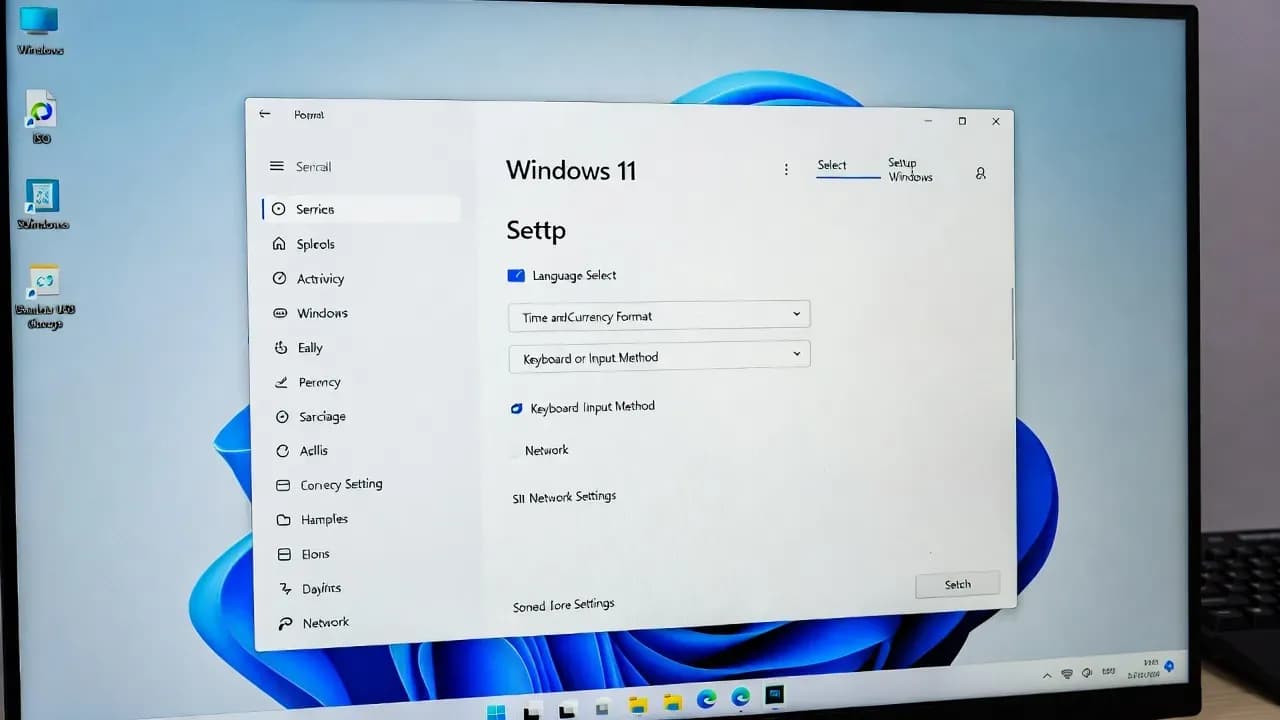
Downloading a Windows 11 ISO Safely: The Complete Official Guide
Learn how to download a legitimate Windows 11 ISO directly from Microsoft, verify its integrity, and use it safely for clean installations, upgrades, and virtual machines.
Overview
Downloading a Windows 11 ISO is a common requirement for IT professionals, system administrators, and advanced users. Whether you are preparing a clean installation, deploying virtual machines, or building installation media for multiple devices, using a trusted and official source is critical.
This guide explains where to download Windows 11 ISO files safely, how to choose the correct edition, and how to verify authenticity to avoid tampered or malicious images. It also clarifies common misconceptions around third-party ISO downloads and licensing implications.
Step-by-Step Tutorial
Access the Official Microsoft Download Page
Ensure the ISO is downloaded from a trusted and legitimate source.
Microsoft provides official Windows 11 ISO files directly from its website.
To begin, open the official Windows 11 download page:
👉 https://www.microsoft.com/software-download/windows11
This page offers multiple download options, including the Installation Assistant, Media Creation Tool, and direct ISO downloads. For advanced use cases such as clean installations, virtual machines, or offline deployments, the ISO download option is the recommended choice.
Avoid third-party websites, torrent platforms, or “pre-activated” ISO sources, as these files may be modified, outdated, or malicious.
Select the Windows 11 ISO Download Option
Choose the correct ISO format instead of upgrade tools.
On the Microsoft download page, scroll down to the section titled:
“Download Windows 11 Disk Image (ISO)”
From the dropdown menu, select:
- Windows 11 (multi-edition ISO)
Click Download, then choose your preferred language and confirm.
This multi-edition ISO includes Windows 11 Home and Pro. During installation, Windows automatically selects the correct edition based on your license.
Download the ISO File
Retrieve the Windows 11 ISO securely.
Once the language is confirmed, Microsoft generates a time-limited download link (valid for 24 hours).
Click the download button to retrieve the ISO file. The file size typically ranges between 5 and 6 GB, depending on the build.
Ensure a stable internet connection during the download to prevent file corruption.
Verify the ISO Integrity
Confirm that the ISO has not been altered or corrupted.
After downloading the ISO, verifying its integrity is strongly recommended, especially for enterprise or production use.
On Windows, open PowerShell and run:
Get-FileHash Win11_*.iso -Algorithm SHA256
Use the ISO for Installation or Virtualization
Deploy Windows 11 using the downloaded ISO.
The downloaded Windows 11 ISO can be used in several ways:
Create a bootable USB
Use trusted tools such as:
- Rufus: https://rufus.ie
- Windows Media Creation Tool: https://www.microsoft.com/software-download/windows11
Mount the ISO directly
On Windows 10 or 11, right-click the ISO file and select Mount to launch the installer.
Virtual machines
Attach the ISO to a virtual machine in:
- Hyper-V
- VMware Workstation / ESXi
- VirtualBox
- Proxmox VE
This approach is commonly used for testing, lab environments, and evaluation scenarios.
Conclusion
Downloading a Windows 11 ISO from Microsoft is a safe and supported process when done correctly. By relying on official sources and verifying file integrity, users can confidently deploy Windows 11 across physical systems and virtual environments.
For IT professionals, maintaining a verified ISO archive ensures repeatable, secure deployments without unnecessary risk.
Frequently Asked Questions
Only from Microsoft’s official website: https://www.microsoft.com/software-download/windows11
Downloading ISOs from unofficial sources increases security and compliance risks.
Yes. Microsoft allows free ISO downloads. Activation depends on having a valid license.
Does the ISO include Windows 11 Pro?
Yes. Activation can be completed later once connected.

Comments
Want to join the discussion?
Create an account to unlock exclusive member content, save your favorite articles, and join our community of IT professionals.
New here? Create a free account to get started.