ConfigureIntermediateTutorials

How to Change User Profile Folder Name in Windows 11 25H2

Rename your Windows 11 user profile folder in C:\\Users\\ using OOBE setup (25H2 fresh install) or post-installation registry editing. Covers both methods with prerequisites, risks, and troubleshooting.

Emanuel De Almeida July 23, 2026 3 min read
Difficulty
Intermediate
Time
5-30 minutes
Steps
3
Last tested
July 19, 2026

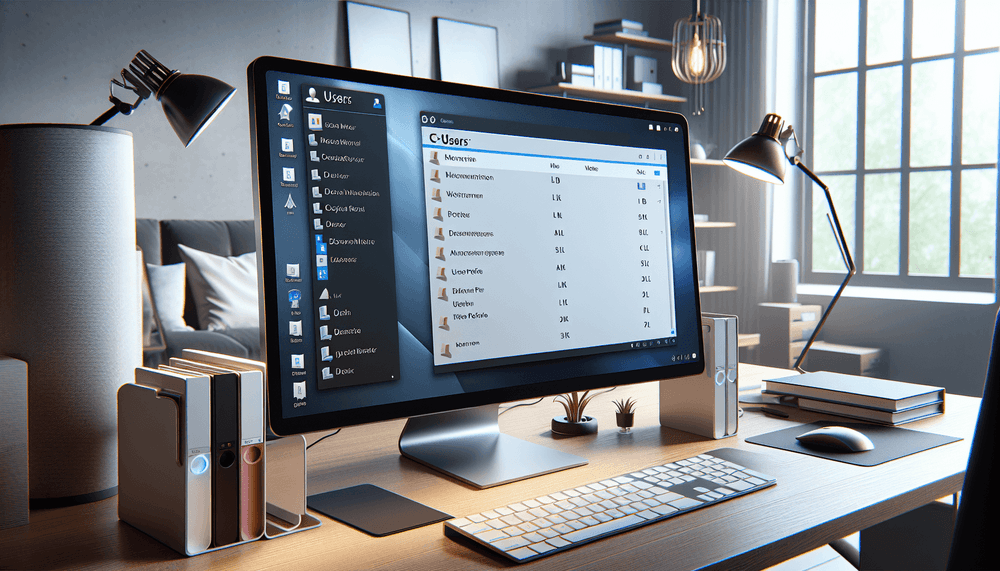
Windows 11 generates user profile folders in C:\Users\ based on your Microsoft account name, often producing truncated names. Two methods exist to change it: the OOBE method (25H2 fresh install) and the registry method (existing installs).

Before you start

What you will learn

  • How to set a custom profile folder name during OOBE (25H2) and rename an existing folder via registry.
  • Changing the display name in Settings only affects the login screen, not the actual folder. The registry method is needed for the physical folder.

Requirements

  • Local administrator on the Windows 11 device
  • Windows 11 (any edition). OOBE method requires 25H2 fresh install.
  • Local Administrator

Good to know

  • 5 minutes (OOBE) / 20-30 minutes (registry)

Quick answer

OOBE method for fresh 25H2 installs. Registry method for existing installations.

OOBE: Shift+F10 > set userfoldername | Registry: ProfileList > ProfileImagePath

Step-by-step tutorial

3 steps
1

Set name during OOBE (25H2 fresh install)

Set folder name during fresh 25H2 install.

During OOBE, press Shift+F10 to open a command prompt. Run:

log
set userfoldername=YourDesiredName

Close the prompt and continue setup with a local account. The folder will be created at C:\Users\YourDesiredName.

Expected resultProfile folder created with custom name.

Only works during fresh install of Windows 11 25H2+.

2

Rename via registry (existing install)

Rename existing profile folder.

Create a temp admin account. Log into it. Rename C:\Users\OldName to C:\Users\NewName.

Open regedit, go to:

log
HKLM\SOFTWARE\Microsoft\Windows NT\CurrentVersion\ProfileList

Find your SID, update ProfileImagePath to the new path. Restart.

Expected resultFolder renamed, Windows boots normally.

Unsupported by Microsoft. Create a restore point first.

3

Fix applications after renaming

Fix broken app paths.

Relink OneDrive, update scheduled tasks, check TEMP/TMP environment variables.

ps
[Environment]::GetFolderPath('UserProfile')
Expected resultAll apps work with the new path.

If Windows won't boot, use a USB to revert ProfileImagePath.

Confirm the result

Troubleshooting

Windows shows temporary profile or fails to boot

Cause: Registry ProfileImagePath doesn't match actual folder name.

Boot from USB, correct ProfileImagePath in the registry to match the folder name.

Cannot rename folder: in use

Cause: Folder is in use by the logged-in account.

Log out and rename from a different admin account.

Frequently asked questions

Does changing account name change the folder?

No. Display name changes don't affect the C:\Users\ folder. Use OOBE or registry method.

Does 25H2 support custom folder names?

Yes, via 'set userfoldername' during OOBE. Safest method.

Will my apps break?

Most apps use %USERPROFILE% and work fine. Apps with hardcoded paths need reconfiguration.

How to recover if Windows won't boot?

Boot from USB, revert ProfileImagePath and folder name.

Reader reviews

Rate this articleBe the first to rate
No written reviews yetRate the article above, or be the first to share your experience.

Related articles