ANAVEM
Languagefr
Server room power infrastructure with UPS systems and monitoring equipment in a professional data center environment
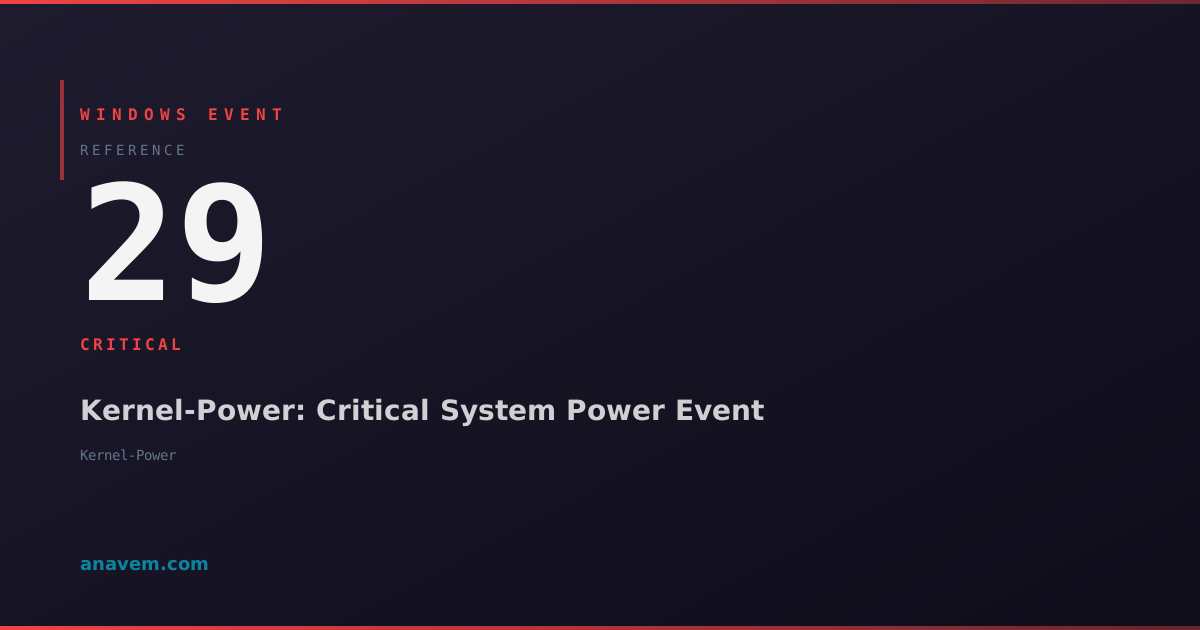
Event ID 29CriticalKernel-PowerWindows

Windows Event ID 29 – Kernel-Power: Critical System Power Event

Event ID 29 from Kernel-Power indicates critical power-related issues including unexpected shutdowns, power supply failures, or thermal protection events that can cause system instability.

Emanuel DE ALMEIDAEmanuel DE ALMEIDA
18 March 202612 min read 0
Event ID 29Kernel-Power 5 methods 12 min
Event Reference

What This Event Means

Windows Event ID 29 from Kernel-Power serves as a critical alert mechanism for power subsystem failures that pose immediate risks to system operation and data integrity. The Windows kernel generates this event when power management components detect conditions that exceed normal operating thresholds, including voltage fluctuations, thermal events, or complete power loss scenarios.

The event typically contains detailed power state information, including voltage readings, thermal sensor data, and power supply status indicators that help administrators diagnose underlying hardware issues. Modern Windows systems with advanced power management capabilities can detect subtle power anomalies before they cause system failures, making Event ID 29 an early warning system for potential hardware problems.

In enterprise environments, Event ID 29 events often indicate infrastructure problems affecting multiple systems, such as UPS failures, electrical grid instabilities, or HVAC system malfunctions. The event's critical severity level ensures it appears prominently in monitoring dashboards and triggers automated alerting systems configured by IT operations teams.

Understanding Event ID 29 patterns helps administrators implement proactive maintenance schedules, upgrade power infrastructure, and establish proper environmental monitoring to prevent costly downtime and hardware damage in production environments.

Applies to

Windows 10Windows 11Windows Server 2019/2022/2025
Analysis

Possible Causes

  • Sudden power loss or electrical grid instabilities affecting system power supply
  • Power supply unit (PSU) failures or voltage regulation problems
  • Thermal protection activation due to overheating components or inadequate cooling
  • UPS battery failures or power conditioning equipment malfunctions
  • Motherboard power delivery issues or capacitor failures
  • Environmental factors including temperature extremes or humidity problems
  • Electrical interference from nearby equipment or poor grounding
  • Power cable connections becoming loose or damaged over time
Resolution Methods

Troubleshooting Steps

01

Analyze Event Details and System Context

Start by examining the complete event details to understand the specific power condition that triggered Event ID 29.

1. Open Event ViewerWindows LogsSystem

2. Filter for Event ID 29 using this PowerShell command:

Get-WinEvent -FilterHashtable @{LogName='System'; Id=29; ProviderName='Microsoft-Windows-Kernel-Power'} -MaxEvents 20 | Format-Table TimeCreated, LevelDisplayName, Message -Wrap

3. Examine the event XML data for detailed power metrics:

Get-WinEvent -FilterHashtable @{LogName='System'; Id=29} -MaxEvents 1 | Select-Object -ExpandProperty ToXml

4. Check for correlating events around the same timeframe:

Get-WinEvent -FilterHashtable @{LogName='System'; StartTime=(Get-Date).AddHours(-2)} | Where-Object {$_.Id -in @(6008, 41, 1074)} | Format-Table TimeCreated, Id, LevelDisplayName, Message

5. Document the frequency and timing patterns of Event ID 29 occurrences to identify trends or environmental correlations.

02

Verify Power Infrastructure and Hardware Status

Investigate the physical power infrastructure and hardware components that could trigger critical power events.

1. Check system power supply status using PowerShell:

Get-WmiObject -Class Win32_PowerSupply | Select-Object Name, Status, PowerManagementCapabilities, TotalOutputPower

2. Monitor system temperatures and voltages:

Get-WmiObject -Namespace root/wmi -Class MSAcpi_ThermalZoneTemperature | Select-Object InstanceName, CurrentTemperature

3. Verify UPS status if connected via USB or network management:

Get-WmiObject -Class Win32_Battery | Select-Object Name, BatteryStatus, EstimatedChargeRemaining, EstimatedRunTime

4. Check power policy settings that might affect power management:

powercfg /query SCHEME_CURRENT SUB_PROCESSOR PROCTHROTTLEMAX

5. Review hardware event logs in Device Manager for power-related device failures or warnings that correlate with Event ID 29 timestamps.

Warning: Physical inspection of power connections should only be performed by qualified personnel with proper safety procedures.
03

Configure Advanced Power Monitoring and Logging

Implement comprehensive power monitoring to capture detailed data about power events and system behavior.

1. Enable verbose power logging in the registry:

Set-ItemProperty -Path "HKLM\SYSTEM\CurrentControlSet\Control\Power" -Name "PowerLoggingEnabled" -Value 1 -Type DWord

2. Configure Windows Performance Toolkit for power analysis:

wpa.exe -i powertrace.etl -profile power_analysis.wpaProfile

3. Set up custom event log monitoring with PowerShell:

Register-WmiEvent -Query "SELECT * FROM Win32_VolumeChangeEvent WHERE EventType = 2" -Action {Write-Host "Power event detected at $(Get-Date)"}

4. Create automated power event collection script:

$PowerEvents = Get-WinEvent -FilterHashtable @{LogName='System'; Id=29; StartTime=(Get-Date).AddDays(-7)}
$PowerEvents | Export-Csv -Path "C:\Logs\PowerEvents_$(Get-Date -Format 'yyyyMMdd').csv" -NoTypeInformation

5. Configure SNMP monitoring for UPS and power distribution units to correlate external power infrastructure events with Windows power events.

04

Implement Power Management Optimization

Optimize Windows power management settings and implement preventive measures to reduce critical power events.

1. Configure optimal power plan settings:

powercfg /setactive SCHEME_BALANCED
powercfg /change standby-timeout-ac 0
powercfg /change hibernate-timeout-ac 0

2. Disable aggressive power saving features that might cause instability:

powercfg /setacvalueindex SCHEME_CURRENT SUB_PROCESSOR PROCTHROTTLEMIN 100
powercfg /setactive SCHEME_CURRENT

3. Configure advanced power settings via registry:

Set-ItemProperty -Path "HKLM\SYSTEM\CurrentControlSet\Control\Power" -Name "HibernateEnabled" -Value 0 -Type DWord
Set-ItemProperty -Path "HKLM\SYSTEM\CurrentControlSet\Control\Power" -Name "CsEnabled" -Value 0 -Type DWord

4. Implement power event monitoring service:

$Action = New-ScheduledTaskAction -Execute "PowerShell.exe" -Argument "-File C:\Scripts\PowerEventMonitor.ps1"
$Trigger = New-ScheduledTaskTrigger -AtStartup
Register-ScheduledTask -TaskName "PowerEventMonitor" -Action $Action -Trigger $Trigger -RunLevel Highest

5. Configure hardware-specific power management settings in BIOS/UEFI and verify compatibility with Windows power management features.

05

Enterprise-Level Power Infrastructure Analysis

Perform comprehensive analysis of enterprise power infrastructure and implement monitoring solutions for large-scale environments.

1. Deploy centralized power event collection across multiple systems:

$Computers = Get-ADComputer -Filter * | Select-Object -ExpandProperty Name
Invoke-Command -ComputerName $Computers -ScriptBlock {
    Get-WinEvent -FilterHashtable @{LogName='System'; Id=29; StartTime=(Get-Date).AddDays(-1)}
} | Export-Csv -Path "C:\Reports\Enterprise_PowerEvents.csv"

2. Configure SCOM or other monitoring platforms for power event correlation:

Import-Module OperationsManager
Get-SCOMAlert -Criteria "Name -like '*Power*'" | Where-Object {$_.TimeRaised -gt (Get-Date).AddDays(-7)}

3. Implement automated power infrastructure health checks:

$UPSStatus = Invoke-RestMethod -Uri "http://ups-management-server/api/status" -Method Get
$PowerEvents = Get-WinEvent -FilterHashtable @{LogName='System'; Id=29; StartTime=(Get-Date).AddHours(-1)}
if ($PowerEvents -and $UPSStatus.BatteryLevel -lt 50) {
    Send-MailMessage -To "ops@company.com" -Subject "Critical Power Alert" -Body "Power infrastructure requires immediate attention"
}

4. Create comprehensive power event dashboard using PowerBI or similar tools with real-time data feeds from Windows Event Logs, UPS systems, and environmental monitoring.

5. Establish power event escalation procedures with automated ticket creation in ITSM systems when Event ID 29 frequency exceeds defined thresholds.

Pro tip: Correlate Event ID 29 patterns with facility management systems to identify environmental factors affecting multiple systems simultaneously.

Overview

Event ID 29 from the Kernel-Power source represents one of the most serious power-related events in Windows systems. This critical event fires when the system experiences severe power anomalies that threaten system stability or data integrity. Unlike informational power events, Event ID 29 indicates conditions that require immediate attention from system administrators.

The Kernel-Power provider generates this event when Windows detects critical power subsystem failures, including sudden power loss, power supply unit malfunctions, thermal protection activation, or voltage irregularities that exceed safe operating parameters. These events often correlate with hardware failures, inadequate power infrastructure, or environmental issues in server rooms and data centers.

Event ID 29 typically appears in the System log and requires correlation with hardware monitoring tools, UPS logs, and environmental sensors to determine root cause. The event provides crucial forensic data for investigating unexpected shutdowns, system crashes, and hardware reliability issues that can impact business continuity and data protection strategies.

Frequently Asked Questions

What does Windows Event ID 29 from Kernel-Power indicate?+
Event ID 29 from Kernel-Power indicates critical power-related issues that pose immediate risks to system stability and data integrity. This includes sudden power loss, power supply failures, thermal protection activation, or voltage irregularities that exceed safe operating parameters. The event serves as an early warning system for hardware problems and infrastructure issues that require immediate administrative attention.
How can I distinguish between different types of power issues causing Event ID 29?+
Examine the event's XML data and correlate with other system events. Sudden power loss typically appears with Event ID 6008 (unexpected shutdown), while thermal issues correlate with high CPU/GPU temperatures in performance monitoring. Power supply failures often coincide with hardware device errors in Device Manager. UPS-related issues show patterns during specific times or correlate with facility power events. Use PowerShell to analyze event timing and frequency patterns.
Can Event ID 29 cause data corruption or system damage?+
Yes, Event ID 29 events can lead to data corruption and hardware damage if not addressed promptly. Sudden power loss during write operations can corrupt files, databases, or system registry entries. Thermal protection events indicate overheating that can permanently damage CPU, memory, or storage components. Voltage irregularities can cause premature hardware failure. Implement proper UPS systems, environmental monitoring, and regular hardware maintenance to prevent these issues.
How frequently should I expect Event ID 29 in a healthy Windows environment?+
In a properly configured and maintained environment, Event ID 29 should be extremely rare or non-existent. Occasional events during planned maintenance or brief power outages are acceptable, but regular occurrences indicate serious infrastructure problems. More than one Event ID 29 per month suggests power infrastructure issues, hardware problems, or environmental factors that need immediate investigation. Establish baseline monitoring to identify abnormal patterns.
What preventive measures can reduce Event ID 29 occurrences in enterprise environments?+
Implement redundant UPS systems with proper battery maintenance schedules, deploy environmental monitoring for temperature and humidity control, ensure adequate power supply capacity with N+1 redundancy, maintain clean electrical connections and proper grounding, configure power management policies optimized for stability over efficiency, establish regular hardware health monitoring with predictive maintenance, and create comprehensive power event monitoring with automated alerting systems. Regular infrastructure audits and capacity planning prevent power-related issues before they cause critical events.
Documentation

References (2)

Emanuel DE ALMEIDA
Written by

Emanuel DE ALMEIDA

Senior IT Journalist & Cloud Architect

Microsoft MCSA-certified Cloud Architect | Fortinet-focused. I modernize cloud, hybrid & on-prem infrastructure for reliability, security, performance and cost control - sharing field-tested ops & troubleshooting.

Discussion

Share your thoughts and insights

You must be logged in to comment.

Loading comments...