ANAVEM
Languagefr
Data center server room showing power infrastructure and monitoring equipment for critical system power management
Event ID 29CriticalKernel-PowerWindows

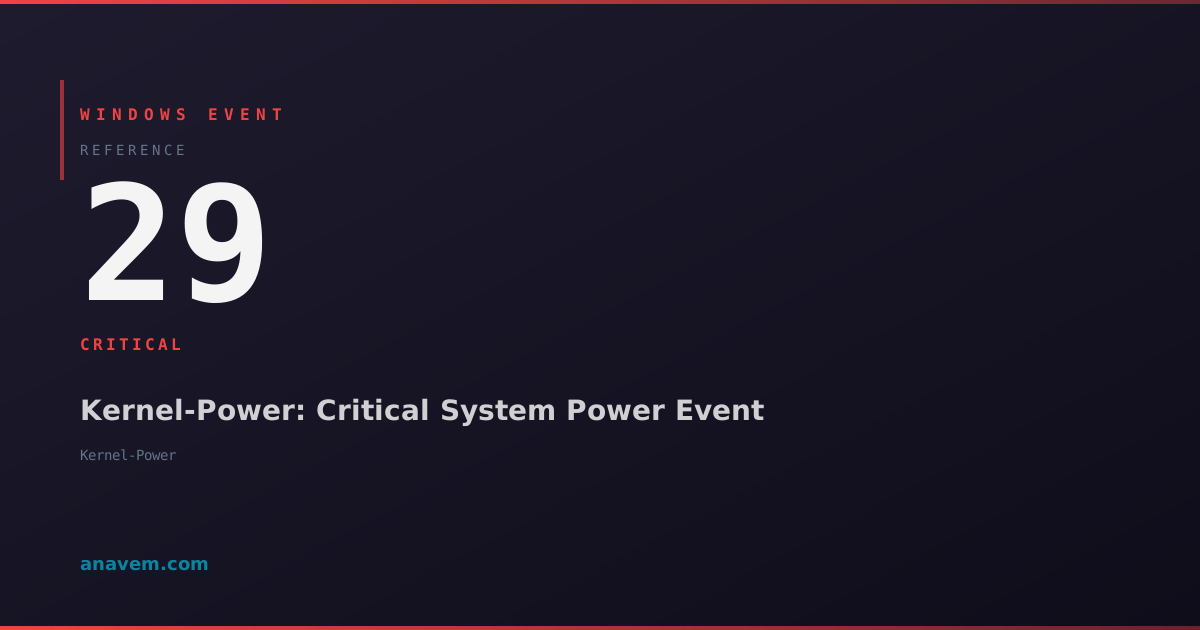
Windows Event ID 29 – Kernel-Power: Critical System Power Event

Event ID 29 from Kernel-Power indicates a critical system power event, typically occurring during unexpected shutdowns, power failures, or hardware-related power issues that require immediate investigation.

Emanuel DE ALMEIDAEmanuel DE ALMEIDA
18 March 202612 min read 0
Event ID 29Kernel-Power 5 methods 12 min
Event Reference

What This Event Means

Event ID 29 represents a critical junction in Windows power management where the operating system detects imminent power failure conditions before they result in data loss or hardware damage. The Kernel-Power provider, which is part of the Windows kernel's power management infrastructure, continuously monitors voltage levels, current draw, and thermal conditions across all system components.

When this event occurs, Windows has detected that one or more power subsystems are operating outside safe parameters. This could involve the main 12V rail dropping below threshold, the 5V standby power becoming unstable, or CPU voltage regulation modules (VRMs) overheating. The system's Advanced Configuration and Power Interface (ACPI) firmware works in conjunction with Windows to identify these conditions and log them before potential catastrophic failure.

The criticality of this event cannot be overstated. Unlike informational power events that indicate normal power state transitions, Event ID 29 signals that the system's power delivery infrastructure is compromised. In enterprise environments, this event often correlates with UPS battery failures, PDU malfunctions, or data center power distribution issues. The enhanced telemetry available in Windows 11 2026 updates provides more granular details about which specific power rails or components triggered the event.

System administrators must treat this event as an emergency requiring immediate investigation. The event typically includes additional data fields that specify the exact nature of the power anomaly, including voltage readings, temperature thresholds exceeded, and timing information that helps identify whether the issue is transient or persistent.

Applies to

Windows 10Windows 11Windows Server 2019/2022/2025
Analysis

Possible Causes

  • Power Supply Unit (PSU) failure or degradation with voltage regulation issues
  • Motherboard voltage regulator module (VRM) overheating or malfunction
  • Uninterruptible Power Supply (UPS) battery failure or power conditioning problems
  • Data center Power Distribution Unit (PDU) faults or electrical infrastructure issues
  • CPU or GPU power delivery circuits exceeding thermal or electrical limits
  • Memory module power issues causing system instability
  • Overclocking configurations pushing power delivery beyond safe parameters
  • Electrical grid instability causing voltage fluctuations beyond UPS compensation
  • Faulty power cables or connectors creating intermittent power delivery
  • BIOS/UEFI firmware bugs in power management routines
Resolution Methods

Troubleshooting Steps

01

Analyze Event Details and System Power Status

Start by examining the specific details of Event ID 29 to understand the exact power condition that triggered the alert.

Step 1: Open Event Viewer and navigate to Windows LogsSystem. Filter for Event ID 29 from source Kernel-Power.

Step 2: Use PowerShell to extract detailed event information:

Get-WinEvent -FilterHashtable @{LogName='System'; Id=29; ProviderName='Microsoft-Windows-Kernel-Power'} -MaxEvents 10 | Format-List TimeCreated, Id, LevelDisplayName, Message

Step 3: Check current system power status and thermal conditions:

Get-WmiObject -Class Win32_Battery | Select-Object Name, BatteryStatus, EstimatedChargeRemaining
Get-Counter "\Thermal Zone Information(*)\Temperature" -ErrorAction SilentlyContinue

Step 4: Review Windows Power Efficiency Diagnostics:

powercfg /energy /output C:\temp\energy-report.html
powercfg /batteryreport /output C:\temp\battery-report.html

Pro tip: Event ID 29 often includes hexadecimal error codes in the event data. Cross-reference these codes with Microsoft's power management documentation for specific component identification.

02

Hardware Power Delivery Diagnostics

Perform comprehensive hardware diagnostics to identify failing power delivery components.

Step 1: Check system hardware health using built-in diagnostics:

sfc /scannow
Dism /Online /Cleanup-Image /CheckHealth
chkdsk C: /f /r

Step 2: Monitor real-time power consumption and voltage levels:

Get-Counter "\Processor Information(_Total)\% Processor Time", "\Memory\Available MBytes", "\PhysicalDisk(_Total)\% Disk Time" -Continuous

Step 3: Access UEFI/BIOS power monitoring (if available through WMI):

Get-WmiObject -Namespace root\wmi -Class MSAcpi_ThermalZoneTemperature | Select-Object InstanceName, CurrentTemperature

Step 4: Check for hardware-specific power management drivers:

Get-WmiObject Win32_SystemDriver | Where-Object {$_.Name -like "*power*" -or $_.Name -like "*acpi*"} | Select-Object Name, State, Status

Warning: If Event ID 29 occurs repeatedly within short intervals, immediately shut down the system to prevent hardware damage. Continuing operation with compromised power delivery can cause permanent component failure.

03

Advanced Power Management Configuration Review

Examine and optimize Windows power management settings to prevent power-related instability.

Step 1: Review current power scheme configuration:

powercfg /list
powercfg /query SCHEME_CURRENT
powercfg /qh SCHEME_CURRENT

Step 2: Check for problematic power management policies:

powercfg /requests
powercfg /waketimers
powercfg /devicequery wake_armed

Step 3: Examine registry power management settings:

Navigate to HKLM\SYSTEM\CurrentControlSet\Control\Power and review:

  • CsEnabled - Connected Standby configuration
  • HibernateEnabled - Hibernation settings
  • PowerButtonAction - Power button behavior

Step 4: Reset power management to default safe configuration:

powercfg /restoredefaultschemes
powercfg /setactive SCHEME_BALANCED

Step 5: Disable aggressive power saving features that may cause instability:

powercfg /setacvalueindex SCHEME_CURRENT SUB_PROCESSOR PROCTHROTTLEMIN 100
powercfg /setdcvalueindex SCHEME_CURRENT SUB_PROCESSOR PROCTHROTTLEMIN 100
powercfg /setactive SCHEME_CURRENT
04

System Event Correlation and Root Cause Analysis

Correlate Event ID 29 with other system events to identify the underlying cause of power issues.

Step 1: Create a comprehensive event timeline around the power event:

$StartTime = (Get-Date).AddHours(-2)
$EndTime = Get-Date
Get-WinEvent -FilterHashtable @{LogName='System','Application'; StartTime=$StartTime; EndTime=$EndTime} | Where-Object {$_.Id -in @(29,41,1074,6008,6009,6013)} | Sort-Object TimeCreated

Step 2: Check for hardware error events that precede Event ID 29:

Get-WinEvent -FilterHashtable @{LogName='System'; ProviderName='Microsoft-Windows-Kernel-Processor-Power','Microsoft-Windows-Kernel-General'} -MaxEvents 50

Step 3: Analyze Windows Error Reporting (WER) data for power-related crashes:

Get-ChildItem "C:\ProgramData\Microsoft\Windows\WER\ReportQueue" | Where-Object {$_.Name -like "*Power*" -or $_.Name -like "*Kernel*"}

Step 4: Export comprehensive power event data for analysis:

$Events = Get-WinEvent -FilterHashtable @{LogName='System'; Id=29} -MaxEvents 100
$Events | Export-Csv "C:\temp\PowerEvents.csv" -NoTypeInformation
$Events | ConvertTo-Json | Out-File "C:\temp\PowerEvents.json"

Pro tip: Use Windows Performance Analyzer (WPA) from the Windows SDK to create detailed power consumption traces that can identify specific components causing power instability.

05

Enterprise Infrastructure and Environmental Analysis

Investigate data center and infrastructure components that may be causing power delivery issues.

Step 1: Check UPS and PDU status using SNMP monitoring (if available):

Get-WmiObject -Class Win32_Battery | Select-Object Name, Chemistry, DesignCapacity, FullChargeCapacity, BatteryStatus
Get-WmiObject -Class Win32_UninterruptiblePowerSupply

Step 2: Monitor system power consumption trends:

Get-Counter "\Power Meter(*)\Power" -ErrorAction SilentlyContinue
Get-Counter "\Thermal Zone Information(*)\Temperature" -SampleInterval 5 -MaxSamples 60

Step 3: Create a power monitoring script for continuous surveillance:

while ($true) {
    $PowerEvents = Get-WinEvent -FilterHashtable @{LogName='System'; Id=29; StartTime=(Get-Date).AddMinutes(-5)} -ErrorAction SilentlyContinue
    if ($PowerEvents) {
        $PowerEvents | Select-Object TimeCreated, Id, LevelDisplayName | Export-Csv "C:\logs\PowerMonitor.csv" -Append -NoTypeInformation
        Write-Host "CRITICAL: Event ID 29 detected at $(Get-Date)" -ForegroundColor Red
    }
    Start-Sleep 60
}

Step 4: Document environmental conditions and correlate with events:

  • Record ambient temperature and humidity levels
  • Check for electrical work or power grid issues in the area
  • Verify UPS battery age and last replacement date
  • Review data center power load distribution

Step 5: Implement preventive monitoring using Windows Admin Center or SCOM:

Register-WmiEvent -Query "SELECT * FROM Win32_VolumeChangeEvent WHERE EventType = 2" -Action {Write-Host "Power event detected: $($Event.SourceEventArgs.NewEvent)"}

Warning: In enterprise environments, Event ID 29 may indicate imminent data center infrastructure failure. Coordinate with facilities management and consider implementing emergency power-down procedures if events occur frequently.

Overview

Event ID 29 from the Kernel-Power source represents one of the most critical power-related events in Windows systems. This event fires when the system experiences severe power anomalies that threaten system stability or data integrity. Unlike the more common Event ID 41 (unexpected shutdown), Event ID 29 specifically indicates power subsystem failures that Windows detected before a complete system failure occurred.

The Kernel-Power provider generates this event when the power management subsystem encounters conditions that could lead to data corruption, hardware damage, or system instability. This includes scenarios where the system's power supply unit (PSU) experiences voltage fluctuations, thermal protection triggers activate, or when critical power rails fall outside acceptable operating parameters.

System administrators typically encounter this event in enterprise environments with aging hardware, inadequate power infrastructure, or during periods of electrical instability. The event appears in the System log and requires immediate attention as it often precedes complete system failures. Modern Windows versions in 2026 have enhanced power monitoring capabilities that make Event ID 29 more precise in identifying the root cause of power-related issues.

Frequently Asked Questions

What is the difference between Event ID 29 and Event ID 41 from Kernel-Power?+
Event ID 29 indicates that Windows detected critical power conditions before a complete failure occurred, allowing the system to log the event and potentially take protective action. Event ID 41 occurs after an unexpected shutdown when Windows restarts and discovers it was not properly shut down. Event ID 29 is proactive detection, while Event ID 41 is reactive discovery. Event ID 29 often provides more detailed information about the specific power subsystem that failed, making it more valuable for troubleshooting.
Can Event ID 29 cause data corruption or hardware damage?+
Event ID 29 itself is a warning that power conditions exist which could lead to data corruption or hardware damage. The event indicates Windows detected dangerous power conditions and is alerting administrators before catastrophic failure occurs. However, if the underlying power issues are not resolved, subsequent power failures could indeed cause data corruption, file system damage, or permanent hardware failure. The event should be treated as an urgent warning requiring immediate investigation and remediation.
How often should Event ID 29 occur in a healthy system?+
In a properly functioning system with stable power infrastructure, Event ID 29 should never occur under normal operating conditions. Any occurrence of this event indicates a serious power delivery problem that requires immediate attention. Even a single instance suggests potential hardware failure, infrastructure issues, or environmental problems. Systems experiencing Event ID 29 should be considered at risk and require urgent diagnostic attention to prevent data loss or hardware damage.
What immediate steps should I take when Event ID 29 appears?+
First, check if the event is isolated or part of a pattern by reviewing recent system logs. If multiple Event ID 29 occurrences appear within a short timeframe, consider immediately shutting down the system to prevent hardware damage. Verify UPS status and power infrastructure stability. Check system temperatures and ensure adequate cooling. Document the exact time and circumstances of the event occurrence. If the system is critical to operations, prepare for potential emergency shutdown and data backup procedures while investigating the root cause.
Can overclocking or custom power settings trigger Event ID 29?+
Yes, aggressive overclocking configurations that push CPU, GPU, or memory beyond safe power delivery limits can trigger Event ID 29. Custom power management settings that disable thermal protection, increase voltage beyond safe parameters, or override built-in safety mechanisms may cause the power subsystem to operate outside acceptable ranges. Additionally, inadequate power supply units that cannot handle the increased power demands of overclocked components often trigger this event. If Event ID 29 occurs after overclocking changes, immediately return to stock settings and verify system stability before attempting any performance modifications.
Documentation

References (2)

Emanuel DE ALMEIDA
Written by

Emanuel DE ALMEIDA

Senior IT Journalist & Cloud Architect

Microsoft MCSA-certified Cloud Architect | Fortinet-focused. I modernize cloud, hybrid & on-prem infrastructure for reliability, security, performance and cost control - sharing field-tested ops & troubleshooting.

Discussion

Share your thoughts and insights

You must be logged in to comment.

Loading comments...