ANAVEM
Languagefr
Windows laptop displaying power management settings on a professional desk setup
Event ID 30InformationKernel-PowerWindows

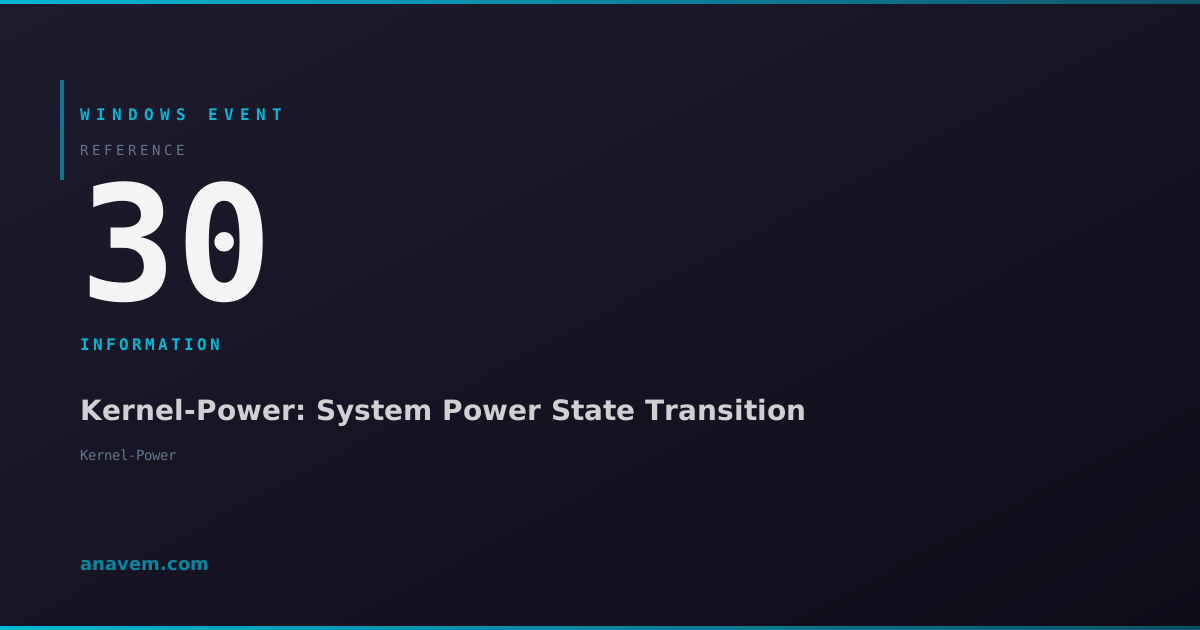
Windows Event ID 30 – Kernel-Power: System Power State Transition

Event ID 30 from Kernel-Power indicates a system power state transition, typically recording when Windows enters or exits sleep, hibernation, or other power management states.

Emanuel DE ALMEIDAEmanuel DE ALMEIDA
18 March 20269 min read 0
Event ID 30Kernel-Power 5 methods 9 min
Event Reference

What This Event Means

Windows Event ID 30 represents a fundamental component of the operating system's power management telemetry. Generated by the Kernel-Power provider, this event creates a detailed record every time the system transitions between power states, whether initiated by user action, system policy, or hardware triggers.

The event data includes critical information such as the source power state (S0 for fully operational, S1-S3 for various sleep states, S4 for hibernation, and S5 for shutdown), the target power state, transition duration, and the subsystem or process that initiated the change. This granular data proves invaluable when diagnosing power-related issues in both client and server environments.

In Windows 11 and Server 2025, Microsoft enhanced the event structure to include additional context about Modern Standby states, USB selective suspend activities, and network adapter power management. These improvements help administrators identify specific components causing power transition delays or failures, particularly important in hybrid work environments where reliable sleep/wake functionality directly impacts user productivity.

The event frequency varies significantly based on system configuration and usage patterns. Workstations with active power management may generate dozens of these events daily, while servers with disabled power management might only log them during maintenance windows or unexpected power events.

Applies to

Windows 10Windows 11Windows Server 2019/2022/2025
Analysis

Possible Causes

  • User-initiated sleep or hibernation through Start menu or power button
  • Automatic sleep activation due to power management policy timeouts
  • System returning from sleep, hibernation, or Modern Standby states
  • Power button press configured for sleep rather than shutdown
  • Lid closure on laptops triggering sleep mode
  • Network Wake-on-LAN packets causing system wake events
  • Scheduled tasks or system maintenance activities changing power states
  • USB device selective suspend and resume operations
  • Display power management transitions (monitor sleep/wake)
  • Hybrid shutdown and fast startup sequences in Windows 10/11
Resolution Methods

Troubleshooting Steps

01

Analyze Event Details in Event Viewer

Start by examining the specific power transition details recorded in the event.

  1. Open Event Viewer by pressing Win + R, typing eventvwr.msc, and pressing Enter
  2. Navigate to Windows LogsSystem
  3. Filter the log by clicking Filter Current Log in the Actions panel
  4. Enter 30 in the Event IDs field and click OK
  5. Double-click on recent Event ID 30 entries to examine the details
  6. Review the General tab for power state information and the Details tab for XML data
  7. Look for patterns in timing, frequency, and associated events immediately before or after
Pro tip: Export filtered results to CSV for trend analysis across multiple days or weeks.
02

Query Power Events with PowerShell

Use PowerShell to extract and analyze power transition data programmatically.

  1. Open PowerShell as Administrator
  2. Query recent Event ID 30 entries:
    Get-WinEvent -FilterHashtable @{LogName='System'; Id=30; StartTime=(Get-Date).AddDays(-7)} | Select-Object TimeCreated, Id, LevelDisplayName, Message | Format-Table -AutoSize
  3. For detailed power state analysis:
    $Events = Get-WinEvent -FilterHashtable @{LogName='System'; Id=30; StartTime=(Get-Date).AddDays(-1)}
    foreach ($Event in $Events) {
        $XML = [xml]$Event.ToXml()
        Write-Host "Time: $($Event.TimeCreated) - Power Transition Detected"
        Write-Host "Details: $($Event.Message)"
        Write-Host "---"
    }
  4. Count power transitions by day:
    Get-WinEvent -FilterHashtable @{LogName='System'; Id=30; StartTime=(Get-Date).AddDays(-30)} | Group-Object {$_.TimeCreated.Date} | Sort-Object Name
Warning: High frequencies of power transitions may indicate hardware issues or misconfigured power policies.
03

Review Power Management Configuration

Examine system power settings that control when and how power transitions occur.

  1. Open Control PanelPower Options or search for "Power & sleep settings"
  2. Click Additional power settings to access advanced options
  3. Select your current power plan and click Change plan settings
  4. Click Change advanced power settings to review detailed configuration
  5. Check these key settings:
    • Sleep → Sleep after and Hibernate after timers
    • USB settings → USB selective suspend setting
    • Power buttons and lid → Power button and lid close actions
    • Display → Turn off display after settings
  6. Use PowerShell to audit current power configuration:
    powercfg /query
    powercfg /availablesleepstates
    powercfg /devicequery wake_armed
  7. Generate a power efficiency report:
    powercfg /energy /output C:\temp\energy-report.html
04

Investigate Wake Sources and Triggers

Identify what devices or processes are causing unexpected power state changes.

  1. Check what woke the system from sleep:
    powercfg /lastwake
  2. List all devices capable of waking the system:
    powercfg /devicequery wake_armed
  3. Review wake timers and scheduled tasks:
    powercfg /waketimers
  4. Disable specific wake sources if needed:
    # Disable network adapter wake capability
    powercfg /devicedisablewake "Intel(R) Ethernet Connection"
    # Disable USB wake capability
    powercfg /devicedisablewake "USB Root Hub"
  5. Check for applications preventing sleep:
    powercfg /requests
  6. Monitor real-time power events:
    Get-WinEvent -FilterHashtable @{LogName='System'; Id=30} -MaxEvents 1 | Format-List *
Pro tip: Use Task Scheduler to create automated reports when excessive power transitions are detected.
05

Advanced Power Event Correlation and Monitoring

Implement comprehensive monitoring to correlate Event ID 30 with other system events and performance metrics.

  1. Create a PowerShell script for continuous monitoring:
    # PowerShell script: Monitor-PowerEvents.ps1
    $LogName = 'System'
    $EventID = 30
    $OutputFile = "C:\temp\PowerTransitions.csv"
    
    Register-WmiEvent -Query "SELECT * FROM Win32_VolumeChangeEvent" -Action {
        $Event = Get-WinEvent -FilterHashtable @{LogName=$LogName; Id=$EventID} -MaxEvents 1
        $Event | Select-Object TimeCreated, Id, LevelDisplayName, Message | Export-Csv $OutputFile -Append -NoTypeInformation
    }
  2. Set up Windows Performance Toolkit (WPT) tracing for detailed power analysis:
    # Start power tracing
    wpr -start power -filemode
    # Stop after collecting data
    wpr -stop C:\temp\power-trace.etl
  3. Configure custom Event Log views in Event Viewer:
    • Right-click Custom ViewsCreate Custom View
    • Set Event Level to Information
    • Add Event ID 30 and related power events (1, 42, 107)
    • Save as "Power Management Events"
  4. Use Group Policy to standardize power settings across domain computers:
    • Open gpedit.msc or Group Policy Management Console
    • Navigate to Computer ConfigurationAdministrative TemplatesSystemPower Management
    • Configure sleep and hibernation policies consistently
  5. Implement SIEM correlation rules to alert on abnormal power transition patterns
Warning: Extensive power event logging can consume significant disk space in high-activity environments.

Overview

Event ID 30 from the Kernel-Power source fires when Windows transitions between different power states, such as entering sleep mode, hibernation, or returning to full power operation. This informational event is part of Windows' power management subsystem and helps administrators track system power behavior across workstations and servers.

The event appears in the System log and contains detailed information about the power transition, including the previous and new power states, transition reason, and timing data. While typically benign, patterns in these events can reveal power management issues, hardware problems, or configuration conflicts that affect system stability and performance.

Modern Windows systems generate this event frequently on laptops and desktops with aggressive power management policies. Server administrators often see fewer instances unless specific power management features are enabled. Understanding these transitions becomes crucial when troubleshooting unexpected shutdowns, wake-from-sleep failures, or power-related performance issues in enterprise environments.

Frequently Asked Questions

What does Event ID 30 from Kernel-Power actually mean?+
Event ID 30 indicates a power state transition in Windows, such as entering sleep mode, hibernation, or waking up. It's an informational event that logs when the system changes between different power states (S0-S5). The event includes details about the previous state, new state, and what triggered the transition. This is normal system behavior and typically doesn't indicate a problem unless you see unusual patterns or frequencies.
How can I tell if Event ID 30 entries indicate a problem with my system?+
Look for patterns rather than individual events. Problematic scenarios include: extremely frequent transitions (multiple per minute), transitions occurring at unexpected times, events immediately followed by error events, or transitions that don't correspond to user actions. Use PowerShell to analyze frequency and timing. Normal behavior shows transitions aligned with power policy settings and user activity. Abnormal patterns might indicate hardware issues, driver problems, or misconfigured power management.
Can Event ID 30 help me troubleshoot sleep and wake issues?+
Yes, Event ID 30 is crucial for sleep/wake troubleshooting. Correlate these events with Event IDs 1, 42, and 107 for complete power management analysis. If your system won't sleep, check if Event ID 30 appears when you expect it. If wake issues occur, examine the timing between sleep (Event ID 30) and wake events. Use 'powercfg /lastwake' alongside Event ID 30 timestamps to identify what woke the system. Missing Event ID 30 entries when sleep should occur often indicates applications or drivers preventing sleep.
Why am I seeing so many Event ID 30 entries on my Windows 11 laptop?+
Windows 11 laptops generate frequent Event ID 30 entries due to Modern Standby and aggressive power management. Features like Connected Standby, USB selective suspend, and network adapter power management create numerous micro-transitions. This is normal behavior designed to maximize battery life. However, if you see hundreds per day, check for problematic USB devices, network adapters with frequent wake events, or applications preventing proper sleep states. Use 'powercfg /requests' to identify what's keeping your system active.
Should I be concerned about Event ID 30 appearing on my Windows Server?+
Event ID 30 on servers is less common since most server power management is disabled by default. If you see these events, verify they align with your intended power policy. Unexpected power transitions on servers can indicate hardware issues, UPS interactions, or misconfigured power settings. Check if the events correlate with scheduled maintenance, backup operations, or remote management activities. For production servers, consider disabling aggressive power management to prevent unexpected sleep states that could affect service availability.
Documentation

References (2)

Emanuel DE ALMEIDA
Written by

Emanuel DE ALMEIDA

Senior IT Journalist & Cloud Architect

Microsoft MCSA-certified Cloud Architect | Fortinet-focused. I modernize cloud, hybrid & on-prem infrastructure for reliability, security, performance and cost control - sharing field-tested ops & troubleshooting.

Discussion

Share your thoughts and insights

You must be logged in to comment.

Loading comments...