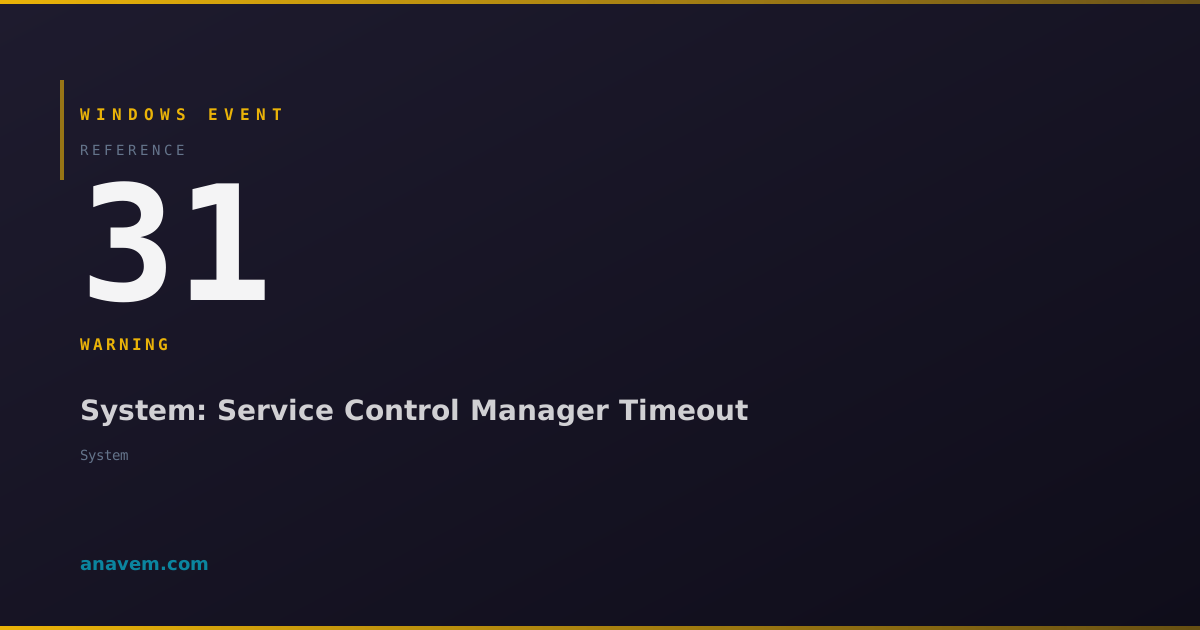

Event ID 31 represents a fundamental Windows service management issue where the Service Control Manager cannot complete a service operation within the allocated timeframe. The SCM maintains strict timeout controls to prevent system hangs and ensure responsive service management. When a service exceeds these timeouts, Windows logs this event to maintain an audit trail of service performance issues.
The timeout mechanism serves as a protective measure against services that become unresponsive due to resource contention, deadlocks, dependency issues, or internal errors. Modern Windows systems in 2026 have enhanced timeout detection and recovery mechanisms, but Event ID 31 remains a critical indicator of service health problems that require administrative attention.
This event can cascade into more serious issues if left unaddressed. Services that consistently timeout may eventually fail to start altogether, potentially causing application failures, network connectivity issues, or system instability. The event data provides valuable diagnostic information including the specific service name, operation type, and timeout duration, enabling targeted troubleshooting approaches.
In enterprise environments, Event ID 31 patterns often reveal systemic issues such as insufficient system resources, storage performance problems, or network connectivity issues affecting service dependencies. Monitoring these events proactively helps prevent service failures and maintains optimal system performance.