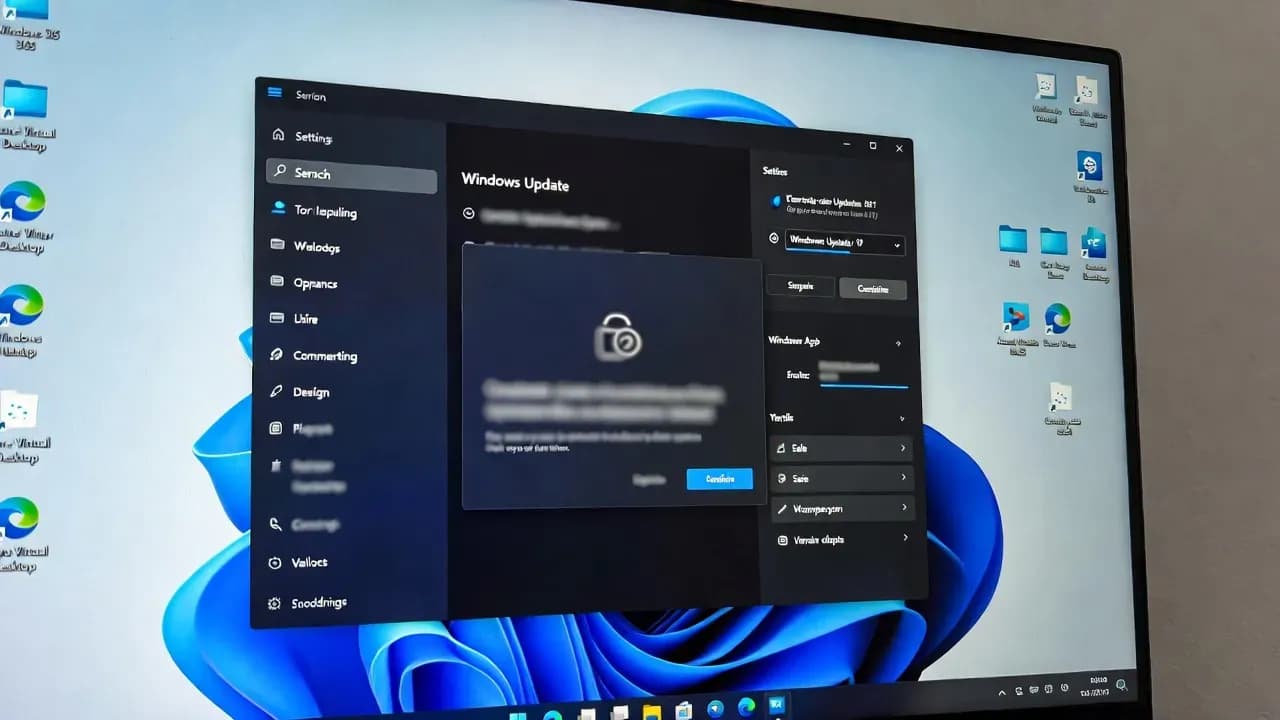
Windows 11 25H2 Update KB5074109 Breaks Windows App Sign-In (Azure Virtual Desktop, Windows 365): Fix with OOB KB5077744
After installing KB5074109 (January 2026 Patch Tuesday), some Windows 11 25H2 and 24H2 devices can hit credential prompt failures and sign-in errors in Windows App when connecting to Azure Virtual Desktop or Windows 365 Cloud PCs. This guide shows how to confirm impact, deploy the out-of-band fix KB5077744, and keep users productive with supported workarounds.
The Problem
In some enterprise environments, the January 2026 cumulative update KB5074109 can break Remote Desktop authentication flows. The most visible symptom is in Windows App, where users cannot complete sign-in when launching Azure Virtual Desktop (AVD) or Windows 365 Cloud PC sessions. Microsoft describes this as "credential prompt failures" that can lead to sign-in failures in remote connection applications, including Windows App.
From an IT operations standpoint, this is a high impact regression because it affects core "work from anywhere" paths. Users might still be able to connect using alternative clients or a web client, but the primary Windows App experience can fail until the device receives the fix.
Step-by-Step Guide
Confirm the symptom matches the known issue
Ensure you are troubleshooting the KB5074109 Remote Desktop credential prompt failure, not a tenant-side outage.
Start by validating the scope. This issue is specifically about Remote Desktop authentication flows after KB5074109. The clearest pattern is: a user launches Windows App, selects an AVD desktop or a Windows 365 Cloud PC, and the sign-in flow fails with repeated credential prompts or an authentication error.
To avoid chasing the wrong root cause, confirm at least one alternative path:
If the user can access the same resource via a web client or another approved Remote Desktop client, that strongly suggests a local Windows update regression rather than an AVD/Windows 365 service outage.
Verify KB5074109 is installed and identify your OS build
Prove the device is on the affected build line before deploying the fix.
Open Settings → Windows Update → Update history and look for KB5074109. This update applies to Windows 11 25H2 and 24H2, and Microsoft documents it as OS builds 26200.7623 and 26100.7623.
This confirmation matters in enterprise rollouts. If a device is not on the affected KB/build, you should not push an OOB update "just in case."
Get-HotFix | Where-Object { $_.HotFixID -in "KB5074109","KB5077744" } |
Sort-Object InstalledOn -DescendingConfirm this is the KB5074109 credential prompt failure (Release Health)
Align your incident with Microsoft's official known-issue entry and scope.
Check Microsoft's Windows Release Health entry for Windows 11 25H2. Microsoft states that after KB5074109, "credential prompt failures might occur in some remote connection applications," including Remote Desktop connections using Windows App for Azure Virtual Desktop and Windows 365, and that Windows App can experience sign-in failures on specific builds.
This step is also useful for change documentation and stakeholder comms because it provides a canonical vendor statement.
Install the out-of-band fix KB5077744 (recommended)
Apply Microsoft's resolution for the Remote Desktop sign-in failures.
Deploy KB5077744, the January 17, 2026 out-of-band cumulative update for Windows 11 25H2 and 24H2. Microsoft's KB5077744 release notes explicitly list a fix for Remote Desktop sign-in failures after KB5074109, impacting Windows App and other Remote Desktop applications.
Recommended enterprise sequence:
- Deploy KB5077744 to a pilot ring (IT and a small user set)
- Reboot once after installation
- Validate Windows App sign-in to AVD and Windows 365
- Expand rollout through your standard rings (WUfB, WSUS, ConfigMgr, Intune update rings)
If Windows Update does not offer it yet in your channel, install it via the Microsoft Update Catalog as a break-glass path, then move back to your managed servicing flow.
Use supported workarounds if you cannot deploy KB5077744 immediately
Restore productivity while you schedule the OOB rollout.
Microsoft-adjacent reporting and Microsoft guidance indicate two practical workarounds while Windows App is broken:
- Use the Windows App web client to access Cloud PCs and virtual desktops
- Use the Remote Desktop client (alternate app) for Azure Virtual Desktop connections
These workarounds are not a permanent solution. Use them to keep users working while the OOB update is validated and deployed.
Validate the fix and close the incident properly
Ensure the issue is resolved across your estate and prevent recurrence in future rings.
After deploying KB5077744, validate on at least two device groups:
- A pilot device that previously reproduced the Windows App sign-in failure
- A "clean" device that receives updates through your standard channel
Verification checklist:
- Confirm KB5077744 is installed and the device rebooted once
- Launch Windows App and sign in to the affected AVD/Windows 365 resource
- Confirm no repeated credential prompts appear and the session launches normally
- Document the timeline, affected OS versions, and the remediation KB for audit and postmortem
If you still see issues on a fully updated device, return to tenant-side checks (Conditional Access, MFA, sign-in logs), because at that point the known client regression should be addressed.
$os = Get-ComputerInfo | Select-Object WindowsProductName, WindowsVersion, OsBuildNumber
$kb = Get-HotFix | Where-Object { $_.HotFixID -in "KB5074109","KB5077744" } |
  Sort-Object InstalledOn -Descending
$os
$kbHow It Works
KB5074109 is a cumulative security update for Windows 11 version 25H2 and 24H2 (OS builds 26200.7623 and 26100.7623). Microsoft's release health notes that after installing this update, credential prompt failures can occur in some remote connection applications, including Windows App on specific Windows builds, resulting in sign-in failures for Azure Virtual Desktop and Windows 365.
Microsoft resolved the Remote Desktop sign-in failure issue with an out-of-band (OOB) cumulative update released January 17, 2026, KB5077744 (OS builds 26200.7627 and 26100.7627). The KB5077744 notes explicitly state the Remote Desktop sign-in failures after KB5074109 are fixed, and that the issue affected authentication steps for Windows App and other Remote Desktop applications.
Operationally, this is the right remediation pattern for enterprise: keep security posture intact by applying the OOB fix rather than rolling back Patch Tuesday broadly, and use supported workarounds only as a short bridge while you deploy KB5077744 through your rings.


Comments
Want to join the discussion?
Create an account to unlock exclusive member content, save your favorite articles, and join our community of IT professionals.
New here? Create a free account to get started.