ANAVEM
Languagefr
Windows administrator troubleshooting Group Policy events in Event Viewer on multiple monitors
Event ID 1016WarningWinLogonWindows

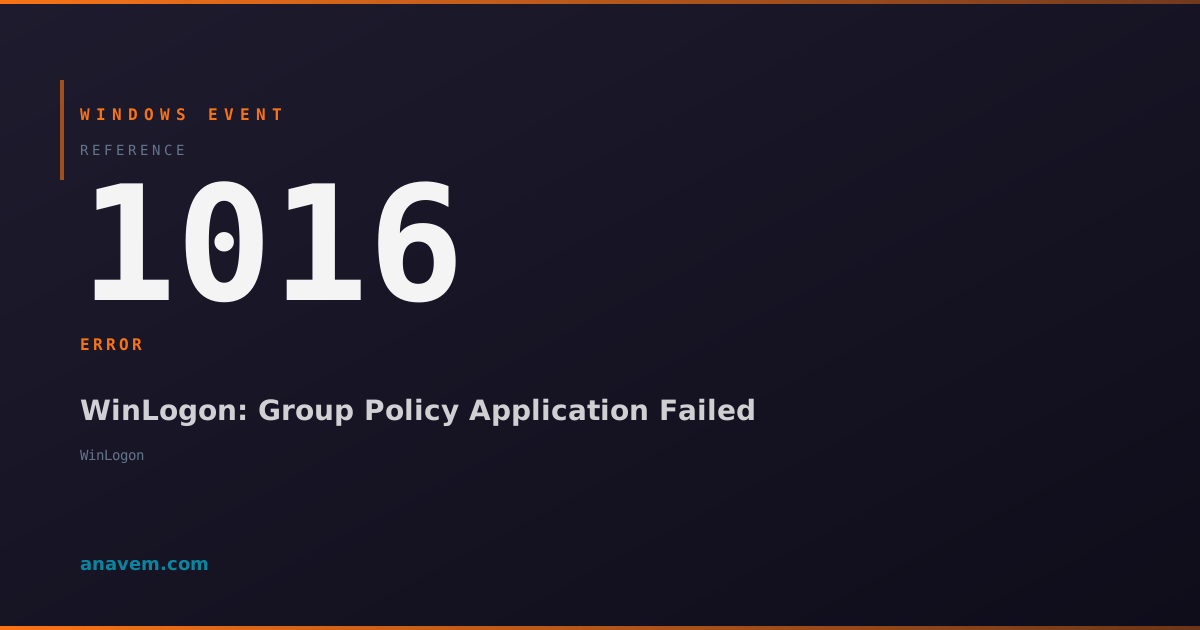
Windows Event ID 1016 – WinLogon: Group Policy Application Failed

Event ID 1016 indicates Group Policy processing failures during user logon or computer startup, typically caused by network connectivity issues, domain controller problems, or corrupted policy files.

Emanuel DE ALMEIDAEmanuel DE ALMEIDA
18 March 202612 min read 0
Event ID 1016WinLogon 5 methods 12 min
Event Reference

What This Event Means

Windows Event ID 1016 represents a critical warning in Group Policy processing that can significantly impact enterprise security and configuration management. When this event occurs, it means the Group Policy client service running on the affected machine encountered an error while attempting to retrieve or apply policy settings from Active Directory.

The Group Policy processing cycle begins during computer startup and user logon, with periodic refresh intervals occurring every 90-120 minutes for computers and every 90 minutes for users by default. During these cycles, the client contacts domain controllers to download updated GPOs and applies any changes to the local system. Event 1016 indicates this process failed at some point.

Common scenarios triggering this event include network timeouts when contacting domain controllers, authentication failures, corrupted Group Policy templates, insufficient permissions on SYSVOL shares, or DNS resolution problems preventing the client from locating domain controllers. In Windows 11 and Server 2025 environments, enhanced logging provides more detailed error codes to help pinpoint the exact failure point.

The impact of this event varies depending on which policies failed to apply. Critical security settings, software deployment packages, registry modifications, and user environment configurations may not take effect, potentially leaving systems in an inconsistent or vulnerable state until the next successful policy refresh.

Applies to

Windows 10Windows 11Windows Server 2019/2022/2025
Analysis

Possible Causes

  • Network connectivity issues preventing communication with domain controllers
  • DNS resolution failures when locating domain controllers for policy retrieval
  • Authentication problems due to expired computer accounts or trust relationship issues
  • Insufficient permissions on SYSVOL shares or Group Policy folders
  • Corrupted Group Policy templates or registry.pol files in SYSVOL
  • Domain controller overload or temporary unavailability during policy processing
  • Slow network links causing timeouts during large policy downloads
  • Antivirus software blocking Group Policy client access to network resources
  • Firewall rules preventing required RPC or LDAP communication
  • Time synchronization issues between client and domain controllers
Resolution Methods

Troubleshooting Steps

01

Check Event Viewer for Detailed Error Information

Start by examining the complete event details and related Group Policy events to identify the specific failure cause.

  1. Open Event Viewer by pressing Win + R, typing eventvwr.msc, and pressing Enter
  2. Navigate to Windows LogsSystem
  3. Filter for Event ID 1016 using the Filter Current Log option
  4. Double-click the most recent Event ID 1016 to view detailed information
  5. Note the error code and description in the event details
  6. Check Applications and Services LogsMicrosoftWindowsGroupPolicyOperational for additional context
  7. Use PowerShell to gather recent Group Policy events:
    Get-WinEvent -FilterHashtable @{LogName='Microsoft-Windows-GroupPolicy/Operational'; StartTime=(Get-Date).AddHours(-24)} | Where-Object {$_.LevelDisplayName -eq 'Error' -or $_.LevelDisplayName -eq 'Warning'} | Format-Table TimeCreated, Id, LevelDisplayName, Message -Wrap
Pro tip: Event ID 1016 often appears alongside Event IDs 1058, 1030, or 1129 which provide more specific error details about the Group Policy failure.
02

Test Domain Controller Connectivity and DNS Resolution

Verify that the affected machine can properly communicate with domain controllers and resolve DNS names.

  1. Open an elevated Command Prompt or PowerShell session
  2. Test domain controller connectivity:
    nltest /dsgetdc:yourdomain.com
  3. Verify DNS resolution for domain controllers:
    nslookup -type=SRV _ldap._tcp.dc._msdcs.yourdomain.com
  4. Test LDAP connectivity to domain controllers:
    Test-NetConnection -ComputerName dc01.yourdomain.com -Port 389
  5. Check time synchronization with domain controllers:
    w32tm /query /status
  6. If time is out of sync, synchronize with domain:
    w32tm /resync /force
  7. Test Group Policy processing manually:
    gpupdate /force
Warning: Time differences greater than 5 minutes between client and domain controller will cause Kerberos authentication failures and Group Policy processing errors.
03

Verify Computer Account and Trust Relationship

Ensure the computer account is properly authenticated with the domain and trust relationships are intact.

  1. Check the computer's domain membership status:
    Test-ComputerSecureChannel -Verbose
  2. If the secure channel test fails, repair the computer account:
    Test-ComputerSecureChannel -Repair -Credential (Get-Credential)
  3. Verify the computer account exists in Active Directory:
    Get-ADComputer -Identity $env:COMPUTERNAME -Properties PasswordLastSet, Enabled
  4. Check for computer account lockout or expiration:
    Get-ADComputer -Identity $env:COMPUTERNAME -Properties AccountLockoutTime, AccountExpirationDate
  5. Reset the computer account password if necessary:
    Reset-ComputerMachinePassword -Credential (Get-Credential)
  6. Restart the affected computer after password reset
  7. Verify Group Policy processing after restart:
    gpresult /r
Pro tip: Computer accounts automatically change their passwords every 30 days. If a computer is offline for extended periods, the password may become out of sync with Active Directory.
04

Check SYSVOL Access and Group Policy File Integrity

Verify that the computer can access SYSVOL shares and that Group Policy files are not corrupted.

  1. Test access to the SYSVOL share:
    Test-Path "\\yourdomain.com\SYSVOL\yourdomain.com\Policies"
  2. List Group Policy folders in SYSVOL:
    Get-ChildItem "\\yourdomain.com\SYSVOL\yourdomain.com\Policies" | Where-Object {$_.Name -match '^{[A-F0-9-]+}$'}
  3. Check permissions on SYSVOL share:
    icacls "\\yourdomain.com\SYSVOL\yourdomain.com\Policies"
  4. Verify Group Policy template files exist:
    Get-ChildItem "\\yourdomain.com\SYSVOL\yourdomain.com\Policies\*\gpt.ini" -Recurse
  5. Check for corrupted registry.pol files:
    Get-ChildItem "\\yourdomain.com\SYSVOL\yourdomain.com\Policies\*\Machine\registry.pol" -Recurse | ForEach-Object { try { [System.IO.File]::ReadAllBytes($_.FullName) | Out-Null; Write-Host "$($_.FullName) - OK" -ForegroundColor Green } catch { Write-Host "$($_.FullName) - CORRUPTED" -ForegroundColor Red } }
  6. Clear local Group Policy cache if corruption is found:
    Remove-Item "C:\Windows\System32\GroupPolicy\*" -Recurse -Force
Warning: Clearing the local Group Policy cache will force a complete re-download of all policies during the next refresh cycle.
05

Enable Advanced Group Policy Logging and Troubleshooting

Configure detailed Group Policy logging to capture comprehensive diagnostic information for complex issues.

  1. Enable Group Policy operational logging:
    wevtutil sl Microsoft-Windows-GroupPolicy/Operational /e:true
  2. Configure verbose Group Policy logging in the registry:
    New-ItemProperty -Path "HKLM\SOFTWARE\Microsoft\Windows NT\CurrentVersion\Winlogon" -Name "GPExtensions" -Value 1 -PropertyType DWord -Force
  3. Enable Group Policy debug logging:
    New-ItemProperty -Path "HKLM\SOFTWARE\Microsoft\Windows NT\CurrentVersion\Diagnostics" -Name "GPSvcDebugLevel" -Value 0x30002 -PropertyType DWord -Force
  4. Set Group Policy processing to synchronous mode for testing:
    New-ItemProperty -Path "HKLM\SOFTWARE\Microsoft\Windows NT\CurrentVersion\Winlogon" -Name "SynchronousUserGroupPolicy" -Value 1 -PropertyType DWord -Force
  5. Restart the Group Policy Client service:
    Restart-Service gpsvc -Force
  6. Force Group Policy refresh and monitor logs:
    gpupdate /force /wait:0
  7. Analyze detailed logs in Event Viewer under Applications and Services LogsMicrosoftWindowsGroupPolicy
  8. Generate comprehensive Group Policy report:
    gpresult /h C:\GPReport.html /f
Pro tip: Remember to disable debug logging after troubleshooting to prevent excessive log file growth in production environments.

Overview

Event ID 1016 from the WinLogon source fires when Windows fails to apply Group Policy during user logon or computer startup. This warning-level event appears in the System log and indicates that the Group Policy client encountered errors while attempting to download or process policy settings from domain controllers.

The event typically occurs in Active Directory environments where workstations or servers cannot properly communicate with domain controllers to retrieve Group Policy Objects (GPOs). While users can still log on when this event occurs, they may not receive their intended policy settings, potentially affecting security configurations, software installations, drive mappings, and other managed settings.

This event is particularly common in environments with network connectivity issues, slow WAN links, or when domain controllers are temporarily unavailable. The Group Policy client will retry processing during the next refresh cycle, but administrators should investigate the underlying cause to ensure consistent policy application across the domain.

Frequently Asked Questions

What does Event ID 1016 mean and why does it occur?+
Event ID 1016 indicates that Windows failed to apply Group Policy settings during user logon or computer startup. This occurs when the Group Policy client cannot successfully communicate with domain controllers to download or process GPOs. Common causes include network connectivity issues, DNS problems, authentication failures, or corrupted policy files. While users can still log on, they may not receive their intended policy settings, potentially affecting security configurations and managed settings.
How can I determine which specific Group Policy failed to apply?+
To identify the specific failed policy, check the Group Policy Operational log at Applications and Services Logs → Microsoft → Windows → GroupPolicy → Operational in Event Viewer. Look for events with IDs 1058, 1030, or 1129 that often accompany Event 1016 and provide more detailed error information. You can also run 'gpresult /r' to see which policies were successfully applied and 'gpresult /h report.html /f' to generate a comprehensive HTML report showing policy processing details.
Can Event ID 1016 affect system security and how serious is it?+
Yes, Event ID 1016 can significantly impact system security. When Group Policy fails to apply, critical security settings like password policies, user rights assignments, firewall rules, and software restrictions may not take effect. This can leave systems in an inconsistent or vulnerable state. Additionally, software deployment, drive mappings, and user environment configurations may fail. While not immediately critical, persistent Group Policy failures should be resolved quickly to maintain security posture and configuration compliance across the domain.
How often does Group Policy retry after a failure, and will it automatically resolve?+
Group Policy automatically retries during the next refresh cycle, which occurs every 90-120 minutes for computer policies and every 90 minutes for user policies by default. Domain controllers are also contacted every 16 hours regardless of changes. However, if the underlying cause (network issues, authentication problems, corrupted files) isn't resolved, the failures will continue. You can force an immediate retry using 'gpupdate /force', but this won't fix persistent underlying issues that require administrative intervention.
What's the difference between Event ID 1016 and other Group Policy error events?+
Event ID 1016 is a general Group Policy processing failure warning, while other events provide more specific details. Event 1058 indicates the Group Policy client couldn't contact a domain controller, Event 1030 shows specific policy extension failures, and Event 1129 indicates the client couldn't retrieve policy information. Event 1016 often appears as a summary event when other more specific errors occur. Always check the Group Policy Operational log for companion events that provide detailed error codes and specific failure points in the policy processing cycle.
Documentation

References (2)

Emanuel DE ALMEIDA
Written by

Emanuel DE ALMEIDA

Senior IT Journalist & Cloud Architect

Microsoft MCSA-certified Cloud Architect | Fortinet-focused. I modernize cloud, hybrid & on-prem infrastructure for reliability, security, performance and cost control - sharing field-tested ops & troubleshooting.

Discussion

Share your thoughts and insights

You must be logged in to comment.

Loading comments...