ANAVEM
Languagefr
Windows Event Viewer displaying MSI installer events on a system administrator's dual monitor setup
Event ID 1022InformationMsiInstallerWindows

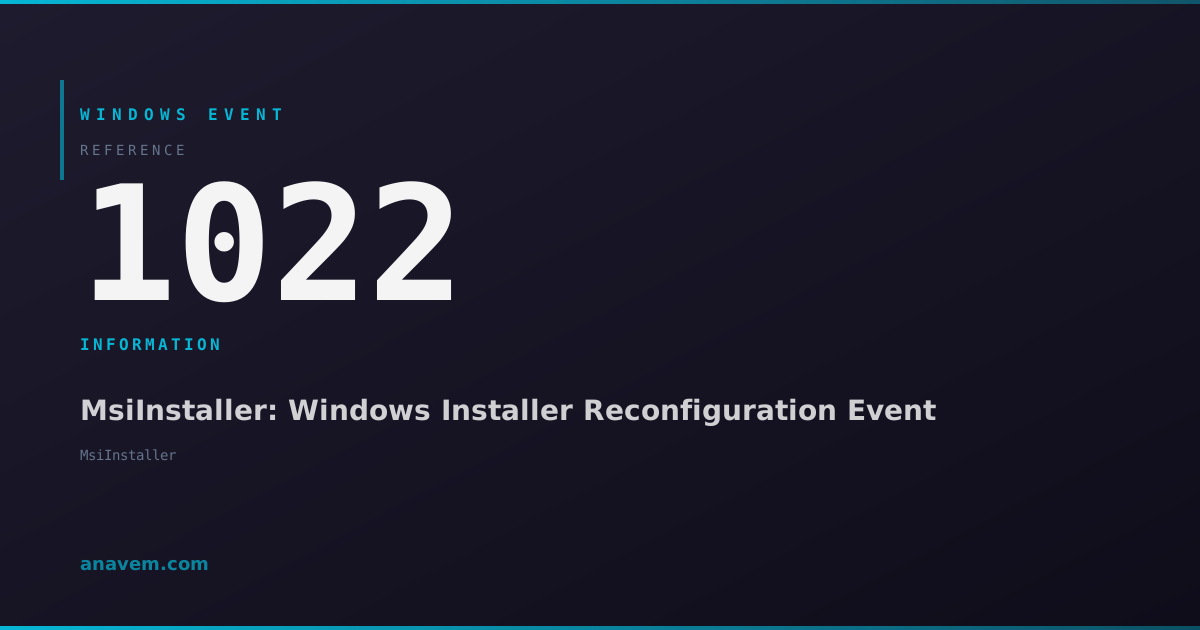
Windows Event ID 1022 – MsiInstaller: Windows Installer Reconfiguration Event

Event ID 1022 from MsiInstaller indicates Windows Installer has begun reconfiguring an installed product, typically triggered by repair operations, feature modifications, or automatic maintenance tasks.

Emanuel DE ALMEIDAEmanuel DE ALMEIDA
18 March 20269 min read 0
Event ID 1022MsiInstaller 5 methods 9 min
Event Reference

What This Event Means

Windows Event ID 1022 represents a critical checkpoint in the Windows Installer service lifecycle, marking the beginning of product reconfiguration operations. When this event fires, it indicates that the MSI engine has validated the request to modify an existing installation and has begun the reconfiguration process. The event captures essential metadata including the product code, user security identifier, and the specific type of reconfiguration being performed.

The reconfiguration process encompasses several distinct operations: repair operations that restore missing or corrupted files, feature modifications that add or remove specific product components, patch applications that update existing installations, and administrative installations that modify deployment settings. Each reconfiguration type follows a specific workflow within the Windows Installer framework, and Event ID 1022 serves as the initial notification that this workflow has commenced.

From a system administration perspective, this event provides valuable insights into software maintenance activities across the enterprise. The event data includes the product name, version information, and the installation context (per-user or per-machine), enabling administrators to correlate reconfiguration activities with specific software packages and user accounts. This information proves invaluable when investigating software-related issues, tracking compliance with software licensing requirements, or analyzing the impact of automated maintenance operations on system performance.

Applies to

Windows 10Windows 11Windows Server 2019/2022/2025
Analysis

Possible Causes

  • Automatic repair operations triggered by missing or corrupted application files
  • User-initiated software modifications through Programs and Features control panel
  • Administrative patch deployments via Group Policy or WSUS
  • Feature additions or removals requested through application interfaces
  • Self-healing operations initiated by application shortcuts or file associations
  • Software update installations that modify existing product configurations
  • System restore operations that trigger installer reconfiguration
  • Third-party deployment tools executing MSI reconfiguration commands
Resolution Methods

Troubleshooting Steps

01

Analyze Event Details in Event Viewer

Start by examining the complete event details to understand what triggered the reconfiguration:

  1. Open Event Viewer by pressing Win + R, typing eventvwr.msc, and pressing Enter
  2. Navigate to Windows LogsApplication
  3. Filter events by clicking Filter Current Log in the Actions pane
  4. Enter 1022 in the Event IDs field and click OK
  5. Double-click the Event ID 1022 entry to view detailed information
  6. Review the event data fields including Product Name, Product Code, and User SID
  7. Note the timestamp to correlate with other system activities
  8. Check the General tab for the complete event description and any error codes

The event details will show the specific product being reconfigured and the user context. Cross-reference this information with recent system changes or user activities.

02

Query MSI Logs with PowerShell

Use PowerShell to extract and analyze Event ID 1022 occurrences across multiple systems:

# Get recent Event ID 1022 entries with detailed information
Get-WinEvent -FilterHashtable @{LogName='Application'; Id=1022; StartTime=(Get-Date).AddDays(-7)} | 
    Select-Object TimeCreated, Id, LevelDisplayName, Message | 
    Format-Table -Wrap

# Extract specific product information from event messages
Get-WinEvent -FilterHashtable @{LogName='Application'; Id=1022; StartTime=(Get-Date).AddDays(-30)} | 
    ForEach-Object {
        $message = $_.Message
        $productMatch = [regex]::Match($message, "Product: (.+?)\. ")
        $userMatch = [regex]::Match($message, "User: (.+?)\. ")
        [PSCustomObject]@{
            TimeCreated = $_.TimeCreated
            Product = if($productMatch.Success) { $productMatch.Groups[1].Value } else { "Unknown" }
            User = if($userMatch.Success) { $userMatch.Groups[1].Value } else { "Unknown" }
            FullMessage = $_.Message
        }
    } | Format-Table -AutoSize

This PowerShell approach provides a comprehensive view of reconfiguration activities and helps identify patterns or problematic installations.

03

Enable MSI Logging for Detailed Analysis

Configure comprehensive MSI logging to capture detailed information about reconfiguration operations:

  1. Open Registry Editor as Administrator
  2. Navigate to HKEY_LOCAL_MACHINE\SOFTWARE\Policies\Microsoft\Windows\Installer
  3. Create a new DWORD value named Logging if it doesn't exist
  4. Set the value to voicewarmupx (as REG_SZ) to enable comprehensive logging
  5. Create another DWORD named Debug and set it to 7
  6. Restart the Windows Installer service:
# Restart Windows Installer service to apply logging changes
Restart-Service -Name "msiserver" -Force

# Verify service status
Get-Service -Name "msiserver" | Select-Object Name, Status, StartType

MSI logs will now be created in %TEMP% directory with detailed information about each reconfiguration operation. Review these logs to identify specific components being modified and any errors encountered during the process.

Pro tip: MSI logging can generate large files quickly. Monitor disk space and disable logging after troubleshooting is complete.
04

Investigate Installation Source and Context

Determine the installation source and context to understand why reconfiguration was triggered:

# Query installed products and their installation sources
Get-WmiObject -Class Win32_Product | 
    Where-Object { $_.Name -like "*ProductName*" } | 
    Select-Object Name, Version, InstallDate, InstallSource, LocalPackage

# Check for recent Windows Updates that might trigger reconfigurations
Get-HotFix | Where-Object { $_.InstalledOn -gt (Get-Date).AddDays(-7) } | 
    Sort-Object InstalledOn -Descending

# Examine Group Policy settings that might affect MSI behavior
Get-ItemProperty -Path "HKLM:\SOFTWARE\Policies\Microsoft\Windows\Installer" -ErrorAction SilentlyContinue
  1. Check the Windows Installer cache location at C:\Windows\Installer
  2. Verify that cached MSI packages are present and not corrupted
  3. Review Group Policy settings under Computer ConfigurationAdministrative TemplatesWindows ComponentsWindows Installer
  4. Examine the HKLM\SOFTWARE\Microsoft\Windows\CurrentVersion\Installer registry key for product information
  5. Check for scheduled tasks that might trigger automatic software maintenance

Understanding the installation context helps determine whether the reconfiguration is expected behavior or indicates a potential issue requiring intervention.

05

Monitor and Prevent Unwanted Reconfigurations

Implement monitoring and prevention strategies for problematic reconfiguration events:

# Create a scheduled task to monitor Event ID 1022 and send alerts
$action = New-ScheduledTaskAction -Execute "powershell.exe" -Argument "-Command \"Get-WinEvent -FilterHashtable @{LogName='Application'; Id=1022; StartTime=(Get-Date).AddMinutes(-5)} | Out-File C:\Logs\MSI_Reconfig.log -Append\""
$trigger = New-ScheduledTaskTrigger -Once -At (Get-Date) -RepetitionInterval (New-TimeSpan -Minutes 5) -RepetitionDuration (New-TimeSpan -Days 365)
$settings = New-ScheduledTaskSettingsSet -AllowStartIfOnBatteries -DontStopIfGoingOnBatteries
Register-ScheduledTask -TaskName "MSI_Reconfiguration_Monitor" -Action $action -Trigger $trigger -Settings $settings -User "SYSTEM"

# Disable automatic repair for specific products if needed
# Note: This requires careful consideration as it may affect application functionality
$productCode = "{PRODUCT-GUID-HERE}"
Set-ItemProperty -Path "HKLM:\SOFTWARE\Microsoft\Windows\CurrentVersion\Installer\UserData\S-1-5-18\Products\$productCode\InstallProperties" -Name "NoRepair" -Value 1
  1. Configure Windows Event Forwarding to centralize Event ID 1022 collection
  2. Set up SCOM or other monitoring tools to alert on excessive reconfiguration events
  3. Review and adjust Group Policy settings to control MSI behavior:
    • Turn off Windows Installer RDS Compatibility
    • Prohibit rollback
    • Disable Windows Installer (for specific scenarios)
  4. Implement application virtualization to reduce MSI-related issues
  5. Create baseline documentation of expected reconfiguration patterns
Warning: Disabling automatic repair or MSI functionality can prevent legitimate software maintenance. Test thoroughly in non-production environments.

Overview

Event ID 1022 fires when Windows Installer initiates a reconfiguration process for an already installed MSI package. This event appears in the Application log whenever the installer engine begins modifying, repairing, or updating components of an existing software installation. The reconfiguration process can be triggered by various scenarios including automatic repair operations, feature additions or removals, patch installations, or administrative deployment changes.

Unlike installation events that occur during initial software deployment, Event ID 1022 specifically tracks modifications to existing installations. The event contains crucial information about which product is being reconfigured, the user context under which the operation runs, and the specific reconfiguration type being performed. System administrators commonly encounter this event during software maintenance windows, automated patch deployments, or when users modify installed applications through Programs and Features.

This event serves as an audit trail for installation changes and helps administrators track software modifications across their environment. Understanding when and why reconfiguration events occur is essential for maintaining software inventory accuracy and troubleshooting installation-related issues in enterprise environments.

Frequently Asked Questions

What does Event ID 1022 mean and should I be concerned?+
Event ID 1022 indicates that Windows Installer has started reconfiguring an installed product. This is typically normal behavior when software is being repaired, updated, or modified. You should only be concerned if these events occur excessively, fail to complete successfully, or happen unexpectedly without user or administrative action. The event itself is informational and indicates the beginning of a legitimate installer operation.
How can I identify which specific software triggered Event ID 1022?+
The event message contains the product name and product code that identify the specific software. You can find this information in the event details within Event Viewer, or extract it programmatically using PowerShell. The product code is a GUID that uniquely identifies the MSI package, while the product name provides the human-readable software name. Cross-referencing this with your software inventory helps identify the exact application being reconfigured.
Why do I see multiple Event ID 1022 entries for the same software?+
Multiple entries can occur when software has multiple components or features being reconfigured separately, when the reconfiguration process encounters errors and retries, or when different user contexts trigger separate reconfiguration operations. Each MSI feature or component can generate its own reconfiguration event. Additionally, if the initial reconfiguration fails, Windows Installer may attempt the operation multiple times, creating additional Event ID 1022 entries.
Can Event ID 1022 indicate malware or security issues?+
While Event ID 1022 itself is a legitimate Windows Installer event, malware could potentially trigger these events by attempting to modify or repair software installations. Monitor for reconfiguration events occurring outside normal business hours, affecting unexpected software packages, or happening without administrative authorization. Correlate these events with antivirus logs, user activity, and network monitoring to identify potential security concerns. Legitimate reconfigurations should align with scheduled maintenance or user-initiated actions.
How do I prevent automatic software reconfigurations that generate Event ID 1022?+
You can control automatic reconfigurations through Group Policy settings under Windows Installer policies, registry modifications to disable self-healing for specific products, or by configuring software deployment tools to prevent automatic maintenance. However, completely disabling reconfiguration capabilities may prevent legitimate software repairs and updates. Instead, focus on scheduling maintenance windows, controlling which users can trigger reconfigurations, and monitoring for unexpected patterns rather than blanket prevention.
Documentation

References (2)

Emanuel DE ALMEIDA
Written by

Emanuel DE ALMEIDA

Senior IT Journalist & Cloud Architect

Microsoft MCSA-certified Cloud Architect | Fortinet-focused. I modernize cloud, hybrid & on-prem infrastructure for reliability, security, performance and cost control - sharing field-tested ops & troubleshooting.

Discussion

Share your thoughts and insights

You must be logged in to comment.

Loading comments...