ANAVEM
Languagefr
Windows Event Viewer displaying MSI installation error logs on a system administrator's monitoring workstation
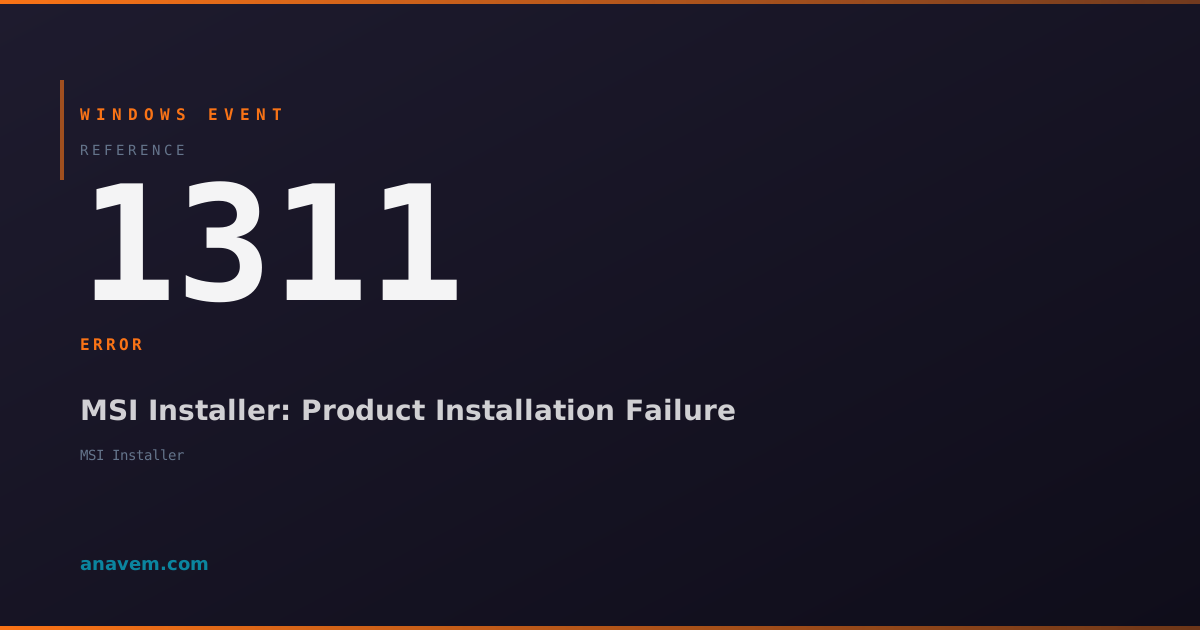
Event ID 1311ErrorMsiInstallerWindows

Windows Event ID 1311 – MSI Installer: Product Installation Failure

Event ID 1311 indicates a Windows Installer (MSI) package failed to install or configure properly. This error typically occurs when the installer cannot access required files, encounters permission issues, or faces corrupted installation media during software deployment.

Emanuel DE ALMEIDAEmanuel DE ALMEIDA
18 March 202612 min read 0
Event ID 1311MsiInstaller 5 methods 12 min
Event Reference

What This Event Means

Windows Event ID 1311 represents a fundamental failure in the Windows Installer service's ability to process an MSI package. When this event occurs, it indicates that the installation process encountered an unrecoverable error that prevented the software from being installed or configured correctly on the target system.

The Windows Installer service generates this event when it cannot access required installation files, encounters corrupted data within the MSI package, or faces permission restrictions that prevent proper installation. The event typically includes detailed information about the failed installation, including the product name, installation package location, and specific error codes that correspond to different failure scenarios.

In enterprise environments, Event ID 1311 often correlates with network connectivity issues, especially when installation packages are hosted on network shares or distributed through software deployment systems. The event can also indicate problems with the local Windows Installer service, registry corruption affecting installation processes, or conflicts with existing software installations.

Understanding the context and timing of Event ID 1311 is essential for effective troubleshooting. The event often appears alongside related Windows Installer events that provide additional context about the installation failure, making it important to review the complete event sequence when investigating installation problems.

Applies to

Windows 10Windows 11Windows Server 2019/2022/2025
Analysis

Possible Causes

  • Corrupted or incomplete MSI installation package files
  • Network connectivity issues preventing access to installation sources
  • Insufficient user permissions to install software or access installation files
  • Windows Installer service corruption or malfunction
  • Registry corruption affecting Windows Installer operations
  • Disk space limitations preventing installation completion
  • Antivirus software blocking installation files or processes
  • Conflicting software installations or incomplete previous installations
  • Missing or corrupted Windows Installer dependencies
  • Group Policy restrictions preventing software installation
Resolution Methods

Troubleshooting Steps

01

Check Event Viewer for Detailed Error Information

Start by examining the complete event details to understand the specific failure scenario:

  1. Open Event Viewer by pressing Win + R, typing eventvwr.msc, and pressing Enter
  2. Navigate to Windows LogsApplication
  3. Filter for Event ID 1311 using the Filter Current Log option
  4. Double-click the most recent Event ID 1311 to view detailed information
  5. Note the product name, installation package path, and any error codes in the event description

Use PowerShell to retrieve recent Event ID 1311 entries with additional details:

Get-WinEvent -FilterHashtable @{LogName='Application'; Id=1311} -MaxEvents 10 | Format-Table TimeCreated, LevelDisplayName, Message -Wrap

For more detailed analysis, export the events to review installation patterns:

Get-WinEvent -FilterHashtable @{LogName='Application'; Id=1311} | Select-Object TimeCreated, Id, LevelDisplayName, Message | Export-Csv -Path "C:\Temp\Event1311_Analysis.csv" -NoTypeInformation
Pro tip: Look for recurring patterns in the installation failures, such as specific products or time periods, which can indicate systematic issues rather than isolated problems.
02

Verify Installation Package Integrity and Accessibility

Ensure the MSI package is accessible and not corrupted:

  1. Locate the installation package path mentioned in the Event ID 1311 details
  2. Verify the file exists and is accessible from the target system
  3. Check file permissions on the installation package and containing folder
  4. Test network connectivity if the package is on a network share

Use PowerShell to test file accessibility and integrity:

# Test file existence and accessibility
$msiPath = "\\server\share\software\application.msi"
Test-Path $msiPath
Get-ItemProperty $msiPath | Select-Object Name, Length, LastWriteTime

Verify MSI package integrity using Windows Installer validation:

# Check MSI package properties
msiexec /i "$msiPath" /l*v "C:\Temp\msi_validation.log" /passive

For network-based installations, test connectivity and permissions:

# Test network path accessibility
$networkPath = "\\server\share\software"
Test-NetConnection -ComputerName "server" -Port 445
Get-ChildItem $networkPath -ErrorAction SilentlyContinue
Warning: Always test installation packages in a controlled environment before deploying to production systems to avoid widespread installation failures.
03

Reset and Repair Windows Installer Service

Repair the Windows Installer service to resolve service-related installation failures:

  1. Open Command Prompt as Administrator
  2. Stop the Windows Installer service and related processes
  3. Re-register Windows Installer components
  4. Restart the service and test installation

Execute these PowerShell commands to reset the Windows Installer service:

# Stop Windows Installer service
Stop-Service -Name "msiserver" -Force

# Re-register Windows Installer components
Regsvr32 /s msi.dll
Regsvr32 /s msihnd.dll
Regsvr32 /s initpki.dll
Regsvr32 /s wintrust.dll
Regsvr32 /s softpub.dll

Reset Windows Installer service configuration:

# Reset service to default configuration
sc config msiserver start= demand
sc config msiserver type= share

# Start the service
Start-Service -Name "msiserver"

Clear Windows Installer cache if corruption is suspected:

# Clear installer cache (use with caution)
$installerCache = "$env:WINDIR\Installer"
Get-ChildItem $installerCache -Filter "*.msi" | Where-Object {$_.LastWriteTime -lt (Get-Date).AddDays(-30)} | Remove-Item -Force
Pro tip: Create a system restore point before performing Windows Installer service repairs to ensure you can rollback if issues occur.
04

Investigate Registry and Permission Issues

Address registry corruption and permission problems affecting Windows Installer:

  1. Check Windows Installer registry keys for corruption
  2. Verify user permissions for installation processes
  3. Reset installer-related registry permissions
  4. Test installation with elevated privileges

Examine critical Windows Installer registry locations:

# Check Windows Installer registry keys
$installerKeys = @(
    "HKLM:\SOFTWARE\Microsoft\Windows\CurrentVersion\Installer",
    "HKLM:\SOFTWARE\Classes\Installer",
    "HKLM:\SYSTEM\CurrentControlSet\Services\msiserver"
)

foreach ($key in $installerKeys) {
    if (Test-Path $key) {
        Write-Host "Registry key exists: $key" -ForegroundColor Green
    } else {
        Write-Host "Missing registry key: $key" -ForegroundColor Red
    }
}

Reset permissions on Windows Installer directories:

# Reset permissions on installer directories
$installerDirs = @(
    "$env:WINDIR\Installer",
    "$env:WINDIR\System32"
)

foreach ($dir in $installerDirs) {
    icacls $dir /reset /t /c /q
    icacls $dir /grant "SYSTEM:(OI)(CI)F" /t /c /q
    icacls $dir /grant "Administrators:(OI)(CI)F" /t /c /q
}

Check Group Policy restrictions affecting installations:

# Check relevant Group Policy settings
Get-ItemProperty "HKLM:\SOFTWARE\Policies\Microsoft\Windows\Installer" -ErrorAction SilentlyContinue
Get-ItemProperty "HKCU:\SOFTWARE\Policies\Microsoft\Windows\Installer" -ErrorAction SilentlyContinue
Warning: Modifying registry permissions can affect system security. Always document changes and test in a non-production environment first.
05

Advanced Troubleshooting with MSI Logging and Process Monitor

Perform comprehensive analysis using detailed logging and system monitoring:

  1. Enable comprehensive MSI logging for detailed failure analysis
  2. Use Process Monitor to track file and registry access during installation
  3. Analyze installation dependencies and conflicts
  4. Implement automated monitoring for recurring issues

Enable detailed MSI logging through registry configuration:

# Enable comprehensive MSI logging
$logPath = "HKLM:\SOFTWARE\Policies\Microsoft\Windows\Installer"
if (!(Test-Path $logPath)) {
    New-Item -Path $logPath -Force
}
Set-ItemProperty -Path $logPath -Name "Logging" -Value "voicewarmupx" -Type String
Set-ItemProperty -Path $logPath -Name "LoggingPolicy" -Value 1 -Type DWord

Create a comprehensive installation monitoring script:

# Monitor installation attempts and log details
$monitorScript = @'
Register-WmiEvent -Query "SELECT * FROM Win32_VolumeChangeEvent WHERE EventType = 2" -Action {
    $event = $Event.SourceEventArgs.NewEvent
    Write-Host "Installation activity detected: $($event.DriveName)" -ForegroundColor Yellow
    
    # Check for recent Event ID 1311
    $recentErrors = Get-WinEvent -FilterHashtable @{LogName='Application'; Id=1311; StartTime=(Get-Date).AddMinutes(-5)} -ErrorAction SilentlyContinue
    if ($recentErrors) {
        Write-Host "Recent installation failures detected" -ForegroundColor Red
        $recentErrors | Format-Table TimeCreated, Message -Wrap
    }
}
'@

Invoke-Expression $monitorScript

Analyze installation dependencies and conflicts:

# Check for conflicting installations
$installedProducts = Get-WmiObject -Class Win32_Product | Select-Object Name, Version, InstallDate
$installedProducts | Where-Object {$_.Name -like "*partial_name*"} | Format-Table -AutoSize

# Check Windows Installer service dependencies
Get-Service msiserver | Select-Object -ExpandProperty DependentServices
Get-Service msiserver | Select-Object -ExpandProperty ServicesDependedOn
Pro tip: Use Process Monitor (ProcMon) during installation attempts to identify specific file or registry access failures that may not be apparent in standard event logs.

Overview

Event ID 1311 fires when Windows Installer encounters a critical failure during software installation or configuration. This event appears in the Application log whenever an MSI package cannot complete its installation process due to file access issues, corrupted installation media, insufficient permissions, or missing dependencies.

The event typically includes details about the specific product that failed to install, the installation package path, and error codes that help identify the root cause. System administrators frequently encounter this event during automated software deployments, Group Policy software installations, or when users attempt to install applications from network shares or removable media.

This event is particularly common in enterprise environments where software is deployed centrally through System Center Configuration Manager (SCCM), Microsoft Intune, or Group Policy. The error can affect both user-initiated installations and system-level deployments, making it crucial for administrators to understand the various scenarios that trigger Event ID 1311 and implement appropriate troubleshooting strategies.

Frequently Asked Questions

What does Windows Event ID 1311 specifically indicate?+
Event ID 1311 indicates that a Windows Installer (MSI) package failed to install or configure properly on the system. This error occurs when the Windows Installer service encounters critical issues such as corrupted installation files, permission problems, network connectivity issues, or service malfunctions. The event provides specific details about which product failed to install and often includes error codes that help identify the root cause of the installation failure.
How can I determine which specific software installation caused Event ID 1311?+
The Event ID 1311 details contain specific information about the failed installation, including the product name and installation package path. You can find this information by opening Event Viewer, navigating to Windows Logs > Application, and examining the event details. The event description typically includes the MSI package filename and location. Additionally, you can use PowerShell to extract this information: Get-WinEvent -FilterHashtable @{LogName='Application'; Id=1311} | Select-Object TimeCreated, Message will show recent failures with product details.
Can Event ID 1311 be caused by antivirus software interference?+
Yes, antivirus software can definitely cause Event ID 1311 by blocking installation files, quarantining MSI packages, or interfering with the Windows Installer service. Real-time protection features may flag installation processes as suspicious, especially when installing software from network locations or when the installer modifies system files. To troubleshoot this, temporarily disable real-time protection during installation, add the installation source to antivirus exclusions, or check the antivirus quarantine logs for blocked files. Always re-enable protection after testing.
What should I do if Event ID 1311 occurs during Group Policy software deployment?+
When Event ID 1311 occurs during Group Policy software deployment, first verify that the installation package is accessible from all target computers and that the SYSVOL share permissions are correct. Check that the computer accounts have read access to the software distribution point. Use gpresult /h report.html to verify Group Policy application and check for any policy conflicts. Ensure the Windows Installer service is running on target computers and that Group Policy settings aren't restricting software installation. Test the installation manually on a target computer to isolate whether the issue is with the package or the deployment mechanism.
How can I prevent recurring Event ID 1311 errors in an enterprise environment?+
To prevent recurring Event ID 1311 errors, implement several best practices: First, establish a standardized software testing process that validates MSI packages before deployment. Use application virtualization technologies like App-V when possible to reduce installation conflicts. Implement centralized logging and monitoring to detect installation failures early. Ensure network infrastructure reliability for software distribution points and consider using local distribution points for remote locations. Regularly update and maintain the Windows Installer service on all systems. Create automated scripts to verify installation package integrity and accessibility. Finally, establish clear procedures for handling installation failures and maintain documentation of known compatibility issues.
Documentation

References (2)

Emanuel DE ALMEIDA
Written by

Emanuel DE ALMEIDA

Senior IT Journalist & Cloud Architect

Microsoft MCSA-certified Cloud Architect | Fortinet-focused. I modernize cloud, hybrid & on-prem infrastructure for reliability, security, performance and cost control - sharing field-tested ops & troubleshooting.

Discussion

Share your thoughts and insights

You must be logged in to comment.

Loading comments...