ANAVEM
Languagefr
Windows Event Viewer displaying MSI installer events on a system administrator's monitoring setup
Event ID 1035InformationMsiInstallerWindows

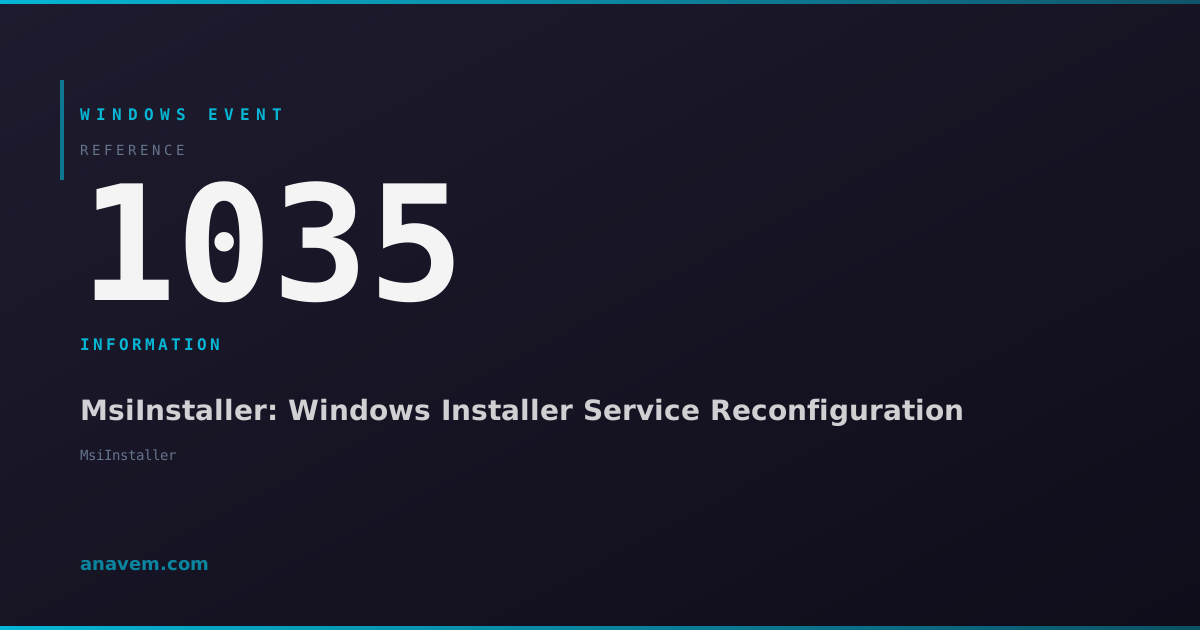
Windows Event ID 1035 – MsiInstaller: Windows Installer Service Reconfiguration

Event ID 1035 from MsiInstaller indicates Windows Installer service has reconfigured an installed product, typically during repair operations or feature modifications.

Emanuel DE ALMEIDAEmanuel DE ALMEIDA
18 March 20269 min read 0
Event ID 1035MsiInstaller 5 methods 9 min
Event Reference

What This Event Means

Windows Event ID 1035 represents a successful product reconfiguration operation performed by the Windows Installer service. This event is generated when MSI-based applications undergo maintenance operations such as feature additions, removals, or repairs without requiring a complete reinstallation.

The reconfiguration process can be initiated through several mechanisms: user-triggered repairs via Programs and Features, application self-healing when missing components are detected, Group Policy software deployment modifications, or administrative scripts using msiexec commands. The event captures essential details including the product name, version, manufacturer, and the specific reconfiguration action performed.

In enterprise environments, Event ID 1035 serves as a valuable audit trail for software maintenance activities. System administrators can correlate these events with help desk tickets, performance issues, or security compliance requirements. The event data includes timestamps, user contexts, and product identifiers that enable comprehensive tracking of software changes across the infrastructure.

The event's informational level indicates normal operation, but patterns of frequent reconfiguration events for the same product may indicate underlying issues with the application, corrupted installation files, or environmental problems affecting software stability.

Applies to

Windows 10Windows 11Windows Server 2019/2022/2025
Analysis

Possible Causes

  • User-initiated repair operations through Control Panel or Settings app
  • Application self-healing triggered by missing or corrupted files
  • Windows Update installing patches that modify MSI product features
  • Group Policy software deployment changes affecting installed packages
  • Administrative scripts executing msiexec repair or modify commands
  • System file checker (SFC) operations triggering component repairs
  • Antivirus software quarantining files, causing applications to self-repair
  • Registry corruption affecting MSI product registration
Resolution Methods

Troubleshooting Steps

01

Review Event Details in Event Viewer

Start by examining the complete event details to understand what product was reconfigured and why.

  1. Open Event Viewer by pressing Win + R, typing eventvwr.msc, and pressing Enter
  2. Navigate to Windows LogsApplication
  3. Filter for Event ID 1035 by right-clicking ApplicationFilter Current Log
  4. Enter 1035 in the Event IDs field and click OK
  5. Double-click the event to view detailed information including product name, version, and user context
  6. Note the exact timestamp and correlate with any user reports or system changes

Use PowerShell to extract multiple events for analysis:

Get-WinEvent -FilterHashtable @{LogName='Application'; Id=1035; StartTime=(Get-Date).AddDays(-7)} | Select-Object TimeCreated, Id, LevelDisplayName, Message | Format-Table -Wrap
02

Analyze MSI Installation Logs

Enable verbose MSI logging to capture detailed information about reconfiguration operations.

  1. Open Registry Editor as administrator
  2. Navigate to HKLM\SOFTWARE\Policies\Microsoft\Windows\Installer
  3. Create a new DWORD value named Logging with value voicewarmupx (if not exists)
  4. Create a string value LoggingPolicy with value voicewarmupx
  5. Restart the Windows Installer service:
Restart-Service -Name msiserver -Force

Check the MSI log directory for recent reconfiguration logs:

Get-ChildItem -Path "$env:TEMP" -Filter "MSI*.log" | Sort-Object LastWriteTime -Descending | Select-Object -First 5

Examine the logs for error patterns or repeated repair attempts that might indicate underlying issues.

03

Query Windows Installer Database

Use WMI to query installed products and their current state to identify potential issues.

# Get all installed MSI products
Get-WmiObject -Class Win32_Product | Where-Object {$_.InstallDate -gt (Get-Date).AddDays(-30).ToString('yyyyMMdd')} | Select-Object Name, Version, InstallDate, InstallState

For more detailed product information:

# Query specific product details
$ProductCode = "{PRODUCT-GUID-HERE}"
Get-WmiObject -Query "SELECT * FROM Win32_Product WHERE IdentifyingNumber='$ProductCode'" | Format-List *

Check for products in inconsistent states:

# Find products that may need repair
Get-WmiObject -Class Win32_Product | Where-Object {$_.InstallState -ne 5} | Select-Object Name, InstallState, @{Name='StateDescription';Expression={switch($_.InstallState){1{'Advertised'};2{'Absent'};3{'Default'};4{'Source'};5{'Local'};default{'Unknown'}}}}

Cross-reference these results with Event ID 1035 occurrences to identify problematic applications.

04

Monitor File System Changes During Reconfiguration

Use Process Monitor to track file system activity during MSI reconfiguration events.

  1. Download and run Process Monitor (ProcMon) from Microsoft Sysinternals
  2. Set filters to monitor msiexec.exe processes
  3. Configure additional filters for the application directory experiencing reconfiguration
  4. Trigger a manual repair of the affected application:
# Example: Repair Microsoft Office
msiexec /f {PRODUCT-CODE} /qb

Analyze the ProcMon logs for:

  • Files being accessed, modified, or recreated
  • Registry keys being updated
  • Services being stopped/started
  • Temporary files created during the process

Export ProcMon results and correlate timestamps with Event ID 1035 entries to understand the complete reconfiguration workflow.

05

Implement Centralized MSI Event Monitoring

Set up automated monitoring for MSI events across your environment using PowerShell and scheduled tasks.

Create a monitoring script:

# MSI Event Monitor Script
$LogName = 'Application'
$EventID = 1035
$Hours = 24

$Events = Get-WinEvent -FilterHashtable @{
    LogName = $LogName
    Id = $EventID
    StartTime = (Get-Date).AddHours(-$Hours)
} -ErrorAction SilentlyContinue

if ($Events) {
    $Report = $Events | ForEach-Object {
        [PSCustomObject]@{
            TimeCreated = $_.TimeCreated
            Computer = $env:COMPUTERNAME
            User = $_.UserId
            Message = $_.Message.Split('`n')[0]
        }
    }
    
    # Export to CSV for analysis
    $Report | Export-Csv -Path "C:\Logs\MSI_Reconfig_$(Get-Date -Format 'yyyyMMdd').csv" -NoTypeInformation -Append
    
    # Send email alert if threshold exceeded
    if ($Events.Count -gt 5) {
        # Add email notification logic here
        Write-Warning "High number of MSI reconfigurations detected: $($Events.Count)"
    }
}

Schedule this script to run hourly using Task Scheduler or deploy via Group Policy for enterprise-wide monitoring.

Overview

Event ID 1035 fires when the Windows Installer service (msiexec.exe) successfully reconfigures an installed MSI package. This event occurs during repair operations, feature modifications, or when applications trigger self-healing mechanisms. The event appears in the Application log and provides details about which product was reconfigured and the user context.

This informational event is part of Windows Installer's comprehensive logging system, helping administrators track software maintenance activities across their environment. The event typically includes the product code, user SID, and reconfiguration type in its description field.

Unlike installation or removal events, Event ID 1035 specifically indicates that an existing product has been modified or repaired without being completely reinstalled. This distinction is crucial for software asset management and troubleshooting application issues that may trigger automatic repairs.

Frequently Asked Questions

What does Windows Event ID 1035 mean and when does it occur?+
Event ID 1035 indicates that the Windows Installer service has successfully reconfigured an installed MSI product. This occurs during repair operations, feature modifications, or when applications trigger self-healing mechanisms to fix missing or corrupted components. The event is informational and represents normal MSI maintenance activity.
Should I be concerned about frequent Event ID 1035 occurrences for the same application?+
Frequent reconfiguration events for the same product may indicate underlying issues such as corrupted installation files, registry problems, or environmental factors causing the application to repeatedly detect missing components. While individual events are normal, patterns of repeated reconfigurations warrant investigation to identify and resolve the root cause.
How can I determine which user or process triggered the MSI reconfiguration?+
The Event ID 1035 details include the user SID and security context under which the reconfiguration occurred. You can also check concurrent Process Monitor logs or Windows Security events (4688) to identify the specific process or user action that initiated the MSI operation. Administrative repairs typically show SYSTEM context, while user-initiated repairs show the specific user account.
Can Event ID 1035 help with software compliance and asset management?+
Yes, Event ID 1035 provides valuable audit trail information for software asset management. The events capture product codes, versions, and modification timestamps that can be correlated with change management processes, security compliance requirements, and software inventory systems. This data helps track unauthorized software modifications and ensures compliance with licensing agreements.
How do I prevent unnecessary MSI reconfigurations that generate Event ID 1035?+
To reduce unnecessary reconfigurations, ensure proper MSI package deployment, avoid modifying installation directories manually, maintain clean system images, and address any antivirus false positives that might quarantine application files. Regular system maintenance, including disk cleanup and registry optimization, can also prevent conditions that trigger automatic repairs. For enterprise environments, use proper software deployment tools and avoid user-level installations when possible.
Documentation

References (2)

Emanuel DE ALMEIDA
Written by

Emanuel DE ALMEIDA

Senior IT Journalist & Cloud Architect

Microsoft MCSA-certified Cloud Architect | Fortinet-focused. I modernize cloud, hybrid & on-prem infrastructure for reliability, security, performance and cost control - sharing field-tested ops & troubleshooting.

Discussion

Share your thoughts and insights

You must be logged in to comment.

Loading comments...