ANAVEM
Languagefr
Windows server management dashboard showing Event Viewer and remote management configuration
Event ID 1040InformationMicrosoft-Windows-WinRMWindows

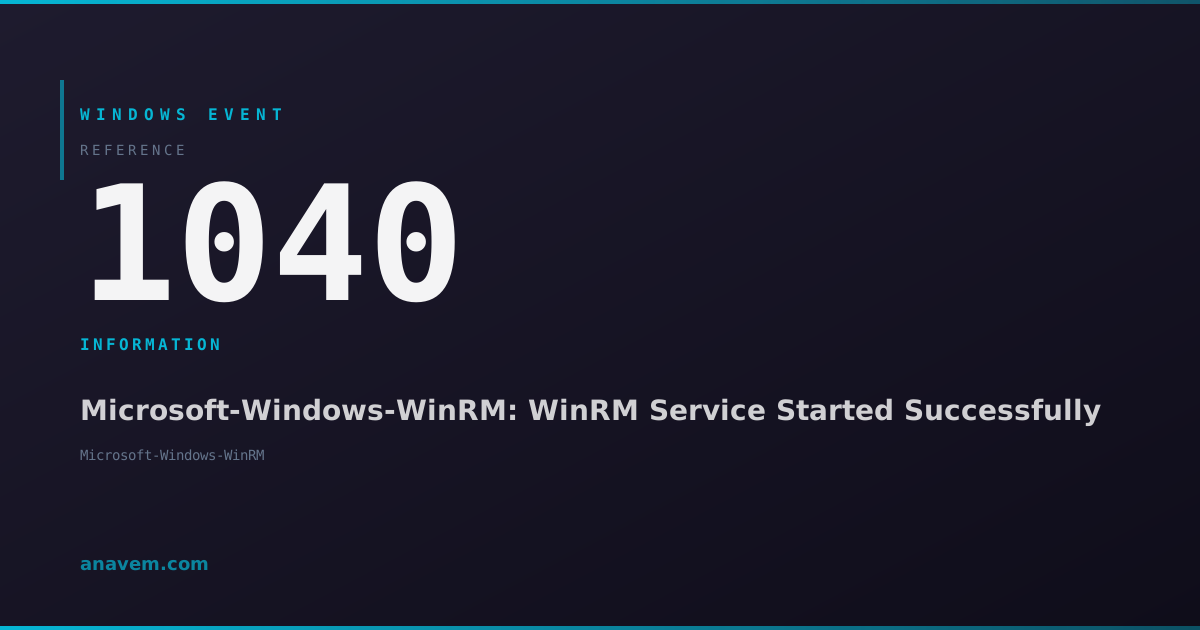
Windows Event ID 1040 – Microsoft-Windows-WinRM: WinRM Service Started Successfully

Event ID 1040 indicates the Windows Remote Management (WinRM) service has started successfully. This informational event confirms WinRM is operational and ready to accept remote connections.

Emanuel DE ALMEIDAEmanuel DE ALMEIDA
18 March 20269 min read 0
Event ID 1040Microsoft-Windows-WinRM 5 methods 9 min
Event Reference

What This Event Means

Event ID 1040 represents a successful initialization of the Windows Remote Management service, which is Microsoft's implementation of the WS-Management protocol. This service forms the backbone of modern Windows remote administration, enabling secure communication between management tools and target systems across network boundaries.

When WinRM starts, it initializes several components including HTTP and HTTPS listeners, authentication mechanisms, and security contexts required for remote operations. The service validates its configuration, establishes network bindings, and prepares to accept incoming connections from authorized remote clients. This startup process involves reading configuration from the registry, validating certificates for HTTPS operations, and ensuring proper integration with Windows security subsystems.

The successful generation of Event ID 1040 indicates that all these initialization steps completed without errors. This is particularly important in enterprise environments where remote management capabilities are essential for daily operations. The event confirms that administrators can establish PowerShell sessions, execute remote commands, and utilize management tools that depend on WinRM functionality.

In Windows Server 2025 and current Windows 11 builds, WinRM has enhanced security features and improved performance characteristics. The service now supports modern authentication methods and provides better integration with cloud-based management platforms, making this startup confirmation even more critical for hybrid infrastructure scenarios.

Applies to

Windows 10Windows 11Windows Server 2019/2022/2025
Analysis

Possible Causes

  • System startup with WinRM service configured to start automatically
  • Manual start of the WinRM service through Services console or PowerShell
  • Group Policy enforcement triggering WinRM service activation
  • Windows Remote Shell (WinRS) or PowerShell remoting configuration enabling WinRM
  • Third-party management software initializing WinRM dependencies
  • Windows Admin Center or System Center Operations Manager requiring WinRM functionality
  • Service recovery after a previous failure or manual stop operation
Resolution Methods

Troubleshooting Steps

01

Verify WinRM Service Status and Configuration

Check the current WinRM service status and basic configuration to confirm successful startup.

  1. Open PowerShell as Administrator and verify service status:
    Get-Service WinRM
    Get-WinRMConfiguration
  2. Check WinRM listeners and configuration:
    winrm enumerate winrm/config/listener
    winrm get winrm/config
  3. Navigate to Event ViewerApplications and Services LogsMicrosoftWindowsWinRMOperational
  4. Filter for Event ID 1040 to confirm successful service starts:
    Get-WinEvent -FilterHashtable @{LogName='Microsoft-Windows-WinRM/Operational'; Id=1040} -MaxEvents 5
  5. Verify the service startup type in Services console: services.msc → locate Windows Remote Management (WS-Management)
Pro tip: Use winrm quickconfig to automatically configure WinRM with default settings if needed.
02

Test Remote Connectivity and Authentication

Validate that WinRM is accepting connections and authentication is working properly.

  1. Test local WinRM connectivity:
    Test-WSMan localhost
    Test-WSMan -ComputerName $env:COMPUTERNAME -Authentication Default
  2. Check WinRM authentication methods:
    winrm get winrm/config/service/auth
  3. Test PowerShell remoting locally:
    Enter-PSSession -ComputerName localhost
    Exit-PSSession
  4. Verify firewall rules for WinRM:
    Get-NetFirewallRule -DisplayGroup "Windows Remote Management" | Select-Object DisplayName, Enabled, Direction
  5. Check WinRM port bindings:
    netstat -an | findstr :5985
    netstat -an | findstr :5986
Warning: Ensure proper firewall configuration before enabling WinRM in production environments.
03

Analyze WinRM Configuration and Security Settings

Examine detailed WinRM configuration and security settings to ensure optimal operation.

  1. Export complete WinRM configuration:
    winrm get winrm/config | Out-File C:\temp\winrm-config.txt
    Get-WSManInstance -ResourceURI winrm/config -Enumerate
  2. Check registry settings for WinRM:
    Get-ItemProperty -Path "HKLM:\SOFTWARE\Microsoft\Windows\CurrentVersion\WSMAN\Service" -ErrorAction SilentlyContinue
  3. Verify certificate configuration for HTTPS listeners:
    Get-ChildItem Cert:\LocalMachine\My | Where-Object {$_.Subject -like "*$env:COMPUTERNAME*"}
    winrm enumerate winrm/config/listener
  4. Review Group Policy settings affecting WinRM:
    gpresult /h C:\temp\gpresult.html
    # Check Computer Configuration\Policies\Administrative Templates\Windows Components\Windows Remote Management
  5. Examine WinRM service dependencies:
    Get-Service WinRM | Select-Object -ExpandProperty ServicesDependedOn
    Get-Service WinRM | Select-Object -ExpandProperty DependentServices
04

Monitor WinRM Performance and Connection Metrics

Implement monitoring to track WinRM performance and identify potential issues.

  1. Enable WinRM analytic logging for detailed troubleshooting:
    wevtutil sl Microsoft-Windows-WinRM/Analytic /e:true
    wevtutil sl Microsoft-Windows-WinRM/Debug /e:true
  2. Monitor WinRM performance counters:
    Get-Counter "\WS-Management Listener(*)*" -MaxSamples 5
    Get-Counter "\WinRM Service\Active Shells" -Continuous
  3. Track connection attempts and authentication events:
    Get-WinEvent -FilterHashtable @{LogName='Microsoft-Windows-WinRM/Operational'; Id=91,142,143} -MaxEvents 20
  4. Set up custom event log monitoring:
    Register-WmiEvent -Query "SELECT * FROM __InstanceCreationEvent WITHIN 5 WHERE TargetInstance ISA 'Win32_NTLogEvent' AND TargetInstance.LogFile='Microsoft-Windows-WinRM/Operational' AND TargetInstance.EventCode=1040" -Action {Write-Host "WinRM Started: $(Get-Date)"}
  5. Create a monitoring script for WinRM health:
    # Save as Monitor-WinRM.ps1
    while ($true) {
        $service = Get-Service WinRM
        $listeners = winrm enumerate winrm/config/listener 2>$null
        Write-Host "$(Get-Date): WinRM Status: $($service.Status), Listeners: $($listeners.Count)"
        Start-Sleep 300
    }
05

Advanced Troubleshooting and Security Hardening

Perform advanced diagnostics and implement security best practices for WinRM.

  1. Enable comprehensive WinRM logging and tracing:
    winrm set winrm/config/service @{EnableCompatibilityHttpListener="false"}
    winrm set winrm/config/service @{CertificateThumbprint=""}
    logman create trace WinRM-Trace -p Microsoft-Windows-WinRM -o C:\temp\winrm-trace.etl
  2. Implement certificate-based authentication:
    # Create HTTPS listener with certificate
    $cert = Get-ChildItem Cert:\LocalMachine\My | Where-Object {$_.Subject -like "*$env:COMPUTERNAME*"} | Select-Object -First 1
    winrm create winrm/config/Listener?Address=*+Transport=HTTPS @{Hostname="$env:COMPUTERNAME"; CertificateThumbprint="$($cert.Thumbprint)"}
  3. Configure advanced security settings:
    winrm set winrm/config/service/auth @{Basic="false"; Digest="false"; Kerberos="true"; Negotiate="true"; Certificate="true"}
    winrm set winrm/config/service @{AllowUnencrypted="false"}
  4. Implement IP address restrictions:
    # Configure trusted hosts (use carefully)
    Set-Item WSMan:\localhost\Client\TrustedHosts -Value "192.168.1.*" -Force
    # Or use Group Policy for enterprise environments
  5. Set up audit logging for WinRM access:
    auditpol /set /subcategory:"Other Logon/Logoff Events" /success:enable /failure:enable
    # Check registry for audit settings
    Get-ItemProperty -Path "HKLM:\SYSTEM\CurrentControlSet\Control\Lsa\Audit" -ErrorAction SilentlyContinue
Warning: Always test security changes in a non-production environment before implementing in production systems.

Overview

Event ID 1040 from Microsoft-Windows-WinRM fires when the Windows Remote Management service starts successfully. This event appears in the Microsoft-Windows-WinRM/Operational log and confirms that WinRM is operational and ready to handle remote PowerShell sessions, Windows Remote Shell connections, and other WS-Management protocol communications.

WinRM is critical for remote administration in Windows environments, particularly in enterprise scenarios where administrators need to manage multiple servers remotely. The service enables PowerShell remoting, Windows Admin Center connections, and various third-party management tools that rely on WS-Management protocols.

This event typically occurs during system startup when the WinRM service initializes, or when the service is manually started after being stopped. In Windows Server 2025 and modern Windows 11 deployments, WinRM often starts automatically as part of the default configuration, especially in domain-joined environments where Group Policy may enforce remote management capabilities.

The event provides confirmation that remote management infrastructure is functioning correctly, which is essential for maintaining enterprise Windows environments where centralized administration is required.

Frequently Asked Questions

What does Event ID 1040 mean and why is it important?+
Event ID 1040 indicates that the Windows Remote Management (WinRM) service has started successfully. This is important because WinRM is essential for remote administration, PowerShell remoting, and many enterprise management tools. The event confirms that your system is ready to accept remote management connections, which is critical for maintaining Windows servers and workstations in enterprise environments.
How can I prevent WinRM from starting automatically if I don't need remote management?+
You can disable WinRM automatic startup by changing the service startup type to Manual or Disabled. Use PowerShell: Set-Service WinRM -StartupType Disabled or navigate to services.msc, find Windows Remote Management (WS-Management), right-click Properties, and change Startup type to Disabled. However, be aware that some Windows features and third-party tools may require WinRM to function properly.
Is Event ID 1040 a security concern that I should monitor?+
Event ID 1040 itself is not a security concern as it's an informational event indicating normal service startup. However, you should monitor it as part of your security baseline because unexpected WinRM starts could indicate unauthorized configuration changes or malware attempting to enable remote access. Combine monitoring of this event with authentication events (Event IDs 91, 142, 143) for comprehensive WinRM security monitoring.
Why do I see multiple Event ID 1040 entries in my logs?+
Multiple Event ID 1040 entries occur when the WinRM service starts multiple times, which can happen during system reboots, manual service restarts, service recovery after failures, or when Group Policy triggers service reconfiguration. Each successful start generates a new 1040 event. If you see excessive entries, investigate whether the service is crashing and restarting frequently, which could indicate underlying system issues.
What should I do if WinRM starts successfully (Event ID 1040) but remote connections still fail?+
If Event ID 1040 appears but remote connections fail, check firewall settings (ports 5985/5986), verify authentication configuration with winrm get winrm/config/service/auth, test local connectivity with Test-WSMan localhost, and examine the WinRM Operational log for authentication errors. Common issues include disabled authentication methods, certificate problems for HTTPS listeners, or network connectivity issues between client and server.
Documentation

References (2)

Emanuel DE ALMEIDA
Written by

Emanuel DE ALMEIDA

Senior IT Journalist & Cloud Architect

Microsoft MCSA-certified Cloud Architect | Fortinet-focused. I modernize cloud, hybrid & on-prem infrastructure for reliability, security, performance and cost control - sharing field-tested ops & troubleshooting.

Discussion

Share your thoughts and insights

You must be logged in to comment.

Loading comments...