ANAVEM
Languagefr
Windows server workstation displaying PowerShell remoting and WinRM authentication diagnostic screens
Event ID 8230ErrorMicrosoft-Windows-WinRMWindows

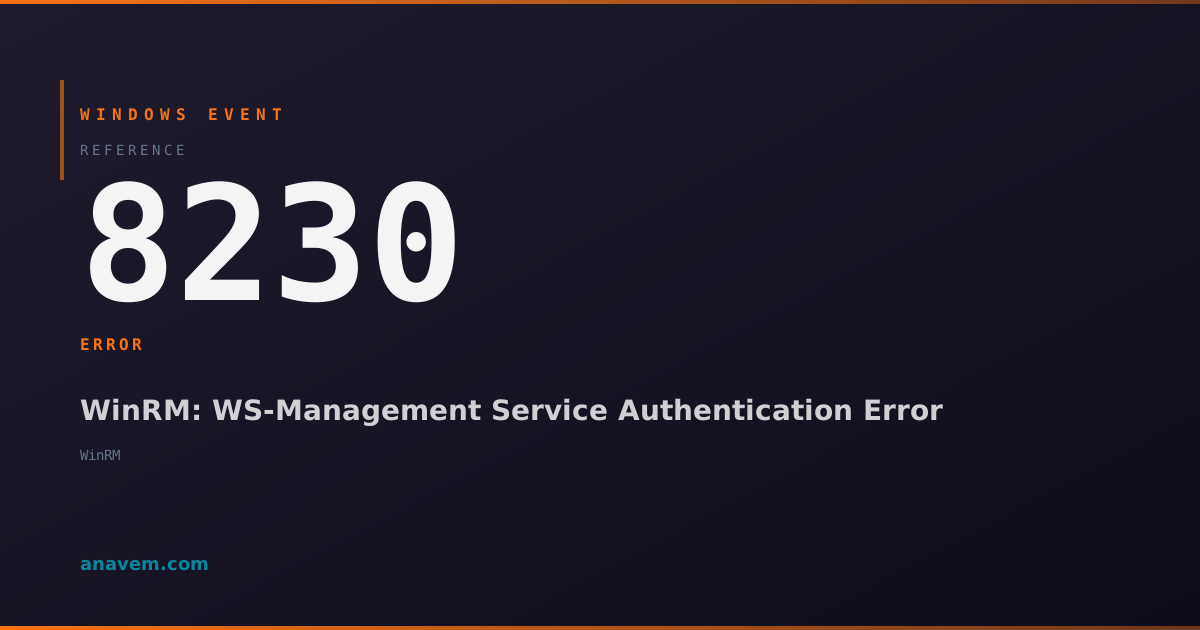
Windows Event ID 8230 – WinRM: WS-Management Service Authentication Error

Event ID 8230 indicates a Windows Remote Management (WinRM) authentication failure when clients attempt to connect to the WS-Management service using invalid credentials or unsupported authentication methods.

Emanuel DE ALMEIDAEmanuel DE ALMEIDA
18 March 202612 min read 0
Event ID 8230Microsoft-Windows-WinRM 5 methods 12 min
Event Reference

What This Event Means

Windows Event ID 8230 represents a critical authentication failure within the WinRM infrastructure, specifically targeting the WS-Management service that underpins PowerShell remoting and various Windows management protocols. When this event occurs, it indicates that a client attempted to establish a remote connection but failed during the authentication phase, preventing the establishment of a secure management session.

The event typically contains detailed information about the failed authentication attempt, including the source IP address of the connecting client, the authentication method that was attempted (such as Kerberos, NTLM, or Basic), and specific error codes that provide insight into the root cause. This granular information makes Event ID 8230 particularly valuable for troubleshooting remote management connectivity issues.

In modern Windows environments, this event has become increasingly important as organizations adopt Infrastructure as Code practices, automated deployment pipelines, and centralized management solutions. The event often correlates with broader authentication infrastructure issues, such as domain controller connectivity problems, time synchronization issues, or security policy changes that affect remote authentication mechanisms.

The timing and frequency of Event ID 8230 occurrences can also indicate potential security concerns, as repeated authentication failures from specific IP addresses might suggest brute force attacks or compromised credentials attempting unauthorized access to remote management interfaces.

Applies to

Windows 10Windows 11Windows Server 2019/2022/2025
Analysis

Possible Causes

  • Invalid or expired user credentials provided during WinRM authentication
  • Kerberos authentication failures due to time synchronization issues between client and server
  • NTLM authentication blocked by security policies or disabled authentication methods
  • Client attempting to connect from an untrusted domain or workgroup environment
  • WinRM service configuration restricting authentication methods or allowed users
  • Network connectivity issues preventing proper authentication handshake completion
  • Certificate-based authentication failures due to expired or invalid certificates
  • Group Policy settings blocking remote management access for specific user accounts
  • Firewall rules interfering with authentication traffic on WinRM ports (5985/5986)
  • Domain controller unavailability preventing Kerberos ticket validation
Resolution Methods

Troubleshooting Steps

01

Verify WinRM Authentication Events in Event Viewer

Start by examining the complete authentication failure details in Event Viewer to understand the specific error context.

  1. Open Event Viewer by pressing Win + R, typing eventvwr.msc, and pressing Enter
  2. Navigate to Applications and Services LogsMicrosoftWindowsWinRMOperational
  3. Filter for Event ID 8230 by right-clicking the log and selecting Filter Current Log
  4. Review the event details, noting the client IP address, authentication method, and error code
  5. Cross-reference with Security logs by navigating to Windows LogsSecurity and filtering for Event IDs 4624 (successful logon) and 4625 (failed logon) from the same timeframe
# PowerShell command to retrieve Event ID 8230 details
Get-WinEvent -FilterHashtable @{LogName='Microsoft-Windows-WinRM/Operational'; Id=8230} -MaxEvents 10 | Format-List TimeCreated, Id, LevelDisplayName, Message
Pro tip: Pay attention to the authentication method mentioned in the event description - this will guide your troubleshooting approach.
02

Test WinRM Connectivity and Authentication Methods

Verify WinRM service status and test authentication from the client side to isolate the connection issue.

  1. On the target server, check WinRM service status and configuration:
# Check WinRM service status
Get-Service WinRM

# Display current WinRM configuration
winrm get winrm/config

# Check authentication methods enabled
winrm get winrm/config/service/auth
  1. From the client machine, test basic connectivity to the WinRM service:
# Test WinRM connectivity (replace SERVER-NAME with actual server)
Test-WSMan -ComputerName SERVER-NAME

# Test with specific authentication
Test-WSMan -ComputerName SERVER-NAME -Authentication Kerberos

# Attempt PowerShell remoting session
Enter-PSSession -ComputerName SERVER-NAME -Credential (Get-Credential)
  1. If authentication fails, enable WinRM logging for detailed diagnostics:
# Enable WinRM analytic logging
wevtutil sl Microsoft-Windows-WinRM/Analytic /e:true

# Reproduce the issue, then check analytic logs
Get-WinEvent -LogName 'Microsoft-Windows-WinRM/Analytic' -MaxEvents 20
Warning: Analytic logging generates significant log volume - disable it after troubleshooting to prevent disk space issues.
03

Configure WinRM Authentication Settings and Trusted Hosts

Adjust WinRM authentication configuration to resolve compatibility issues and establish proper trust relationships.

  1. Configure WinRM to allow the required authentication methods:
# Enable basic authentication (use cautiously in production)
winrm set winrm/config/service/auth @{Basic="true"}

# Enable Kerberos authentication
winrm set winrm/config/service/auth @{Kerberos="true"}

# Enable NTLM authentication
winrm set winrm/config/service/auth @{Negotiate="true"}
  1. Configure trusted hosts for workgroup or cross-domain scenarios:
# Add specific host to trusted hosts list
winrm set winrm/config/client @{TrustedHosts="SERVER-NAME"}

# Add multiple hosts or use wildcards (less secure)
winrm set winrm/config/client @{TrustedHosts="SERVER1,SERVER2,*.domain.com"}

# View current trusted hosts configuration
winrm get winrm/config/client
  1. Restart WinRM service to apply configuration changes:
# Restart WinRM service
Restart-Service WinRM -Force

# Verify service is running and listening
Get-Service WinRM
netstat -an | findstr :5985
  1. Test the connection again with verbose output:
# Test with verbose output to see authentication details
$PSSessionOption = New-PSSessionOption -IncludePortInSPN
Enter-PSSession -ComputerName SERVER-NAME -SessionOption $PSSessionOption -Credential (Get-Credential)
04

Resolve Kerberos Authentication Issues

Address Kerberos-specific authentication problems that commonly cause Event ID 8230 in domain environments.

  1. Verify time synchronization between client and server (critical for Kerberos):
# Check current time and time source
w32tm /query /status
w32tm /query /peers

# Force time synchronization with domain controller
w32tm /resync /force
  1. Clear and regenerate Kerberos tickets:
# Display current Kerberos tickets
klist

# Purge all Kerberos tickets
klist purge

# Request new ticket for target server
klist get krbtgt
klist get HOST/SERVER-NAME
  1. Check and configure Service Principal Names (SPNs) for WinRM:
# Check existing SPNs for the server
setspn -L SERVER-NAME

# Add WinRM SPNs if missing (run as domain admin)
setspn -A WSMAN/SERVER-NAME SERVER-NAME
setspn -A WSMAN/SERVER-NAME.domain.com SERVER-NAME
  1. Verify domain controller connectivity and DNS resolution:
# Test domain controller connectivity
nltest /dsgetdc:domain.com

# Verify DNS resolution for target server
nslookup SERVER-NAME
nslookup SERVER-NAME.domain.com

# Test LDAP connectivity to domain controller
ldp.exe
Pro tip: Kerberos authentication requires accurate time synchronization within 5 minutes between all participating systems.
05

Advanced Troubleshooting with Network Traces and Registry Analysis

Perform deep-level analysis using network captures and registry examination for complex authentication scenarios.

  1. Enable WinRM debug logging through registry modification:
# Enable WinRM debug logging (requires restart)
New-ItemProperty -Path "HKLM:\SOFTWARE\Microsoft\Windows\CurrentVersion\WSMAN\Service" -Name "LogLevel" -Value 65535 -PropertyType DWord -Force

# Set log file location
New-ItemProperty -Path "HKLM:\SOFTWARE\Microsoft\Windows\CurrentVersion\WSMAN\Service" -Name "LogFile" -Value "C:\Windows\Temp\WinRM.log" -PropertyType String -Force
  1. Capture network traffic during authentication attempts:
# Start network capture using netsh (run as administrator)
netsh trace start capture=yes tracefile=C:\temp\winrm_auth.etl provider=Microsoft-Windows-WinRM

# Reproduce the authentication failure
# Stop the trace
netsh trace stop

# Convert ETL to readable format
netsh trace convert input=C:\temp\winrm_auth.etl output=C:\temp\winrm_auth.txt
  1. Analyze authentication-related registry settings:
# Check WinRM service registry settings
Get-ItemProperty -Path "HKLM:\SOFTWARE\Microsoft\Windows\CurrentVersion\WSMAN\Service"

# Examine authentication provider settings
Get-ItemProperty -Path "HKLM:\SOFTWARE\Microsoft\Windows\CurrentVersion\WSMAN\Plugin\Microsoft.PowerShell"

# Check local security policy settings affecting WinRM
secedit /export /cfg C:\temp\secpol.cfg
Get-Content C:\temp\secpol.cfg | Select-String -Pattern "SeDenyNetworkLogonRight|SeNetworkLogonRight"
  1. Use PowerShell Desired State Configuration (DSC) to ensure consistent WinRM configuration:
# Create DSC configuration for WinRM settings
Configuration WinRMConfig {
    Node localhost {
        Service WinRM {
            Name = "WinRM"
            State = "Running"
            StartupType = "Automatic"
        }
        
        Registry WinRMAuth {
            Key = "HKLM:\SOFTWARE\Microsoft\Windows\CurrentVersion\WSMAN\Service"
            ValueName = "AllowUnencrypted"
            ValueData = "0"
            ValueType = "Dword"
        }
    }
}

# Apply the configuration
WinRMConfig
Start-DscConfiguration -Path .\WinRMConfig -Wait -Verbose
Warning: Debug logging and network traces can expose sensitive authentication information - secure and delete these files after analysis.

Overview

Event ID 8230 fires when the Windows Remote Management (WinRM) service encounters authentication failures during client connection attempts. This event typically appears in the Microsoft-Windows-WinRM/Operational log when remote PowerShell sessions, WMI queries, or other WS-Management operations fail due to credential issues. The event becomes particularly relevant in enterprise environments where PowerShell remoting, System Center Operations Manager (SCOM), or other management tools rely on WinRM for remote administration.

This authentication error commonly occurs during initial setup of PowerShell remoting, when configuring trusted hosts, or when domain authentication policies change. The event provides crucial diagnostic information including the client IP address, authentication method attempted, and specific error codes that help administrators identify whether the issue stems from credential problems, Kerberos configuration, or WinRM service settings.

Understanding Event ID 8230 is essential for maintaining reliable remote management capabilities in Windows environments, especially as organizations increasingly rely on automation and remote administration tools in 2026's hybrid work landscape.

Frequently Asked Questions

What does Event ID 8230 specifically indicate in Windows environments?+
Event ID 8230 indicates that the Windows Remote Management (WinRM) service has encountered an authentication failure when a client attempted to establish a remote connection. This event fires when the WS-Management service cannot validate the credentials or authentication method provided by the connecting client. The event typically includes details about the client IP address, attempted authentication method (Kerberos, NTLM, or Basic), and specific error codes that help identify whether the issue is related to invalid credentials, unsupported authentication methods, or underlying infrastructure problems like domain controller connectivity or time synchronization issues.
How can I determine which authentication method is failing when Event ID 8230 occurs?+
To identify the failing authentication method, examine the Event ID 8230 details in Event Viewer under Applications and Services Logs → Microsoft → Windows → WinRM → Operational. The event description will specify which authentication method was attempted (Kerberos, NTLM, Negotiate, or Basic). You can also use PowerShell to query the event: Get-WinEvent -FilterHashtable @{LogName='Microsoft-Windows-WinRM/Operational'; Id=8230} | Format-List Message. Additionally, check the current WinRM authentication configuration using 'winrm get winrm/config/service/auth' to see which methods are enabled on the server side.
Why do I see Event ID 8230 errors when trying to use PowerShell remoting in a workgroup environment?+
Event ID 8230 commonly occurs in workgroup environments because PowerShell remoting defaults to Kerberos authentication, which requires Active Directory infrastructure. In workgroup scenarios, you must configure WinRM to use NTLM or Basic authentication and set up trusted hosts relationships. Enable NTLM authentication with 'winrm set winrm/config/service/auth @{Negotiate="true"}' and add the target machine to trusted hosts using 'winrm set winrm/config/client @{TrustedHosts="TARGET-MACHINE"}'. For Basic authentication over HTTPS, you'll also need to configure SSL certificates and enable Basic authentication on both client and server sides.
Can Event ID 8230 indicate a potential security threat or attack attempt?+
Yes, repeated Event ID 8230 occurrences from the same IP address or multiple IP addresses within a short timeframe can indicate potential brute force attacks or unauthorized access attempts against your WinRM service. Monitor the frequency and source of these events - legitimate authentication failures are typically sporadic and from known administrative sources, while attack patterns show rapid, repeated attempts from external or suspicious IP addresses. Implement account lockout policies, monitor failed authentication events in the Security log (Event ID 4625), and consider restricting WinRM access to specific IP ranges or using certificate-based authentication for enhanced security.
How do I resolve Event ID 8230 when it's caused by Kerberos authentication failures in a domain environment?+
Kerberos-related Event ID 8230 errors typically stem from time synchronization issues, missing Service Principal Names (SPNs), or domain controller connectivity problems. First, ensure time synchronization is within 5 minutes between client and server using 'w32tm /resync /force'. Clear existing Kerberos tickets with 'klist purge' and request new ones. Verify that WinRM SPNs exist for the target server using 'setspn -L SERVER-NAME' and add them if missing with 'setspn -A WSMAN/SERVER-NAME SERVER-NAME'. Check domain controller connectivity with 'nltest /dsgetdc:domain.com' and verify DNS resolution. If issues persist, enable Kerberos event logging and examine Event ID 4 in the System log for detailed Kerberos error information.
Documentation

References (2)

Emanuel DE ALMEIDA
Written by

Emanuel DE ALMEIDA

Senior IT Journalist & Cloud Architect

Microsoft MCSA-certified Cloud Architect | Fortinet-focused. I modernize cloud, hybrid & on-prem infrastructure for reliability, security, performance and cost control - sharing field-tested ops & troubleshooting.

Discussion

Share your thoughts and insights

You must be logged in to comment.

Loading comments...