ANAVEM
Languagefr
Network operations center displaying DNS monitoring and security analytics dashboards
Event ID 8194WarningDNS ClientWindows

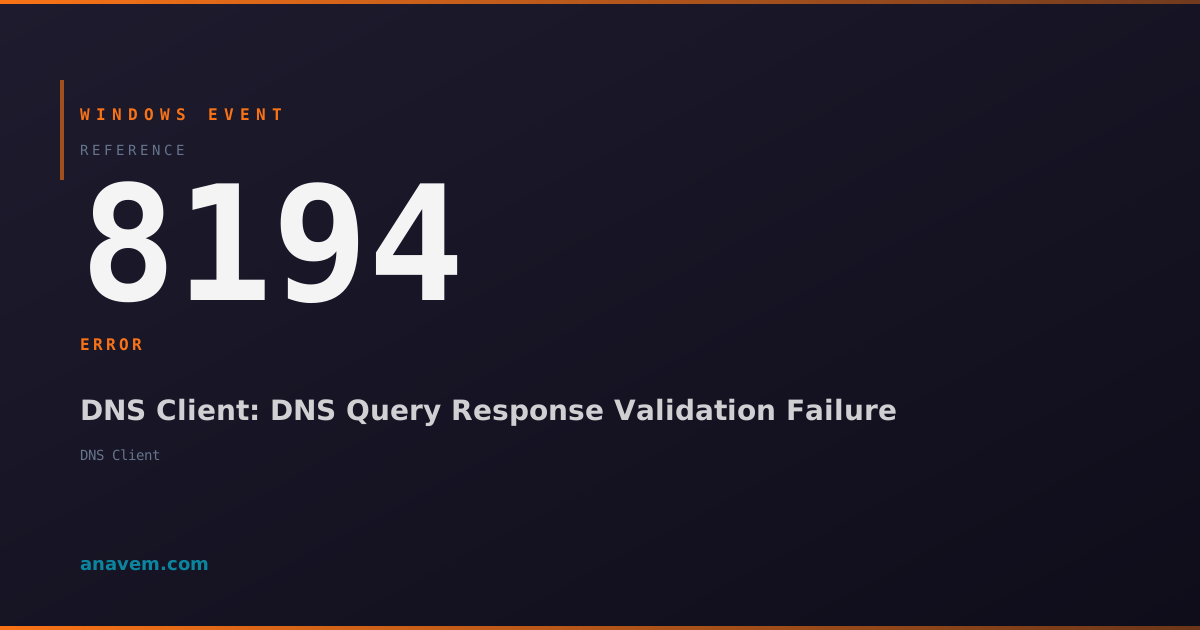
Windows Event ID 8194 – DNS Client: DNS Query Response Validation Failure

Event ID 8194 indicates DNS query response validation failures in Windows DNS Client service, typically caused by DNSSEC validation errors or corrupted DNS responses.

Emanuel DE ALMEIDAEmanuel DE ALMEIDA
18 March 20269 min read 0
Event ID 8194DNS Client 5 methods 9 min
Event Reference

What This Event Means

Event ID 8194 represents a critical component of Windows' DNS security architecture. The DNS Client service continuously monitors DNS query responses for integrity violations, signature mismatches, and protocol anomalies. When validation fails, this event provides detailed information about the specific failure type and affected DNS query.

In Windows 11 2026 updates and Server 2025, Microsoft has enhanced DNS validation to include machine learning-based anomaly detection and improved DNSSEC processing. The event now includes additional context about validation failure reasons, making troubleshooting more efficient for system administrators.

The event typically contains information about the queried domain, DNS server that provided the response, validation failure type, and timestamp. This data is crucial for identifying patterns in DNS attacks, misconfigured DNS servers, or network infrastructure issues affecting DNS resolution reliability.

Organizations implementing Zero Trust architectures particularly benefit from monitoring Event ID 8194, as DNS validation failures can indicate lateral movement attempts or command-and-control communications that bypass traditional security controls.

Applies to

Windows 10Windows 11Windows Server 2019/2022/2025
Analysis

Possible Causes

  • DNSSEC validation failures due to expired or invalid digital signatures
  • DNS response tampering or man-in-the-middle attacks
  • Misconfigured DNS servers returning malformed responses
  • Network packet corruption affecting DNS query responses
  • DNS cache poisoning attempts detected by Windows security mechanisms
  • Firewall or proxy interference with DNS traffic integrity
  • Time synchronization issues affecting DNSSEC signature validation
  • DNS server software bugs causing protocol violations
Resolution Methods

Troubleshooting Steps

01

Analyze DNS Client Event Details

Start by examining the specific details of Event ID 8194 to understand the validation failure type and affected domain.

  1. Open Event ViewerWindows LogsSystem
  2. Filter for Event ID 8194 using the filter option
  3. Double-click the most recent event to view detailed information
  4. Note the domain name, DNS server IP, and failure reason in the event description
  5. Use PowerShell to extract detailed event information:
Get-WinEvent -FilterHashtable @{LogName='System'; Id=8194} -MaxEvents 10 | Format-List TimeCreated, Id, LevelDisplayName, Message

Review the event message for specific validation failure codes and correlate with DNS query patterns.

02

Verify DNS Server Configuration and DNSSEC

Check DNS server configuration and DNSSEC validation settings to identify potential misconfigurations.

  1. Test DNS resolution for the affected domain:
Resolve-DnsName -Name [affected-domain] -Type A -Server [dns-server-ip] -DnssecOk
  1. Check current DNS client configuration:
Get-DnsClientServerAddress
  1. Verify DNSSEC validation status:
Get-DnsClientNrptPolicy | Format-Table Name, Namespace, DNSSecValidationRequired
  1. Test DNS resolution with different DNS servers to isolate the issue
  2. If using internal DNS servers, verify their DNSSEC configuration and zone signing status
Pro tip: Use nslookup with debug mode to see detailed DNS query/response information that can help identify validation failure points.
03

Clear DNS Cache and Reset Client Configuration

Reset DNS client components to eliminate cached invalid responses and restore default validation behavior.

  1. Flush the DNS resolver cache:
Clear-DnsClientCache
  1. Reset DNS client settings to defaults:
netsh int ip reset
  1. Restart the DNS Client service:
Restart-Service -Name Dnscache -Force
  1. Clear the NetBIOS name cache:
nbtstat -R
  1. Verify DNS client service status and dependencies:
Get-Service -Name Dnscache | Select-Object Name, Status, StartType, DependentServices
  1. Test DNS resolution after reset to confirm validation errors are resolved
Warning: Resetting network interfaces may temporarily disrupt network connectivity. Perform during maintenance windows when possible.
04

Configure DNS Security Policies and Validation Settings

Adjust DNS security policies and validation settings to address specific validation failure scenarios.

  1. Access Group Policy Editor or configure via PowerShell for DNS security settings
  2. Check current NRPT (Name Resolution Policy Table) configuration:
Get-DnsClientNrptPolicy | Format-Table -AutoSize
  1. Configure DNSSEC validation requirements for specific domains:
Add-DnsClientNrptRule -Namespace "example.com" -NameServers "8.8.8.8" -DNSSecValidationRequired $true
  1. Modify DNS client registry settings for validation behavior:

Navigate to HKLM\SYSTEM\CurrentControlSet\Services\Dnscache\Parameters

  1. Create or modify DWORD values:
  2. EnableAutoDoh = 2 (for DNS over HTTPS)
  3. DoHPolicy = 3 (require encrypted DNS)
  4. Restart DNS Client service after registry changes
Pro tip: Use Group Policy to deploy DNS security settings across multiple systems in enterprise environments for consistent validation behavior.
05

Advanced Network Analysis and Security Investigation

Perform comprehensive network analysis to identify potential security threats or infrastructure issues causing validation failures.

  1. Capture DNS traffic using built-in Windows tools:
netsh trace start capture=yes tracefile=dns_trace.etl provider=Microsoft-Windows-DNS-Client
  1. Monitor DNS queries in real-time:
Get-WinEvent -FilterHashtable @{LogName='Microsoft-Windows-DNS-Client/Operational'} -MaxEvents 50 | Format-Table TimeCreated, Id, Message
  1. Analyze network connectivity to DNS servers:
Test-NetConnection -ComputerName [dns-server-ip] -Port 53
  1. Check for DNS over HTTPS (DoH) configuration issues:
Get-DnsClientDohServerAddress
  1. Review Windows Defender or third-party antivirus logs for DNS filtering activities
  2. Examine firewall logs for blocked or modified DNS traffic
  3. Stop network trace and analyze captured data:
netsh trace stop
Warning: Network tracing can generate large files and impact system performance. Use filtering options and limit trace duration in production environments.

Overview

Event ID 8194 fires when the Windows DNS Client service encounters validation failures during DNS query processing. This event typically appears in the System log when DNS Security Extensions (DNSSEC) validation fails or when DNS responses contain malformed or suspicious data that fails Windows' built-in security checks.

The DNS Client service in Windows 10/11 and Server 2019+ includes enhanced security features that validate DNS responses against potential spoofing attacks and data corruption. When these validation mechanisms detect anomalies, Event ID 8194 is logged to alert administrators of potential DNS security issues.

This event commonly occurs in enterprise environments with strict DNSSEC policies, networks experiencing DNS poisoning attempts, or when DNS servers return malformed responses. While not always critical, repeated occurrences can indicate underlying network security issues or DNS infrastructure problems that require investigation.

Frequently Asked Questions

What does Event ID 8194 mean and why does it appear?+
Event ID 8194 indicates that the Windows DNS Client service detected a validation failure when processing DNS query responses. This occurs when DNS responses fail security checks, DNSSEC validation fails, or when responses contain malformed data. The event is part of Windows' enhanced DNS security features designed to protect against DNS spoofing and poisoning attacks.
How can I determine which domain or DNS query caused the validation failure?+
The Event ID 8194 message contains specific details about the failed query, including the domain name, DNS server IP address, and failure reason. Use PowerShell command 'Get-WinEvent -FilterHashtable @{LogName='System'; Id=8194} | Format-List Message' to view complete event details. The message field will show the queried domain and specific validation error that occurred.
Is Event ID 8194 a security threat that requires immediate action?+
Event ID 8194 itself is not a direct security threat but rather a security mechanism alerting you to potential issues. However, frequent occurrences may indicate DNS poisoning attempts, man-in-the-middle attacks, or misconfigured DNS infrastructure. Investigate the pattern of events, affected domains, and correlate with other security logs to determine if immediate action is required.
Can DNSSEC configuration cause Event ID 8194 to appear frequently?+
Yes, misconfigured DNSSEC settings are a common cause of Event ID 8194. This includes expired DNSSEC signatures, incorrect validation policies, time synchronization issues affecting signature validation, or DNS servers that don't properly support DNSSEC. Check your NRPT policies using 'Get-DnsClientNrptPolicy' and verify that DNS servers support DNSSEC if validation is required.
How do I prevent Event ID 8194 from appearing while maintaining DNS security?+
To prevent legitimate Event ID 8194 occurrences while maintaining security: ensure DNS servers properly support DNSSEC, keep system time synchronized, configure appropriate NRPT policies for your environment, use reliable DNS servers (like 8.8.8.8 or 1.1.1.1), and regularly update DNS server software. For false positives, adjust DNS validation policies using Group Policy or PowerShell NRPT configuration commands.
Documentation

References (2)

Emanuel DE ALMEIDA
Written by

Emanuel DE ALMEIDA

Senior IT Journalist & Cloud Architect

Microsoft MCSA-certified Cloud Architect | Fortinet-focused. I modernize cloud, hybrid & on-prem infrastructure for reliability, security, performance and cost control - sharing field-tested ops & troubleshooting.

Discussion

Share your thoughts and insights

You must be logged in to comment.

Loading comments...