ANAVEM
Languagefr
Network operations center monitoring DNS infrastructure and query performance on multiple displays
Event ID 902WarningDNS ClientWindows

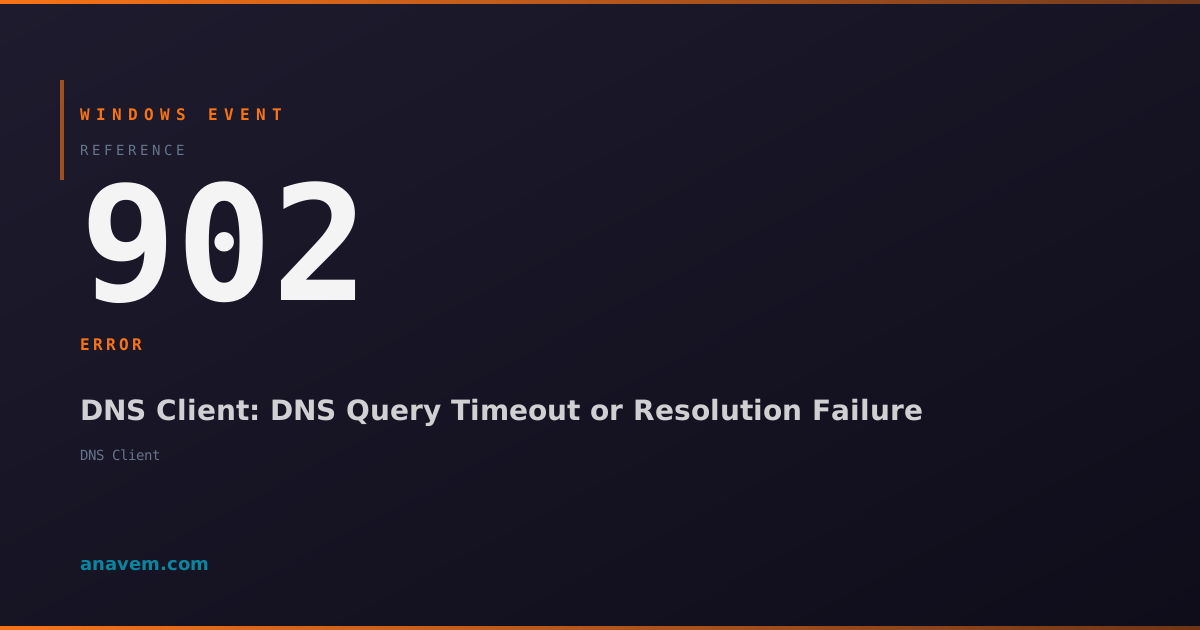
Windows Event ID 902 – DNS Client: DNS Query Timeout or Resolution Failure

Event ID 902 indicates DNS client query timeouts or resolution failures when Windows cannot resolve domain names within the configured timeout period.

Emanuel DE ALMEIDAEmanuel DE ALMEIDA
18 March 202612 min read 0
Event ID 902DNS Client 5 methods 12 min
Event Reference

What This Event Means

Windows Event ID 902 represents a critical DNS client warning that occurs when the DNS Client service cannot successfully resolve domain names within the established timeout parameters. This event is generated by the DNS Client service component of Windows, which handles all DNS queries for the operating system and applications.

The DNS Client service maintains a local cache and manages query forwarding to configured DNS servers. When a DNS query is initiated, the service first checks its local cache for cached records. If no cached entry exists, it forwards the query to the primary DNS server. Event ID 902 is logged when this query process fails due to timeouts, server unavailability, or network connectivity issues.

The event typically includes detailed information such as the domain name being queried, the DNS server that failed to respond, the query type (A, AAAA, MX, etc.), and the specific error code. This information is essential for diagnosing whether the issue stems from specific DNS servers, particular domain queries, or broader network connectivity problems.

In Windows Server environments, this event can indicate DNS infrastructure problems that affect Active Directory authentication, group policy processing, and inter-server communication. For client systems, DNS resolution failures impact web browsing, email connectivity, and access to network resources. Understanding the context and frequency of Event ID 902 is crucial for maintaining reliable network operations and user productivity.

Applies to

Windows 10Windows 11Windows Server 2019/2022/2025
Analysis

Possible Causes

  • DNS server unavailability or unresponsiveness
  • Network connectivity issues between client and DNS servers
  • Incorrect DNS server configuration in network adapter settings
  • DNS server overload or resource exhaustion
  • Firewall blocking DNS traffic on port 53
  • DNS cache corruption or poisoning
  • Network adapter driver issues or hardware problems
  • DNS forwarder configuration problems
  • ISP DNS service interruptions
  • Active Directory DNS zone replication failures
  • DNS query timeout values set too low
  • Network routing problems preventing DNS traffic
Resolution Methods

Troubleshooting Steps

01

Verify DNS Server Configuration and Connectivity

Start by checking the current DNS configuration and testing connectivity to configured DNS servers.

  1. Open Command Prompt as Administrator and check current DNS configuration:
    ipconfig /all
  2. Test DNS server connectivity using ping:
    ping 8.8.8.8
    ping 1.1.1.1
  3. Perform DNS resolution tests:
    nslookup google.com
    nslookup microsoft.com 8.8.8.8
  4. Check DNS client service status:
    Get-Service -Name Dnscache | Select-Object Name, Status, StartType
  5. View recent DNS-related events:
    Get-WinEvent -FilterHashtable @{LogName='System'; ProviderName='DNS Client'; Id=902} -MaxEvents 20
  6. If DNS servers are unresponsive, temporarily switch to public DNS servers like 8.8.8.8 or 1.1.1.1 in network adapter settings.
02

Clear DNS Cache and Reset Network Configuration

Clear corrupted DNS cache entries and reset network configuration to resolve DNS resolution issues.

  1. Flush the DNS resolver cache:
    ipconfig /flushdns
  2. Clear NetBIOS name cache:
    nbtstat -R
  3. Reset Winsock catalog:
    netsh winsock reset
  4. Reset TCP/IP stack:
    netsh int ip reset
  5. Restart DNS Client service:
    Restart-Service -Name Dnscache -Force
  6. Register DNS records:
    ipconfig /registerdns
  7. Restart the computer to complete network stack reset.
  8. After restart, test DNS resolution:
    Test-NetConnection -ComputerName google.com -Port 80
Pro tip: Use ipconfig /displaydns before flushing to see cached entries that might be causing issues.
03

Configure DNS Client Registry Settings and Timeouts

Adjust DNS client timeout values and configuration through registry modifications to handle slow DNS responses.

  1. Open Registry Editor and navigate to DNS client settings:
    HKEY_LOCAL_MACHINE\SYSTEM\CurrentControlSet\Services\Dnscache\Parameters
  2. Create or modify the following DWORD values to increase timeout periods:
    • MaxCacheTtl = 86400 (24 hours in seconds)
    • MaxNegativeCacheTtl = 300 (5 minutes)
    • NetFailureCacheTime = 30 (30 seconds)
  3. Configure DNS query timeout using PowerShell:
    Set-DnsClientServerAddress -InterfaceAlias "Ethernet" -ServerAddresses "8.8.8.8","8.8.4.4"
  4. Set DNS suffix search list:
    Set-DnsClientGlobalSetting -SuffixSearchList @("contoso.com","corp.local")
  5. Restart DNS Client service to apply changes:
    Restart-Service -Name Dnscache
  6. Monitor DNS performance using Performance Monitor counters under DNS Client object.
Warning: Backup registry before making changes. Incorrect registry modifications can cause system instability.
04

Investigate Network Infrastructure and DNS Server Health

Perform comprehensive network diagnostics to identify infrastructure issues causing DNS timeouts.

  1. Run network diagnostics and capture detailed information:
    Test-NetConnection -ComputerName 8.8.8.8 -Port 53 -InformationLevel Detailed
  2. Trace network route to DNS servers:
    Test-NetConnection -ComputerName 8.8.8.8 -TraceRoute
  3. Check for packet loss and latency:
    ping -t -l 1472 8.8.8.8
  4. Analyze DNS server response times:
    Measure-Command { Resolve-DnsName google.com }
  5. Check Windows Firewall DNS rules:
    Get-NetFirewallRule -DisplayName "*DNS*" | Select-Object DisplayName, Enabled, Direction
  6. Review network adapter configuration:
    Get-NetAdapter | Get-NetIPConfiguration
  7. If using Active Directory, verify DNS zone health:
    Get-DnsServerZone -ComputerName DC01
  8. Check DNS server event logs on domain controllers for corresponding errors.
05

Advanced DNS Troubleshooting with Network Capture

Use advanced diagnostic tools to capture and analyze DNS traffic for detailed troubleshooting.

  1. Enable DNS Client logging for detailed diagnostics:
    wevtutil sl Microsoft-Windows-DNS-Client/Operational /e:true
  2. Start network packet capture focusing on DNS traffic:
    netsh trace start capture=yes provider=Microsoft-Windows-TCPIP tracefile=dns_trace.etl
  3. Reproduce the DNS timeout issue while capture is running.
  4. Stop the network trace:
    netsh trace stop
  5. Analyze DNS queries using PowerShell:
    Get-WinEvent -Path "C:\Windows\System32\LogFiles\WMI\dns_trace.etl" | Where-Object {$_.Id -eq 902}
  6. Use DNS debugging tools to test specific queries:
    Resolve-DnsName -Name problematic-domain.com -Server 8.8.8.8 -Type A -DnsOnly
  7. Check DNS Client operational log for detailed query information:
    Get-WinEvent -LogName "Microsoft-Windows-DNS-Client/Operational" -MaxEvents 50
  8. Review captured network traffic using Network Monitor or Wireshark to identify specific DNS query failures and response patterns.
Pro tip: Use Get-DnsClientCache to view current cache entries and identify patterns in failed resolutions.

Overview

Event ID 902 fires when the Windows DNS Client service encounters query timeouts or resolution failures while attempting to resolve domain names. This event typically appears in the System log when DNS queries exceed the configured timeout threshold or when DNS servers become unresponsive. The event indicates network connectivity issues, DNS server problems, or misconfigured DNS settings that prevent proper name resolution.

This event commonly occurs during network outages, DNS server maintenance, or when clients are configured with incorrect DNS server addresses. While occasional DNS timeouts are normal in enterprise environments, frequent Event ID 902 entries suggest underlying network infrastructure problems that require investigation. The event provides crucial diagnostic information for troubleshooting connectivity issues and identifying DNS infrastructure bottlenecks.

System administrators should monitor this event closely as DNS resolution failures directly impact application performance, domain authentication, and overall network functionality. The event details include the queried domain name, DNS server addresses, and timeout duration, making it valuable for pinpointing specific DNS resolution problems.

Frequently Asked Questions

What does Windows Event ID 902 specifically indicate?+
Event ID 902 indicates that the Windows DNS Client service has encountered query timeouts or resolution failures when attempting to resolve domain names. This warning event is logged when DNS queries exceed the configured timeout threshold, DNS servers become unresponsive, or network connectivity issues prevent successful name resolution. The event includes details about the queried domain, DNS server addresses, and specific error conditions that caused the resolution failure.
How can I determine which DNS queries are failing from Event ID 902?+
To identify specific failing DNS queries, examine the event details in Event Viewer under Windows LogsSystem. The event description contains the domain name being queried, the DNS server that failed to respond, and the query type. You can also use PowerShell to filter and analyze these events: Get-WinEvent -FilterHashtable @{LogName='System'; Id=902} | Select-Object TimeCreated, Message. Additionally, enable DNS Client operational logging for more detailed query information.
Is Event ID 902 always a serious problem requiring immediate attention?+
Event ID 902 severity depends on frequency and context. Occasional DNS timeouts are normal in enterprise environments due to network latency or temporary server unavailability. However, frequent occurrences indicate underlying problems requiring investigation. If users report connectivity issues, applications fail to connect, or Active Directory authentication problems occur alongside these events, immediate attention is needed. Monitor the event frequency and correlate with user complaints to determine urgency.
Can incorrect DNS server configuration cause Event ID 902?+
Yes, incorrect DNS server configuration is a common cause of Event ID 902. This includes specifying non-existent DNS server IP addresses, using DNS servers that are unreachable due to network routing issues, or configuring DNS servers that don't respond to queries. Check your network adapter DNS settings using ipconfig /all and verify each configured DNS server responds to queries using nslookup or Test-NetConnection. Misconfigured DNS suffix search lists can also contribute to resolution failures.
How do I prevent Event ID 902 from recurring in my environment?+
Prevent recurring Event ID 902 by implementing redundant DNS infrastructure with multiple DNS servers, monitoring DNS server health and performance, configuring appropriate DNS timeout values, and maintaining updated network drivers. Use reliable public DNS servers like 8.8.8.8 or 1.1.1.1 as secondary options. Regularly clear DNS cache, monitor network connectivity to DNS servers, and implement network monitoring to detect DNS infrastructure issues proactively. For Active Directory environments, ensure proper DNS zone replication and forwarder configuration.
Documentation

References (2)

Emanuel DE ALMEIDA
Written by

Emanuel DE ALMEIDA

Senior IT Journalist & Cloud Architect

Microsoft MCSA-certified Cloud Architect | Fortinet-focused. I modernize cloud, hybrid & on-prem infrastructure for reliability, security, performance and cost control - sharing field-tested ops & troubleshooting.

Discussion

Share your thoughts and insights

You must be logged in to comment.

Loading comments...