ANAVEM
Languagefr
Windows network monitoring dashboard showing DNS Client service events and network analytics
Event ID 8303WarningDNS ClientWindows

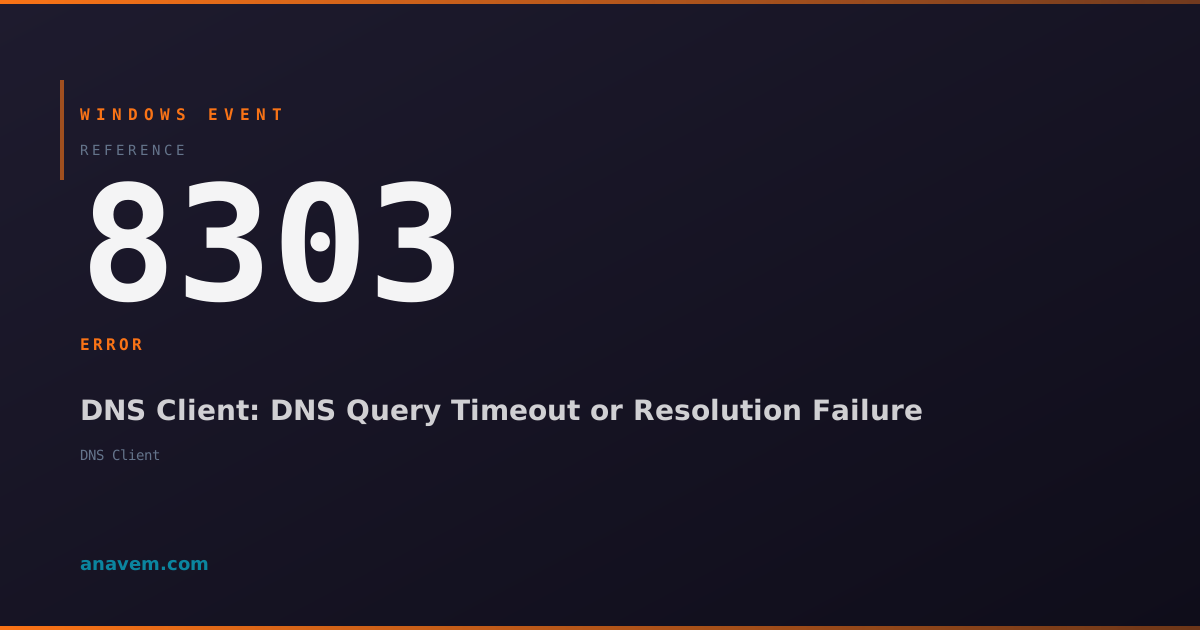
Windows Event ID 8303 – DNS Client: DNS Query Timeout or Resolution Failure

Event ID 8303 indicates DNS query timeouts or resolution failures from the DNS Client service, typically occurring when domain name lookups fail or exceed timeout thresholds.

Emanuel DE ALMEIDAEmanuel DE ALMEIDA
18 March 202612 min read 0
Event ID 8303DNS Client 5 methods 12 min
Event Reference

What This Event Means

Windows Event ID 8303 represents a DNS Client service warning that occurs when domain name resolution attempts fail due to timeouts or server unavailability. The DNS Client service, a core Windows networking component, maintains a local DNS cache and handles all domain name resolution requests from applications and system processes.

When applications or Windows services attempt to resolve domain names, the DNS Client service queries configured DNS servers using UDP port 53. If these queries fail to receive responses within the configured timeout period (typically 2-5 seconds per server), or if all configured DNS servers are unreachable, the service logs Event ID 8303 to document the failure.

This event becomes particularly problematic in Active Directory environments where DNS resolution is fundamental to domain controller location, Kerberos authentication, and LDAP queries. Failed DNS resolution can cascade into authentication failures, application timeouts, and degraded user experience. The event often correlates with network connectivity issues, firewall misconfigurations, or DNS server overload conditions.

Modern Windows versions in 2026 include enhanced DNS-over-HTTPS (DoH) and DNS-over-TLS (DoT) capabilities, which can also trigger this event when secure DNS connections fail. The event provides crucial troubleshooting data including query details, server addresses, and failure reasons, making it indispensable for network diagnostics and performance monitoring.

Applies to

Windows 10Windows 11Windows Server 2019/2022/2025
Analysis

Possible Causes

  • DNS server unavailability or network connectivity issues preventing query responses
  • Incorrect DNS server configuration in network adapter settings or DHCP assignments
  • Firewall rules blocking DNS traffic on UDP/TCP port 53 or DoH/DoT protocols
  • DNS server overload causing delayed responses that exceed timeout thresholds
  • Network latency or packet loss affecting DNS query transmission and responses
  • Queries for non-existent domains or misconfigured DNS zones
  • DNS cache corruption or service restart during active query processing
  • IPv6 DNS configuration issues when dual-stack networking is enabled
  • Corporate proxy or content filtering interfering with DNS resolution
  • DNS-over-HTTPS or DNS-over-TLS connection failures in secure DNS configurations
Resolution Methods

Troubleshooting Steps

01

Verify DNS Configuration and Test Resolution

Start by examining current DNS settings and testing basic resolution functionality:

  1. Open Command Prompt as Administrator and check current DNS configuration:
    ipconfig /all
  2. Test DNS resolution for common domains:
    nslookup google.com
    nslookup microsoft.com
    nslookup [your-domain.com]
  3. Check DNS cache status and clear if necessary:
    ipconfig /displaydns
    ipconfig /flushdns
  4. Navigate to Event ViewerWindows LogsSystem and filter for Event ID 8303 to examine specific failure details
  5. Use PowerShell to query recent DNS Client events:
    Get-WinEvent -FilterHashtable @{LogName='System'; ProviderName='DNS Client'; Id=8303} -MaxEvents 20 | Format-Table TimeCreated, LevelDisplayName, Message -Wrap
Pro tip: Compare DNS response times using nslookup -debug to identify slow or unresponsive servers.
02

Configure Alternative DNS Servers

Replace potentially problematic DNS servers with reliable alternatives:

  1. Open Network and Sharing CenterChange adapter settings
  2. Right-click your network adapter → PropertiesInternet Protocol Version 4 (TCP/IPv4)Properties
  3. Select Use the following DNS server addresses and configure reliable DNS servers:
    • Primary: 8.8.8.8 (Google DNS)
    • Secondary: 1.1.1.1 (Cloudflare DNS)
  4. For IPv6, configure similar settings in Internet Protocol Version 6 (TCP/IPv6) properties
  5. Use PowerShell to configure DNS servers programmatically:
    Set-DnsClientServerAddress -InterfaceAlias "Ethernet" -ServerAddresses "8.8.8.8","1.1.1.1"
    Set-DnsClientServerAddress -InterfaceAlias "Wi-Fi" -ServerAddresses "8.8.8.8","1.1.1.1"
  6. Test resolution after changes:
    Test-NetConnection -ComputerName google.com -Port 80
    Resolve-DnsName microsoft.com
Warning: In corporate environments, consult IT policy before changing DNS servers as this may bypass content filtering or monitoring systems.
03

Restart DNS Client Service and Reset Network Stack

Reset DNS Client service and network components to resolve service-level issues:

  1. Restart the DNS Client service using PowerShell:
    Restart-Service -Name "Dnscache" -Force
    Get-Service -Name "Dnscache" | Format-Table Name, Status, StartType
  2. Reset the entire network stack if problems persist:
    netsh winsock reset
    netsh int ip reset
    netsh advfirewall reset
  3. Clear all DNS-related caches and registrations:
    ipconfig /flushdns
    ipconfig /registerdns
    nbtstat -R
    nbtstat -RR
  4. Check DNS Client service dependencies and ensure they're running:
    Get-Service -Name "Dnscache" | Select-Object -ExpandProperty DependentServices
    Get-Service -Name "NSI", "Dhcp", "Netman" | Format-Table Name, Status
  5. Restart the computer to ensure all network components initialize properly
  6. Monitor Event Viewer after restart for recurring Event ID 8303 entries
Pro tip: Use Get-DnsClientCache to examine cached DNS entries and identify problematic domains.
04

Analyze Network Connectivity and Firewall Rules

Investigate network-level issues that may be blocking DNS traffic:

  1. Test DNS server connectivity using telnet and PowerShell:
    Test-NetConnection -ComputerName 8.8.8.8 -Port 53
    Test-NetConnection -ComputerName 1.1.1.1 -Port 53 -InformationLevel Detailed
  2. Check Windows Firewall rules for DNS traffic:
    Get-NetFirewallRule -DisplayName "*DNS*" | Format-Table DisplayName, Enabled, Direction, Action
    Get-NetFirewallPortFilter -Protocol UDP | Where-Object {$_.LocalPort -eq 53}
  3. Examine network adapter status and reset if necessary:
    Get-NetAdapter | Format-Table Name, Status, LinkSpeed, MediaType
    Reset-NetAdapterAdvancedProperty -Name "*" -DisplayName "*"
  4. Use packet capture to analyze DNS traffic:
    netsh trace start capture=yes provider=Microsoft-Windows-DNS-Client tracefile=C:\dns_trace.etl
    # Reproduce the issue, then stop:
    netsh trace stop
  5. Check for proxy settings that might interfere with DNS:
    netsh winhttp show proxy
    Get-ItemProperty -Path "HKCU\Software\Microsoft\Windows\CurrentVersion\Internet Settings" | Select-Object ProxyServer, ProxyEnable
Warning: Packet capture requires administrative privileges and may impact system performance during collection.
05

Configure Advanced DNS Settings and Monitoring

Implement advanced DNS configuration and monitoring for persistent issues:

  1. Configure DNS Client service registry settings for improved timeout handling:
    $regPath = "HKLM\SYSTEM\CurrentControlSet\Services\Dnscache\Parameters"
    Set-ItemProperty -Path $regPath -Name "MaxCacheEntryTtlLimit" -Value 86400 -Type DWord
    Set-ItemProperty -Path $regPath -Name "MaxNegativeCacheTtl" -Value 300 -Type DWord
  2. Enable DNS Client service logging for detailed troubleshooting:
    wevtutil set-log "Microsoft-Windows-DNS-Client/Operational" /enabled:true
    wevtutil set-log "Microsoft-Windows-DNS-Client/Analytic" /enabled:true
  3. Configure DNS-over-HTTPS (DoH) for secure resolution in Windows 11/Server 2025:
    Add-DnsClientDohServerAddress -ServerAddress "1.1.1.1" -DohTemplate "https://cloudflare-dns.com/dns-query"
    Get-DnsClientDohServerAddress
  4. Set up PowerShell monitoring script for ongoing DNS health checks:
    # Create monitoring script
    $script = @'
    $domains = @("google.com", "microsoft.com", "github.com")
    foreach ($domain in $domains) {
        try {
            $result = Resolve-DnsName $domain -ErrorAction Stop
            Write-Host "$domain resolved successfully" -ForegroundColor Green
        } catch {
            Write-Host "$domain resolution failed: $($_.Exception.Message)" -ForegroundColor Red
            Get-WinEvent -FilterHashtable @{LogName='System'; Id=8303} -MaxEvents 1
        }
    }
    '@
    $script | Out-File -FilePath "C:\Scripts\DNS-Monitor.ps1"
    # Schedule as task
    Register-ScheduledTask -TaskName "DNS Health Check" -Trigger (New-ScheduledTaskTrigger -Once -At (Get-Date).AddMinutes(5) -RepetitionInterval (New-TimeSpan -Minutes 15)) -Action (New-ScheduledTaskAction -Execute "PowerShell.exe" -Argument "-File C:\Scripts\DNS-Monitor.ps1")
  5. Review and optimize DNS cache settings:
    Get-DnsClientCache | Group-Object Status | Format-Table Count, Name
    Set-DnsClientGlobalSetting -SuffixSearchList @("contoso.com", "internal.local")
Pro tip: Use Windows Performance Toolkit (WPT) to analyze DNS performance patterns and identify optimization opportunities.

Overview

Event ID 8303 fires when the Windows DNS Client service encounters query timeouts or resolution failures during domain name lookups. This warning-level event typically appears in the System log when DNS queries exceed configured timeout values or when DNS servers become unresponsive. The event commonly occurs during network connectivity issues, DNS server outages, or when attempting to resolve non-existent domains.

This event is particularly significant in enterprise environments where DNS resolution is critical for Active Directory operations, web browsing, and application connectivity. The DNS Client service generates this event after exhausting retry attempts and timeout periods, making it a reliable indicator of DNS infrastructure problems. System administrators often see clusters of these events during network outages or DNS server maintenance windows.

The event provides valuable diagnostic information including the queried domain name, query type, and timeout duration, making it essential for troubleshooting connectivity issues and DNS performance problems in Windows environments.

Frequently Asked Questions

What does Windows Event ID 8303 indicate and when should I be concerned?+
Event ID 8303 indicates DNS query timeouts or resolution failures from the DNS Client service. You should be concerned when these events occur frequently (more than 10-20 per hour) or correlate with user complaints about slow internet access, application timeouts, or authentication issues. Occasional instances during network maintenance or temporary connectivity issues are normal, but persistent occurrences suggest underlying DNS infrastructure problems that require investigation.
How can I determine which specific DNS queries are failing from Event ID 8303?+
Enable detailed DNS Client logging by running 'wevtutil set-log Microsoft-Windows-DNS-Client/Operational /enabled:true' in an elevated command prompt. This creates detailed logs showing specific domain names, query types (A, AAAA, MX), and failure reasons. You can also use PowerShell to examine the event message: 'Get-WinEvent -FilterHashtable @{LogName='System'; Id=8303} | Select-Object -ExpandProperty Message' to see which domains are failing resolution.
Can Event ID 8303 affect Active Directory authentication and domain operations?+
Yes, Event ID 8303 can significantly impact Active Directory operations. DNS resolution is critical for domain controller location, Kerberos authentication, and LDAP queries. When DNS queries for domain controllers fail, users may experience login delays, group policy application failures, and inability to access domain resources. In severe cases, workstations may lose domain trust relationships. Monitor for correlating authentication events (4625, 4776) when investigating DNS resolution issues in AD environments.
What's the difference between Event ID 8303 and other DNS-related Windows events?+
Event ID 8303 specifically indicates DNS Client service query timeouts or failures, while other DNS events serve different purposes. Event ID 1014 relates to DNS server service issues, Event ID 4013 indicates DNS server startup problems, and Event ID 6004 shows DNS server shutdown events. Event ID 8303 is client-side and focuses on resolution failures, making it most relevant for troubleshooting end-user connectivity issues rather than DNS server problems.
How do I prevent Event ID 8303 from recurring in my Windows environment?+
Prevent recurring Event ID 8303 by implementing redundant DNS infrastructure with multiple reliable DNS servers (primary and secondary), configuring appropriate DNS timeouts in Group Policy, ensuring network connectivity to DNS servers is stable, and regularly monitoring DNS server performance. Consider implementing DNS-over-HTTPS (DoH) in Windows 11/Server 2025 for improved reliability. Set up automated monitoring scripts to detect DNS issues early and maintain updated network drivers and firmware to prevent connectivity problems.
Documentation

References (2)

Emanuel DE ALMEIDA
Written by

Emanuel DE ALMEIDA

Senior IT Journalist & Cloud Architect

Microsoft MCSA-certified Cloud Architect | Fortinet-focused. I modernize cloud, hybrid & on-prem infrastructure for reliability, security, performance and cost control - sharing field-tested ops & troubleshooting.

Discussion

Share your thoughts and insights

You must be logged in to comment.

Loading comments...