
How to Fix the September 2026 Windows Server RDS Bug With Microsoft's KIR Patch
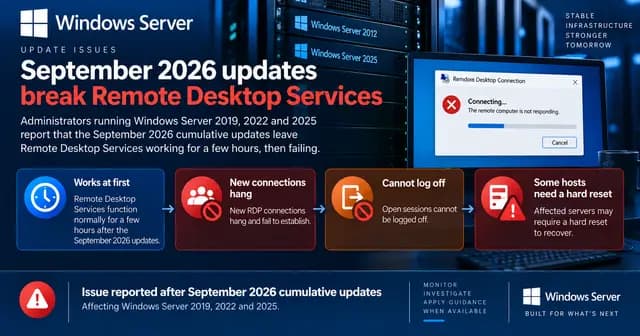
The September 2026 Patch Tuesday updates make Remote Desktop Services hang on Windows Server. Deploy Microsoft's Known Issue Rollback by GPO to restore RDS without uninstalling the security update.

- Difficulty
- Intermediate
- Time required
- 20 minutes, plus a reboot window on each RDS host
- Steps
- 7
- Platform
- Windows Server
- Version
- Windows Server 2012 through Windows Server 2025, September 2026 cumulative updates (Windows Server 2025: OS Build 26100.33438, KB5122871)
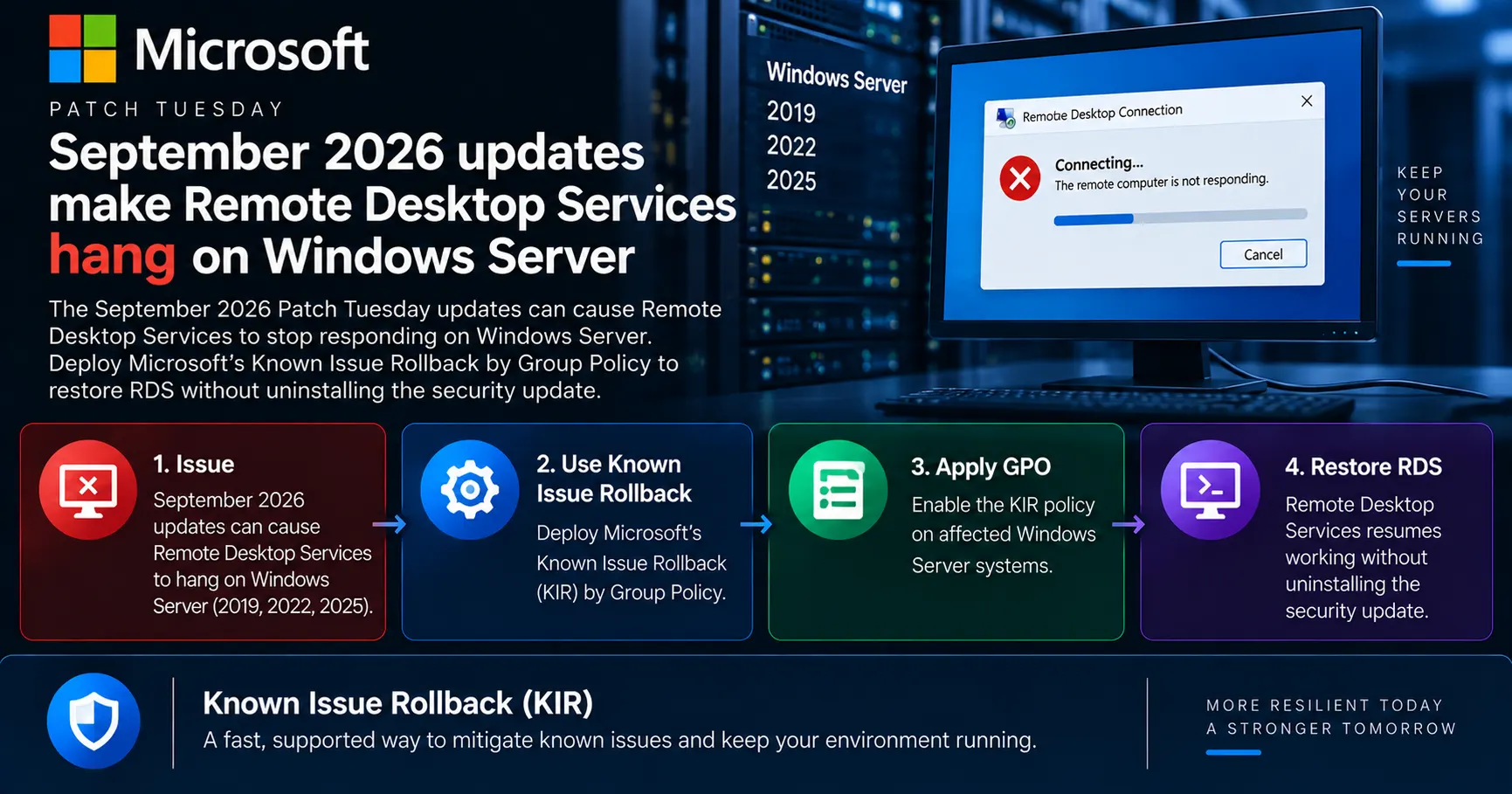
Table of contents
Quick Answer
Go to the stepsInstall the Known Issue Rollback MSI that matches your Windows Server version, then create a GPO linked to the OU holding your RDS hosts. Under Computer Configuration > Administrative Templates, set the new KB-named policy to Disabled. Run gpupdate /force on the servers and reboot them. RDS returns to normal and the September security fixes stay installed.
- Confirm the September 2026 cumulative update is installed and the symptoms match.
- Download the KIR MSI for your exact Windows Server version.
- Install the MSI on a domain controller or admin workstation to add the ADMX template.
- Copy the ADMX and ADML into the SYSVOL central store if you use one.
- Create a GPO on the RDS OU, set the KB policy to Disabled, then gpupdate /force and reboot.
Computer Configuration > Administrative Templates > KB5122871 260911_18472 Known Issue Rollbackgpupdate /forceExpected result: New RDP connections reach the logon screen again, users can sign out cleanly, and the TermService service reports Running instead of StopPending.
Key takeaways
- You'll learn how to identify the September 2026 Remote Desktop Services defect, download the matching Known Issue Rollback package, and deploy it by Group Policy so RDS works again.
- The same cumulative update that breaks RDS also patches CVE-2026-69525, a CVSS 9.8 remote code execution flaw in Remote Desktop Services, plus two zero-days already exploited in the wild. Uninstalling the update trades an outage for a critical exposure.
- Set the KIR policy to Disabled and reboot: that restores RDS while keeping the September security fixes, including the CVSS 9.8 RDS remote code execution patch.
Introduction
The September 2026 cumulative updates break Remote Desktop Services on every supported Windows Server release. The fix is a Known Issue Rollback (KIR) package: install the MSI matching your OS, set the new policy to Disabled in a GPO linked to your RDS servers, then reboot. That turns off the faulty code path and leaves the security fixes in place.
Microsoft confirmed the defect on September 11, 2026, with a release health entry titled Remote Desktop Services might stop responding after Sept. 2026 security update. The status reads Mitigated, but the public page doesn't link the KIR packages. Those went out through the Microsoft 365 admin center message center instead, which is why so many admins spent a week hunting for them.
This guide covers the whole procedure: confirming you're hit by this specific bug, picking the right MSI, staging the ADMX in your central store, and applying the policy.
Who this is for: Sysadmins and MSP engineers running RDS session hosts, Citrix VDAs, or any Windows Server fleet that took the September 2026 Patch Tuesday updates.
Before you start
- Access
- You need a machine that can author Group Policy (a domain controller or an admin workstation with RSAT), rights to create and link a GPO on the OU containing your RDS servers, and a maintenance window to reboot those servers.
- Required roles
- Domain Admin, or delegated GPO create and link rights on the RDS OU
- Local administrator on the machine where you install the KIR MSI
- Write access to the SYSVOL central store, if your domain uses one
- Environment
- Active Directory domain with Group Policy. Standalone or workgroup servers can use the same MSI through local Group Policy (gpedit.msc) instead.
- Vendor
- Microsoft
- Tested environment
- Procedure built from Microsoft's Known Issue Rollback documentation and the Windows release health entry published on September 11, 2026. Not yet validated in a lab by the editorial team.
- Administrator permissions required
- Backup required
Steps follow Microsoft's published KIR deployment procedure. Policy names include the KB number of the update you're rolling back, so they differ per OS version.
20 minutes, plus a reboot window
Warning: Back up your ADMX central store before copying files into it
Copy the entire C:\Windows\SYSVOL\domain\Policies\PolicyDefinitions folder to a safe location before adding the KIR ADMX and ADML files, and export the GPOs linked to your RDS OU with Backup-GPO. A damaged central store affects Group Policy editing across the whole domain.
Critical: Don't uninstall the September 2026 cumulative update
That update patches CVE-2026-69525, a CVSS 9.8 use-after-free remote code execution flaw in Remote Desktop Services, plus two zero-days under active exploitation. The KIR exists precisely so you can keep those fixes.
Critical: Set the policy to Disabled, not Enabled
Disabled is what activates the rollback and switches off the faulty feature flag. Enabling the policy leaves the broken behaviour in place.
Note: The rollback is temporary by design
Microsoft says a permanent fix will ship in a later Windows update. Once that update lands, remove the KIR policy, because a stale KIR can hold back the corrected code.
1Confirm you're hit by this specific defect
Rule out unrelated RDS problems before you change Group Policy on production servers.
Check three things on an affected server.
First, confirm the September 2026 cumulative update is installed. Second, look at the state of the TermService service: the Citrix advisory for this issue reports it sitting at StopPending instead of Running. Third, look for the two event signatures tied to this bug: TerminalServices-RemoteConnectionManager event 20498 (Remote Desktop Services has taken too long to complete the client connection) and Winlogon event 6005 (the SessionEnv subscriber is slow to handle the Disconnect notification).
The behavioural tell is timing. The server is fine right after a reboot, then degrades a few hours later as users start signing out.
# 1. Is the September 2026 LCU installed?
Get-HotFix | Where-Object HotFixID -in 'KB5122871','KB5122882','KB5122876','KB5123099','KB5123066','KB5123065'

# 2. Is TermService stuck?
Get-Service TermService | Select-Object Name, Status

# 3. Event signatures for this defect
Get-WinEvent -FilterHashtable @{ ProviderName='Microsoft-Windows-TerminalServices-RemoteConnectionManager'; Id=20498 } -MaxEvents 10
Get-WinEvent -FilterHashtable @{ LogName='System'; ProviderName='Microsoft-Windows-Winlogon'; Id=6005 } -MaxEvents 10
Expected result: The September KB appears in Get-HotFix, and you see event 20498 or 6005 in the logs. TermService may report StopPending on a server that's already degraded.
Note
Run this from a local console or PowerShell remoting. On a badly affected host, RDP itself may already be unusable. If the KB is installed but no matching events appear, your problem is probably something else and the KIR won't help.
2Download the KIR package for your exact OS version
Get the right MSI, because each KIR policy definition is tied to one KB and one operating system.
Microsoft published one Known Issue Rollback MSI per affected platform, named after the KB it rolls back. The packages were distributed through the Microsoft 365 admin center message center and are mirrored in the Citrix advisory CTX697101, which is the easiest public reference right now.
Map your server to its package:
- Windows Server 2025:
KB5122871 260911_18472 - Windows Server 2022:
KB5122882 260911_18471 - Windows Server 2019:
KB5122876 260911_18474(shared with Windows 10 1809) - Windows Server 2016:
KB5123099 260911_18473(shared with Windows 10 1607) - Windows Server 2012 R2:
KB5123066 18477(shared with Windows 8.1) - Windows Server 2012:
KB5123065 260911_18475
Client VDAs need their own packages: KB5122880 260912_00473 for Windows 11 22H2 and 23H2, KB5124008 260912_00472 for Windows 11 24H2 and 25H2, KB5124012 260912_00471 for Windows 11 26H1.
Expected result: You have an MSI on disk whose filename contains both your Windows version and the KB number installed on your servers.
Note
Check the filename against the OS before you install anything. Microsoft's own KIR documentation is explicit that the operating system listed in the MSI name must match the target device. A mixed fleet means several MSIs and, in practice, several policies in the same GPO.
3Install the MSI on a Group Policy authoring machine
Add the KIR policy definition to your ADMX templates so it appears in the Group Policy editor.
Run the MSI on a machine you use to create GPOs: a domain controller, a jump box, or an admin workstation with RSAT installed. The installer is silent and quick.
It doesn't patch anything on that machine. All it does is drop an ADMX file and its English ADML language file into C:\Windows\PolicyDefinitions. That's the local policy definition store.
msiexec /i "Windows Server 2025 KB5122871 260911_18472 Known Issue Rollback.msi" /qnExpected result: A new ADMX file named after the KB appears in C:\Windows\PolicyDefinitions, with a matching ADML in the en-US subfolder.
Note
Adjust the filename to the package you downloaded. Drop /qn if you'd rather watch the installer UI. The MSI only stages a template, so installing it on an admin workstation is enough.
4Copy the ADMX and ADML into your central store
Make the policy visible to every administrator, not just the machine where you ran the MSI.
\\<yourdomain>\SYSVOL\<yourdomain>\Policies\PolicyDefinitionsSkip this step if your domain has no ADMX central store. If it does, the local copy is invisible to the Group Policy editor, because a domain with a central store reads templates from SYSVOL and ignores C:\Windows\PolicyDefinitions.
Back up the central store first, then copy both files across:
- the ADMX goes to the
PolicyDefinitionsfolder in SYSVOL - the ADML goes to the matching language subfolder, normally
en-US
Microsoft ships the language file in English only for these KIR packages, so a French or German central store still needs the en-US folder to exist.
$store = "\\$env:USERDNSDOMAIN\SYSVOL\$env:USERDNSDOMAIN\Policies\PolicyDefinitions"

# Back up the central store before touching it
Copy-Item $store "C:\Backup\PolicyDefinitions-$(Get-Date -Format yyyyMMdd)" -Recurse

# Stage the KIR template
Copy-Item 'C:\Windows\PolicyDefinitions\KB5122871*.admx' $store
Copy-Item 'C:\Windows\PolicyDefinitions\en-US\KB5122871*.adml' "$store\en-US"
Expected result: The KB-named ADMX sits in the SYSVOL PolicyDefinitions folder and its ADML sits in the en-US subfolder.
Note
Not sure whether you have a central store? Browse to the Policies folder in SYSVOL and look for a PolicyDefinitions folder. If it exists, you have one. Give SYSVOL replication a moment before opening the Group Policy editor on another DC.
5Create a GPO and link it to your RDS servers
Scope the rollback to the machines that need it rather than the whole domain.
Group Policy Management > Forest > Domains > <yourdomain> > <RDS OU> > Create a GPO in this domain, and Link it hereOpen the Group Policy Management Console, create a new GPO with a name that says what it does, for example KIR - RDS hang - Sept 2026, and link it to the organizational unit holding your RDS session hosts.
Scoping matters. The rollback is temporary and version-specific, so a domain-wide link on a mixed fleet just creates noise. If your RDS hosts live in several OUs, link the same GPO to each of them, or use a security group filter on the computer accounts.
New-GPO -Name 'KIR - RDS hang - Sept 2026' |
  New-GPLink -Target 'OU=RDS,OU=Servers,DC=example,DC=local'
Expected result: The new GPO appears in GPMC and shows a link on the RDS OU, enabled and unenforced.
Note
Replace the distinguished name with your own OU path. For a standalone RDS server outside a domain, skip the GPO entirely and use gpedit.msc on the server itself, under Local Computer Policy.
6Set the KIR policy to Disabled
Switch off the feature flag responsible for the RDS hang.
Computer Configuration > Policies > Administrative Templates > KB5122871 260911_18472 Known Issue RollbackEdit the GPO and go to Computer Configuration > Policies > Administrative Templates. A new node appears, named after the KB and the rollback identifier, for example KB5122871 260911_18472 Known Issue Rollback.
Open the setting inside it and select Disabled, then apply. This is the counter-intuitive part of every KIR, and it's worth repeating: Disabled activates the rollback. Microsoft's own KIR documentation uses the same wording.
Leaving the policy Not Configured changes nothing. Setting it to Enabled keeps the broken code path active.
Expected result: The GPO settings report lists the KIR policy with a state of Disabled.
Note
The node name changes with the KB, so a Windows Server 2022 fleet shows KB5122882 260911_18471 instead. If you staged several MSIs for a mixed fleet, configure each policy in its own GPO and link it to the right OU.
7Apply the policy and reboot the RDS hosts
Push the setting to the servers and restart them so the rollback takes effect.
Group Policy refreshes on its own schedule, but you don't want to wait. Run gpupdate /force on each affected server, confirm the GPO applied with gpresult /r, then reboot.
The reboot isn't optional. Microsoft's KIR documentation requires a restart for the policy change to take effect, and on these servers it also restarts the RDS stack that's already wedged.
Schedule it. On a session host with live users, drain the sessions first or announce the window.
gpupdate /force
gpresult /r /scope:computer | findstr /i "KIR"
shutdown /r /t 60 /c "KIR rollback for the September 2026 RDS issue"
Expected result: gpupdate reports that the computer policy updated successfully, gpresult lists your KIR GPO under applied policy objects, and the server restarts.
Note
If gpresult doesn't list the GPO, the link scope or security filtering is wrong. Fix that before rebooting, otherwise the restart buys you nothing.
How to Confirm the RDS Rollback Worked
Verify fix
Give the server a few hours of real use before calling it fixed. This defect doesn't show up immediately after a reboot, it appears once users start signing out, so a server that looks healthy five minutes after restart proves very little.
Watch three signals over a normal working day. New RDP connections should reach the logon screen instead of sitting at Connecting.... Users should be able to sign out cleanly. And TermService should stay at Running.
Also check that the collateral symptoms are gone. Microsoft's advisory lists MMC, the RDS Licensing Diagnoser, File Explorer, and the Windows Update page as things that stop responding on an affected host. If those behave again, the rollback is doing its job.
Normal result: Sessions connect and disconnect normally through a full day of use, TermService stays Running, and no new event 20498 or 6005 entries appear in the logs.
Abnormal result: If connections still hang after several hours, the policy probably didn't apply. Check gpresult output, confirm the policy state is Disabled rather than Enabled, and confirm the ADMX matches the OS. If everything checks out and the hang persists, you're likely looking at a different problem, and that deserves a support case rather than a second rollback.
TermService status
Running
A degraded host reports StopPending instead, per the Citrix advisory for this issue.
Event 20498
No new entries
TerminalServices-RemoteConnectionManager logs this when RDS takes too long to complete a client connection. New entries after the reboot mean the rollback isn't active.
GPO state
Disabled
In the GPO settings report, the KIR policy must read Disabled. Not Configured or Enabled both leave the defect in place.
Troubleshooting
The KIR node doesn't appear in the Group Policy editor
Warning
Cause: Your domain uses an ADMX central store, so the editor reads templates from SYSVOL and ignores the local C:\Windows\PolicyDefinitions folder where the MSI installed them.
Copy the ADMX to the PolicyDefinitions folder in SYSVOL and the ADML to its en-US subfolder, then close and reopen the Group Policy Management Editor. If you're editing from a different domain controller, wait for SYSVOL replication to complete first.
The policy is configured but RDS still hangs after a reboot
Critical
Cause: Either the GPO never reached the server, or the policy was set to Enabled instead of Disabled.
Run gpresult /r /scope:computer on the affected host and confirm your KIR GPO is listed under applied Group Policy Objects. If it isn't, check the OU link and any security filtering on the computer account. If it is listed, open the GPO settings report and confirm the KIR policy state reads Disabled. Reboot again after any change.
You installed the wrong MSI for the OS
Warning
Cause: Each KIR policy definition targets one KB and one Windows version. A Windows Server 2022 template does nothing on a 2025 host.
Uninstall the package from Programs and Features on the authoring machine, remove the stray ADMX and ADML from the central store, then install the MSI whose filename matches both your Windows version and the KB reported by Get-HotFix.
A server is completely unreachable over RDP and you can't run gpupdate
Critical
Cause: The RDS stack is already wedged, so there's no way in through Remote Desktop.
Use an out-of-band path: the hypervisor console, iDRAC or iLO, or PowerShell remoting with Invoke-Command, which uses WinRM rather than RDP. Microsoft's advisory also notes that stopping and restarting an affected virtual machine can temporarily restore connectivity, which buys you enough time to apply the policy.
You already uninstalled the September cumulative update
Critical
Cause: Rolling back the LCU is the reflex fix, and it does restore RDS.
Reinstall the September update, then apply the KIR before the next user logs off. Leaving it uninstalled keeps CVE-2026-69525, a CVSS 9.8 remote code execution flaw in Remote Desktop Services, unpatched on a service that's frequently internet-facing. Two zero-days from the same release stay unpatched as well.
Frequently asked questions
Which Windows Server versions are affected by the September 2026 RDS bug?
Microsoft lists Windows Server 2012, 2012 R2, 2016, 2019, 2022, and 2025. The same advisory also names Windows 10 and Windows 11 clients, which act as the RDP endpoints and, in Citrix environments, as desktop OS VDAs.
Why does the Known Issue Rollback policy have to be set to Disabled?
Disabled is the state that activates the rollback and switches off the code path introduced by the update. Enabled keeps the new behaviour, which is exactly the behaviour that's broken. Microsoft uses this same convention for every KIR policy.
Can I just uninstall the September 2026 update instead?
It works, but it's a bad trade. That update patches CVE-2026-69525, a CVSS 9.8 use-after-free remote code execution flaw in Remote Desktop Services, plus two zero-days already under active exploitation. The KIR restores stability without giving up those fixes.
Why isn't the KIR download linked on Microsoft's known issues page?
Microsoft distributed the packages through the Microsoft 365 admin center message center rather than the public release health page, which still shows the issue as Mitigated with no download link. The Citrix advisory CTX697101 mirrors the same package links publicly.
Do I need to remove the KIR policy later?
Yes. Microsoft plans a permanent fix in a later Windows update, and KIR policies are designed to live for a few months at most. Once the corrected update is deployed, unlink the GPO and remove the ADMX so the rollback doesn't suppress the real fix.
Can I apply the KIR on a standalone server without Active Directory?
Yes. Install the same MSI on the server itself, open gpedit.msc, go to Local Computer Policy > Computer Configuration > Administrative Templates, set the KB-named policy to Disabled, then reboot.
Conclusion
The September 2026 cumulative updates destabilise Remote Desktop Services across every supported Windows Server release, and Microsoft's answer is a Known Issue Rollback rather than a revised patch. Install the MSI that matches your OS, stage the ADMX in your central store, set the KB-named policy to Disabled in a GPO linked to your RDS OU, then run gpupdate /force and reboot.
Treat it as temporary. When Microsoft ships the corrected update, pull the policy back out. And if you also run Citrix VDAs, check CTX697101 for the separate client-side packages.
Set the KIR policy to Disabled and reboot: that restores RDS while keeping the September security fixes, including the CVSS 9.8 RDS remote code execution patch.
Computer Configuration > Policies > Administrative Templates > KB5122871 260911_18472 Known Issue Rollback > DisabledSources5
- Windows Server 2025 known issues and notifications: Remote Desktop Services might stop responding after Sept. 2026 security update
- Use Group Policy to deploy a Known Issue Rollback
- CTX697101 - Issues with Microsoft Windows September 2026 Update
- Microsoft's September 2026 Patch Tuesday Addresses 964 CVEs
- Bug RDS de septembre 2026 : comment resoudre le probleme sur Windows Server ?
Reader feedback
Written reviews
Loading reviews…