ANAVEM
Languagefr
Windows Event Viewer displaying Event ID 1003 application crash details on a system administrator's monitoring setup
Event ID 1003ErrorApplication ErrorWindows

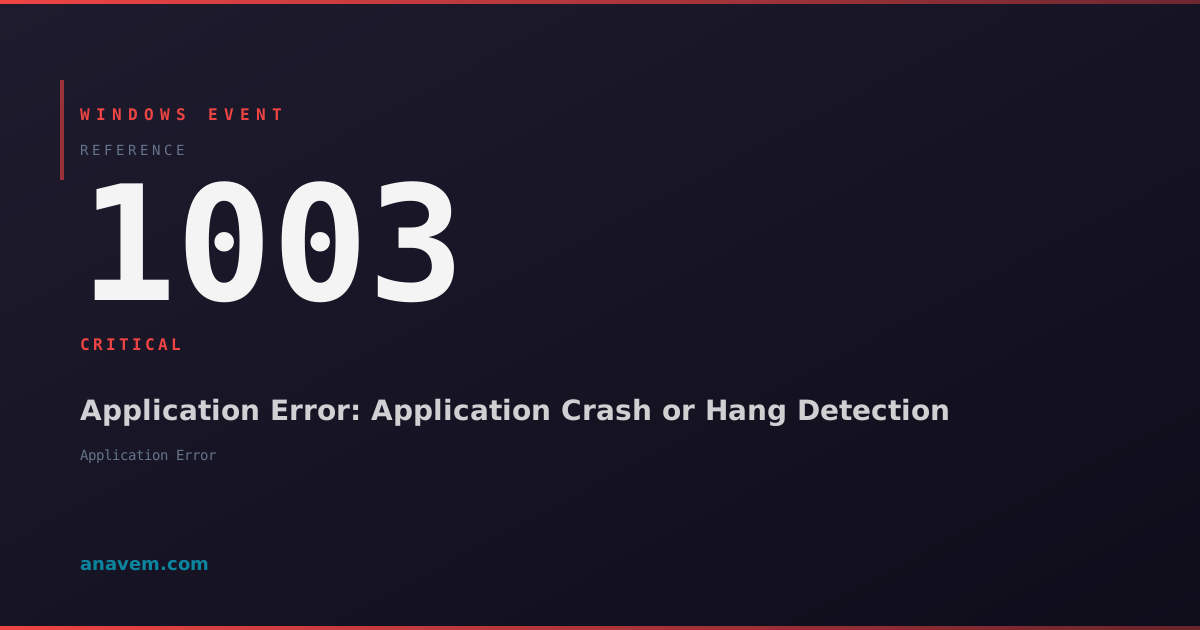
Windows Event ID 1003 – Application Error: Application Crash or Hang Detection

Event ID 1003 indicates an application crash or hang detected by Windows Error Reporting. This critical event logs when applications terminate unexpectedly or become unresponsive, requiring immediate investigation.

Emanuel DE ALMEIDAEmanuel DE ALMEIDA
18 March 202612 min read 0
Event ID 1003Application Error 5 methods 12 min
Event Reference

What This Event Means

Windows Event ID 1003 represents a critical application error event generated by the Windows Error Reporting service when it detects application crashes, hangs, or unexpected terminations. This event provides comprehensive diagnostic information that system administrators need to identify and resolve application stability issues across Windows environments.

The event contains detailed crash information including the faulting application executable name, the specific module or DLL that caused the failure, exception codes that indicate the type of error encountered, and memory addresses where the fault occurred. This technical data is crucial for developers and IT professionals performing root cause analysis of application failures.

Windows Error Reporting generates Event ID 1003 as part of its automated crash detection and reporting mechanism. When an application encounters a critical error such as an access violation, stack overflow, or heap corruption, Windows immediately logs this event before attempting to collect crash dump data or display error dialogs to users. The event serves as an early warning system for administrators monitoring application health and system stability.

In enterprise environments, Event ID 1003 patterns can reveal systemic issues affecting multiple users or systems. Frequent occurrences of this event for the same application may indicate compatibility problems with recent Windows updates, driver conflicts, insufficient system resources, or corrupted application installations requiring immediate remediation.

Applies to

Windows 10Windows 11Windows Server 2019/2022/2025
Analysis

Possible Causes

  • Application access violations or memory corruption errors
  • Stack overflow conditions in poorly coded applications
  • Heap corruption caused by buffer overruns or memory leaks
  • DLL conflicts or missing dependencies
  • Hardware failures affecting system memory or storage
  • Driver compatibility issues with recent Windows updates
  • Insufficient system resources during high-load conditions
  • Corrupted application files or registry entries
  • Malware interference with legitimate application processes
  • Third-party security software blocking application operations
Resolution Methods

Troubleshooting Steps

01

Analyze Event Details in Event Viewer

Start by examining the complete event details to identify the faulting application and error specifics.

  1. Open Event Viewer by pressing Win + R, typing eventvwr.msc, and pressing Enter
  2. Navigate to Windows LogsApplication
  3. Filter for Event ID 1003 by right-clicking the Application log and selecting Filter Current Log
  4. Enter 1003 in the Event IDs field and click OK
  5. Double-click the most recent Event ID 1003 to view detailed information
  6. Record the following critical details:
    • Faulting application name and version
    • Faulting module name
    • Exception code (e.g., 0xc0000005 for access violation)
    • Fault offset and application timestamp

Use PowerShell to extract multiple Event ID 1003 entries for pattern analysis:

Get-WinEvent -FilterHashtable @{LogName='Application'; Id=1003} -MaxEvents 50 | Select-Object TimeCreated, Id, LevelDisplayName, Message | Format-Table -Wrap
Pro tip: Look for recurring patterns in the faulting module or exception code to identify systemic issues affecting multiple applications.
02

Check Application and System File Integrity

Verify that the faulting application and system files are not corrupted, which commonly causes Event ID 1003.

  1. Run System File Checker to repair corrupted system files:
sfc /scannow
  1. Check the integrity of the specific faulting application by reinstalling or repairing it through Programs and Features
  2. Verify Windows system image integrity using DISM:
DISM /Online /Cleanup-Image /CheckHealth
DISM /Online /Cleanup-Image /ScanHealth
DISM /Online /Cleanup-Image /RestoreHealth
  1. Run Windows Memory Diagnostic to check for RAM issues:
mdsched.exe
  1. Check disk integrity for the system drive:
chkdsk C: /f /r
Warning: The chkdsk command requires a system restart and may take several hours to complete on large drives.
03

Investigate Windows Error Reporting and Crash Dumps

Analyze crash dumps and Windows Error Reporting data to identify the root cause of application failures.

  1. Check if crash dumps are being generated by examining the registry:
Get-ItemProperty -Path "HKLM\SOFTWARE\Microsoft\Windows\Windows Error Reporting\LocalDumps"
  1. Configure crash dump collection for the faulting application if not already enabled:
New-Item -Path "HKLM\SOFTWARE\Microsoft\Windows\Windows Error Reporting\LocalDumps\[ApplicationName.exe]" -Force
Set-ItemProperty -Path "HKLM\SOFTWARE\Microsoft\Windows\Windows Error Reporting\LocalDumps\[ApplicationName.exe]" -Name "DumpType" -Value 2
Set-ItemProperty -Path "HKLM\SOFTWARE\Microsoft\Windows\Windows Error Reporting\LocalDumps\[ApplicationName.exe]" -Name "DumpFolder" -Value "C:\CrashDumps"
  1. Check the default crash dump location:
Get-ChildItem -Path "$env:LOCALAPPDATA\CrashDumps" -ErrorAction SilentlyContinue
  1. Review Windows Error Reporting history in Event Viewer under Applications and Services LogsMicrosoftWindowsWindows Error Reporting
  2. Use Windows Performance Toolkit (WPT) or Visual Studio to analyze dump files if available
Pro tip: Enable crash dump collection before the next application failure occurs to capture detailed debugging information.
04

Monitor Resource Usage and Dependencies

Investigate system resource constraints and application dependencies that may trigger Event ID 1003.

  1. Monitor system performance during application crashes using Performance Monitor:
perfmon.exe
  1. Add counters for Memory, Processor, and Process-specific metrics for the faulting application
  2. Check application dependencies using Dependency Walker or PowerShell:
Get-Process -Name "[ApplicationName]" | Select-Object -ExpandProperty Modules | Format-Table ModuleName, FileName
  1. Verify DLL versions and digital signatures:
Get-AuthenticodeSignature -FilePath "C:\Path\To\Application.exe"
Get-ItemProperty -Path "C:\Path\To\Application.exe" | Select-Object VersionInfo
  1. Check for conflicting software or security applications:
Get-WmiObject -Class Win32_Product | Where-Object {$_.Name -like "*Security*" -or $_.Name -like "*Antivirus*"} | Select-Object Name, Version
  1. Review application event logs for related warnings or errors occurring before the crash
Warning: Temporarily disable security software only for testing purposes and re-enable immediately after troubleshooting.
05

Advanced Debugging with Process Monitor and Registry Analysis

Perform advanced troubleshooting using Process Monitor and detailed registry analysis to identify complex application issues.

  1. Download and run Process Monitor (ProcMon) from Microsoft Sysinternals
  2. Configure ProcMon filters to monitor the faulting application:
  3. Set Process Name filter to the faulting application executable
  4. Enable File System, Registry, and Process monitoring
  5. Reproduce the application crash while ProcMon is running
  6. Analyze the captured events focusing on:
  7. Registry access denied errors
  8. Missing file or DLL access attempts
  9. Memory allocation failures
  10. Check application-specific registry keys for corruption:
Get-ChildItem -Path "HKCU\Software\[ApplicationVendor]\[ApplicationName]" -Recurse -ErrorAction SilentlyContinue
Get-ChildItem -Path "HKLM\Software\[ApplicationVendor]\[ApplicationName]" -Recurse -ErrorAction SilentlyContinue
  1. Export and backup registry keys before making changes:
reg export "HKLM\Software\[ApplicationVendor]\[ApplicationName]" "C:\Backup\AppRegistry.reg"
  1. Enable Application Verifier for detailed heap and handle tracking:
appverif.exe
  1. Configure Application Verifier to monitor the faulting application with heap and handle verification enabled
Pro tip: Process Monitor captures real-time file system, registry, and process activity, making it invaluable for identifying the exact moment and cause of application failures.

Overview

Event ID 1003 fires when Windows Error Reporting (WER) detects an application crash, hang, or unexpected termination. This event appears in the Application log and provides crucial diagnostic information including the faulting application name, module, exception code, and memory offset. The event typically occurs when applications encounter access violations, stack overflows, or other critical exceptions that force Windows to terminate the process.

This event is essential for system administrators monitoring application stability across enterprise environments. Unlike Event ID 1000 which logs basic application errors, Event ID 1003 specifically captures more severe crashes that trigger Windows Error Reporting mechanisms. The event data includes detailed crash dump information, making it invaluable for troubleshooting recurring application failures and identifying problematic software components.

Windows generates this event immediately after detecting the application failure, before any crash dump collection or error reporting dialog appears to users. System administrators should monitor this event closely as frequent occurrences may indicate underlying hardware issues, driver conflicts, or application compatibility problems requiring immediate attention.

Frequently Asked Questions

What does Windows Event ID 1003 specifically indicate?+
Event ID 1003 indicates that Windows Error Reporting has detected an application crash, hang, or unexpected termination. This event provides detailed diagnostic information including the faulting application name, module that caused the failure, exception code, and memory offset where the error occurred. It's generated immediately when Windows detects critical application failures that require process termination.
How is Event ID 1003 different from Event ID 1000?+
Event ID 1003 represents more severe application failures that trigger Windows Error Reporting mechanisms, while Event ID 1000 logs general application errors. Event ID 1003 includes detailed crash information such as exception codes, fault offsets, and module details that are crucial for debugging. Event ID 1003 typically occurs with access violations, stack overflows, and heap corruption, whereas Event ID 1000 may include less critical application errors.
Can Event ID 1003 indicate hardware problems?+
Yes, frequent Event ID 1003 occurrences can indicate underlying hardware issues, particularly memory problems, failing storage devices, or overheating components. When multiple different applications generate Event ID 1003 with similar exception codes like 0xc0000005 (access violation), it often points to RAM issues. Hardware-related crashes typically show patterns across different applications rather than being isolated to a single program.
How should I prioritize Event ID 1003 events in an enterprise environment?+
Prioritize Event ID 1003 events based on frequency, affected user count, and business impact. Focus first on crashes affecting critical business applications or those occurring across multiple systems. Events with identical exception codes and faulting modules indicate systemic issues requiring immediate attention. Use PowerShell to analyze patterns and identify the most problematic applications or systems generating frequent Event ID 1003 entries.
What information should I collect when reporting Event ID 1003 to software vendors?+
Collect the complete event details including application name and version, faulting module name, exception code, fault offset, and timestamp. Gather crash dump files if available, system specifications, recent changes or updates, and steps to reproduce the issue. Include Process Monitor logs showing file and registry access patterns before the crash. Document any error patterns, affected user accounts, and system configurations that may be relevant to the application failure.
Documentation

References (2)

Emanuel DE ALMEIDA
Written by

Emanuel DE ALMEIDA

Senior IT Journalist & Cloud Architect

Microsoft MCSA-certified Cloud Architect | Fortinet-focused. I modernize cloud, hybrid & on-prem infrastructure for reliability, security, performance and cost control - sharing field-tested ops & troubleshooting.

Discussion

Share your thoughts and insights

You must be logged in to comment.

Loading comments...