ANAVEM
Languagefr
Windows Event Viewer displaying Event ID 1026 application crash logs on a system administrator's monitoring setup
Event ID 1026ErrorApplication ErrorWindows

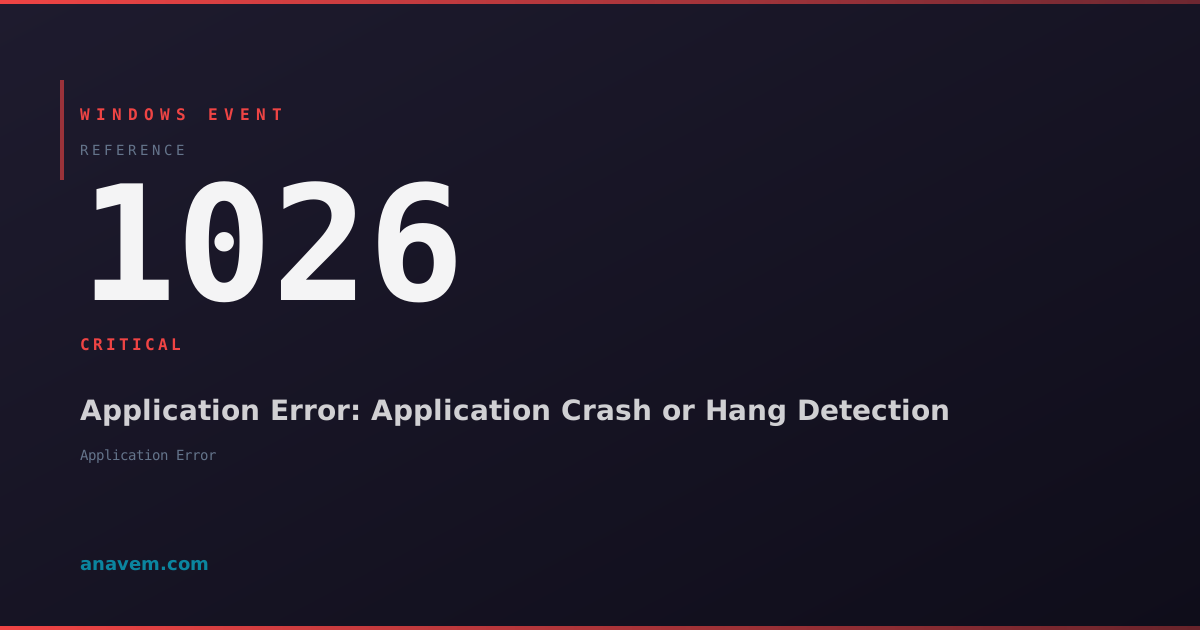
Windows Event ID 1026 – Application Error: Application Crash or Hang Detection

Event ID 1026 indicates an application has crashed, hung, or encountered a critical error. This event helps administrators track application stability and identify problematic software components.

Emanuel DE ALMEIDAEmanuel DE ALMEIDA
18 March 202612 min read 0
Event ID 1026Application Error 5 methods 12 min
Event Reference

What This Event Means

Event ID 1026 represents one of the most important application monitoring events in Windows. When an application crashes or hangs, Windows Error Reporting captures detailed information about the failure and logs it as Event ID 1026 in the Application event log. This event provides forensic data that helps administrators understand why applications fail and how to prevent future occurrences.

The event structure includes the faulting application name, version information, timestamp of the crash, fault module name (often a DLL), fault module version, and exception code. This data enables precise identification of the root cause, whether it's a specific application version, a problematic third-party component, or a system-level issue affecting multiple applications.

In enterprise environments, Event ID 1026 serves as a key performance indicator for application stability. Administrators use this event to track Mean Time Between Failures (MTBF) for critical applications, identify applications that require updates or replacement, and correlate application crashes with system changes or updates. The event also integrates with System Center Operations Manager and other monitoring solutions for automated alerting and reporting.

Modern Windows versions in 2026 have enhanced the event with additional telemetry data, including memory usage at the time of crash, CPU utilization patterns, and dependency information. This enriched data helps administrators make informed decisions about application lifecycle management and system resource allocation.

Applies to

Windows 10Windows 11Windows Server 2019/2022/2025
Analysis

Possible Causes

  • Application bugs or programming errors causing unhandled exceptions
  • Memory corruption or access violations within the application
  • Incompatible or corrupted application dependencies (DLLs, frameworks)
  • Insufficient system resources (memory, disk space, handles)
  • Hardware issues affecting application execution (RAM, storage)
  • Conflicting software or driver interactions
  • Windows updates causing application compatibility issues
  • Malware or security software interfering with application execution
  • Registry corruption affecting application configuration
  • Network connectivity issues for applications requiring remote resources
Resolution Methods

Troubleshooting Steps

01

Analyze Event Details in Event Viewer

Start by examining the specific details of Event ID 1026 to identify the failing application and fault module.

  1. Open Event Viewer by pressing Win + R, typing eventvwr.msc, and pressing Enter
  2. Navigate to Windows LogsApplication
  3. Filter for Event ID 1026 by right-clicking the Application log and selecting Filter Current Log
  4. Enter 1026 in the Event IDs field and click OK
  5. Double-click the most recent Event ID 1026 entry to view details
  6. Note the Faulting application name, Faulting module name, and Exception code
  7. Check the General tab for application path and process ID information

Use PowerShell to query multiple Event ID 1026 entries for pattern analysis:

Get-WinEvent -FilterHashtable @{LogName='Application'; Id=1026} -MaxEvents 50 | Select-Object TimeCreated, LevelDisplayName, @{Name='Application';Expression={($_.Message -split '\n')[0]}}
Pro tip: Look for recurring patterns in the faulting module name - this often indicates a specific DLL or component causing multiple application crashes.
02

Check Application and System Dependencies

Verify that the failing application has all required dependencies and is compatible with the current Windows version.

  1. Identify the failing application from the Event ID 1026 details
  2. Check the application version and compare with vendor compatibility matrices
  3. Verify .NET Framework or Visual C++ Redistributable requirements:
# Check installed .NET versions
Get-ChildItem 'HKLM:SOFTWARE\Microsoft\NET Framework Setup\NDP' -Recurse | Get-ItemProperty -Name version -EA 0 | Where { $_.PSChildName -Match '^(?!S)\p{L}'} | Select PSChildName, version

# Check Visual C++ Redistributables
Get-WmiObject -Class Win32_Product | Where-Object {$_.Name -like "*Visual C++*"} | Select-Object Name, Version
  1. Run the application compatibility troubleshooter:
# Launch compatibility troubleshooter for specific application
msdt.exe -id PCWDiagnostic
  1. Check for missing or corrupted system files:
# Run System File Checker
sfc /scannow

# Run DISM to repair Windows image
DISM /Online /Cleanup-Image /RestoreHealth
Warning: Always test application compatibility in a non-production environment before deploying updates or changes.
03

Monitor Resource Usage and Performance

Investigate whether resource constraints are causing application crashes by monitoring system performance during application execution.

  1. Open Performance Monitor (perfmon.exe) and create a custom data collector set
  2. Add the following counters to monitor application resource usage:
# Create performance counter data collector set
$DataCollectorSet = New-Object -ComObject Pla.DataCollectorSet
$DataCollectorSet.DisplayName = "App Crash Investigation"
$DataCollectorSet.Duration = 3600  # 1 hour
$DataCollectorSet.Commit("AppCrashMonitor", $null, 0x0003)
  1. Monitor key performance indicators:
  2. Process\Private Bytes (for the specific application)
  3. Process\Handle Count
  4. Memory\Available MBytes
  5. Process\% Processor Time
  6. Check Event Viewer for additional related events around the crash time:
# Get events within 5 minutes of the crash
$CrashTime = (Get-WinEvent -FilterHashtable @{LogName='Application'; Id=1026} -MaxEvents 1).TimeCreated
$StartTime = $CrashTime.AddMinutes(-5)
$EndTime = $CrashTime.AddMinutes(5)

Get-WinEvent -FilterHashtable @{LogName='System'; StartTime=$StartTime; EndTime=$EndTime} | Where-Object {$_.LevelDisplayName -eq 'Error' -or $_.LevelDisplayName -eq 'Warning'}
  1. Use Process Monitor (ProcMon) to capture file and registry access during application startup and operation
  2. Enable Application Verifier for the problematic application to detect heap corruption:
# Enable Application Verifier (requires Application Verifier tool)
appverif.exe -enable Heaps Handles Locks -for application.exe
04

Configure Windows Error Reporting and Crash Dumps

Enable detailed crash dump collection to gather more diagnostic information about application failures.

  1. Configure Windows Error Reporting to collect full crash dumps:
# Enable local crash dump collection
New-ItemProperty -Path "HKLM:\SOFTWARE\Microsoft\Windows\Windows Error Reporting\LocalDumps" -Name "DumpType" -Value 2 -PropertyType DWORD -Force
New-ItemProperty -Path "HKLM:\SOFTWARE\Microsoft\Windows\Windows Error Reporting\LocalDumps" -Name "DumpCount" -Value 10 -PropertyType DWORD -Force
New-ItemProperty -Path "HKLM:\SOFTWARE\Microsoft\Windows\Windows Error Reporting\LocalDumps" -Name "DumpFolder" -Value "C:\CrashDumps" -PropertyType String -Force
  1. Create the crash dump directory with appropriate permissions:
# Create crash dump directory
New-Item -Path "C:\CrashDumps" -ItemType Directory -Force

# Set permissions for crash dump collection
icacls "C:\CrashDumps" /grant "Everyone:(OI)(CI)F"
  1. Configure application-specific crash dump settings:
# Configure dumps for specific application
$AppName = "problematic_app.exe"
New-Item -Path "HKLM:\SOFTWARE\Microsoft\Windows\Windows Error Reporting\LocalDumps\$AppName" -Force
New-ItemProperty -Path "HKLM:\SOFTWARE\Microsoft\Windows\Windows Error Reporting\LocalDumps\$AppName" -Name "DumpType" -Value 2 -PropertyType DWORD -Force
  1. Monitor crash dump generation and analyze using debugging tools:
# Monitor crash dump directory
Get-ChildItem "C:\CrashDumps" -File | Sort-Object LastWriteTime -Descending | Select-Object Name, Length, LastWriteTime
  1. Enable Dr. Watson or configure automatic crash dump analysis:
# Configure automatic crash dump analysis
New-ItemProperty -Path "HKLM:\SOFTWARE\Microsoft\Windows NT\CurrentVersion\AeDebug" -Name "Auto" -Value "1" -PropertyType String -Force
Pro tip: Crash dumps can be large - monitor disk space and implement rotation policies to prevent storage issues.
05

Advanced Troubleshooting with Application Compatibility Toolkit

Use advanced compatibility tools and application shimming to resolve persistent application crashes.

  1. Download and install the Windows Assessment and Deployment Kit (ADK) for compatibility tools
  2. Launch the Compatibility Administrator from the Windows Kits menu
  3. Create a custom compatibility database for the problematic application:
# Export current compatibility database
sdbinst.exe -q -n "Custom_App_Fixes"

# Query existing compatibility fixes
Get-ItemProperty -Path "HKLM:\SOFTWARE\Microsoft\Windows NT\CurrentVersion\AppCompatFlags\Custom\*" | Select-Object PSChildName
  1. Apply common compatibility fixes such as:
  2. Heap corruption detection disable
  3. DEP (Data Execution Prevention) exceptions
  4. Compatibility mode settings
  5. DLL redirection fixes
  6. Test the application with compatibility shims applied:
# Install custom compatibility database
sdbinst.exe "C:\CustomFixes\AppFix.sdb"

# Verify shim installation
Get-ItemProperty -Path "HKLM:\SOFTWARE\Microsoft\Windows NT\CurrentVersion\AppCompatFlags\InstalledSDB\*" | Where-Object {$_.DatabaseDescription -like "*Custom*"}
  1. Monitor application behavior with Process Monitor during testing
  2. Use Application Compatibility Toolkit logging to track fix effectiveness:
# Enable compatibility logging
New-ItemProperty -Path "HKLM:\SOFTWARE\Microsoft\Windows NT\CurrentVersion\AppCompatFlags" -Name "LogLevel" -Value 4 -PropertyType DWORD -Force

# Check compatibility logs
Get-WinEvent -FilterHashtable @{LogName='Microsoft-Windows-Application-Experience/Program-Compatibility-Assistant/Analytic'} -MaxEvents 20
  1. Document successful fixes and deploy to affected systems using Group Policy or SCCM
Warning: Compatibility shims can affect application performance and security. Thoroughly test all fixes before production deployment.

Overview

Event ID 1026 fires when Windows detects an application crash, hang, or critical error condition. This event appears in the Application log and provides essential details about the failing application, including the executable name, version, and fault module information. The event serves as a critical monitoring point for application stability across Windows environments.

This event typically occurs when an application stops responding for an extended period, encounters an access violation, or terminates unexpectedly due to unhandled exceptions. Windows Error Reporting (WER) generates this event as part of its crash detection mechanism, making it invaluable for troubleshooting application issues in enterprise environments.

The event contains structured data including the faulting application path, process ID, fault module details, and timestamp information. System administrators rely on this event to identify patterns in application failures, track software reliability metrics, and prioritize application updates or replacements. Understanding Event ID 1026 is crucial for maintaining system stability and user productivity in modern Windows deployments.

Frequently Asked Questions

What does Event ID 1026 specifically indicate about application crashes?+
Event ID 1026 indicates that an application has crashed, hung, or encountered a critical error that caused it to terminate unexpectedly. The event provides detailed information including the faulting application name, version, fault module (usually a DLL), exception code, and timestamp. This event is generated by Windows Error Reporting (WER) and serves as the primary indicator for application stability issues. Unlike other application events, Event ID 1026 specifically captures the moment of application failure with forensic details that help administrators identify the root cause of the crash.
How can I identify patterns in recurring Event ID 1026 crashes?+
To identify patterns in Event ID 1026 crashes, use PowerShell to extract and analyze crash data over time. Run Get-WinEvent with filtering to collect multiple instances, then group by application name, fault module, or exception code. Look for common elements like the same faulting module across different applications, crashes occurring at specific times, or crashes following system updates. Create custom PowerShell scripts to parse the event message text and extract structured data for analysis. Consider using tools like Excel or Power BI to visualize crash trends and identify correlations with system changes, user activities, or environmental factors.
Can Event ID 1026 help predict future application failures?+
Yes, Event ID 1026 can help predict future application failures when analyzed as part of a broader monitoring strategy. By tracking the frequency and patterns of crashes for specific applications, you can identify applications approaching end-of-life, detect degrading system conditions, or spot emerging compatibility issues. Monitor trends in crash frequency, note changes in fault modules over time, and correlate crashes with system resource usage. Applications showing increasing crash rates or new fault modules may indicate underlying issues that will worsen over time. Implement automated monitoring to alert when crash rates exceed baseline thresholds, enabling proactive intervention before critical failures occur.
What's the difference between Event ID 1026 and other application error events?+
Event ID 1026 specifically captures application crashes and hangs with detailed fault information, while other application error events serve different purposes. Event ID 1000 (Application Error) provides basic crash information but with less detail than 1026. Event ID 1001 (Windows Error Reporting) indicates that a crash report was generated and potentially sent to Microsoft. Event ID 1026 is unique because it includes structured fault module information, exception codes, and detailed application version data. It's generated at the moment of crash detection, making it the most immediate and detailed record of application failures. Other events may be informational or related to application startup/shutdown rather than actual crashes.
How should I configure monitoring and alerting for Event ID 1026 in enterprise environments?+
In enterprise environments, configure Event ID 1026 monitoring using a multi-layered approach. Set up Windows Event Forwarding (WEF) to centralize Event ID 1026 collection from all systems to dedicated collector servers. Use System Center Operations Manager, Splunk, or similar tools to create automated alerts based on crash frequency thresholds, specific application failures, or new fault modules. Implement PowerShell-based monitoring scripts that run periodically to analyze crash patterns and generate reports. Configure different alert severities: immediate alerts for critical application crashes, daily summaries for non-critical applications, and weekly trend reports for management. Include crash dump collection configuration in your monitoring strategy to enable detailed post-crash analysis when needed.
Documentation

References (2)

Emanuel DE ALMEIDA
Written by

Emanuel DE ALMEIDA

Senior IT Journalist & Cloud Architect

Microsoft MCSA-certified Cloud Architect | Fortinet-focused. I modernize cloud, hybrid & on-prem infrastructure for reliability, security, performance and cost control - sharing field-tested ops & troubleshooting.

Discussion

Share your thoughts and insights

You must be logged in to comment.

Loading comments...