ANAVEM
Languagefr
Windows Event Viewer displaying application crash logs and system diagnostics on multiple monitors
Event ID 1004ErrorApplication ErrorWindows

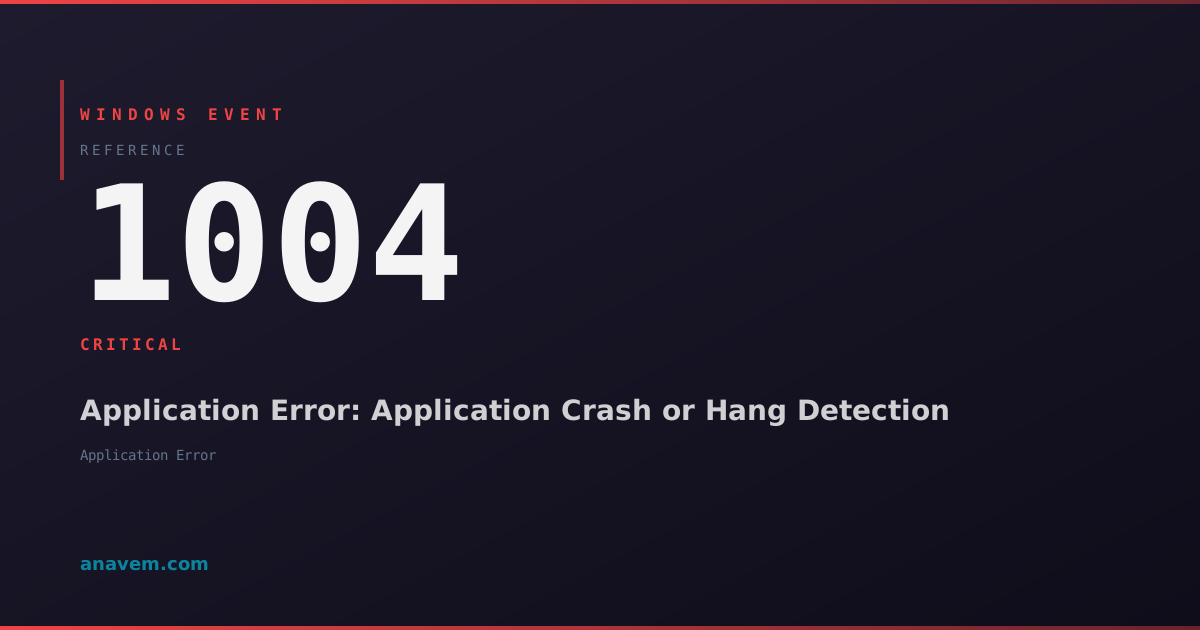
Windows Event ID 1004 – Application Error: Application Crash or Hang Detection

Event ID 1004 indicates an application has crashed, hung, or encountered a critical error. This event helps administrators track application stability and identify problematic software across Windows systems.

Emanuel DE ALMEIDAEmanuel DE ALMEIDA
18 March 20269 min read 0
Event ID 1004Application Error 5 methods 9 min
Event Reference

What This Event Means

Event ID 1004 represents one of the most critical application monitoring events in Windows environments. When an application crashes or hangs, Windows Error Reporting immediately logs this event with comprehensive diagnostic information including the faulting application path, version details, fault module name, and the specific exception code that caused the failure.

The event structure includes several key data points: the application name and full path, application version and timestamp, faulting module name and version, fault module timestamp, exception code (such as 0xc0000005 for access violations), and the fault offset within the module. This granular information enables administrators to pinpoint exact failure conditions and correlate crashes across multiple systems.

Modern Windows versions in 2026 have enhanced Event ID 1004 reporting with additional telemetry data, including process memory usage at failure time, loaded module information, and correlation IDs for Windows Update and driver installations. These improvements help identify whether recent system changes contributed to application instability.

The event plays a crucial role in enterprise environments where application reliability directly impacts business operations. Automated monitoring systems frequently filter for Event ID 1004 to trigger alerts, generate reports, and initiate remediation workflows. Understanding this event's patterns helps predict application lifecycle needs and inform software deployment strategies.

Applies to

Windows 10Windows 11Windows Server 2019/2022/2025
Analysis

Possible Causes

  • Application access violations or memory corruption issues
  • Incompatible or outdated application versions with current Windows builds
  • Faulty device drivers interfering with application memory space
  • Insufficient system resources causing application hangs or crashes
  • Corrupted application files or missing dependencies
  • Third-party software conflicts or DLL version mismatches
  • Hardware issues affecting memory or storage subsystems
  • Windows Update compatibility problems with legacy applications
  • Antivirus software blocking or interfering with application operations
  • Registry corruption affecting application configuration data
Resolution Methods

Troubleshooting Steps

01

Analyze Event Details in Event Viewer

Start by examining the specific details of Event ID 1004 to identify the failing application and fault module.

  1. Open Event Viewer by pressing Win + R, typing eventvwr.msc, and pressing Enter
  2. Navigate to Windows LogsApplication
  3. Filter for Event ID 1004 by right-clicking ApplicationFilter Current Log
  4. Enter 1004 in the Event IDs field and click OK
  5. Double-click the most recent Event ID 1004 entry to view details
  6. Record the Faulting application name, Faulting module name, and Exception code
  7. Note the application path and version information for further investigation

Use PowerShell to extract multiple Event ID 1004 entries for pattern analysis:

Get-WinEvent -FilterHashtable @{LogName='Application'; Id=1004} -MaxEvents 50 | Select-Object TimeCreated, Id, LevelDisplayName, Message | Format-Table -Wrap
Pro tip: Export Event ID 1004 data to CSV for trend analysis using Export-Csv -Path "C:\Temp\Event1004.csv" -NoTypeInformation
02

Check Application Compatibility and Updates

Verify application compatibility with current Windows version and check for available updates.

  1. Identify the failing application from Event ID 1004 details
  2. Right-click the application executable and select Properties
  3. Navigate to the Compatibility tab
  4. Check if compatibility mode is enabled for older Windows versions
  5. Try running the application as administrator by checking Run this program as an administrator
  6. Visit the software vendor's website to check for updates or patches
  7. Use Windows Update to ensure system components are current:
Get-WindowsUpdate -AcceptAll -Install -AutoReboot

Check for pending Windows updates that might resolve compatibility issues:

Get-WUList | Where-Object {$_.Title -like "*Compatibility*" -or $_.Title -like "*Application*"}
Warning: Test compatibility changes in a non-production environment before applying to critical systems
03

Investigate System Resource and Memory Issues

Analyze system resources and memory usage patterns that might contribute to application crashes.

  1. Open Performance Monitor by running perfmon.msc
  2. Create a new Data Collector Set for application monitoring
  3. Add counters for Memory\Available MBytes, Process\Working Set, and Process\Handle Count
  4. Monitor the failing application during normal operation
  5. Check system memory usage with PowerShell:
Get-Counter "\Memory\Available MBytes", "\Memory\Committed Bytes", "\Paging File(_Total)\% Usage" -SampleInterval 5 -MaxSamples 10

Analyze memory dumps if available:

Get-ChildItem -Path "C:\Windows\Minidump" -Filter "*.dmp" | Sort-Object LastWriteTime -Descending | Select-Object -First 5

Check for memory-related issues in System log:

Get-WinEvent -FilterHashtable @{LogName='System'; Id=1001,1003,41} -MaxEvents 20 | Format-Table TimeCreated, Id, LevelDisplayName, Message -Wrap
Pro tip: Use Resource Monitor (resmon.exe) to identify applications with excessive memory usage or handle leaks
04

Analyze Driver and System File Integrity

Check for driver conflicts and system file corruption that might cause application instability.

  1. Run System File Checker to identify corrupted system files:
sfc /scannow
  1. Check DISM for Windows image health:
DISM /Online /Cleanup-Image /CheckHealth
DISM /Online /Cleanup-Image /ScanHealth
DISM /Online /Cleanup-Image /RestoreHealth
  1. Verify driver integrity and check for problematic drivers:
Get-WindowsDriver -Online | Where-Object {$_.DriverSignature -eq "NotSigned" -or $_.DriverDate -lt (Get-Date).AddYears(-2)} | Format-Table DriverSignature, DriverDate, OriginalFileName

Check for driver-related events that correlate with application crashes:

Get-WinEvent -FilterHashtable @{LogName='System'; Id=219,1001,1003} -MaxEvents 30 | Where-Object {$_.TimeCreated -gt (Get-Date).AddDays(-7)} | Format-Table TimeCreated, Id, Message -Wrap

Review recently installed drivers:

Get-WinEvent -FilterHashtable @{LogName='Setup'; Id=2} -MaxEvents 20 | Format-Table TimeCreated, Message -Wrap
Warning: Driver rollbacks should be performed during maintenance windows to avoid system instability
05

Configure Advanced Application Monitoring and Debugging

Implement comprehensive monitoring and debugging for persistent application crash issues.

  1. Enable Application Experience service for enhanced crash reporting:
Set-Service -Name "AeLookupSvc" -StartupType Automatic
Start-Service -Name "AeLookupSvc"
  1. Configure Windows Error Reporting for detailed crash dumps:
New-ItemProperty -Path "HKLM\SOFTWARE\Microsoft\Windows\Windows Error Reporting" -Name "DontShowUI" -Value 1 -PropertyType DWORD -Force
New-ItemProperty -Path "HKLM\SOFTWARE\Microsoft\Windows\Windows Error Reporting\LocalDumps" -Name "DumpType" -Value 2 -PropertyType DWORD -Force
  1. Set up Process Monitor (ProcMon) filtering for the failing application
  2. Configure Application Verifier for detailed debugging:
appverif.exe -enable Heaps Handles Locks -for YourApplication.exe

Create a PowerShell monitoring script for automated Event ID 1004 tracking:

$Action = {
    $Event = Get-WinEvent -FilterHashtable @{LogName='Application'; Id=1004} -MaxEvents 1
    $AppName = ($Event.Message -split '\n')[0] -replace 'Faulting application name: ', ''
    Send-MailMessage -To "admin@company.com" -Subject "Application Crash: $AppName" -Body $Event.Message -SmtpServer "mail.company.com"
}
Register-WmiEvent -Query "SELECT * FROM Win32_NTLogEvent WHERE LogFile='Application' AND EventCode=1004" -Action $Action
Pro tip: Use Windows Performance Toolkit (WPT) for advanced application profiling and crash analysis in enterprise environments

Overview

Event ID 1004 fires when Windows detects an application crash, hang, or critical error condition. This event appears in the Application log and provides essential details about which application failed, the fault module responsible, and the exception code that triggered the failure. The event serves as a primary indicator for application stability monitoring and troubleshooting efforts.

Windows Error Reporting (WER) generates this event when applications terminate unexpectedly due to access violations, stack overflows, or other critical exceptions. The event captures the faulting application name, version, fault module details, and timestamp information. System administrators rely on Event ID 1004 to identify patterns in application failures, track software reliability, and prioritize remediation efforts.

This event commonly appears during software compatibility issues, memory corruption, driver conflicts, or when applications encounter unexpected system states. The detailed information within Event ID 1004 enables targeted troubleshooting approaches and helps determine whether issues stem from specific applications, system components, or environmental factors.

Frequently Asked Questions

What does Event ID 1004 mean and when should I be concerned?+
Event ID 1004 indicates an application has crashed or encountered a critical error that forced Windows to terminate it. You should be concerned when you see frequent occurrences of this event for the same application, multiple different applications crashing, or when crashes affect business-critical software. A single occurrence might be normal, but patterns indicate underlying system issues, compatibility problems, or hardware failures that require investigation.
How can I identify which application is causing Event ID 1004 crashes?+
The Event ID 1004 details contain the faulting application name, path, and version information. Open Event Viewer, navigate to Windows Logs > Application, and filter for Event ID 1004. The event message will show 'Faulting application name:' followed by the executable name. You can also use PowerShell: Get-WinEvent -FilterHashtable @{LogName='Application'; Id=1004} | Select-Object -ExpandProperty Message to extract application details from multiple crash events.
What are the most common exception codes in Event ID 1004 and what do they mean?+
Common exception codes include: 0xc0000005 (Access Violation - application tried to access memory it doesn't own), 0xc0000374 (Heap Corruption - memory management error), 0xc000041d (Unhandled Exception - application didn't handle an error properly), 0xc0000409 (Stack Buffer Overrun - security violation), and 0x80000003 (Breakpoint Exception - debugging related). Access violations (0xc0000005) are most common and usually indicate memory corruption, driver conflicts, or application bugs.
Can Event ID 1004 crashes be caused by hardware issues?+
Yes, hardware problems can definitely cause Event ID 1004 crashes. Failing RAM modules can cause memory corruption leading to access violations, overheating CPUs can cause intermittent crashes, failing hard drives can corrupt application files, and faulty power supplies can cause system instability. If you see Event ID 1004 crashes across multiple different applications, especially with exception code 0xc0000005, run memory diagnostics (mdsched.exe), check system temperatures, and verify hardware health using manufacturer diagnostic tools.
How do I prevent Event ID 1004 crashes from recurring?+
Prevention strategies include: keeping applications and Windows updated, running regular system file checks (sfc /scannow), monitoring system resources to prevent memory exhaustion, maintaining driver updates especially for graphics and storage, configuring proper antivirus exclusions for business applications, implementing application compatibility testing before deployments, and monitoring system health metrics. For enterprise environments, consider application virtualization or containerization to isolate problematic applications and implement automated monitoring with alerting for crash patterns.
Documentation

References (2)

Emanuel DE ALMEIDA
Written by

Emanuel DE ALMEIDA

Senior IT Journalist & Cloud Architect

Microsoft MCSA-certified Cloud Architect | Fortinet-focused. I modernize cloud, hybrid & on-prem infrastructure for reliability, security, performance and cost control - sharing field-tested ops & troubleshooting.

Discussion

Share your thoughts and insights

You must be logged in to comment.

Loading comments...