ANAVEM
Languagefr
Windows Event Viewer displaying application hang events alongside system performance monitoring tools
Event ID 27WarningApplication ErrorWindows

Windows Event ID 27 – Application Error: Application Hang Detection

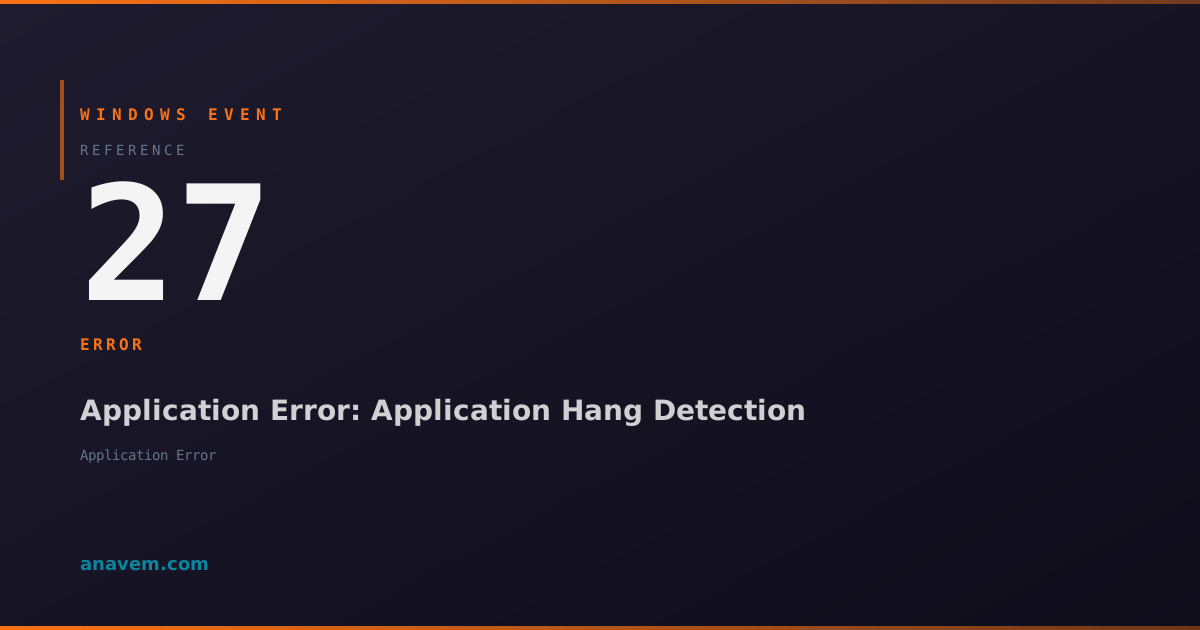
Event ID 27 indicates Windows has detected an application hang or unresponsive state. This event fires when applications stop responding to user input or system messages for extended periods.

Emanuel DE ALMEIDAEmanuel DE ALMEIDA
18 March 202612 min read 0
Event ID 27Application Error 5 methods 12 min
Event Reference

What This Event Means

Windows Event ID 27 represents the operating system's detection of application hang conditions through its built-in responsiveness monitoring system. When applications receive window messages, user input events, or system notifications, they must respond within a reasonable timeframe to maintain system responsiveness. The Windows hang detection mechanism continuously monitors these interactions and triggers Event ID 27 when applications exceed the response threshold.

The event typically contains detailed information including the process name, process ID (PID), thread ID that became unresponsive, and the duration of the hang condition. Additional context may include the specific window handle (HWND) that stopped responding and any relevant module information. This data proves invaluable when correlating application hangs with specific user actions, system resource constraints, or environmental factors.

Modern Windows versions have enhanced hang detection capabilities that can differentiate between temporary delays caused by legitimate processing and actual hang conditions. The system considers factors like CPU usage patterns, memory allocation behavior, and I/O operations when determining whether an application has truly hung. This sophisticated analysis helps reduce false positives while ensuring genuine responsiveness issues are properly logged and tracked for system administrators and developers.

Applies to

Windows 10Windows 11Windows Server 2019/2022/2025
Analysis

Possible Causes

  • Application deadlocks where threads wait indefinitely for resources held by other threads
  • Infinite loops or poorly optimized algorithms consuming excessive CPU cycles
  • Network timeouts when applications wait for unresponsive remote services or resources
  • File system operations blocked by disk I/O issues or network storage problems
  • Memory exhaustion causing applications to page excessively or fail memory allocations
  • Third-party plugins or extensions causing compatibility issues within host applications
  • Database connection timeouts or query execution delays in data-driven applications
  • Graphics driver issues affecting applications with intensive rendering operations
  • Antivirus software interfering with application execution through real-time scanning
  • System resource contention during peak usage periods or insufficient hardware capacity
Resolution Methods

Troubleshooting Steps

01

Analyze Event Details in Event Viewer

Start by examining the specific Event ID 27 entries to identify patterns and affected applications:

  1. Open Event Viewer by pressing Win + R, typing eventvwr.msc, and pressing Enter
  2. Navigate to Windows LogsApplication
  3. Filter the log by clicking Filter Current Log in the Actions pane
  4. Enter 27 in the Event IDs field and click OK
  5. Review recent Event ID 27 entries, noting the application names, process IDs, and timestamps
  6. Double-click individual events to view detailed information including thread IDs and hang duration
  7. Look for patterns such as specific applications hanging repeatedly or hangs occurring at particular times

Use PowerShell to query Event ID 27 entries programmatically:

Get-WinEvent -FilterHashtable @{LogName='Application'; Id=27} -MaxEvents 50 | Select-Object TimeCreated, Id, LevelDisplayName, Message | Format-Table -Wrap

Export hang events for further analysis:

Get-WinEvent -FilterHashtable @{LogName='Application'; Id=27} | Export-Csv -Path "C:\temp\hang_events.csv" -NoTypeInformation
02

Monitor Resource Usage and Performance

Investigate system resource constraints that may contribute to application hangs:

  1. Open Task Manager by pressing Ctrl + Shift + Esc
  2. Click the Performance tab to monitor CPU, Memory, Disk, and Network usage
  3. Switch to the Processes tab and sort by CPU or Memory usage to identify resource-intensive applications
  4. Enable Resource Monitor by clicking Open Resource Monitor at the bottom of the Performance tab
  5. In Resource Monitor, examine the CPU, Memory, Disk, and Network tabs for bottlenecks
  6. Look for processes with high handle counts, excessive page faults, or blocked I/O operations

Use PowerShell to collect performance data during hang events:

# Monitor top CPU consuming processes
Get-Process | Sort-Object CPU -Descending | Select-Object -First 10 Name, CPU, WorkingSet, Handles

# Check memory usage
Get-WmiObject -Class Win32_OperatingSystem | Select-Object TotalVisibleMemorySize, FreePhysicalMemory, @{Name="MemoryUsage%";Expression={[math]::Round((($_.TotalVisibleMemorySize - $_.FreePhysicalMemory) / $_.TotalVisibleMemorySize) * 100, 2)}}

Set up performance counters to track application responsiveness:

# Create a performance counter data collector set
logman create counter "AppHangMonitor" -f csv -o "C:\temp\apphang.csv" -c "\Process(*)\% Processor Time" "\Process(*)\Working Set" "\Process(*)\Handle Count" -si 5
03

Configure Application Hang Reporting

Adjust Windows hang detection settings and enable detailed reporting:

  1. Open Registry Editor by pressing Win + R, typing regedit, and pressing Enter
  2. Navigate to HKEY_CURRENT_USER\Control Panel\Desktop
  3. Locate or create the following DWORD values to configure hang detection:
    • HungAppTimeout - Set to 5000 (5 seconds) or adjust as needed
    • WaitToKillAppTimeout - Set to 20000 (20 seconds) for graceful termination
    • AutoEndTasks - Set to 1 to automatically end hung applications
  4. Navigate to HKEY_LOCAL_MACHINE\SOFTWARE\Microsoft\Windows\Windows Error Reporting
  5. Create or modify DontShowUI DWORD and set to 0 to show error reporting dialogs
  6. Enable Windows Error Reporting for detailed hang analysis by setting Disabled DWORD to 0

Configure hang reporting via PowerShell:

# Set hang detection timeouts
Set-ItemProperty -Path "HKCU:\Control Panel\Desktop" -Name "HungAppTimeout" -Value 5000 -Type DWord
Set-ItemProperty -Path "HKCU:\Control Panel\Desktop" -Name "WaitToKillAppTimeout" -Value 20000 -Type DWord

# Enable Windows Error Reporting
Set-ItemProperty -Path "HKLM:\SOFTWARE\Microsoft\Windows\Windows Error Reporting" -Name "Disabled" -Value 0 -Type DWord
Warning: Modifying registry settings can affect system behavior. Create a registry backup before making changes and test in a non-production environment first.
04

Analyze Application Dependencies and Compatibility

Investigate application-specific factors that may cause hang conditions:

  1. Identify the specific applications generating Event ID 27 from your Event Viewer analysis
  2. Check for available updates by visiting the software vendor's website or using built-in update mechanisms
  3. Review application compatibility with your Windows version using the Program Compatibility Troubleshooter
  4. Right-click the problematic application executable and select PropertiesCompatibility
  5. Try running the application in compatibility mode for an earlier Windows version
  6. Disable visual themes, desktop composition, or high DPI settings if applicable
  7. Check for conflicting software, particularly antivirus programs, that may interfere with application execution

Use PowerShell to analyze application dependencies:

# Get detailed information about a specific process
$processName = "notepad"  # Replace with your application
Get-Process $processName | Select-Object Name, Id, StartTime, CPU, WorkingSet, Modules

# Check loaded modules for a process
$process = Get-Process $processName
$process.Modules | Select-Object ModuleName, FileName, FileVersionInfo | Format-Table -AutoSize

Analyze application event logs for additional context:

# Search for application-specific events
$appName = "YourApplication"  # Replace with actual application name
Get-WinEvent -FilterHashtable @{LogName='Application'; ProviderName="*$appName*"} -MaxEvents 20 | Select-Object TimeCreated, Id, LevelDisplayName, Message
05

Advanced Debugging with Process Dumps

Capture detailed diagnostic information when applications hang for root cause analysis:

  1. Download and install ProcDump from Microsoft Sysinternals
  2. Open an elevated Command Prompt and navigate to the ProcDump installation directory
  3. Configure ProcDump to automatically capture dumps when applications hang:
procdump -h -ma -w notepad.exe C:\dumps\

The -h flag captures dumps on hang, -ma creates full memory dumps, and -w waits for the process to start.

  1. For running processes that are currently hung, capture a manual dump:
procdump -ma [ProcessID] C:\dumps\

Use PowerShell to automate dump collection based on Event ID 27:

# Monitor for Event ID 27 and trigger dump collection
$action = {
    $event = $Event.SourceEventArgs.NewEvent
    $processName = ($event.Message -split ' ')[0]  # Extract process name from message
    $dumpPath = "C:\dumps\$processName-$(Get-Date -Format 'yyyyMMdd-HHmmss').dmp"
    Start-Process -FilePath "procdump.exe" -ArgumentList "-ma", $processName, $dumpPath -Wait
}

Register-WmiEvent -Query "SELECT * FROM __InstanceCreationEvent WITHIN 5 WHERE TargetInstance ISA 'Win32_NTLogEvent' AND TargetInstance.EventCode = 27" -Action $action

Analyze dump files using Windows Debugging Tools:

# Install Windows SDK for debugging tools
# Open WinDbg and load the dump file
# Use commands like !analyze -v, ~*kb, and !locks to investigate hang causes
Pro tip: Process dumps can be large (several GB for memory-intensive applications). Ensure adequate disk space and consider using mini dumps (-mp flag) for initial analysis.

Overview

Event ID 27 from the Application Error source fires when Windows detects that an application has become unresponsive or hung. This event is part of Windows' application hang detection mechanism, which monitors running processes for responsiveness to user input and system messages. When an application fails to respond within the configured timeout period (typically 5 seconds for user interface threads), Windows logs this event to track application stability issues.

The event appears in the Application log and provides crucial information about which process hung, the duration of the hang, and sometimes the specific thread or module responsible. This makes Event ID 27 valuable for diagnosing application performance problems, identifying problematic software, and tracking system stability trends. System administrators use this event to monitor application health across enterprise environments and identify applications that may need updates, configuration changes, or replacement.

Unlike application crashes that generate different event IDs, Event ID 27 specifically tracks hang conditions where the process remains running but becomes unresponsive. This distinction is important for troubleshooting because hung applications often recover on their own or can be terminated gracefully, while crashed applications require different investigation approaches.

Frequently Asked Questions

What does Windows Event ID 27 mean and when does it occur?+
Event ID 27 indicates that Windows has detected an application hang condition. It occurs when an application stops responding to user input or system messages for an extended period, typically 5 seconds or more. The event is logged to help administrators track application stability issues and identify problematic software that may need attention or updates.
How can I prevent applications from generating Event ID 27 hang events?+
Prevention strategies include keeping applications updated to the latest versions, ensuring adequate system resources (RAM, CPU, disk space), running regular malware scans, updating device drivers, and avoiding resource-intensive operations during peak usage. Additionally, configure applications properly for your environment and consider compatibility settings for older software running on newer Windows versions.
Is Event ID 27 a critical error that requires immediate attention?+
Event ID 27 is classified as a Warning level event, not critical. While it indicates application responsiveness issues, it doesn't represent system-level failures. However, frequent hang events from the same application or multiple applications may indicate underlying system problems that warrant investigation, such as resource constraints or compatibility issues.
Can I adjust the timeout period before Windows considers an application hung?+
Yes, you can modify the hang detection timeout by editing registry values in HKEY_CURRENT_USER\Control Panel\Desktop. The HungAppTimeout value controls how long Windows waits before considering an application hung (default 5000 milliseconds). Increasing this value reduces false positives but may make the system feel less responsive to users.
How do I correlate Event ID 27 with other system events for comprehensive troubleshooting?+
Use Event Viewer's custom views or PowerShell to correlate Event ID 27 with related events like application errors (Event ID 1000), system performance issues, or resource exhaustion events. Look for patterns in timing, affected applications, and system conditions. Performance Monitor and Resource Monitor can provide additional context about system resource usage during hang events.
Documentation

References (2)

Emanuel DE ALMEIDA
Written by

Emanuel DE ALMEIDA

Senior IT Journalist & Cloud Architect

Microsoft MCSA-certified Cloud Architect | Fortinet-focused. I modernize cloud, hybrid & on-prem infrastructure for reliability, security, performance and cost control - sharing field-tested ops & troubleshooting.

Discussion

Share your thoughts and insights

You must be logged in to comment.

Loading comments...