ANAVEM
Languagefr
Windows Event Viewer displaying Event ID 24 application hang events alongside system performance monitoring tools
Event ID 24WarningApplication ErrorWindows

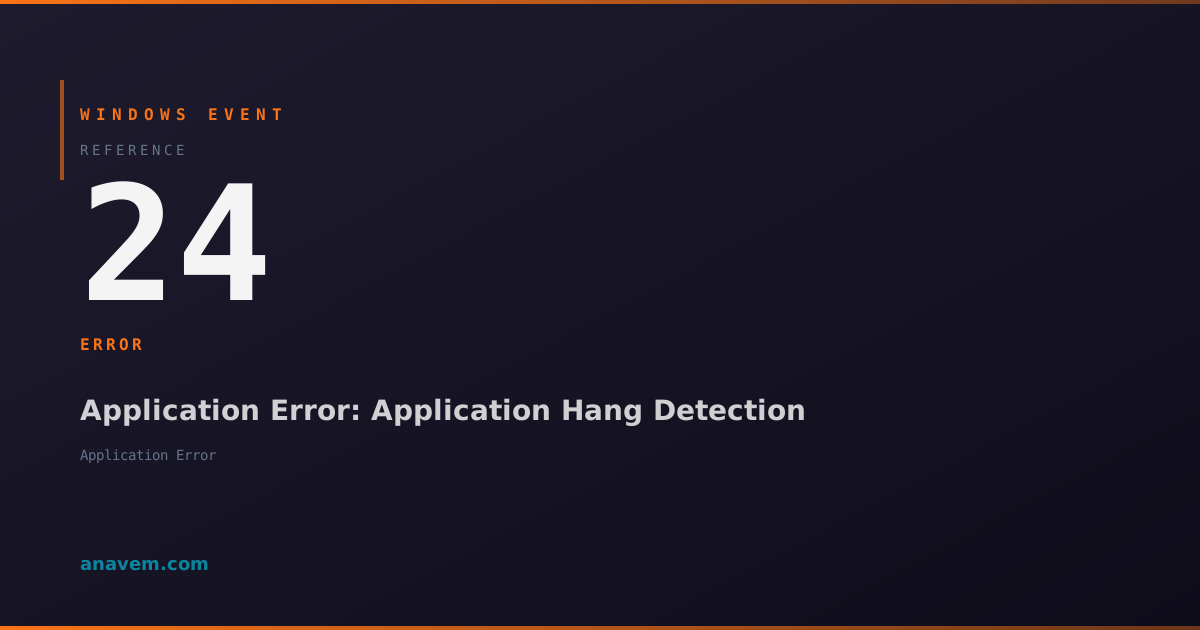
Windows Event ID 24 – Application Error: Application Hang Detection

Event ID 24 indicates Windows has detected an application hang or unresponsive state. This event fires when applications stop responding to user input or system messages for extended periods.

Emanuel DE ALMEIDAEmanuel DE ALMEIDA
18 March 202612 min read 0
Event ID 24Application Error 5 methods 12 min
Event Reference

What This Event Means

Windows Event ID 24 represents the operating system's detection mechanism for unresponsive applications. When an application stops processing window messages or user input for a predetermined time period, Windows generates this event to document the hang condition. The event is part of the Windows Error Reporting infrastructure and provides detailed forensic information about the application state at the time of detection.

The event typically includes the application executable name, process identifier, thread information, and a hang signature that can be used for pattern analysis. This signature helps identify whether the hang is a recurring issue with specific applications or a one-time occurrence. The event also captures the duration of the hang, which can indicate the severity of the responsiveness issue.

In Windows 11 and Server 2025, Microsoft has enhanced the hang detection algorithms to reduce false positives while maintaining sensitivity to genuine application problems. The system now considers application type, system load, and historical behavior when determining hang thresholds. This improvement makes Event ID 24 more reliable for automated monitoring and alerting systems in enterprise environments.

The event serves multiple purposes: immediate notification of application issues, historical tracking of application stability trends, and data collection for root cause analysis. System administrators use this event to identify applications that frequently hang, correlate hang events with system changes, and provide evidence for application vendor support cases.

Applies to

Windows 10Windows 11Windows Server 2019/2022/2025
Analysis

Possible Causes

  • Application deadlocks where threads are waiting for resources that will never become available
  • Infinite loops or excessive processing that prevents the application from responding to messages
  • Network timeouts when applications wait indefinitely for remote resources or services
  • Memory pressure causing applications to spend excessive time in garbage collection or paging
  • Driver issues or hardware problems affecting application I/O operations
  • Antivirus software interference during file scanning or real-time protection
  • Database connection timeouts or slow query execution blocking the main application thread
  • Third-party plugin or extension conflicts causing the host application to hang
  • Insufficient system resources such as handles, memory, or CPU availability
  • Windows Update or system maintenance operations affecting application performance
Resolution Methods

Troubleshooting Steps

01

Review Event Details and Application Information

Start by examining the specific details of Event ID 24 to identify the problematic application and gather initial diagnostic information.

  1. Open Event Viewer by pressing Win + R, typing eventvwr.msc, and pressing Enter
  2. Navigate to Windows LogsApplication
  3. Filter for Event ID 24 using the filter option in the Actions pane
  4. Double-click the most recent Event ID 24 to view details
  5. Note the application name, process ID, and hang duration from the event description
  6. Use PowerShell to gather additional events for the same application:
Get-WinEvent -FilterHashtable @{LogName='Application'; Id=24} -MaxEvents 50 | Where-Object {$_.Message -like "*YourAppName*"} | Format-Table TimeCreated, Id, LevelDisplayName, Message -Wrap

Review the pattern of hang events to determine if this is a recurring issue or isolated incident. Check if the hangs correlate with specific times, user actions, or system events.

02

Analyze Application Performance and Resource Usage

Investigate the application's resource consumption and performance characteristics to identify potential causes of the hang condition.

  1. Open Task Manager and switch to the Details tab
  2. Locate the problematic application process and monitor its CPU, memory, and disk usage
  3. Use Performance Monitor to create a custom data collector set:
# Create performance counter collection for the application
$appName = "YourApplication.exe"
logman create counter AppHangMonitor -f csv -o "C:\Logs\AppPerf.csv" -c "\Process($appName)\% Processor Time" "\Process($appName)\Working Set" "\Process($appName)\Handle Count" "\Process($appName)\Thread Count" -si 5
  1. Start the data collection and reproduce the hang condition if possible:
logman start AppHangMonitor
  1. Use Process Monitor (ProcMon) to capture file and registry access patterns during application startup and operation
  2. Check for excessive file I/O, registry access, or network activity that might cause responsiveness issues
  3. Stop data collection after gathering sufficient information:
logman stop AppHangMonitor
Pro tip: Look for memory leaks by monitoring the Working Set over time. Applications that continuously increase memory usage often experience hangs due to garbage collection pressure.
03

Configure Application Hang Reporting and Debugging

Enable detailed hang reporting and configure debugging options to capture more information about application hang conditions.

  1. Configure Windows Error Reporting to capture hang dumps by modifying the registry:
# Enable hang reporting for all applications
Set-ItemProperty -Path "HKLM:\SOFTWARE\Microsoft\Windows\Windows Error Reporting\Hangs" -Name "DumpType" -Value 2 -Type DWord
Set-ItemProperty -Path "HKLM:\SOFTWARE\Microsoft\Windows\Windows Error Reporting\Hangs" -Name "DumpCount" -Value 3 -Type DWord
  1. For specific applications, create a dedicated registry key:
# Replace YourApp.exe with the actual application name
$appPath = "HKLM:\SOFTWARE\Microsoft\Windows\Windows Error Reporting\Hangs\YourApp.exe"
New-Item -Path $appPath -Force
Set-ItemProperty -Path $appPath -Name "DumpType" -Value 2 -Type DWord
Set-ItemProperty -Path $appPath -Name "DumpFolder" -Value "C:\HangDumps" -Type String
  1. Create the dump folder and set appropriate permissions:
New-Item -Path "C:\HangDumps" -ItemType Directory -Force
# Grant full control to SYSTEM and Administrators
icacls "C:\HangDumps" /grant "SYSTEM:(OI)(CI)F" /grant "Administrators:(OI)(CI)F"
  1. Install Windows SDK or Debugging Tools for Windows to analyze dump files
  2. Configure application-specific debugging if the application supports it through configuration files or command-line parameters
Warning: Hang dumps can be large files. Monitor disk space and implement rotation policies for production systems.
04

Implement Application Compatibility and Environment Fixes

Apply compatibility settings and environmental changes to resolve common causes of application hangs.

  1. Check and apply Windows compatibility settings for the problematic application:
# Query current compatibility settings
Get-ItemProperty -Path "HKCU:\SOFTWARE\Microsoft\Windows NT\CurrentVersion\AppCompatFlags\Layers" -ErrorAction SilentlyContinue
  1. Apply compatibility mode if the application is older:
  2. Right-click the application executable → PropertiesCompatibility tab
  3. Enable Run this program in compatibility mode and select appropriate Windows version
  4. Check Disable fullscreen optimizations and Run as administrator if needed
  5. Configure DEP (Data Execution Prevention) exceptions if required:
# Add DEP exception (requires admin privileges)
bcdedit /set nx OptIn
# Or for specific application
bcdedit /set nx AlwaysOff
  1. Disable antivirus real-time scanning for the application folder temporarily to test if it resolves hangs
  2. Update application to the latest version and check vendor knowledge base for known hang issues
  3. Configure application-specific environment variables if documented by the vendor:
# Example: Set environment variables for Java applications
[Environment]::SetEnvironmentVariable("_JAVA_OPTIONS", "-Xmx2048m -XX:+UseG1GC", "User")
Pro tip: Test compatibility changes in a non-production environment first. Some compatibility settings can affect application functionality or security.
05

Advanced Hang Analysis and System-Level Troubleshooting

Perform deep system analysis to identify underlying causes of application hangs that may be related to system configuration or hardware issues.

  1. Use Windows Performance Toolkit (WPT) to capture detailed system traces during hang conditions:
# Install WPT from Windows SDK, then capture trace
wpr -start GeneralProfile -start CPU -start DiskIO
# Reproduce the hang condition
wpr -stop C:\Traces\HangTrace.etl
  1. Analyze system event logs for correlating events around hang times:
# Get system events around hang time (adjust time range as needed)
$hangTime = Get-Date "2026-03-18 14:30:00"
$startTime = $hangTime.AddMinutes(-5)
$endTime = $hangTime.AddMinutes(5)
Get-WinEvent -FilterHashtable @{LogName='System'; StartTime=$startTime; EndTime=$endTime} | Where-Object {$_.LevelDisplayName -eq "Error" -or $_.LevelDisplayName -eq "Warning"}
  1. Check for driver issues and hardware problems:
# Check for driver verifier issues
verifier /query
# Review hardware events
Get-WinEvent -FilterHashtable @{LogName='System'; ProviderName='Microsoft-Windows-Kernel-General'} -MaxEvents 20
  1. Analyze memory dumps using WinDbg if hang dumps were captured:
  2. Load the dump file in WinDbg and use commands like !analyze -hang and ~*kb to examine thread states
  3. Check for system resource exhaustion:
# Monitor system handles and memory
Get-Counter "\Process(_Total)\Handle Count", "\Memory\Available MBytes", "\Memory\Pool Nonpaged Bytes" -SampleInterval 5 -MaxSamples 12
  1. Review Windows Update history and recent system changes that might correlate with hang occurrences:
# Get recent Windows updates
Get-HotFix | Where-Object {$_.InstalledOn -gt (Get-Date).AddDays(-30)} | Sort-Object InstalledOn -Descending
Warning: Advanced debugging requires significant expertise. Consider engaging Microsoft support or application vendors for complex hang analysis scenarios.

Overview

Event ID 24 fires when Windows detects that an application has become unresponsive or hung. This event is generated by the Windows Error Reporting (WER) service when an application fails to respond to window messages within the timeout threshold, typically 5 seconds for user interface operations. The event captures critical information about the hung process including the executable name, process ID, and hang duration.

This event appears in the Application log and serves as an early warning system for application stability issues. Unlike crash events, hung applications may still be running but are no longer processing user input or system messages effectively. The event helps administrators identify problematic applications before they impact system performance or require forced termination.

Event ID 24 is particularly valuable in enterprise environments where application stability directly affects productivity. The event data includes the application path, version information, and hang signature that can be used for troubleshooting and vendor support cases. Understanding this event helps distinguish between temporary application delays and genuine stability problems requiring intervention.

Frequently Asked Questions

What does Event ID 24 mean and how serious is it?+
Event ID 24 indicates that Windows has detected an application hang - when an application stops responding to user input or system messages for an extended period. While not as critical as application crashes, hangs can significantly impact user productivity and system performance. The event serves as an early warning that an application is experiencing stability issues that may require investigation or intervention.
How can I distinguish between temporary application delays and genuine hangs?+
Genuine hangs typically last longer than 5-10 seconds and show consistent patterns in Event ID 24 logs. Temporary delays usually resolve quickly and don't generate multiple hang events. Look for recurring patterns in the event logs, check if the application eventually responds, and monitor resource usage. Applications experiencing genuine hangs often show high CPU usage, memory growth, or complete unresponsiveness to window messages.
Can Event ID 24 events be prevented through system configuration?+
While you cannot completely prevent all hang conditions, you can reduce their frequency through proper system maintenance. Ensure adequate system resources (RAM, CPU, disk space), keep applications and drivers updated, configure appropriate virtual memory settings, and implement regular system maintenance. For specific applications, compatibility settings, environment variables, and vendor-recommended configurations can help minimize hang occurrences.
Should I be concerned about occasional Event ID 24 events in my environment?+
Occasional hang events are normal in most Windows environments, especially with complex applications or during high system load. However, frequent hangs from the same application, hangs that affect critical business applications, or patterns of hangs that correlate with system changes warrant investigation. Monitor the frequency and impact - if hangs affect productivity or occur multiple times daily, they require attention.
How do I correlate Event ID 24 with other system events for troubleshooting?+
Use PowerShell to query events within time ranges around hang occurrences. Look for related events in System, Application, and Security logs. Common correlating events include memory warnings (Event ID 2004), driver errors, antivirus alerts, or network connectivity issues. Create custom views in Event Viewer to display multiple log sources simultaneously, and use tools like Performance Monitor to correlate hang events with system resource usage patterns.
Documentation

References (2)

Emanuel DE ALMEIDA
Written by

Emanuel DE ALMEIDA

Senior IT Journalist & Cloud Architect

Microsoft MCSA-certified Cloud Architect | Fortinet-focused. I modernize cloud, hybrid & on-prem infrastructure for reliability, security, performance and cost control - sharing field-tested ops & troubleshooting.

Discussion

Share your thoughts and insights

You must be logged in to comment.

Loading comments...