ANAVEM
Languagefr
System administrator analyzing Windows Event ID 131 application crash logs on multiple monitoring screens
Event ID 131ErrorUnknownWindows

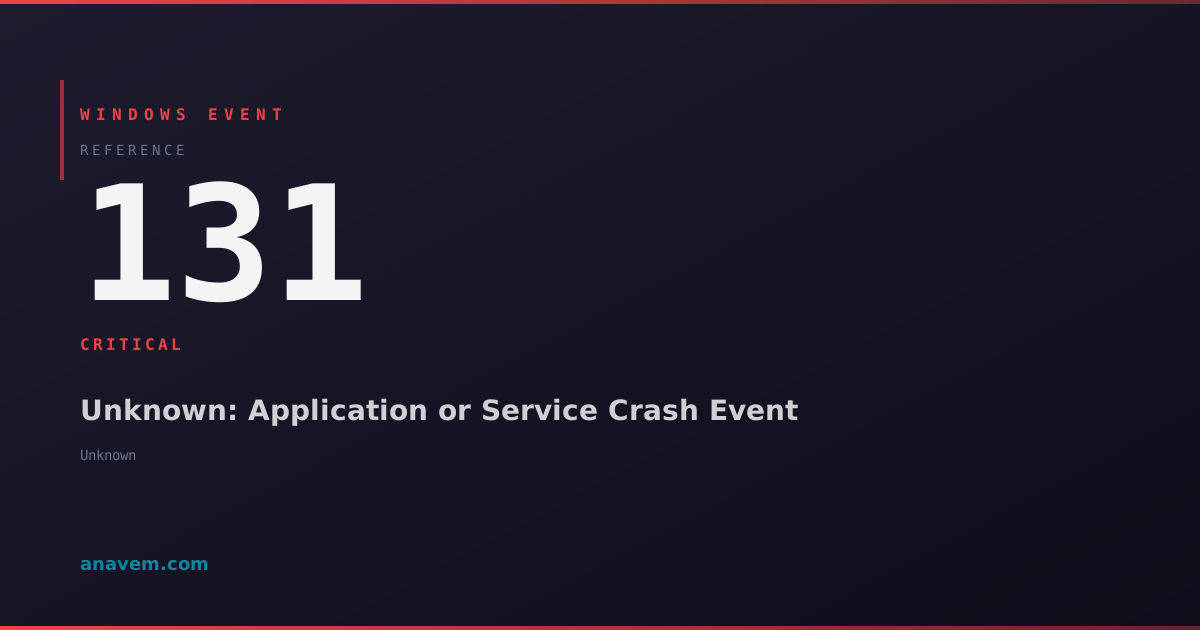
Windows Event ID 131 – Unknown: Application or Service Crash Event

Event ID 131 indicates an application or service has crashed unexpectedly. This critical event helps administrators identify failing processes and investigate system stability issues.

Emanuel DE ALMEIDAEmanuel DE ALMEIDA
18 March 202612 min read 0
Event ID 131Unknown 5 methods 12 min
Event Reference

What This Event Means

Event ID 131 represents one of the most critical application-level error events in Windows logging. When an application encounters an unhandled exception, access violation, or other fatal error, Windows terminates the process and logs this event to document the failure. The event captures essential forensic data including the faulting module name, exception address, and process ID.

The 'Unknown' source designation typically occurs when the crashing application cannot properly identify itself to the Windows Event Log service during its termination sequence. This happens frequently with third-party applications, custom software, or processes that crash before completing their event source registration. Despite the unknown source, the event data contains valuable information for troubleshooting.

Windows Error Reporting integrates closely with Event ID 131 generation, automatically creating memory dumps and collecting system state information when these crashes occur. This integration makes Event ID 131 events particularly useful for developers and system administrators who need to diagnose application stability issues. The event often correlates with Windows Error Reporting events and Application Error events in the System log.

In enterprise environments, monitoring Event ID 131 patterns helps identify problematic applications before they impact business operations. Frequent occurrences of this event from the same application may indicate software bugs, compatibility issues with recent Windows updates, or underlying hardware problems affecting memory or storage subsystems.

Applies to

Windows 10Windows 11Windows Server 2019/2022/2025
Analysis

Possible Causes

  • Unhandled exceptions in application code causing process termination
  • Memory access violations or buffer overflows in running applications
  • DLL compatibility issues between application components and system libraries
  • Hardware-related memory corruption affecting application execution
  • Antivirus software interfering with application processes
  • Insufficient system resources causing application failures
  • Registry corruption affecting application configuration
  • Driver conflicts impacting application stability
  • Windows updates introducing compatibility issues with existing software
Resolution Methods

Troubleshooting Steps

01

Analyze Event Details in Event Viewer

Start by examining the complete event details to identify the failing application and error specifics.

  1. Open Event Viewer by pressing Win + R, typing eventvwr.msc, and pressing Enter
  2. Navigate to Windows LogsApplication
  3. Filter for Event ID 131 by right-clicking the Application log and selecting Filter Current Log
  4. Enter 131 in the Event IDs field and click OK
  5. Double-click the most recent Event ID 131 to view detailed information
  6. Note the Faulting application name, Faulting module name, and Exception code from the event description
  7. Check the Details tab for additional technical information including process ID and thread ID

Use PowerShell to query multiple Event ID 131 occurrences:

Get-WinEvent -FilterHashtable @{LogName='Application'; Id=131} -MaxEvents 20 | Select-Object TimeCreated, Id, LevelDisplayName, Message | Format-Table -Wrap
Pro tip: Look for patterns in the faulting module names - recurring crashes in the same module indicate a specific component issue.
02

Check Windows Error Reporting and Reliability Monitor

Windows Error Reporting provides additional context and crash dump information for Event ID 131 events.

  1. Open Control PanelSystem and SecuritySecurity and Maintenance
  2. Expand Maintenance and click View reliability history
  3. Look for red X marks indicating application failures that correspond to your Event ID 131 timestamps
  4. Click on the failure events to see detailed crash information
  5. Check for crash dump files in %LocalAppData%\CrashDumps or C:\Windows\Minidump

Query Windows Error Reporting events using PowerShell:

Get-WinEvent -FilterHashtable @{LogName='Application'; ProviderName='Windows Error Reporting'} -MaxEvents 10 | Where-Object {$_.Message -like '*crash*'}

Check the Windows Error Reporting service status:

Get-Service -Name WerSvc | Select-Object Name, Status, StartType
Warning: Crash dump files can be large. Ensure adequate disk space before enabling full memory dumps for analysis.
03

Investigate Application and System Dependencies

Examine the crashing application's dependencies and system environment for compatibility issues.

  1. Identify the full path of the crashing application from the Event ID 131 details
  2. Right-click the application executable and select PropertiesCompatibility
  3. Check if compatibility mode is enabled and try running without it
  4. Use Dependency Walker or PowerShell to check DLL dependencies:
# Check loaded modules for a running process
Get-Process -Name "ApplicationName" | Select-Object -ExpandProperty Modules | Format-Table ModuleName, FileName -AutoSize
  1. Verify system file integrity using System File Checker:
sfc /scannow
  1. Check for recent Windows updates that might affect the application:
Get-HotFix | Sort-Object InstalledOn -Descending | Select-Object -First 10
  1. Review installed Visual C++ Redistributables in Programs and Features
  2. Update or reinstall the application if dependency issues are found
Pro tip: Use Process Monitor (ProcMon) to capture real-time file and registry access during application startup to identify missing dependencies.
04

Analyze Memory and Hardware Issues

Event ID 131 crashes can indicate underlying hardware problems, particularly memory-related issues.

  1. Run Windows Memory Diagnostic to check for RAM problems:
mdsched.exe
  1. Schedule a restart and memory test, then check results after reboot:
Get-WinEvent -FilterHashtable @{LogName='System'; ProviderName='Microsoft-Windows-MemoryDiagnostics-Results'} | Select-Object TimeCreated, Message
  1. Check system stability using Performance Monitor:
perfmon /rel
  1. Monitor system resources during application usage:
# Monitor memory usage
Get-Counter "\Memory\Available MBytes" -SampleInterval 5 -MaxSamples 12
  1. Check Event Viewer for hardware-related errors in the System log:
Get-WinEvent -FilterHashtable @{LogName='System'; Level=1,2} -MaxEvents 20 | Where-Object {$_.Message -like '*hardware*' -or $_.Message -like '*memory*'}
  1. Review Device Manager for any devices with warning or error states
  2. Update system drivers, especially graphics and storage drivers
Warning: Memory diagnostic tests require a system restart and can take several hours to complete on systems with large amounts of RAM.
05

Advanced Crash Dump Analysis and Registry Investigation

Perform detailed crash dump analysis and registry investigation for persistent Event ID 131 issues.

  1. Configure Windows to create full crash dumps for the problematic application:
# Enable application crash dumps
New-Item -Path "HKLM:\SOFTWARE\Microsoft\Windows\Windows Error Reporting\LocalDumps" -Force
Set-ItemProperty -Path "HKLM:\SOFTWARE\Microsoft\Windows\Windows Error Reporting\LocalDumps" -Name "DumpType" -Value 2
  1. Install Windows Debugging Tools (WinDbg) from the Windows SDK
  2. Analyze crash dump files when they're generated:
# List recent crash dumps
Get-ChildItem -Path "C:\Windows\Minidump\" -Filter "*.dmp" | Sort-Object LastWriteTime -Descending | Select-Object -First 5
  1. Check application-specific registry settings for corruption:
# Export application registry settings for backup
reg export "HKEY_LOCAL_MACHINE\SOFTWARE\ApplicationName" C:\temp\app_registry_backup.reg
  1. Use Application Verifier for detailed application testing:
appverif.exe
  1. Enable Debug Heap for the problematic application to catch memory corruption:
# Set debug heap for specific application
Set-ItemProperty -Path "HKLM:\SOFTWARE\Microsoft\Windows NT\CurrentVersion\Image File Execution Options\app.exe" -Name "GlobalFlag" -Value 0x02000000
  1. Monitor application behavior with enhanced logging enabled
  2. Contact application vendor with crash dump analysis results if the issue persists
Pro tip: Use WinDbg's !analyze -v command on crash dumps to get automated analysis of the crash cause and potential solutions.

Overview

Event ID 131 fires when Windows detects an application or service has terminated unexpectedly due to an unhandled exception or critical error. This event typically appears in the Application log and provides crucial diagnostic information about process failures. The event source often shows as 'Unknown' when the crashing application fails to properly register its event source before termination.

This event is particularly valuable for system administrators monitoring application stability and identifying recurring crash patterns. Windows generates Event ID 131 through the Windows Error Reporting (WER) subsystem, which captures crash dumps and exception details. The event contains process information, exception codes, and module details that help pinpoint the root cause of application failures.

Unlike blue screen events that affect the entire system, Event ID 131 focuses on individual process crashes. These events are essential for maintaining application reliability in enterprise environments and can indicate underlying issues with software compatibility, memory corruption, or hardware problems affecting specific applications.

Frequently Asked Questions

What does Event ID 131 mean and why does it show 'Unknown' as the source?+
Event ID 131 indicates that an application or service has crashed unexpectedly due to an unhandled exception or critical error. The 'Unknown' source appears when the crashing application fails to properly register its event source with Windows before termination. This commonly happens with third-party applications, custom software, or processes that crash during startup before completing their initialization sequence. Despite the unknown source, the event contains valuable diagnostic information including the process name, exception code, and faulting module details.
How can I identify which specific application is causing Event ID 131 crashes?+
To identify the crashing application, examine the event details in Event Viewer. The event description typically contains the 'Faulting application name' and 'Faulting application path' fields. You can also use PowerShell to extract this information: Get-WinEvent -FilterHashtable @{LogName='Application'; Id=131} | ForEach-Object {$_.Message}. Look for patterns in the application names and crash times. Additionally, check the Windows Reliability Monitor which provides a graphical timeline of application failures that correspond to Event ID 131 events.
Are Event ID 131 crashes related to hardware problems or software issues?+
Event ID 131 crashes can stem from both hardware and software issues. Software causes include application bugs, DLL compatibility problems, insufficient system resources, or conflicts with antivirus software. Hardware-related causes involve memory corruption, failing RAM modules, or storage device issues. To determine the root cause, run Windows Memory Diagnostic (mdsched.exe) to check for RAM problems, use System File Checker (sfc /scannow) to verify system integrity, and monitor system resources during application usage. Consistent crashes across multiple applications suggest hardware issues, while crashes limited to specific applications indicate software problems.
How do I prevent Event ID 131 crashes from recurring?+
Prevention strategies depend on the root cause. For software issues: update the problematic application to the latest version, install missing Visual C++ Redistributables, run applications in compatibility mode if needed, and ensure adequate system resources. For hardware issues: test and replace faulty RAM, update system drivers (especially graphics and storage), and maintain proper system cooling. Implement proactive monitoring by setting up Event Viewer custom views for Event ID 131, enable Windows Error Reporting for detailed crash analysis, and regularly review system reliability reports to identify patterns before they become critical.
Can Event ID 131 crashes cause data loss or system instability?+
Event ID 131 crashes typically affect only the individual application that crashed and don't directly cause system-wide instability like blue screen errors. However, data loss can occur if the crashing application was processing unsaved work at the time of failure. Some applications have auto-recovery features that minimize data loss. System instability may result if the crashing application is a critical system service or if crashes are caused by underlying hardware problems affecting multiple processes. To minimize impact, enable automatic saving in applications when possible, maintain regular backups, and address recurring Event ID 131 patterns promptly to prevent escalation to system-level issues.
Documentation

References (2)

Emanuel DE ALMEIDA
Written by

Emanuel DE ALMEIDA

Senior IT Journalist & Cloud Architect

Microsoft MCSA-certified Cloud Architect | Fortinet-focused. I modernize cloud, hybrid & on-prem infrastructure for reliability, security, performance and cost control - sharing field-tested ops & troubleshooting.

Discussion

Share your thoughts and insights

You must be logged in to comment.

Loading comments...