ANAVEM
Languagefr
Windows Performance Monitor dashboard displaying system performance counters and monitoring graphs
Event ID 301ErrorUnknownWindows

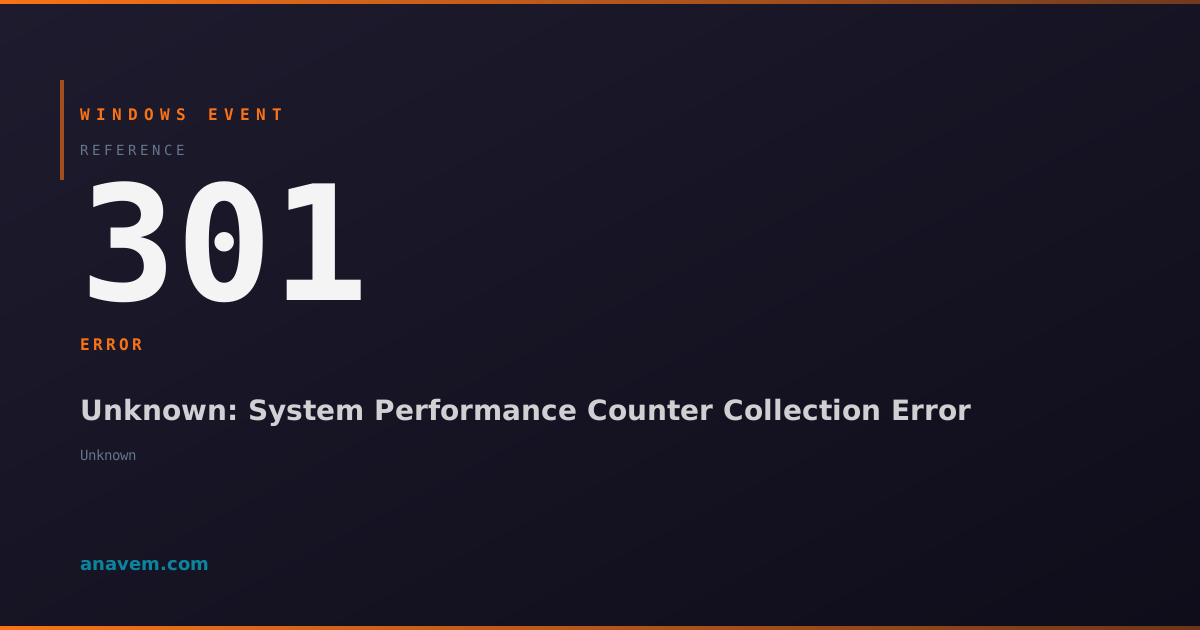
Windows Event ID 301 – Unknown: System Performance Counter Collection Error

Event ID 301 indicates a performance counter collection failure or registry corruption affecting system monitoring capabilities and performance data gathering.

Emanuel DE ALMEIDAEmanuel DE ALMEIDA
18 March 202612 min read 0
Event ID 301Unknown 5 methods 12 min
Event Reference

What This Event Means

Event ID 301 represents a fundamental failure in Windows performance counter infrastructure, a critical component responsible for collecting and exposing system performance metrics. Performance counters provide real-time data about system resources, application behavior, and hardware utilization that administrators and monitoring tools rely on for system analysis.

When this event occurs, Windows cannot properly initialize or access performance counter data due to registry corruption, missing counter definitions, or damaged performance counter libraries. The error typically stems from incomplete software installations, improper uninstallations of monitoring tools, or registry corruption affecting the HKLM\SOFTWARE\Microsoft\Windows NT\CurrentVersion\Perflib registry hive.

The impact extends beyond simple monitoring failures. Applications that depend on performance data may experience reduced functionality, enterprise monitoring solutions may report incomplete data, and system diagnostic tools may provide inaccurate information. In server environments, this can affect capacity planning, performance troubleshooting, and automated monitoring alerts.

The event often appears during system startup when Windows attempts to initialize performance counter services, but can also occur when applications dynamically load performance counter libraries or when administrative tools query performance data. Understanding and resolving Event ID 301 is crucial for maintaining comprehensive system monitoring capabilities.

Applies to

Windows 10Windows 11Windows Server 2019/2022/2025
Analysis

Possible Causes

  • Corrupted performance counter registry entries in HKLM\SOFTWARE\Microsoft\Windows NT\CurrentVersion\Perflib
  • Incomplete or failed installation/uninstallation of monitoring software or applications with performance counters
  • Damaged or missing performance counter library files (DLLs) in system directories
  • Registry corruption affecting performance counter definitions and mappings
  • Third-party software conflicts that modify or corrupt performance counter registrations
  • System file corruption affecting performance monitoring infrastructure
  • Insufficient permissions for performance counter access during service initialization
  • Memory corruption or resource exhaustion during performance counter initialization
Resolution Methods

Troubleshooting Steps

01

Rebuild Performance Counter Registry

The most effective first-line approach involves rebuilding the performance counter registry using built-in Windows utilities.

Step 1: Open Command Prompt as Administrator

Step 2: Stop the Performance Logs and Alerts service:

Stop-Service -Name "pla" -Force

Step 3: Rebuild performance counters using lodctr:

cd /d c:\windows\system32
lodctr /R

Step 4: If the above fails, use the more aggressive rebuild:

cd /d c:\windows\inf
lodctr /R

Step 5: Restart the Performance Logs and Alerts service:

Start-Service -Name "pla"

Step 6: Verify the fix by checking Event Viewer for new Event ID 301 occurrences and test Performance Monitor functionality.

Pro tip: The /R switch rebuilds performance counter registry values from scratch using system INF files, resolving most corruption issues.
02

Identify and Remove Problematic Performance Counters

When specific performance counters cause the issue, identify and remove the problematic entries manually.

Step 1: Query current performance counter status:

Get-Counter -ListSet * | Where-Object {$_.CounterSetName -like "*error*"}

Step 2: Check Event Viewer for additional details:

Navigate to Event ViewerWindows LogsSystem and filter for Event ID 301 to identify specific counter names mentioned in error details.

Step 3: Access the performance counter registry:

Set-Location "HKLM:\SOFTWARE\Microsoft\Windows NT\CurrentVersion\Perflib\009"

Step 4: Backup the registry key before modification:

reg export "HKLM\SOFTWARE\Microsoft\Windows NT\CurrentVersion\Perflib" C:\temp\perflib_backup.reg

Step 5: Remove problematic counter entries using unlodctr:

unlodctr "ProblemCounterName"

Step 6: Restart the system and verify resolution.

Warning: Always backup registry keys before manual modification. Incorrect changes can cause system instability.
03

System File Checker and Component Store Repair

Address underlying system file corruption that may affect performance counter infrastructure.

Step 1: Run System File Checker scan:

sfc /scannow

Step 2: Check SFC results and run DISM if corruption found:

DISM /Online /Cleanup-Image /CheckHealth
DISM /Online /Cleanup-Image /ScanHealth
DISM /Online /Cleanup-Image /RestoreHealth

Step 3: Verify Windows component store integrity:

Get-WindowsImage -Online | Select-Object ImageHealthState

Step 4: Re-register performance counter DLLs:

regsvr32 /s pdh.dll
regsvr32 /s winmm.dll
regsvr32 /s perfproc.dll

Step 5: Restart Windows Management Instrumentation service:

Restart-Service -Name "winmgmt" -Force

Step 6: Test performance counter functionality using Performance Monitor or PowerShell Get-Counter cmdlets.

04

Advanced Registry Analysis and Manual Counter Reconstruction

For persistent issues requiring deep registry investigation and manual counter reconstruction.

Step 1: Export and analyze performance counter registry structure:

$PerfLib = Get-ItemProperty "HKLM:\SOFTWARE\Microsoft\Windows NT\CurrentVersion\Perflib\009"
$PerfLib.Counter | Out-File C:\temp\counter_analysis.txt

Step 2: Compare against known good system or use Microsoft's performance counter reference:

typeperf -qx | Out-File C:\temp\available_counters.txt

Step 3: Identify missing or corrupted counter definitions by examining the Counter and Help registry values for inconsistencies or null entries.

Step 4: Manually reconstruct problematic entries using lodctr with specific INI files:

lodctr /M:C:\Windows\inf\perfc009.ini
lodctr /M:C:\Windows\inf\perfh009.ini

Step 5: Verify counter database consistency:

lodctr /Q | findstr "Error\|Warning"

Step 6: Test specific counter categories that were problematic:

Get-Counter "\Processor(_Total)\% Processor Time" -SampleInterval 1 -MaxSamples 5
Pro tip: Use lodctr /Q to query the performance counter database status and identify specific corruption points before attempting manual reconstruction.
05

Complete Performance Counter Infrastructure Reset

Nuclear option for severe corruption requiring complete performance counter infrastructure reset.

Step 1: Create comprehensive system backup and registry backup:

wbadmin start backup -backupTarget:E: -include:C: -allCritical -quiet

Step 2: Stop all performance-related services:

$Services = @("pla", "winmgmt", "pcasvc", "PerfHost")
$Services | ForEach-Object { Stop-Service -Name $_ -Force -ErrorAction SilentlyContinue }

Step 3: Remove entire performance counter registry structure:

Remove-Item "HKLM:\SOFTWARE\Microsoft\Windows NT\CurrentVersion\Perflib" -Recurse -Force

Step 4: Rebuild from Windows installation files:

cd /d %windir%\inf
lodctr /R:perfc009.ini
lodctr /R:perfh009.ini
lodctr /R:perfd009.ini

Step 5: Re-register all system performance counter providers:

for /f %i in ('dir /b %windir%\system32\*.dll ^| findstr perf') do regsvr32 /s %windir%\system32\%i

Step 6: Restart services and verify complete functionality:

$Services | ForEach-Object { Start-Service -Name $_ -ErrorAction SilentlyContinue }
Get-Counter -ListSet * | Measure-Object
Warning: This method removes all custom performance counters installed by third-party applications. You'll need to reinstall affected software to restore their performance counters.

Overview

Event ID 301 fires when Windows encounters critical issues with performance counter collection or registry corruption affecting system monitoring. This event typically appears in the System log when performance monitoring services fail to initialize properly or when counter registry entries become corrupted. The event commonly occurs during system startup, service initialization, or when third-party monitoring tools attempt to access performance data. While not immediately system-critical, this event can indicate underlying registry problems that may affect system monitoring, performance analysis tools, and administrative utilities. The error often manifests alongside other performance-related issues and can impact tools like Performance Monitor, Task Manager's detailed views, and enterprise monitoring solutions. System administrators frequently encounter this event in environments with heavy monitoring tool usage or after incomplete software installations that modify performance counter registrations.

Frequently Asked Questions

What does Event ID 301 mean and why does it occur?+
Event ID 301 indicates a failure in Windows performance counter collection system, typically caused by corrupted registry entries in the performance counter database. This occurs when the system cannot properly initialize or access performance monitoring data due to registry corruption, missing counter definitions, or damaged performance counter libraries. The event commonly appears during system startup or when monitoring tools attempt to access performance data, and while not immediately critical, it can significantly impact system monitoring capabilities and diagnostic tools.
How can I prevent Event ID 301 from recurring after fixing it?+
Prevent Event ID 301 recurrence by maintaining proper software installation practices, regularly backing up the performance counter registry keys, avoiding forced termination of monitoring applications, and ensuring complete uninstallation of monitoring software. Implement regular system maintenance including SFC scans, monitor third-party software installations that add performance counters, and consider using Group Policy to restrict performance counter modifications in enterprise environments. Additionally, maintain current Windows updates as Microsoft regularly addresses performance counter infrastructure issues.
Can Event ID 301 affect system performance or just monitoring tools?+
Event ID 301 primarily affects monitoring and diagnostic capabilities rather than core system performance. However, it can indirectly impact performance by causing monitoring tools to consume additional resources while attempting to access corrupted counter data, potentially affecting applications that rely on performance metrics for optimization decisions. System tools like Task Manager may show incomplete information, enterprise monitoring solutions may report gaps in data collection, and automated performance-based scaling or alerting systems may malfunction. The system continues to operate normally, but performance visibility and management capabilities are compromised.
Is it safe to use the lodctr /R command to rebuild performance counters?+
The lodctr /R command is generally safe as it rebuilds performance counter registry entries from Windows system files, but it will remove all custom performance counters installed by third-party applications. Before running lodctr /R, backup your registry and document installed monitoring software, as you'll need to reinstall applications that added custom performance counters. The command doesn't affect system stability or core functionality, but may temporarily break monitoring dashboards or enterprise management tools until their performance counters are re-registered through software reinstallation.
What should I do if Event ID 301 persists after trying all standard solutions?+
If Event ID 301 persists after standard remediation, investigate hardware issues affecting system memory or storage, check for rootkit infections that may corrupt system registries, examine Windows event logs for related errors that might indicate broader system corruption, and consider performing an in-place Windows upgrade to restore system file integrity. Use advanced diagnostic tools like Process Monitor to identify specific processes or services triggering the error, analyze memory dumps if available, and consult Microsoft support with detailed system information including registry exports and comprehensive event log data for complex cases requiring specialized assistance.
Documentation

References (2)

Emanuel DE ALMEIDA
Written by

Emanuel DE ALMEIDA

Senior IT Journalist & Cloud Architect

Microsoft MCSA-certified Cloud Architect | Fortinet-focused. I modernize cloud, hybrid & on-prem infrastructure for reliability, security, performance and cost control - sharing field-tested ops & troubleshooting.

Discussion

Share your thoughts and insights

You must be logged in to comment.

Loading comments...