ANAVEM
Languagefr
Windows Event Viewer displaying application event logs with unknown source entries on a monitoring dashboard
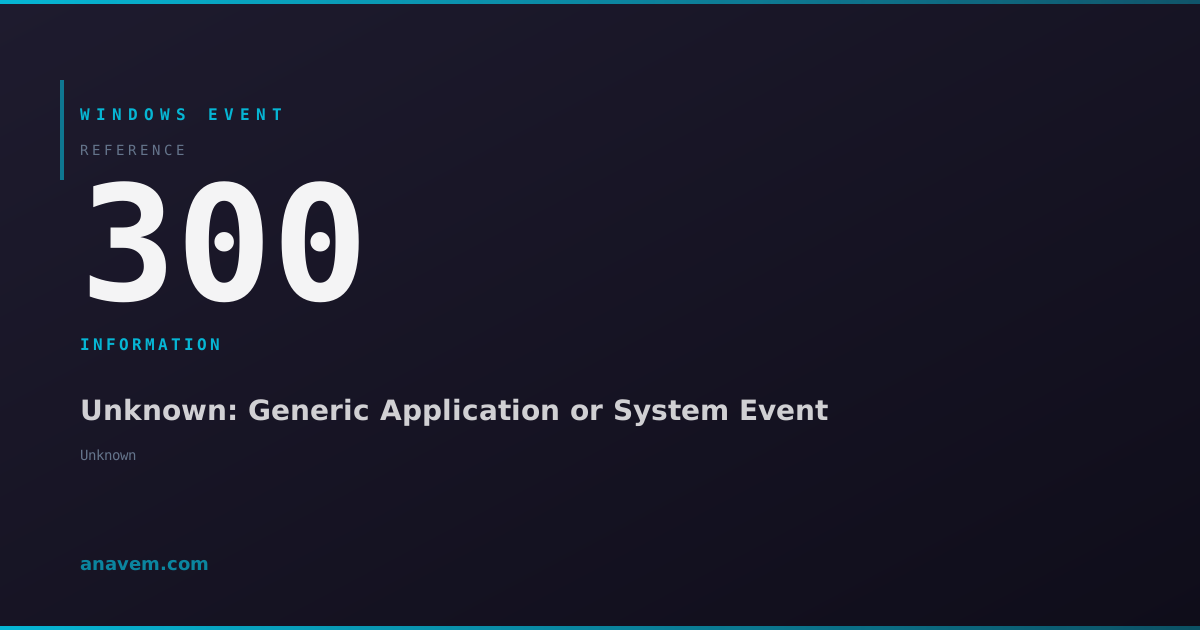
Event ID 300InformationUnknownWindows

Windows Event ID 300 – Unknown: Generic Application or System Event

Event ID 300 from an unknown source typically indicates a generic application or system event that requires investigation to determine the actual source and significance.

Emanuel DE ALMEIDAEmanuel DE ALMEIDA
18 March 202612 min read 0
Event ID 300Unknown 5 methods 12 min
Event Reference

What This Event Means

Event ID 300 from an unknown source represents one of the more challenging diagnostic scenarios in Windows event management. This event occurs when the Windows Event Log service receives a log entry but cannot properly identify or resolve the source application or component that generated it. The unknown source designation typically results from several underlying issues within the Windows event logging infrastructure.

The Windows Event Log service relies on registered event sources and associated message resource files to properly format and display event information. When an application attempts to write to the event log without proper registration, or when the registration becomes corrupted, the system defaults to showing the source as 'Unknown'. This situation commonly arises with third-party applications that implement custom logging mechanisms, legacy software that predates modern Windows event logging standards, or applications that experience partial installation failures.

In enterprise environments running Windows Server 2025 and Windows 11, Event ID 300 from unknown sources often correlates with application deployment issues, service account permission problems, or registry corruption affecting event source registrations. The event may contain valuable diagnostic information in its description field, but without proper source identification, administrators must employ additional investigation techniques to determine the root cause and appropriate remediation steps.

Applies to

Windows 10Windows 11Windows Server 2019/2022/2025
Analysis

Possible Causes

  • Third-party applications writing to event logs without proper source registration
  • Corrupted or missing event message resource files (DLL files containing event descriptions)
  • Registry corruption affecting event source registrations in HKLM\SYSTEM\CurrentControlSet\Services\EventLog
  • Legacy applications using deprecated event logging APIs
  • Incomplete application installations or failed uninstallations leaving orphaned event sources
  • Service account permission issues preventing proper event source registration
  • Windows Update or system file corruption affecting event log infrastructure
  • Malware or security software interfering with event logging mechanisms
  • Custom scripts or PowerShell modules using improper event logging methods
Resolution Methods

Troubleshooting Steps

01

Analyze Event Details and Correlate Timing

Start by examining the complete event details to gather clues about the source:

  1. Open Event ViewerWindows LogsApplication
  2. Locate Event ID 300 entries and double-click to view details
  3. Note the exact timestamp, computer name, and any description text
  4. Use PowerShell to filter and analyze patterns:
Get-WinEvent -FilterHashtable @{LogName='Application'; Id=300} -MaxEvents 50 | Select-Object TimeCreated, LevelDisplayName, Message | Format-Table -Wrap
  1. Cross-reference timestamps with other system activities:
# Check for application installations around the same time
Get-WinEvent -FilterHashtable @{LogName='Application'; Id=1033,1034,11707,11708} | Where-Object {$_.TimeCreated -gt (Get-Date).AddHours(-24)} | Select-Object TimeCreated, Id, LevelDisplayName, Message
  1. Review System log for related events:
Get-WinEvent -FilterHashtable @{LogName='System'; StartTime=(Get-Date).AddHours(-2)} | Where-Object {$_.TimeCreated -eq (Get-Date "2026-03-18 14:30:00")} | Format-List
Pro tip: Look for patterns in the event description text that might reveal application names, file paths, or error codes that can help identify the source.
02

Investigate Event Source Registry Entries

Examine the Windows registry to identify corrupted or missing event source registrations:

  1. Open Registry Editor as Administrator
  2. Navigate to HKLM\SYSTEM\CurrentControlSet\Services\EventLog\Application
  3. Look for suspicious or corrupted entries that might correspond to your unknown events
  4. Use PowerShell to enumerate all registered event sources:
# List all registered Application event sources
Get-ChildItem "HKLM:\SYSTEM\CurrentControlSet\Services\EventLog\Application" | Select-Object PSChildName | Sort-Object PSChildName
  1. Check for orphaned or invalid event source entries:
# Identify event sources with missing message files
$EventSources = Get-ChildItem "HKLM:\SYSTEM\CurrentControlSet\Services\EventLog\Application"
foreach ($Source in $EventSources) {
    $MessageFile = Get-ItemProperty -Path $Source.PSPath -Name "EventMessageFile" -ErrorAction SilentlyContinue
    if ($MessageFile -and !(Test-Path $MessageFile.EventMessageFile)) {
        Write-Host "Missing message file for source: $($Source.PSChildName)" -ForegroundColor Red
        Write-Host "Expected path: $($MessageFile.EventMessageFile)" -ForegroundColor Yellow
    }
}
  1. If you find corrupted entries, back up the registry and remove invalid sources:
# Backup registry before making changes
reg export "HKLM\SYSTEM\CurrentControlSet\Services\EventLog\Application" "C:\Temp\EventLog_Backup.reg"
Warning: Always backup the registry before making changes. Incorrect modifications can cause system instability.
03

Monitor Process Activity During Event Generation

Use process monitoring tools to identify which application is generating the unknown events:

  1. Download and run Process Monitor (ProcMon) from Microsoft Sysinternals
  2. Set up filters to monitor registry and file system activity related to event logging:
  3. Configure ProcMon filters:
  • Process and Thread Activity: Include
  • File System Activity: Include paths containing "EventLog"
  • Registry Activity: Include keys under "HKLM\SYSTEM\CurrentControlSet\Services\EventLog"
  1. Alternatively, use PowerShell to monitor event creation in real-time:
# Monitor for new Event ID 300 entries in real-time
Register-WmiEvent -Query "SELECT * FROM Win32_NTLogEvent WHERE LogFile='Application' AND EventCode=300" -Action {
    $Event = $Event.SourceEventArgs.NewEvent
    Write-Host "New Event ID 300 detected at $($Event.TimeGenerated)" -ForegroundColor Green
    Write-Host "Source: $($Event.SourceName)" -ForegroundColor Yellow
    Write-Host "Message: $($Event.Message)" -ForegroundColor Cyan
    
    # Get currently running processes
    Get-Process | Where-Object {$_.StartTime -gt (Get-Date).AddMinutes(-5)} | Select-Object Name, Id, StartTime
}
  1. Use Windows Performance Toolkit (WPT) for advanced tracing:
# Start ETW tracing for event log activity
wpr -start GeneralProfile -filemode
  1. Reproduce the issue while monitoring is active, then stop tracing:
wpr -stop C:\Temp\EventTrace.etl
Pro tip: Correlate process start times with event timestamps to identify the likely source application.
04

Repair Event Log Infrastructure

Address potential corruption in the Windows Event Log service and related components:

  1. Run System File Checker to repair corrupted system files:
# Run SFC scan as Administrator
sfc /scannow
  1. Check and repair Windows Event Log service:
# Stop Event Log service
Stop-Service -Name "EventLog" -Force

# Clear any corrupted log files (backup first)
Copy-Item "C:\Windows\System32\winevt\Logs\Application.evtx" "C:\Temp\Application_backup.evtx"

# Restart Event Log service
Start-Service -Name "EventLog"
  1. Re-register Event Log related DLLs:
# Re-register critical Event Log DLLs
regsvr32 /s wevtapi.dll
regsvr32 /s wevtsvc.dll
regsvr32 /s wer.dll
  1. Rebuild event source registrations using PowerShell:
# Create a new event source for testing
if (![System.Diagnostics.EventLog]::SourceExists("TestSource")) {
    [System.Diagnostics.EventLog]::CreateEventSource("TestSource", "Application")
    Write-Host "Test event source created successfully" -ForegroundColor Green
} else {
    Write-Host "Test event source already exists" -ForegroundColor Yellow
}

# Test writing to the new source
[System.Diagnostics.EventLog]::WriteEntry("TestSource", "Test message from PowerShell", "Information", 100)
  1. Run DISM to repair Windows image if SFC finds issues:
# Check Windows image health
DISM /Online /Cleanup-Image /CheckHealth

# Repair if issues found
DISM /Online /Cleanup-Image /RestoreHealth
Warning: Stopping the Event Log service will temporarily prevent event logging system-wide. Plan this during maintenance windows.
05

Advanced Forensic Analysis with Custom Scripts

Deploy comprehensive monitoring and analysis scripts for persistent unknown event issues:

  1. Create a PowerShell script to capture detailed system state during event occurrence:
# Advanced Event ID 300 Investigation Script
$LogPath = "C:\Temp\Event300_Investigation.log"
$StartTime = Get-Date

function Write-InvestigationLog {
    param([string]$Message)
    $Timestamp = Get-Date -Format "yyyy-MM-dd HH:mm:ss"
    "[$Timestamp] $Message" | Out-File -FilePath $LogPath -Append
}

# Monitor for Event ID 300 and capture system state
Register-WmiEvent -Query "SELECT * FROM Win32_NTLogEvent WHERE LogFile='Application' AND EventCode=300" -Action {
    $EventTime = Get-Date
    Write-InvestigationLog "Event ID 300 detected at $EventTime"
    
    # Capture running processes
    $Processes = Get-Process | Select-Object Name, Id, CPU, WorkingSet, StartTime
    Write-InvestigationLog "Active processes: $($Processes.Count)"
    
    # Capture recent file system activity
    $RecentFiles = Get-ChildItem "C:\Windows\Temp", "C:\Temp" -Recurse -ErrorAction SilentlyContinue | 
                   Where-Object {$_.LastWriteTime -gt $EventTime.AddMinutes(-5)}
    Write-InvestigationLog "Recent file changes: $($RecentFiles.Count)"
    
    # Capture network connections
    $Connections = Get-NetTCPConnection | Where-Object {$_.State -eq "Established"}
    Write-InvestigationLog "Active connections: $($Connections.Count)"
    
    # Export detailed event information
    $Event = $Event.SourceEventArgs.NewEvent
    Write-InvestigationLog "Event Details: Source=$($Event.SourceName), Message=$($Event.Message)"
}
  1. Implement registry monitoring for event source changes:
# Monitor registry changes to event log sources
$RegistryWatcher = New-Object System.IO.FileSystemWatcher
$RegistryWatcher.Path = "C:\Windows\System32\config"
$RegistryWatcher.Filter = "SYSTEM"
$RegistryWatcher.NotifyFilter = [System.IO.NotifyFilters]::LastWrite
$RegistryWatcher.EnableRaisingEvents = $true

Register-ObjectEvent -InputObject $RegistryWatcher -EventName "Changed" -Action {
    Write-InvestigationLog "Registry SYSTEM hive modified - potential event source change"
}
  1. Create automated correlation analysis:
# Correlate Event ID 300 with system activities
$CorrelationScript = {
    $Event300Times = Get-WinEvent -FilterHashtable @{LogName='Application'; Id=300} -MaxEvents 10 | 
                     Select-Object TimeCreated
    
    foreach ($EventTime in $Event300Times) {
        $WindowStart = $EventTime.TimeCreated.AddMinutes(-2)
        $WindowEnd = $EventTime.TimeCreated.AddMinutes(2)
        
        # Check for application events in time window
        $RelatedEvents = Get-WinEvent -FilterHashtable @{
            LogName='Application','System'
            StartTime=$WindowStart
            EndTime=$WindowEnd
        } | Where-Object {$_.Id -ne 300}
        
        Write-Host "Event at $($EventTime.TimeCreated) - Related events: $($RelatedEvents.Count)" -ForegroundColor Cyan
        $RelatedEvents | Select-Object Id, LevelDisplayName, ProviderName | Format-Table
    }
}

Invoke-Command -ScriptBlock $CorrelationScript
Pro tip: Run this comprehensive monitoring for 24-48 hours to establish patterns and identify the source application through correlation analysis.

Overview

Event ID 300 with an unknown source presents a unique challenge for Windows administrators. This event typically appears when an application or system component logs an event without properly identifying itself, or when the Event Log service cannot determine the originating source. Unlike well-documented system events, Event ID 300 from an unknown source requires detective work to identify the actual component generating the log entry.

This event commonly occurs during application installations, third-party service operations, or when legacy applications interact with modern Windows logging mechanisms. The unknown source designation often results from missing or corrupted event message files, improperly registered event sources, or applications that fail to follow Windows event logging standards.

In Windows 11 and Server 2025 environments, enhanced security features and stricter application sandboxing can contribute to these unknown source events. The event typically appears in the Application log but may also surface in System or Security logs depending on the underlying component. Proper investigation involves correlating timestamps with system activities, examining process execution logs, and analyzing application installation or update events that coincide with the Event ID 300 occurrences.

Frequently Asked Questions

What does Event ID 300 from an unknown source typically indicate?+
Event ID 300 from an unknown source indicates that an application or system component has written an event to the Windows Event Log, but the Event Log service cannot properly identify the source. This usually occurs when applications write to event logs without proper registration, when event source registrations are corrupted, or when message resource files are missing. The event itself may contain useful information in its description, but the unknown source makes it challenging to identify which application or component generated the event.
How can I determine which application is generating Event ID 300 with unknown source?+
To identify the source application, use a combination of timestamp correlation, process monitoring, and registry analysis. Start by noting the exact time of Event ID 300 occurrences and cross-reference with application installation logs, system events, and process start times. Use Process Monitor (ProcMon) to watch for registry and file system activity related to event logging. You can also implement PowerShell monitoring scripts that capture system state when the event occurs, including running processes, recent file changes, and network activity. Correlating these data points usually reveals the source application.
Can Event ID 300 from unknown source indicate a security issue?+
While Event ID 300 from an unknown source is typically benign and related to application logging issues, it can occasionally indicate security concerns. Malware sometimes attempts to write to event logs without proper registration, resulting in unknown source events. Additionally, if the events coincide with suspicious system behavior, unauthorized software installation, or network activity, they warrant investigation. However, most instances are caused by legitimate third-party applications, legacy software, or incomplete installations rather than security threats. Always correlate with other security indicators and system behavior patterns.
How do I fix corrupted event source registrations causing unknown source events?+
To fix corrupted event source registrations, first backup the registry, then examine HKLM\SYSTEM\CurrentControlSet\Services\EventLog\Application for invalid entries. Use PowerShell to identify event sources with missing message files by checking if the EventMessageFile paths exist. Remove corrupted entries after backing up the registry. Re-register critical Event Log DLLs using regsvr32 commands for wevtapi.dll, wevtsvc.dll, and wer.dll. If issues persist, run System File Checker (sfc /scannow) and DISM repair commands to fix underlying Windows component corruption. Restart the Event Log service after making changes.
Should I be concerned about multiple Event ID 300 unknown source entries?+
Multiple Event ID 300 unknown source entries are generally not cause for immediate concern, but they indicate an underlying issue that should be investigated. Frequent occurrences suggest either a problematic application that's repeatedly attempting to log events improperly, corrupted event log infrastructure, or a service that's failing to register its event source correctly. While these events don't typically impact system functionality, they can clutter event logs and make legitimate issue diagnosis more difficult. Investigate patterns in timing, frequency, and any associated system activities to identify and resolve the root cause for cleaner event log management.
Documentation

References (2)

Emanuel DE ALMEIDA
Written by

Emanuel DE ALMEIDA

Senior IT Journalist & Cloud Architect

Microsoft MCSA-certified Cloud Architect | Fortinet-focused. I modernize cloud, hybrid & on-prem infrastructure for reliability, security, performance and cost control - sharing field-tested ops & troubleshooting.

Discussion

Share your thoughts and insights

You must be logged in to comment.

Loading comments...