ANAVEM
Languagefr
Windows Event Viewer displaying system error logs on a professional monitoring dashboard
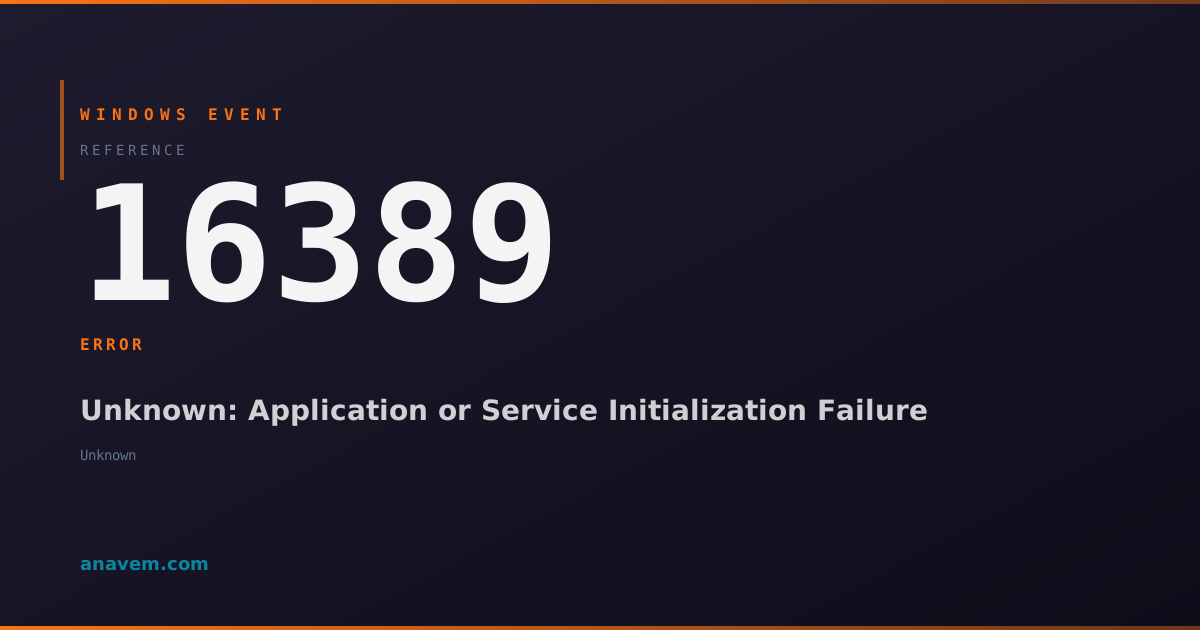
Event ID 16389ErrorUnknownWindows

Windows Event ID 16389 – Unknown: Application or Service Initialization Failure

Event ID 16389 indicates an application or service failed to initialize properly during startup, often related to dependency issues, corrupted files, or insufficient permissions.

Emanuel DE ALMEIDAEmanuel DE ALMEIDA
18 March 202612 min read 0
Event ID 16389Unknown 5 methods 12 min
Event Reference

What This Event Means

Event ID 16389 represents a fundamental initialization failure that occurs when Windows attempts to start an application, service, or system component. The error manifests during the critical startup phase where components load their dependencies, initialize memory structures, and establish communication channels with the operating system.

The "Unknown" source designation indicates that the failing component could not register itself with the Event Log service before encountering the fatal error. This typically happens when:

  • Dynamic Link Libraries (DLLs) fail to load due to missing dependencies
  • Registry corruption prevents proper configuration reading
  • Security policies block access to essential system resources
  • Memory allocation failures occur during initialization

Windows generates this event through the kernel-mode Event Log service when it receives an unhandled exception or critical error during component initialization. The event contains minimal diagnostic information because the failure occurs before the component can establish proper error reporting mechanisms.

In enterprise environments, Event ID 16389 often indicates systemic issues such as Active Directory authentication problems, network service failures, or corrupted Group Policy settings that prevent proper service initialization across multiple systems.

Applies to

Windows 10Windows 11Windows Server 2019/2022/2025
Analysis

Possible Causes

  • Missing or corrupted system DLL files required for application initialization
  • Registry corruption affecting service or application configuration data
  • Insufficient user permissions or security policy restrictions blocking resource access
  • Failed Windows Updates that modified critical system dependencies
  • Third-party software conflicts interfering with system service startup
  • Hardware driver incompatibilities preventing proper device initialization
  • Memory allocation failures during component startup processes
  • Network connectivity issues affecting domain-joined systems during authentication
  • Antivirus software blocking legitimate system processes during initialization
  • Corrupted user profile data preventing application-specific services from starting
Resolution Methods

Troubleshooting Steps

01

Analyze Event Viewer for Additional Context

Start by examining the Event Viewer for related events that occurred around the same time as Event ID 16389.

  1. Open Event Viewer by pressing Win + R, typing eventvwr.msc, and pressing Enter
  2. Navigate to Windows LogsSystem and Application
  3. Look for events within 5 minutes of the 16389 timestamp
  4. Use PowerShell to filter events more efficiently:
Get-WinEvent -FilterHashtable @{LogName='System','Application'; StartTime=(Get-Date).AddHours(-1)} | Where-Object {$_.Id -eq 16389 -or $_.LevelDisplayName -eq 'Error'} | Sort-Object TimeCreated | Format-Table TimeCreated, Id, LevelDisplayName, Message -Wrap

Pay special attention to events from sources like Service Control Manager, Application Error, or Windows Error Reporting that might provide clues about which specific component failed.

Pro tip: Export the filtered events to CSV for easier analysis: Get-WinEvent ... | Export-Csv -Path C:\temp\event_analysis.csv -NoTypeInformation
02

Check System File Integrity and Dependencies

Run comprehensive system file checks to identify and repair corrupted dependencies that might cause initialization failures.

  1. Open Command Prompt as Administrator
  2. Run System File Checker to scan for corrupted system files:
sfc /scannow
  1. If SFC finds issues, run DISM to repair the Windows image:
DISM /Online /Cleanup-Image /RestoreHealth
  1. Check for missing Windows Updates that might resolve dependency issues:
Get-WindowsUpdate -Install -AcceptAll -AutoReboot
  1. Verify critical system services are configured correctly:
Get-Service | Where-Object {$_.Status -eq 'Stopped' -and $_.StartType -eq 'Automatic'} | Format-Table Name, Status, StartType

If SFC reports unfixable errors, consider running sfc /scannow from Windows Recovery Environment for more comprehensive repairs.

Warning: DISM operations can take 30+ minutes and require stable internet connectivity. Ensure the system won't be interrupted during the process.
03

Investigate Registry and Permission Issues

Examine registry integrity and verify that critical system components have proper permissions to access required resources.

  1. Check Event Log service registry configuration:
Get-ItemProperty -Path "HKLM\SYSTEM\CurrentControlSet\Services\EventLog" -Name * | Format-List
  1. Verify Windows services have proper registry permissions:
$acl = Get-Acl "HKLM:\SYSTEM\CurrentControlSet\Services"
$acl.Access | Where-Object {$_.IdentityReference -like "*SYSTEM*" -or $_.IdentityReference -like "*Administrators*"} | Format-Table IdentityReference, FileSystemRights, AccessControlType
  1. Reset Event Log service permissions if needed:
sc.exe sdset eventlog D:(A;;CCLCSWRPWPDTLOCRRC;;;SY)(A;;CCDCLCSWRPWPDTLOCRSDRCWDWO;;;BA)(A;;CCLCSWLOCRRC;;;AU)(A;;CCLCSWRPWPDTLOCRRC;;;PU)
  1. Check for corrupted user profiles affecting service initialization:
Get-WmiObject -Class Win32_UserProfile | Where-Object {$_.Special -eq $false} | Select-Object LocalPath, LastUseTime, @{Name='SizeGB';Expression={[math]::Round($_.Size/1GB,2)}} | Sort-Object LastUseTime -Descending
  1. Rebuild the Event Log if registry corruption is suspected:
net stop eventlog
wevtutil el | ForEach-Object {wevtutil cl "$_"}
net start eventlog
Pro tip: Before modifying registry permissions, export the current settings: reg export HKLM\SYSTEM\CurrentControlSet\Services C:\temp\services_backup.reg
04

Perform Clean Boot and Service Isolation

Use clean boot methodology to isolate the failing component and identify third-party software conflicts.

  1. Configure the system for clean boot by opening System Configuration:
msconfig
  1. On the General tab, select Selective startup and uncheck Load startup items
  2. On the Services tab, check Hide all Microsoft services, then click Disable all
  3. Restart the system and monitor for Event ID 16389
  4. If the error disappears, systematically re-enable services in groups to identify the culprit:
Get-Service | Where-Object {$_.StartType -eq 'Disabled'} | Select-Object Name, DisplayName, Status | Out-GridView -Title "Select services to re-enable" -PassThru | ForEach-Object {Set-Service -Name $_.Name -StartupType Automatic; Start-Service -Name $_.Name}
  1. Use Process Monitor to capture real-time file and registry access during startup:

Download Process Monitor from Microsoft Sysinternals, then:

  • Set filters for Process Name contains your suspected application
  • Enable Show File System Activity and Show Registry Activity
  • Capture startup sequence and look for ACCESS DENIED or PATH NOT FOUND errors
  1. Check Windows Reliability Monitor for additional failure details:
perfmon /rel
Warning: Clean boot disables essential security software. Re-enable antivirus and firewall services immediately after testing.
05

Advanced Debugging with WinDbg and Memory Dumps

For persistent issues, use advanced debugging tools to capture detailed failure information during component initialization.

  1. Enable User Mode Dump Collection for the failing process:
New-Item -Path "HKLM:\SOFTWARE\Microsoft\Windows\Windows Error Reporting\LocalDumps" -Force
Set-ItemProperty -Path "HKLM:\SOFTWARE\Microsoft\Windows\Windows Error Reporting\LocalDumps" -Name "DumpFolder" -Value "C:\CrashDumps"
Set-ItemProperty -Path "HKLM:\SOFTWARE\Microsoft\Windows\Windows Error Reporting\LocalDumps" -Name "DumpType" -Value 2
  1. Install Windows SDK for debugging tools:
winget install Microsoft.WindowsSDK
  1. Configure system for kernel debugging if needed:
bcdedit /debug on
bcdedit /dbgsettings local
  1. Use Application Verifier to detect heap corruption or handle leaks:
appverif.exe

Enable Basics tests for the suspected application executable.

  1. Analyze crash dumps with WinDbg when they're generated:
!analyze -v
!heap -s
!handle 0 f
lm
  1. Enable ETW tracing for detailed component initialization tracking:
wpr -start GeneralProfile -start CPU -start DiskIO
:: Reproduce the issue
wpr -stop C:\temp\trace.etl

Analyze the trace with Windows Performance Analyzer (WPA) to identify the exact failure point during initialization.

Pro tip: Create a dedicated folder for dumps and traces: mkdir C:\DebugData and ensure it has sufficient free space (minimum 2GB).

Overview

Event ID 16389 fires when Windows encounters a critical initialization failure during application or service startup. This error typically appears in the System or Application logs when a component fails to load essential dependencies, encounters corrupted configuration data, or lacks sufficient permissions to access required resources.

The event source often shows as "Unknown" because the failing component cannot properly identify itself to the Windows Event Log service before the failure occurs. This makes Event ID 16389 particularly challenging to diagnose, as the error occurs during the early initialization phase before proper logging mechanisms are established.

In Windows 11 2026 updates and Server 2025, this event has become more common due to enhanced security restrictions and stricter dependency validation. The event frequently correlates with third-party software installations, Windows Updates that modify system dependencies, or hardware driver conflicts that prevent proper service initialization.

Frequently Asked Questions

What does Event ID 16389 with Unknown source mean?+
Event ID 16389 with Unknown source indicates that an application, service, or system component failed during its initialization phase before it could properly identify itself to the Windows Event Log service. This typically occurs when critical dependencies are missing, corrupted, or inaccessible, preventing the component from completing its startup sequence. The Unknown source designation makes diagnosis challenging because the failing component cannot provide specific error details about what went wrong during initialization.
Why does Event ID 16389 appear more frequently after Windows Updates?+
Windows Updates often modify system dependencies, security policies, and registry configurations that applications and services rely on during initialization. When updates change API behaviors, deprecate older interfaces, or introduce stricter security requirements, existing software may fail to adapt properly. Additionally, updates can replace system DLLs with newer versions that have different initialization requirements, causing compatibility issues with third-party software that wasn't designed for the updated environment. The 2026 Windows updates have particularly enhanced security validation during component startup, making initialization failures more likely for software that doesn't follow current best practices.
How can I identify which specific application or service is causing Event ID 16389?+
Since the event source shows as Unknown, you need to correlate Event ID 16389 with other events occurring at the same time. Check the System and Application logs for events within 5 minutes of the 16389 timestamp, looking for Service Control Manager errors, Application Error events, or Windows Error Reporting entries. Use Process Monitor to capture real-time file and registry access during system startup, filtering for ACCESS DENIED or PATH NOT FOUND errors. Additionally, perform a clean boot to systematically disable non-Microsoft services and startup programs, then re-enable them in groups to isolate the failing component.
Can Event ID 16389 cause system instability or performance issues?+
Yes, Event ID 16389 can significantly impact system stability and performance, especially if it involves critical system services or frequently-used applications. When essential services fail to initialize, dependent components may also fail, creating a cascade of errors that can lead to system hangs, slow boot times, or reduced functionality. In enterprise environments, initialization failures can prevent domain authentication, network access, or security policy enforcement. The repeated failure and retry attempts of components can consume CPU and memory resources, degrading overall system performance. It's crucial to resolve Event ID 16389 promptly to prevent these cascading effects.
What preventive measures can reduce Event ID 16389 occurrences?+
Implement several preventive strategies: maintain regular system file integrity checks using 'sfc /scannow' and DISM commands; keep Windows Updates current while testing them in non-production environments first; regularly backup and verify registry integrity, especially the Services hive; ensure antivirus software has proper exclusions for system processes and doesn't interfere with legitimate initialization; monitor system resources to prevent memory allocation failures during startup; use Group Policy to enforce consistent security settings across domain environments; implement proper change management procedures for software installations; and regularly review Event Viewer logs to catch early warning signs before they escalate to critical initialization failures.
Documentation

References (2)

Emanuel DE ALMEIDA
Written by

Emanuel DE ALMEIDA

Senior IT Journalist & Cloud Architect

Microsoft MCSA-certified Cloud Architect | Fortinet-focused. I modernize cloud, hybrid & on-prem infrastructure for reliability, security, performance and cost control - sharing field-tested ops & troubleshooting.

Discussion

Share your thoughts and insights

You must be logged in to comment.

Loading comments...