ANAVEM
Languagefr
Windows Event Viewer showing system event logs on a monitoring dashboard
Event ID 6003InformationEventLogWindows

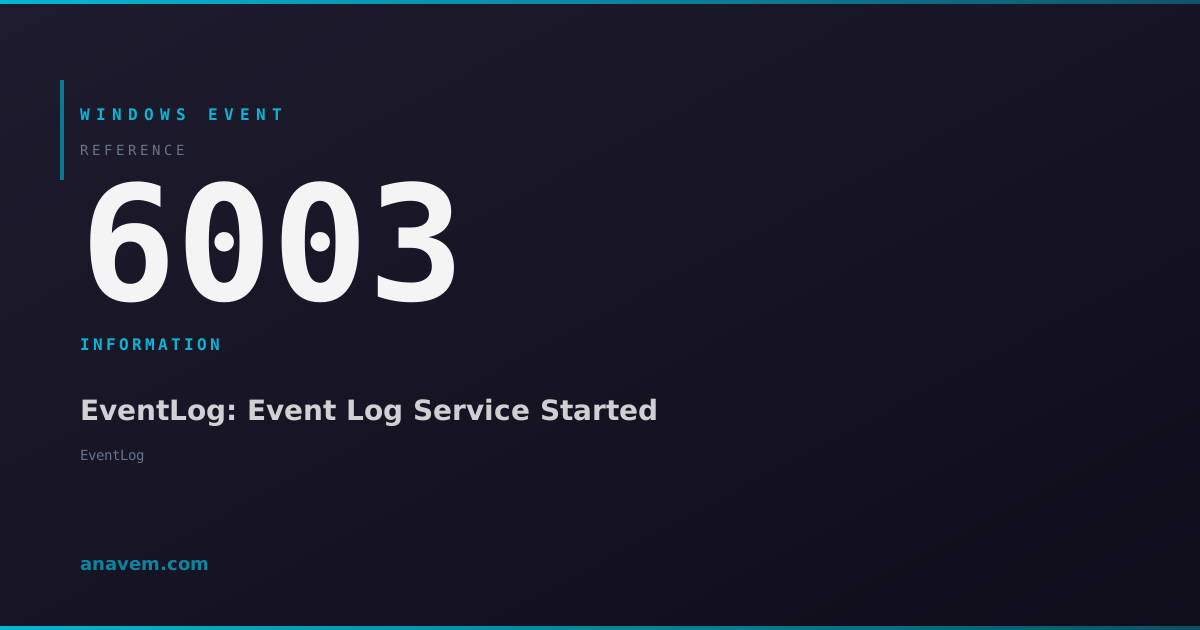
Windows Event ID 6003 – EventLog: Event Log Service Started

Event ID 6003 indicates the Windows Event Log service has successfully started. This informational event appears in the System log during boot and confirms the logging subsystem is operational.

Emanuel DE ALMEIDAEmanuel DE ALMEIDA
18 March 20268 min read 0
Event ID 6003EventLog 5 methods 8 min
Event Reference

What This Event Means

The Windows Event Log service is fundamental to Windows operation, managing the collection and storage of events from all system components, applications, and security subsystems. Event ID 6003 represents the successful initialization of this critical service during system startup or manual service restart operations.

When Windows boots, the Service Control Manager starts the Event Log service early in the boot sequence to ensure that subsequent system events can be properly logged. The successful startup of this service triggers Event ID 6003, which becomes one of the first entries in the System log for each boot cycle. This event confirms that the logging infrastructure is ready to receive and process events from other Windows components.

The Event Log service manages multiple log files including System, Application, Security, and various operational logs. Without this service running, Windows components cannot write events to these logs, creating gaps in system monitoring and troubleshooting capabilities. Event ID 6003 serves as confirmation that this essential logging infrastructure is operational.

In enterprise environments, monitoring Event ID 6003 can help administrators track system boot times, identify systems that have restarted, and verify that logging capabilities are functioning across their infrastructure. The event's timestamp provides precise information about when the logging subsystem became available during the boot process.

Applies to

Windows 10Windows 11Windows Server 2019/2022/2025
Analysis

Possible Causes

  • Normal system startup sequence when Windows boots
  • Manual restart of the Windows Event Log service through Services console
  • Service recovery action automatically restarting the Event Log service after failure
  • System recovery from hibernation or sleep mode
  • Service startup following system crash recovery
  • Administrative restart of the service via PowerShell or command line tools
Resolution Methods

Troubleshooting Steps

01

Verify Event Details in Event Viewer

Open Event Viewer to examine the Event ID 6003 details and confirm normal service startup.

  1. Press Windows + R, type eventvwr.msc, and press Enter
  2. Navigate to Windows LogsSystem
  3. Filter the log by clicking Filter Current Log in the Actions pane
  4. Enter 6003 in the Event IDs field and click OK
  5. Double-click the most recent Event ID 6003 to view details
  6. Verify the event source shows EventLog and level shows Information
  7. Check the timestamp to confirm when the Event Log service started
Pro tip: The timestamp of Event ID 6003 effectively shows your system's last boot time, making it useful for uptime calculations.
02

Query Event ID 6003 with PowerShell

Use PowerShell to retrieve and analyze Event ID 6003 occurrences programmatically.

  1. Open PowerShell as Administrator
  2. Run the following command to get recent Event ID 6003 entries:
Get-WinEvent -FilterHashtable @{LogName='System'; Id=6003} -MaxEvents 10 | Format-Table TimeCreated, Id, LevelDisplayName, Message -AutoSize
  1. To get the most recent boot time based on Event ID 6003:
$LastBoot = Get-WinEvent -FilterHashtable @{LogName='System'; Id=6003} -MaxEvents 1
Write-Host "Last Event Log service start: $($LastBoot.TimeCreated)"
  1. To calculate system uptime using Event ID 6003:
$LastBoot = (Get-WinEvent -FilterHashtable @{LogName='System'; Id=6003} -MaxEvents 1).TimeCreated
$Uptime = (Get-Date) - $LastBoot
Write-Host "System uptime: $($Uptime.Days) days, $($Uptime.Hours) hours, $($Uptime.Minutes) minutes"
Pro tip: Save these PowerShell commands as a script for regular uptime monitoring across multiple systems.
03

Monitor Event Log Service Status

Verify the Windows Event Log service is running properly and check its configuration.

  1. Open Services console by pressing Windows + R, typing services.msc, and pressing Enter
  2. Locate Windows Event Log in the services list
  3. Verify the Status shows Running and Startup Type shows Automatic
  4. Right-click the service and select Properties
  5. On the General tab, confirm Startup type is set to Automatic
  6. Check the Recovery tab to see what happens if the service fails
  7. Use PowerShell to check service status programmatically:
Get-Service -Name EventLog | Format-List Name, Status, StartType, ServiceType
  1. To restart the Event Log service if needed (requires Administrator privileges):
Restart-Service -Name EventLog -Force
Warning: Restarting the Event Log service will temporarily interrupt event logging. Only restart if necessary for troubleshooting.
04

Analyze Boot Sequence and Service Dependencies

Examine the Event Log service dependencies and boot sequence to understand startup order.

  1. Check service dependencies using PowerShell:
Get-Service -Name EventLog | Select-Object -ExpandProperty ServicesDependedOn
  1. View services that depend on Event Log:
Get-Service | Where-Object {$_.ServicesDependedOn -contains (Get-Service EventLog)} | Select-Object Name, Status
  1. Examine the registry configuration for the Event Log service:
Get-ItemProperty -Path "HKLM\SYSTEM\CurrentControlSet\Services\EventLog" | Format-List
  1. Check for any Event Log service startup errors in the System log:
Get-WinEvent -FilterHashtable @{LogName='System'; ProviderName='Service Control Manager'} -MaxEvents 50 | Where-Object {$_.Message -like "*EventLog*"} | Format-Table TimeCreated, Id, Message -Wrap
  1. Review boot performance data to see Event Log startup timing:
Get-WinEvent -FilterHashtable @{LogName='Microsoft-Windows-Diagnostics-Performance/Operational'; Id=100} -MaxEvents 5 | Format-Table TimeCreated, Message -Wrap
05

Advanced Event Log Configuration and Troubleshooting

Perform advanced configuration checks and troubleshooting for Event Log service issues.

  1. Check Event Log file locations and sizes:
Get-WinEvent -ListLog * | Where-Object {$_.LogName -match "System|Application|Security"} | Select-Object LogName, FileSize, MaximumSizeInBytes, LogFilePath | Format-Table -AutoSize
  1. Verify Event Log registry settings:
$RegPath = "HKLM\SYSTEM\CurrentControlSet\Services\EventLog\System"
Get-ItemProperty -Path $RegPath | Select-Object MaxSize, Retention, File
  1. Check for Event Log corruption or issues:
wevtutil el | ForEach-Object { 
    try { 
        $LogInfo = wevtutil gli $_ 
        Write-Host "$_`: OK" -ForegroundColor Green 
    } catch { 
        Write-Host "$_`: ERROR - $($_.Exception.Message)" -ForegroundColor Red 
    } 
}
  1. Monitor Event Log service performance counters:
Get-Counter "\Event Log\Events/sec" -SampleInterval 5 -MaxSamples 12
  1. Create a custom event to test logging functionality:
Write-EventLog -LogName Application -Source "Application" -EventId 1000 -EntryType Information -Message "Test event created to verify Event Log service functionality"
  1. Export Event ID 6003 events for analysis:
$Events = Get-WinEvent -FilterHashtable @{LogName='System'; Id=6003} -MaxEvents 100
$Events | Export-Csv -Path "C:\temp\EventID6003_History.csv" -NoTypeInformation
Pro tip: Regular monitoring of Event ID 6003 patterns can help identify unexpected reboots or service restart issues in your environment.

Overview

Event ID 6003 from the EventLog source fires every time the Windows Event Log service successfully starts during system boot or when manually started after being stopped. This event serves as a fundamental marker that the Windows logging infrastructure is operational and ready to record system events. The event appears in the System log and typically occurs within the first few seconds of system startup, making it one of the earliest events you'll see in a fresh boot cycle.

This event is purely informational and indicates normal system behavior. The Event Log service (Windows Event Log) is a critical Windows component responsible for collecting, storing, and managing all system, application, and security events. When this service starts successfully, it enables all other Windows components and applications to write their events to the appropriate logs.

System administrators often use Event ID 6003 as a reference point for troubleshooting boot sequences, determining system uptime, and verifying that the logging subsystem is functioning correctly. The event contains minimal additional data beyond the timestamp, making it a clean indicator of service startup.

Frequently Asked Questions

What does Event ID 6003 mean and is it normal to see this event?+
Event ID 6003 indicates that the Windows Event Log service has successfully started. This is completely normal and expected behavior that occurs every time Windows boots or when the Event Log service is manually restarted. The event confirms that the logging subsystem is operational and ready to record events from other Windows components. You should see this event at the beginning of each boot cycle, and its absence might indicate logging service issues.
How can I use Event ID 6003 to determine when my system last rebooted?+
Event ID 6003 provides an excellent way to determine system boot time since it's one of the first events logged during startup. Use PowerShell command 'Get-WinEvent -FilterHashtable @{LogName='System'; Id=6003} -MaxEvents 1' to retrieve the most recent occurrence. The TimeCreated property of this event shows exactly when the Event Log service started, which corresponds closely to the system boot time. This method is often more reliable than using 'systeminfo' or other uptime commands.
Should I be concerned if I see multiple Event ID 6003 entries in a short time period?+
Multiple Event ID 6003 entries in a short timeframe typically indicate either system reboots or Event Log service restarts. If you see several entries within minutes or hours, investigate whether the system experienced unexpected reboots, blue screens, or if someone manually restarted the Event Log service. Check surrounding events in the System log for shutdown events (Event ID 1074), unexpected restart events, or service failure messages. Frequent occurrences might indicate system instability or hardware issues requiring investigation.
Can Event ID 6003 help me troubleshoot missing events in my logs?+
Yes, Event ID 6003 is crucial for troubleshooting missing events. If you notice gaps in your event logs, check for Event ID 6003 entries during those timeframes. The absence of this event during a period when the system should have been running indicates the Event Log service wasn't operational, explaining missing events. Conversely, if Event ID 6003 exists but other expected events are missing, the issue likely lies with specific applications or services not logging properly rather than the core logging infrastructure.
How does Event ID 6003 relate to system performance monitoring and uptime tracking?+
Event ID 6003 serves as a reliable timestamp for system uptime calculations and performance monitoring. Since it marks the start of the logging subsystem during each boot, you can calculate precise uptime by comparing the current time with the most recent Event ID 6003 timestamp. Many monitoring solutions use this event as a boot marker for tracking system availability and restart frequency. In enterprise environments, automated scripts often query Event ID 6003 across multiple systems to generate uptime reports and identify systems with unexpected restart patterns.
Documentation

References (2)

Emanuel DE ALMEIDA
Written by

Emanuel DE ALMEIDA

Senior IT Journalist & Cloud Architect

Microsoft MCSA-certified Cloud Architect | Fortinet-focused. I modernize cloud, hybrid & on-prem infrastructure for reliability, security, performance and cost control - sharing field-tested ops & troubleshooting.

Discussion

Share your thoughts and insights

You must be logged in to comment.

Loading comments...