ANAVEM
Languagefr
Windows Event Viewer displaying system service startup events on a monitoring dashboard
Event ID 6004InformationEventLogWindows

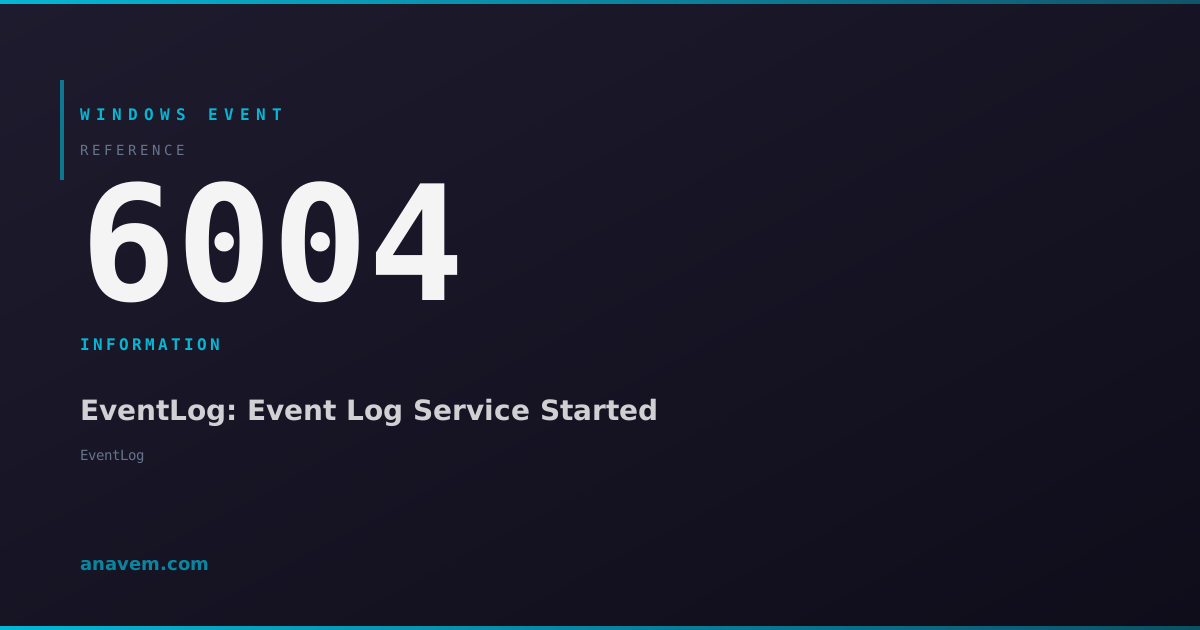
Windows Event ID 6004 – EventLog: Event Log Service Started

Event ID 6004 indicates the Windows Event Log service has successfully started. This informational event confirms the logging subsystem is operational and ready to record system events.

Emanuel DE ALMEIDAEmanuel DE ALMEIDA
18 March 20268 min read 0
Event ID 6004EventLog 5 methods 8 min
Event Reference

What This Event Means

Event ID 6004 represents a critical milestone in the Windows startup process, signaling that the Event Log service has successfully initialized and is ready to accept log entries from other system components and applications. The EventLog service is responsible for managing all Windows event logs including System, Application, Security, and custom application logs.

When Windows boots, the Service Control Manager starts essential services in a predetermined order based on dependencies. The Event Log service starts relatively early because many other services and applications depend on logging functionality. Once started, the service creates this event to document its own successful initialization, creating a self-referential log entry that confirms the logging subsystem is operational.

The event contains minimal data beyond the standard event headers, as its primary purpose is simply to mark the service startup. However, the timestamp becomes valuable for forensic analysis and troubleshooting scenarios where administrators need to establish when logging capabilities were restored after system issues. In clustered environments or systems with complex startup sequences, Event ID 6004 helps establish the baseline for service dependency analysis.

This event is particularly important in environments where compliance requires continuous audit logging. Regulatory frameworks often mandate that organizations can demonstrate uninterrupted logging capabilities, and Event ID 6004 provides evidence that the logging infrastructure was properly restored after any system restart or maintenance activity.

Applies to

Windows 10Windows 11Windows Server 2019/2022/2025
Analysis

Possible Causes

  • Normal system startup or restart
  • Manual restart of the Windows Event Log service
  • System recovery from hibernation or sleep mode
  • Service recovery after a previous Event Log service failure
  • System boot after power failure or unexpected shutdown
  • Service startup following system maintenance or updates
Resolution Methods

Troubleshooting Steps

01

Verify Event Log Service Status

Check the current status of the Event Log service to ensure it's running properly:

  1. Open Services console by pressing Win + R, typing services.msc, and pressing Enter
  2. Locate Windows Event Log service in the list
  3. Verify the status shows Running and startup type is Automatic
  4. Alternatively, use PowerShell to check service status:
Get-Service -Name "EventLog" | Select-Object Name, Status, StartType
Get-WinEvent -FilterHashtable @{LogName='System'; Id=6004} -MaxEvents 5 | Format-Table TimeCreated, Id, LevelDisplayName, Message

If the service isn't running, start it manually or investigate why it failed to start automatically.

02

Review Event Log Service Dependencies

Examine service dependencies to understand startup order and potential issues:

  1. Open Command Prompt as Administrator
  2. Check Event Log service dependencies:
sc qc EventLog
sc enumdepend EventLog
  1. Use PowerShell to get detailed dependency information:
Get-Service -Name "EventLog" -DependentServices
Get-Service -Name "EventLog" -RequiredServices
  1. Review the registry for service configuration:
Get-ItemProperty -Path "HKLM:\SYSTEM\CurrentControlSet\Services\EventLog"

This helps identify if dependency issues are causing delayed or failed Event Log service startup.

03

Analyze Boot Timeline and Service Startup

Investigate the boot sequence timing to identify potential delays or issues:

  1. Open Event ViewerWindows LogsSystem
  2. Filter for Event ID 6004 to see Event Log service startup history:
Get-WinEvent -FilterHashtable @{LogName='System'; Id=6004} -MaxEvents 20 | 
  Select-Object TimeCreated, @{Name='Message';Expression={$_.Message}} | 
  Format-Table -AutoSize
  1. Compare with other critical service startup events:
$StartTime = (Get-Date).AddDays(-7)
Get-WinEvent -FilterHashtable @{LogName='System'; Id=7036,6005,6004; StartTime=$StartTime} | 
  Sort-Object TimeCreated | 
  Select-Object TimeCreated, Id, LevelDisplayName, Message | 
  Format-Table -Wrap
  1. Check for any Event Log service failures preceding successful starts:
Get-WinEvent -FilterHashtable @{LogName='System'; ProviderName='Service Control Manager'} -MaxEvents 50 | 
  Where-Object {$_.Message -like "*EventLog*"} | 
  Format-Table TimeCreated, Id, LevelDisplayName, Message
04

Monitor Event Log Performance and Health

Set up monitoring to track Event Log service performance and detect issues:

  1. Create a custom PowerShell monitoring script:
# Monitor Event Log service health
$LogName = "System"
$EventID = 6004
$Hours = 24

$Events = Get-WinEvent -FilterHashtable @{
    LogName = $LogName
    Id = $EventID
    StartTime = (Get-Date).AddHours(-$Hours)
} -ErrorAction SilentlyContinue

if ($Events) {
    Write-Host "Event Log service started $($Events.Count) times in the last $Hours hours"
    $Events | Select-Object TimeCreated, Message | Format-Table
} else {
    Write-Warning "No Event Log service startup events found in the last $Hours hours"
}
  1. Check Event Log service performance counters:
Get-Counter "\Process(services)\% Processor Time" -SampleInterval 5 -MaxSamples 3
Get-Counter "\Process(services)\Working Set" -SampleInterval 5 -MaxSamples 3
  1. Verify log file integrity and space:
Get-WinEvent -ListLog * | Where-Object {$_.RecordCount -gt 0} | 
  Select-Object LogName, RecordCount, FileSize, MaximumSizeInBytes | 
  Sort-Object FileSize -Descending | Format-Table
05

Advanced Troubleshooting and Registry Analysis

Perform deep analysis of Event Log service configuration and potential issues:

  1. Examine Event Log service registry configuration in detail:
$EventLogKey = "HKLM:\SYSTEM\CurrentControlSet\Services\EventLog"
Get-ChildItem $EventLogKey -Recurse | 
  ForEach-Object { 
    Write-Host "Key: $($_.Name)"
    Get-ItemProperty $_.PSPath -ErrorAction SilentlyContinue
  }
  1. Check for Event Log service crashes or failures:
# Look for service failures
Get-WinEvent -FilterHashtable @{LogName='System'; Id=7034,7031,7032} -MaxEvents 50 | 
  Where-Object {$_.Message -like "*EventLog*" -or $_.Message -like "*Event Log*"} | 
  Format-Table TimeCreated, Id, LevelDisplayName, Message -Wrap

# Check Application event log for EventLog service issues
Get-WinEvent -FilterHashtable @{LogName='Application'; ProviderName='EventLog'} -MaxEvents 20 -ErrorAction SilentlyContinue
  1. Analyze system file integrity related to Event Log service:
sfc /scannow
Dism /Online /Cleanup-Image /CheckHealth
  1. Create a comprehensive Event Log service report:
$Report = @{
    ServiceStatus = Get-Service -Name "EventLog"
    RecentStarts = Get-WinEvent -FilterHashtable @{LogName='System'; Id=6004} -MaxEvents 10 -ErrorAction SilentlyContinue
    ServiceConfig = Get-ItemProperty -Path "HKLM:\SYSTEM\CurrentControlSet\Services\EventLog"
    LogSizes = Get-WinEvent -ListLog * | Where-Object {$_.RecordCount -gt 0} | Select-Object LogName, RecordCount, FileSize
}
$Report | ConvertTo-Json -Depth 3
Warning: Modifying Event Log service registry settings can prevent Windows from logging events properly. Always backup registry keys before making changes.

Overview

Event ID 6004 from the EventLog source fires every time the Windows Event Log service (Eventlog) successfully starts during system boot or service restart. This event appears in the System log and serves as a fundamental indicator that Windows logging infrastructure is operational. The event typically occurs early in the boot sequence, shortly after core system services initialize.

This event is purely informational and indicates normal system behavior. You'll see it after every system restart, wake from hibernation, or manual restart of the Event Log service. The event confirms that Windows can now properly log system activities, application events, and security audits. Without a functioning Event Log service, Windows cannot record critical system information, making troubleshooting nearly impossible.

The timing of this event is crucial for system administrators monitoring boot sequences and service dependencies. Event ID 6004 often serves as a baseline timestamp for correlating other system events that occur during startup. In enterprise environments, automated monitoring systems frequently use this event to verify that logging capabilities are restored after maintenance windows or unexpected shutdowns.

Frequently Asked Questions

What does Event ID 6004 mean and is it normal?+
Event ID 6004 is completely normal and indicates the Windows Event Log service has successfully started. This informational event appears every time Windows boots or when the Event Log service restarts. It confirms that the logging subsystem is operational and ready to record system events. You should see this event after every system restart, and its absence might indicate logging service issues.
How often should I see Event ID 6004 in my system logs?+
You should see Event ID 6004 every time your system starts up or the Event Log service restarts. For a typical workstation, this means once per boot cycle. On servers that rarely restart, you might see it only during maintenance windows. If you see multiple occurrences in a short time period, it could indicate the Event Log service is crashing and restarting, which requires investigation.
Can Event ID 6004 help me troubleshoot system startup issues?+
Yes, Event ID 6004 serves as an excellent baseline timestamp for troubleshooting startup issues. Since it occurs early in the boot process, you can use its timestamp to correlate other system events and identify services that start before or after logging becomes available. If this event is missing or delayed significantly from boot time, it indicates problems with core system services or dependencies.
What should I do if Event ID 6004 is missing from my system logs?+
If Event ID 6004 is missing, it suggests the Event Log service failed to start properly. First, check if the service is running using services.msc or Get-Service EventLog. If it's not running, try starting it manually. Look for related error events in the System log that might explain why the service failed to start. Check service dependencies and ensure required services are running. In severe cases, you may need to repair Windows system files using sfc /scannow.
How can I monitor Event ID 6004 for compliance or audit purposes?+
For compliance monitoring, create automated scripts that check for Event ID 6004 after system restarts to verify logging capabilities are restored. Use PowerShell scheduled tasks or monitoring tools to query for this event and alert if it's missing after expected restart times. Document the timestamps of these events as evidence of continuous logging capability restoration. Many SIEM systems can be configured to track this event as part of system health monitoring and compliance reporting.
Documentation

References (2)

Emanuel DE ALMEIDA
Written by

Emanuel DE ALMEIDA

Senior IT Journalist & Cloud Architect

Microsoft MCSA-certified Cloud Architect | Fortinet-focused. I modernize cloud, hybrid & on-prem infrastructure for reliability, security, performance and cost control - sharing field-tested ops & troubleshooting.

Discussion

Share your thoughts and insights

You must be logged in to comment.

Loading comments...