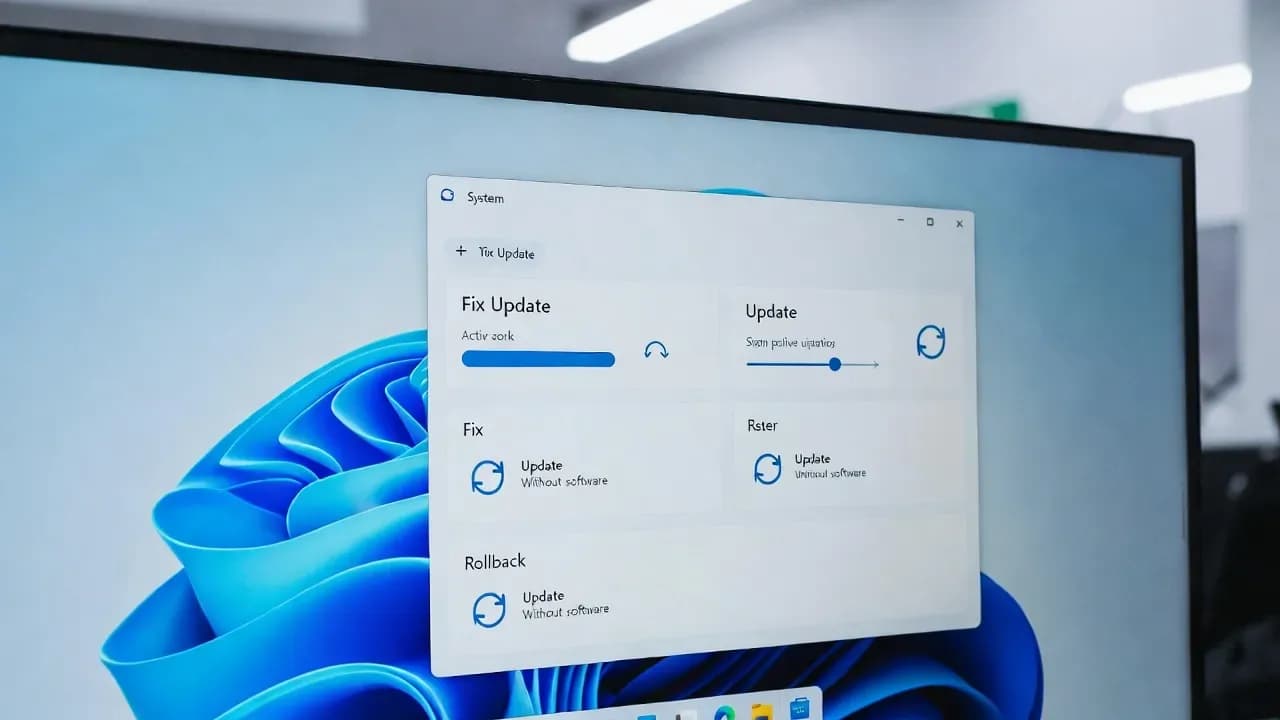
Understanding Known Issue Rollback (KIR): How Windows Fixes Problems Without Uninstalling Updates
Windows uses Known Issue Rollback (KIR) to mitigate specific update-related issues by disabling problematic code paths without uninstalling entire updates. This mechanism enables more precise remediation for modern enterprise and consumer environments.

Introduction
In complex operating systems like Windows, updates can occasionally introduce regressions or compatibility hurdles. Traditionally, solving these issues required uninstalling an update, rolling back drivers, or applying hotfixes that may not always be practical or risk-free.
To address this, Microsoft developed a capability known as Known Issue Rollback (KIR) - a mechanism that allows specific fixes to be applied without removing the entire update package. Instead of uninstalls, KIR applies targeted reversions at the component level, preserving security patches and system improvements while eliminating only the problematic behavior.
Background
With each cumulative update, Windows integrates hundreds of fixes, enhancements, and security improvements. Although rigorous testing occurs before release, certain edge cases can still escape detection. Traditionally, administrators and consumers alike faced a tough choice: uninstall a problematic update entirely or endure temporary instability.
Microsoft recognized the need for a more surgical approach. Rather than broad removals, KIR selectively disables or bypasses the specific code introduced in an update that triggers unexpected behavior. This mechanism streamlines remediation without compromising the rest of the update’s benefits.
How It Works
Under the hood, Known Issue Rollback functions by associating metadata tags with problem-causing code changes. When a regression is identified, Microsoft publishes a KIR policy that targets only that specific condition or code region.
During installation of a cumulative update, the Windows Update client checks for applicable KIR policies. If one matches, the operating system enables a rollback flag or applies a policy override that neutralizes the faulty code path.
Crucially, this approach:
- Preserves all unrelated fixes and security updates
- Minimizes impact on system stability
- Avoids complex uninstall sequences
Real-World Implications
For IT administrators and enterprise environments, KIR represents a major improvement in update confidence and reliability. Instead of scheduling disruptive rollback windows, teams can push out updates with the assurance that Microsoft can remediate specific regressions more transparently.
Similarly, for consumer devices, KIR reduces the need for support escalations or manual rollback procedures. Affected users receive targeted remediation without losing the protections baked into cumulative updates.
Step-by-Step: When a KIR Fix Applies
Scenario: After a recent cumulative update, a function related to application launch fails on select hardware.
- Microsoft identifies the issue and crafts a KIR policy that disables the problematic behavior in the affected code path.
- The policy is published through Windows Update metadata without requiring a new cumulative update.
- Windows Update client detects the KIR policy applicable to the device.
- The policy is applied during the update process or upon check-in.
- Only the faulty component is bypassed; the overall update remains intact.
Verification
Administrators can verify whether a KIR policy has been applied using:
- Windows Update history
- Event Viewer logs under “Windows Update Client”
- PowerShell commands that list applied KIR policies (
Get-KIRPolicyor related cmdlets)
Typically, Microsoft’s documentation will accompany the policy with guidance on detection and scope.
Frequently Asked Questions
No. KIR selectively disables problem areas without removing the entire update.
No. Only specific faulty behaviors are neutralized; unrelated security patches remain active.
Most KIR actions are automatic, though advanced configurations may be surfaced in enterprise management tools like WSUS or Intune.
KIR has been progressively extended, becoming more systematic in Windows 10 and 11 update flows.
Comments
Want to join the discussion?
Create an account to unlock exclusive member content, save your favorite articles, and join our community of IT professionals.
New here? Create a free account to get started.