ANAVEM
Languagefr
Windows Event Viewer displaying Event ID 1500 application error details on a system administrator's workstation
Event ID 1500ErrorApplication ErrorWindows

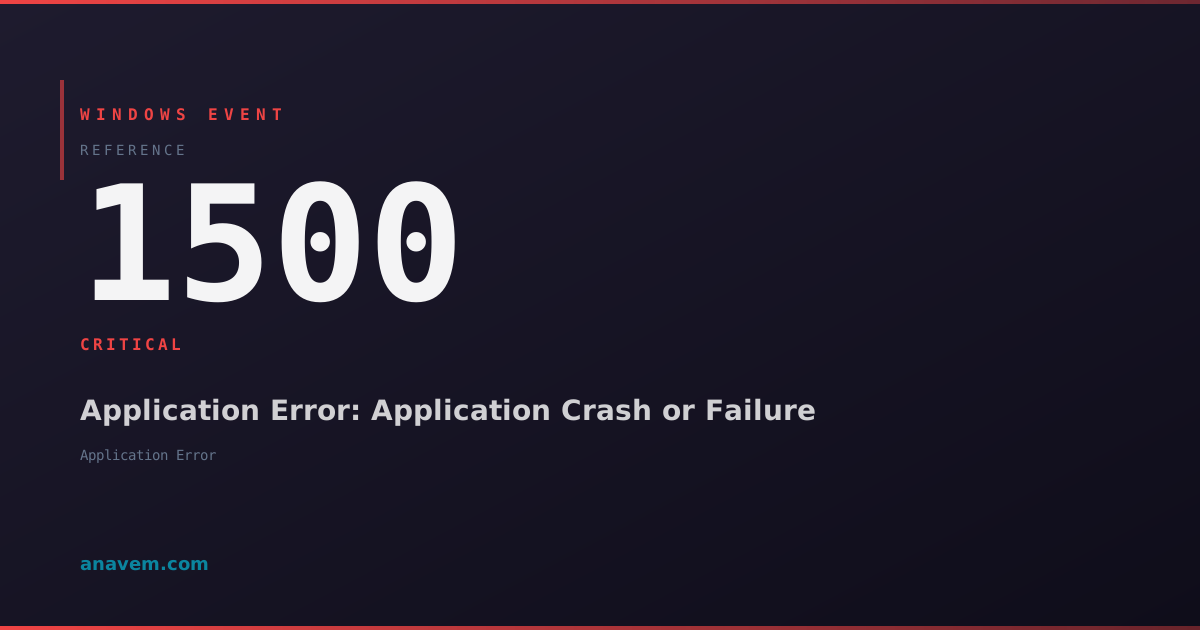
Windows Event ID 1500 – Application Error: Application Crash or Failure

Event ID 1500 indicates an application has crashed or encountered a critical error. This event helps administrators track application stability and identify problematic software components.

Emanuel DE ALMEIDAEmanuel DE ALMEIDA
18 March 20269 min read 0
Event ID 1500Application Error 5 methods 9 min
Event Reference

What This Event Means

Event ID 1500 represents a critical application error event generated by Windows Error Reporting when an application terminates unexpectedly or becomes unresponsive. This event serves as a comprehensive record of application failures, providing detailed forensic information that administrators need to diagnose and resolve software stability issues.

The event captures multiple data points including the faulting application's executable name, version information, timestamp, process ID, and the specific module or DLL that triggered the failure. Additionally, it records memory addresses, exception codes, and fault offsets that help developers and system administrators understand the technical nature of the crash.

Windows generates this event through its Application Error Reporting subsystem, which monitors running processes for abnormal terminations, access violations, and other critical exceptions. The event appears in the Application log under the Application Error source, making it easily identifiable during log analysis and monitoring activities.

Understanding Event ID 1500 is crucial for maintaining system stability in enterprise environments where application reliability directly impacts business operations. The event data helps identify whether crashes are caused by software bugs, hardware issues, driver conflicts, or environmental factors such as insufficient memory or corrupted system files.

Applies to

Windows 10Windows 11Windows Server 2019/2022/2025
Analysis

Possible Causes

  • Software bugs or programming errors in the application code
  • Memory access violations or buffer overflows
  • Corrupted application files or missing dependencies
  • Hardware failures affecting memory or storage systems
  • Driver conflicts or incompatible device drivers
  • Insufficient system resources such as memory or disk space
  • Registry corruption affecting application configuration
  • Malware infections targeting specific applications
  • Windows updates causing compatibility issues
  • Third-party software conflicts or DLL version mismatches
Resolution Methods

Troubleshooting Steps

01

Analyze Event Details in Event Viewer

Start by examining the specific details of Event ID 1500 to identify the failing application and fault module.

  1. Open Event Viewer by pressing Win + R, typing eventvwr.msc, and pressing Enter
  2. Navigate to Windows LogsApplication
  3. Filter for Event ID 1500 by right-clicking the Application log and selecting Filter Current Log
  4. Enter 1500 in the Event IDs field and click OK
  5. Double-click the most recent Event ID 1500 entry to view details
  6. Record the following information from the event:
    • Faulting application name and path
    • Faulting module name
    • Application version and timestamp
    • Exception code and fault offset

Use PowerShell to extract multiple Event ID 1500 entries for pattern analysis:

Get-WinEvent -FilterHashtable @{LogName='Application'; Id=1500} -MaxEvents 50 | Select-Object TimeCreated, Id, LevelDisplayName, Message | Format-Table -Wrap
Pro tip: Look for recurring patterns in the faulting module name or application path to identify systemic issues versus isolated crashes.
02

Check Application and System File Integrity

Verify that the failing application and system files are not corrupted, which is a common cause of Event ID 1500.

  1. Run System File Checker to repair corrupted system files:
    sfc /scannow
  2. Check the integrity of Windows system image:
    DISM /Online /Cleanup-Image /CheckHealth
  3. If issues are found, repair the system image:
    DISM /Online /Cleanup-Image /RestoreHealth
  4. Verify the failing application's installation integrity by reinstalling or repairing it through Programs and Features
  5. Check for missing Visual C++ Redistributables that the application might require:
    Get-WmiObject -Class Win32_Product | Where-Object {$_.Name -like "*Visual C++*"} | Select-Object Name, Version
  6. Download and install the latest Visual C++ Redistributables from Microsoft if missing
Warning: Always create a system restore point before running DISM repair operations, as they can potentially cause system instability if interrupted.
03

Investigate Memory and Hardware Issues

Memory corruption and hardware failures often manifest as Event ID 1500, requiring thorough system diagnostics.

  1. Run Windows Memory Diagnostic to check for RAM issues:
    mdsched.exe
    Select Restart now and check for problems
  2. After restart, check the memory diagnostic results:
    Get-WinEvent -FilterHashtable @{LogName='System'; Id=1201} | Select-Object -First 1 | Format-List *
  3. Monitor system performance and resource usage:
    Get-Counter "\Memory\Available MBytes", "\Processor(_Total)\% Processor Time", "\PhysicalDisk(_Total)\% Disk Time" -SampleInterval 5 -MaxSamples 12
  4. Check Event Logs for hardware-related errors:
    Get-WinEvent -FilterHashtable @{LogName='System'; Level=1,2} -MaxEvents 20 | Where-Object {$_.Message -match "hardware|memory|disk"}
  5. Run Check Disk on system drives to identify storage issues:
    chkdsk C: /f /r
  6. Review Device Manager for hardware conflicts or driver issues by running devmgmt.msc
Pro tip: If memory errors are detected, test each RAM module individually to isolate the faulty component.
04

Analyze Application Dependencies and Compatibility

Investigate software compatibility issues, missing dependencies, and conflicting applications that may cause Event ID 1500.

  1. Use Dependency Walker or PowerShell to check application dependencies:
    $appPath = "C:\Program Files\YourApp\app.exe"
    $dependencies = [System.Reflection.Assembly]::ReflectionOnlyLoadFrom($appPath).GetReferencedAssemblies()
    $dependencies | Select-Object Name, Version
  2. Check for DLL version conflicts using PowerShell:
    Get-ChildItem -Path "C:\Windows\System32" -Filter "*.dll" | Where-Object {$_.Name -eq "problematic.dll"} | Select-Object Name, VersionInfo
  3. Review installed software for conflicts:
    Get-WmiObject -Class Win32_Product | Sort-Object InstallDate -Descending | Select-Object Name, Version, InstallDate | Format-Table
  4. Run the application in compatibility mode:
    • Right-click the application executable
    • Select PropertiesCompatibility tab
    • Check Run this program in compatibility mode
    • Select an appropriate Windows version
  5. Check Windows Update history for recent updates that might affect the application:
    Get-HotFix | Sort-Object InstalledOn -Descending | Select-Object -First 10
  6. Review application event logs for additional error details:
    Get-WinEvent -FilterHashtable @{LogName='Application'; ProviderName='Application Error'} -MaxEvents 25
05

Advanced Debugging with Process Monitor and Dump Analysis

Perform advanced troubleshooting using process monitoring tools and crash dump analysis for persistent Event ID 1500 issues.

  1. Download and run Process Monitor (ProcMon) from Microsoft Sysinternals
  2. Configure ProcMon to monitor the failing application:
    • Set process name filter to match the failing application
    • Enable file system, registry, and process monitoring
    • Start monitoring before launching the application
  3. Enable crash dump collection in the registry:
    $regPath = "HKLM:\SOFTWARE\Microsoft\Windows\Windows Error Reporting\LocalDumps"
    New-Item -Path $regPath -Force
    Set-ItemProperty -Path $regPath -Name "DumpType" -Value 2 -Type DWord
    Set-ItemProperty -Path $regPath -Name "DumpFolder" -Value "C:\CrashDumps" -Type String
  4. Create the crash dump directory:
    New-Item -Path "C:\CrashDumps" -ItemType Directory -Force
  5. Reproduce the application crash and collect the generated dump file
  6. Analyze the crash dump using Windows Debugging Tools:
    # Install Windows SDK for debugging tools
    # Then analyze dump with WinDbg or use PowerShell for basic analysis
    Get-ChildItem "C:\CrashDumps" | Sort-Object LastWriteTime -Descending
  7. Review ProcMon logs for file access errors, registry issues, or missing dependencies that occur before the crash
  8. Check Application Verifier settings if available:
    appverif.exe
Warning: Crash dump files can be large and may contain sensitive information. Ensure proper security measures when collecting and analyzing dumps.

Overview

Event ID 1500 fires when Windows detects an application has crashed, hung, or encountered a critical error that prevents normal operation. This event appears in the Application log and provides essential details about the failing process, including the executable name, process ID, and fault module information.

The event typically contains information about the faulting application name, version, timestamp, and the module that caused the failure. Windows Error Reporting (WER) generates this event as part of its crash detection mechanism, making it invaluable for troubleshooting application stability issues in enterprise environments.

System administrators rely on Event ID 1500 to identify patterns in application failures, track software reliability metrics, and determine whether crashes are isolated incidents or systemic problems. The event data includes memory addresses, exception codes, and module paths that help pinpoint the root cause of application failures.

Frequently Asked Questions

What does Event ID 1500 mean and why does it occur?+
Event ID 1500 indicates that an application has crashed or encountered a critical error that caused it to terminate unexpectedly. This event occurs when Windows Error Reporting detects an application failure, such as an access violation, unhandled exception, or critical error. The event provides detailed information about the failing application, including the executable name, process ID, fault module, and exception details. Common causes include software bugs, memory corruption, missing dependencies, hardware failures, or system file corruption. Understanding this event is crucial for maintaining application stability and identifying systemic issues in Windows environments.
How can I prevent Event ID 1500 from occurring repeatedly?+
To prevent recurring Event ID 1500 events, start by identifying the root cause through event analysis and system diagnostics. Keep applications and Windows updated to the latest versions, as updates often include bug fixes and stability improvements. Ensure adequate system resources including sufficient RAM and disk space. Run regular system maintenance including SFC scans, disk cleanup, and registry cleaning. Check for hardware issues using Windows Memory Diagnostic and disk checking tools. Remove conflicting software and ensure proper application dependencies are installed. Consider using application compatibility modes for older software, and implement proper system monitoring to detect issues early before they cause crashes.
Can Event ID 1500 indicate hardware problems?+
Yes, Event ID 1500 can definitely indicate hardware problems, particularly memory-related issues. Faulty RAM modules often cause applications to crash with access violations or memory corruption errors. Hard drive failures can lead to application crashes when the system cannot read necessary files or write temporary data. Overheating CPUs may cause intermittent application failures. Power supply issues can cause system instability leading to application crashes. To diagnose hardware-related causes, run Windows Memory Diagnostic, check disk health with CHKDSK, monitor system temperatures, and review System event logs for hardware error events. If hardware issues are suspected, test components individually and consider professional hardware diagnostics.
How do I analyze the technical details in Event ID 1500?+
Event ID 1500 contains several technical fields that help diagnose the crash cause. The 'Faulting application name' identifies which program crashed. The 'Faulting module name' shows which DLL or executable component caused the failure - if it matches the application name, the issue is in the main program; if different, it indicates a dependency problem. The 'Exception code' provides the specific error type (e.g., 0xc0000005 for access violation). The 'Fault offset' shows where in the module the error occurred. Application and module timestamps help identify version mismatches. Use these details to search for known issues, update specific components, or identify patterns across multiple crash events.
What PowerShell commands help investigate Event ID 1500 patterns?+
Several PowerShell commands help analyze Event ID 1500 patterns effectively. Use 'Get-WinEvent -FilterHashtable @{LogName='Application'; Id=1500} -MaxEvents 100' to retrieve recent crashes. Group crashes by application with 'Get-WinEvent -FilterHashtable @{LogName='Application'; Id=1500} | Group-Object {($_.Message -split '\n')[0]} | Sort-Object Count -Descending'. Find crashes in the last 24 hours using 'Get-WinEvent -FilterHashtable @{LogName='Application'; Id=1500; StartTime=(Get-Date).AddDays(-1)}'. Export crash data with 'Get-WinEvent -FilterHashtable @{LogName='Application'; Id=1500} | Export-Csv -Path C:\crashes.csv -NoTypeInformation'. These commands help identify the most problematic applications, crash frequency patterns, and time-based correlations for effective troubleshooting.
Documentation

References (2)

Emanuel DE ALMEIDA
Written by

Emanuel DE ALMEIDA

Senior IT Journalist & Cloud Architect

Microsoft MCSA-certified Cloud Architect | Fortinet-focused. I modernize cloud, hybrid & on-prem infrastructure for reliability, security, performance and cost control - sharing field-tested ops & troubleshooting.

Discussion

Share your thoughts and insights

You must be logged in to comment.

Loading comments...