ANAVEM
Languagefr
Windows Event Viewer displaying Event ID 1500 application crash logs on a system administrator's monitoring setup
Event ID 1500ErrorApplication ErrorWindows

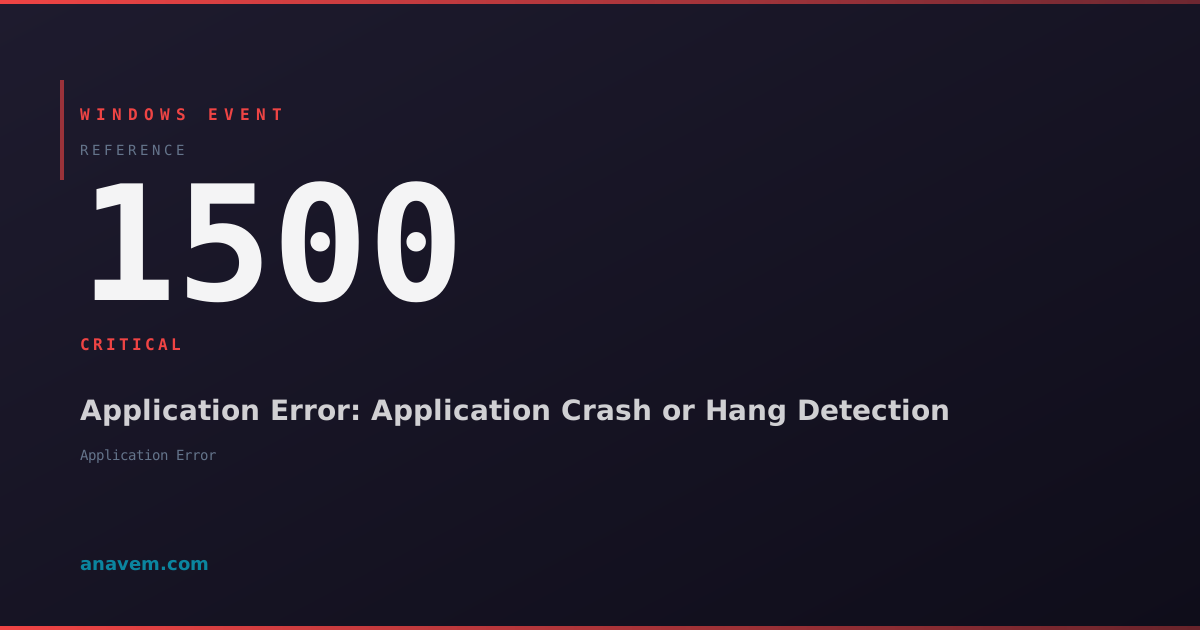
Windows Event ID 1500 – Application Error: Application Crash or Hang Detection

Event ID 1500 indicates an application has crashed, hung, or encountered a critical error. This event helps administrators track application stability and identify problematic software components.

Emanuel DE ALMEIDAEmanuel DE ALMEIDA
18 March 202612 min read 0
Event ID 1500Application Error 5 methods 12 min
Event Reference

What This Event Means

Event ID 1500 represents one of the most critical application monitoring events in Windows systems. When an application crashes or hangs, Windows Error Reporting captures comprehensive diagnostic information and logs it as Event ID 1500. This event contains multiple data points including the faulting application name, process identifier, module information, exception codes, and memory addresses where the fault occurred.

The event structure includes several key fields: the faulting application path, the faulting module name (often a DLL), the application version, module version, exception code, and fault offset. These details enable administrators to identify whether crashes stem from the main application executable, third-party libraries, or system components.

Windows generates this event through multiple pathways. The most common trigger occurs when an application encounters an unhandled exception, such as access violations, stack overflows, or division by zero errors. Additionally, the event fires when applications become unresponsive and Windows terminates them through the Program Compatibility Assistant or when users force-close hung applications through Task Manager.

In Windows 11 and Server 2025, Microsoft enhanced Event ID 1500 with additional context about containerized applications, Microsoft Store apps, and applications running under Windows Subsystem for Linux. The event now includes correlation IDs that link to Windows Defender SmartScreen verdicts and application reputation data, providing administrators with broader security context around application failures.

Applies to

Windows 10Windows 11Windows Server 2019/2022/2025
Analysis

Possible Causes

  • Unhandled exceptions in application code causing immediate termination
  • Memory access violations when applications attempt to read or write protected memory regions
  • Stack overflow conditions from recursive function calls or excessive local variable allocation
  • DLL compatibility issues between application versions and system libraries
  • Hardware-related faults including memory corruption or CPU instruction errors
  • Antivirus software interference blocking legitimate application operations
  • Resource exhaustion scenarios where applications cannot allocate required memory or handles
  • Driver conflicts affecting application stability, particularly graphics or audio drivers
  • Windows updates introducing compatibility breaking changes for legacy applications
  • Malware infections corrupting application files or injecting malicious code
Resolution Methods

Troubleshooting Steps

01

Analyze Event Details in Event Viewer

Start by examining the complete event details to understand the crash context:

  1. Open Event Viewer by pressing Win + R, typing eventvwr.msc, and pressing Enter
  2. Navigate to Windows LogsApplication
  3. Filter for Event ID 1500 by right-clicking the Application log and selecting Filter Current Log
  4. Enter 1500 in the Event IDs field and click OK
  5. Double-click the most recent Event ID 1500 to view detailed information
  6. Record the following critical details:
    • Faulting application name and path
    • Faulting module name (usually a DLL)
    • Exception code (e.g., 0xc0000005 for access violation)
    • Fault offset and application version

Use PowerShell to extract multiple events for pattern analysis:

Get-WinEvent -FilterHashtable @{LogName='Application'; Id=1500} -MaxEvents 50 | Select-Object TimeCreated, Id, LevelDisplayName, Message | Format-Table -Wrap
Pro tip: Look for recurring patterns in the faulting module names - this often indicates a specific DLL or driver causing widespread application instability.
02

Check Windows Reliability Monitor

Windows Reliability Monitor provides a graphical timeline of application crashes and system events:

  1. Press Win + R, type perfmon /rel, and press Enter to open Reliability Monitor
  2. Review the timeline for red X marks indicating application failures
  3. Click on dates with application failures to see detailed crash information
  4. Look for correlation between Event ID 1500 occurrences and system changes like driver updates or software installations
  5. Export reliability data for further analysis:
# Export reliability events to CSV for analysis
Get-WinEvent -FilterHashtable @{LogName='System'; ProviderName='Microsoft-Windows-Reliability-Analysis-Component'} | Export-Csv -Path "C:\temp\reliability_events.csv" -NoTypeInformation

Cross-reference reliability data with Event ID 1500 timestamps to identify system-wide stability patterns. Pay particular attention to crashes occurring after Windows updates, driver installations, or new software deployments.

Warning: Reliability Monitor data is limited to the past few weeks. For long-term trend analysis, implement centralized event log collection.
03

Investigate Application Dependencies and Compatibility

Examine the crashing application's dependencies and compatibility settings:

  1. Identify the full path of the faulting application from Event ID 1500 details
  2. Check application compatibility settings:
    • Right-click the application executable
    • Select PropertiesCompatibility tab
    • Note any compatibility mode settings or privilege escalation options
  3. Use PowerShell to examine loaded modules and dependencies:
# Get detailed process information including loaded modules
$processName = "notepad"  # Replace with your faulting application
Get-Process $processName | Select-Object ProcessName, Id, Path, Modules | Format-List

# Check for missing or outdated DLL dependencies
$appPath = "C:\Program Files\YourApp\app.exe"  # Replace with actual path
Get-Command $appPath | Select-Object FileVersionInfo
  1. Verify application digital signatures and integrity:
# Check digital signature status
Get-AuthenticodeSignature "C:\Program Files\YourApp\app.exe"

# Verify system file integrity if system DLLs are involved
sfc /scannow

Review Windows Application Compatibility Toolkit (ACT) logs if available, and consider running the application in compatibility mode for older Windows versions if crashes began after a system update.

04

Enable Application Crash Dumps and Debug Analysis

Configure Windows Error Reporting to capture crash dumps for detailed analysis:

  1. Enable crash dump collection through registry modification:
# Enable crash dumps for specific application
$regPath = "HKLM:\SOFTWARE\Microsoft\Windows\Windows Error Reporting\LocalDumps"
New-Item -Path $regPath -Force
New-ItemProperty -Path $regPath -Name "DumpFolder" -Value "C:\CrashDumps" -PropertyType String -Force
New-ItemProperty -Path $regPath -Name "DumpCount" -Value 10 -PropertyType DWord -Force
New-ItemProperty -Path $regPath -Name "DumpType" -Value 2 -PropertyType DWord -Force
  1. Create the crash dump directory:
New-Item -Path "C:\CrashDumps" -ItemType Directory -Force
# Set appropriate permissions for crash dump folder
icacls "C:\CrashDumps" /grant "Everyone:(OI)(CI)F"
  1. Reproduce the application crash to generate dump files
  2. Analyze crash dumps using Windows SDK tools or Visual Studio:
# List generated crash dumps
Get-ChildItem "C:\CrashDumps" -Filter "*.dmp" | Sort-Object LastWriteTime -Descending

For advanced analysis, use Windows Debugging Tools (WinDbg) to examine crash dumps. Look for stack traces, exception details, and memory corruption patterns that can pinpoint the exact cause of application failures.

Pro tip: Configure crash dumps only for problematic applications to avoid filling disk space with unnecessary dump files.
05

Implement Proactive Monitoring and Prevention

Establish comprehensive monitoring to prevent future Event ID 1500 occurrences:

  1. Create PowerShell monitoring script for real-time crash detection:
# Monitor for Event ID 1500 in real-time
Register-WmiEvent -Query "SELECT * FROM Win32_NTLogEvent WHERE LogFile='Application' AND EventCode=1500" -Action {
    $Event = $Event.SourceEventArgs.NewEvent
    $crashInfo = @{
        TimeGenerated = $Event.TimeGenerated
        SourceName = $Event.SourceName
        Message = $Event.Message
    }
    Write-Host "Application crash detected: $($crashInfo.Message)" -ForegroundColor Red
    # Send alert email or log to central monitoring system
}
  1. Configure Windows Event Forwarding for centralized crash monitoring:
# Enable Windows Event Collector service
Start-Service Wecsvc
Set-Service Wecsvc -StartupType Automatic

# Configure event subscription (run on collector server)
wecutil cs subscription.xml
  1. Implement application health monitoring using Performance Counters:
# Monitor application-specific performance counters
Get-Counter "\Process(YourApp)\Private Bytes" -Continuous -SampleInterval 5
Get-Counter "\Process(YourApp)\Handle Count" -Continuous -SampleInterval 5
  1. Set up automated remediation for known crash patterns:
# Create scheduled task to restart critical applications after crashes
$action = New-ScheduledTaskAction -Execute "PowerShell.exe" -Argument "-File C:\Scripts\RestartApp.ps1"
$trigger = New-ScheduledTaskTrigger -AtStartup
Register-ScheduledTask -TaskName "AppCrashRecovery" -Action $action -Trigger $trigger

Establish baseline application stability metrics and implement alerting thresholds. Consider deploying Application Performance Monitoring (APM) solutions for enterprise environments to correlate Event ID 1500 with application performance degradation.

Overview

Event ID 1500 fires when Windows detects an application crash, hang, or critical error condition. This event serves as a crucial diagnostic tool for system administrators monitoring application stability across their infrastructure. The event typically appears in the Application log and contains detailed information about the failing process, including the executable name, process ID, and fault details.

Windows Error Reporting (WER) generates this event when applications terminate unexpectedly, stop responding for extended periods, or encounter access violations. The event provides essential forensic data including module names, exception codes, and memory addresses that help pinpoint the root cause of application failures.

In enterprise environments, Event ID 1500 patterns often reveal systemic issues such as memory corruption, driver conflicts, or software compatibility problems. Modern Windows versions in 2026 have enhanced this event with additional telemetry data and improved correlation with Windows Defender Application Guard and other security subsystems.

Frequently Asked Questions

What does Event ID 1500 mean and when should I be concerned?+
Event ID 1500 indicates an application has crashed, hung, or encountered a critical error that forced Windows to terminate it. You should be concerned when you see frequent occurrences of this event, especially if they involve critical business applications or system components. A single occurrence might be normal, but patterns of crashes from the same application or module suggest underlying stability issues that require investigation. Pay particular attention to crashes involving system DLLs or security-related processes, as these can indicate malware infections or system corruption.
How can I determine which application is causing Event ID 1500?+
The Event ID 1500 details contain the faulting application name and full path in the event description. Open Event Viewer, navigate to Windows Logs → Application, and filter for Event ID 1500. The event details will show the 'Faulting application name' field with the executable filename, and 'Faulting application path' with the complete file location. You can also use PowerShell: Get-WinEvent -FilterHashtable @{LogName='Application'; Id=1500} | Select-Object Message to extract this information programmatically. The faulting module name is equally important as it often points to specific DLLs causing the crash.
Can Event ID 1500 be caused by hardware problems?+
Yes, hardware issues can definitely trigger Event ID 1500. Faulty RAM modules can cause memory access violations leading to application crashes. Overheating CPUs may cause instruction execution errors that manifest as application failures. Failing hard drives can corrupt application files or prevent proper loading of executables and libraries. Graphics card problems often cause crashes in games and multimedia applications. To diagnose hardware-related crashes, look for patterns where multiple different applications crash with similar exception codes (like 0xc0000005), run memory diagnostics using Windows Memory Diagnostic tool, and check system temperatures and hardware event logs.
How do I prevent Event ID 1500 from recurring?+
Prevention strategies depend on the root cause identified through investigation. For software issues: update applications to latest versions, install missing Visual C++ redistributables, run applications in compatibility mode, or replace problematic third-party DLLs. For system issues: update Windows and drivers, run system file checker (sfc /scannow), perform memory diagnostics, and scan for malware. For hardware problems: test and replace faulty components, ensure adequate cooling, and check power supply stability. Implement proactive monitoring using PowerShell scripts or enterprise monitoring tools to detect crash patterns early and establish automated remediation procedures for critical applications.
What information should I collect when reporting Event ID 1500 to software vendors?+
When reporting crashes to software vendors, collect comprehensive diagnostic information: the complete Event ID 1500 details including application name, version, faulting module, exception code, and fault offset; system information including Windows version, installed updates, hardware specifications, and driver versions; application crash dumps if available (configure through registry LocalDumps settings); steps to reproduce the crash consistently; recent system changes like software installations, updates, or configuration modifications; and related events occurring around the same time. Export event logs using Get-WinEvent and include reliability monitor screenshots showing crash frequency. This information helps vendors reproduce and fix the underlying issues causing application instability.
Documentation

References (2)

Emanuel DE ALMEIDA
Written by

Emanuel DE ALMEIDA

Senior IT Journalist & Cloud Architect

Microsoft MCSA-certified Cloud Architect | Fortinet-focused. I modernize cloud, hybrid & on-prem infrastructure for reliability, security, performance and cost control - sharing field-tested ops & troubleshooting.

Discussion

Share your thoughts and insights

You must be logged in to comment.

Loading comments...