
5 Security Mistakes That Expose SMBs to Cyberattacks
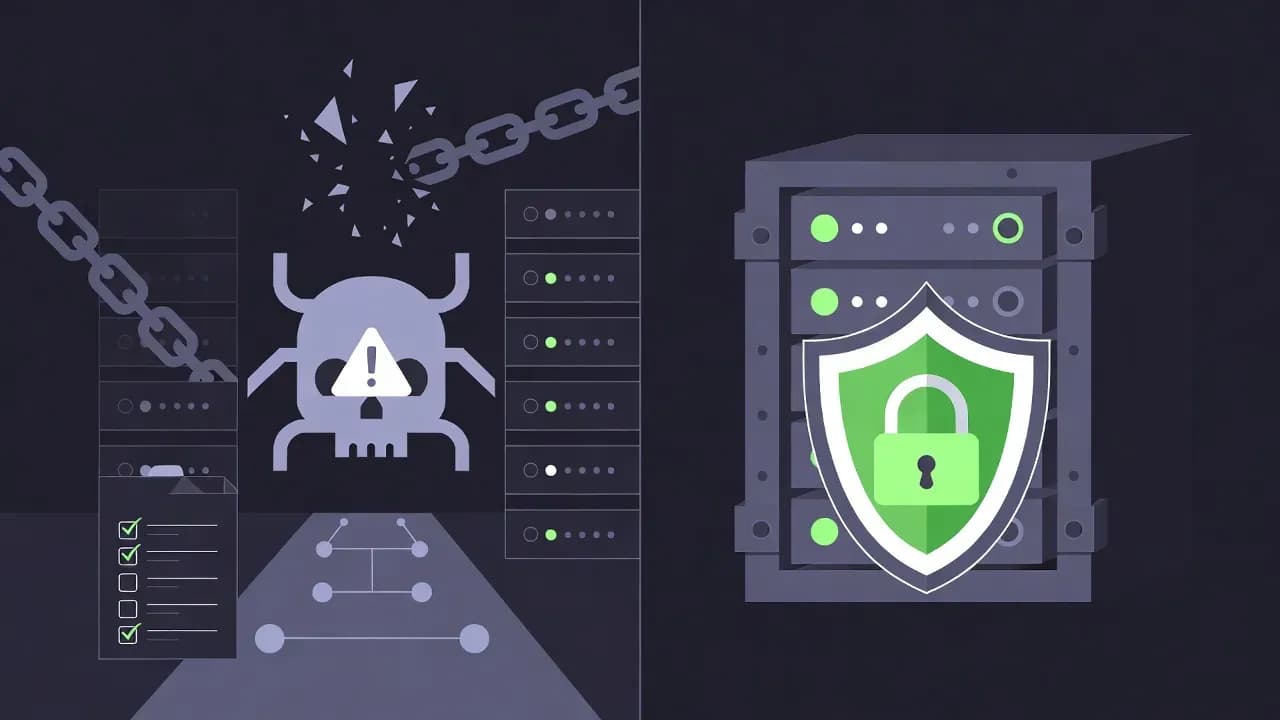
SMBs are prime targets for cybercriminals, yet most breaches exploit basic security flaws. Discover the 5 most common mistakes - from missing MFA to untested backups - and learn how to fix them without breaking the budget.

Introduction
Small and medium-sized businesses are prime targets for cybercriminals. Less protected than large corporations, they still hold sensitive data: customer files, banking information, intellectual property.
According to recent studies, 43% of cyberattacks target SMBs. And in the vast majority of cases, the intrusion exploits basic flaws that could have been fixed without major investment.
After several years of audits and supporting businesses, here are the 5 security mistakes we encounter most frequently.
1. Using the Admin Account for Daily Tasks
This is probably the most widespread and dangerous mistake. For convenience, many IT managers work daily with an account that has elevated privileges: local administrator, or even Domain Admin.
Why It's a Problem
When a user browses the web, opens emails, or downloads a file with an administrator account, any malware executed inherits those privileges. A simple click on a malicious attachment can then:
- Disable the antivirus
- Spread across the entire network
- Encrypt file shares
- Create hidden administrator accounts to maintain access
The Solution
Apply the principle of least privilege:
- Create a standard account for daily tasks (email, browsing, office work)
- Reserve the administrator account for technical interventions that actually require those rights
- Use Privileged Access Management (PAM) solutions like Windows LAPS for local administrator passwords
- Implement Privileged Access Workstations (PAW) for sensitive environments
2. Not Enabling Multi-Factor Authentication (MFA)
Microsoft estimates that MFA blocks 99.9% of automated attacks on accounts. Yet many SMBs still haven't enabled this protection on their cloud services, particularly Microsoft 365.
Why It's a Problem
Without MFA, an attacker who obtains a user's password (phishing, data breach, brute force) immediately gains access to:
- The mailbox and its history
- OneDrive and shared files
- Teams and confidential conversations
- Potentially the entire tenant if the account has privileges
Phishing campaigns targeting Microsoft 365 are industrialized. Kits like EvilProxy or Evilginx can even bypass some basic forms of MFA.
The Solution
For Microsoft 365, several options are available:
Free option: Enable Security Defaults in Entra ID. This configuration enforces MFA for all users via Microsoft Authenticator.
Recommended option: Configure Conditional Access policies (requires at minimum an Entra ID P1 license) to:
- Require MFA for all sign-ins
- Block sign-ins from high-risk countries
- Require compliant devices to access sensitive resources
- Detect risky sign-ins in real-time
Going further: Adopt phishing-resistant MFA methods like FIDO2 keys or Windows Hello for Business.
3. Passwords That Never Expire (Without Compensating Controls)
In 2019, Microsoft recommended abandoning periodic password expiration, arguing that it pushed users to create predictable passwords (Password2024!, Password2025!...).
Many companies applied this recommendation... without implementing the necessary compensating controls.
Why It's a Problem
A password that never expires remains valid even if it:
- Has been compromised in a data breach
- Is shared across multiple services
- Was observed by a colleague or visitor
- Is written on a sticky note under the keyboard (yes, this still happens)
The Solution
If you remove password expiration, you must implement:
Require strong passwords:
- Minimum 14 characters
- Ban common passwords via Azure AD Password Protection
- Encourage the use of passphrases
Monitor for data breaches:
- Entra ID Protection automatically detects compromised credentials (P2 license)
- Services like Have I Been Pwned allow you to check if accounts are exposed
Force password change on compromise: With Entra ID Protection, you can require an automatic password change when a risk is detected.
4. Backups That Are Never Tested
"We have a backup solution, we're protected." This phrase comes up systematically during audits. But when asked about the date of the last restore test, the answer is often embarrassed silence.
Why It's a Problem
An untested backup is a backup that doesn't exist. The causes of failure are numerous:
- Backup agent that stopped working after an update
- Saturated storage space causing incomplete backups
- Configuration errors excluding critical folders
- Backup encryption with a lost key
- Restore time incompatible with business needs
During a ransomware attack, discovering that your backups are unusable is the worst possible scenario.
The Solution
Regularly test your restores:
- Quarterly test at minimum
- Annual full test simulating total loss
- Document procedures and restore times
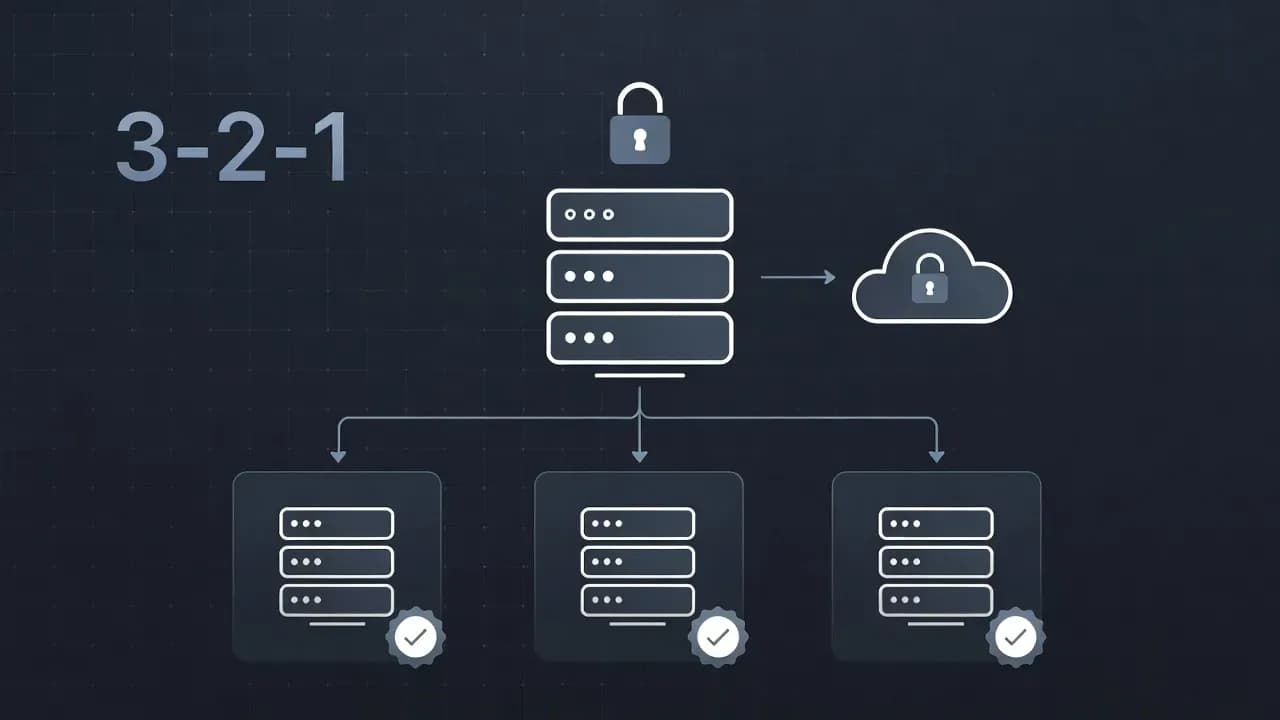
Apply the 3-2-1-1-0 rule:
- 3 copies of your data
- 2 different types of media
- 1 off-site copy
- 1 offline (immutable) copy
- 0 errors during restore tests
Protect your backups:
- Modern ransomware prioritizes targeting backups
- Use immutable backups that even an administrator cannot delete during a defined period
- Isolate the backup network from the production network
5. Overly Permissive Firewall Rules
"Any Any Allow": this firewall rule, meant to be temporary, is present in a surprising number of infrastructures. It allows all traffic, making the firewall completely ineffective.
Why It's a Problem
A misconfigured firewall creates a false sense of security. The risks include:
- Exposure of internal services to the Internet (RDP, SMB, databases)
- Lack of segmentation allowing an attacker to move laterally
- Inability to detect data exfiltration
- Regulatory non-compliance (GDPR, PCI-DSS)
The Solution
Audit your existing rules:
- Identify and remove "Any" rules
- Document the justification for each rule
- Delete obsolete rules
Apply the principle of least network privilege:
- Only allow strictly necessary traffic
- Segment your network (servers, users, guests, IoT)
- Use application-based rules rather than port-based rules
Monitor and review regularly:
- Annual firewall rule audit at minimum
- Alerts on configuration changes
- Log review to identify suspicious traffic
Conclusion
These five mistakes have one thing in common: they're not about a lack of budget, but a lack of time and methodology. Fixing these flaws doesn't require major investment, but a willingness to prioritize security.
If you only take away one thing: start by enabling MFA on all your cloud services. It's the action that offers the best effort-to-protection ratio.
Frequently Asked Questions
Using administrator accounts for daily tasks is one of the most widespread and dangerous mistakes. It allows malware to gain elevated privileges and spread across the entire network.
Absolutely. Microsoft estimates that MFA blocks 99.9% of automated account attacks. It's free to enable with Security Defaults in Microsoft 365 and provides immediate protection against phishing and credential theft.
At minimum, perform a restore test every quarter. An annual full test simulating total data loss is also recommended. An untested backup is essentially worthless during a real incident.
It means having 3 copies of your data, on 2 different media types, with 1 copy off-site, 1 copy offline or immutable, and 0 errors during restore tests.
Not necessarily. Microsoft now recommends removing periodic expiration, but only if you implement compensating controls: long passwords (14+ characters), breach monitoring, and MFA enabled.

Comments
Want to join the discussion?
Create an account to unlock exclusive member content, save your favorite articles, and join our community of IT professionals.
New here? Create a free account to get started.