
Remote Desktop Protocol (RDP) Explained: Architecture, Security Risks & Best Practices
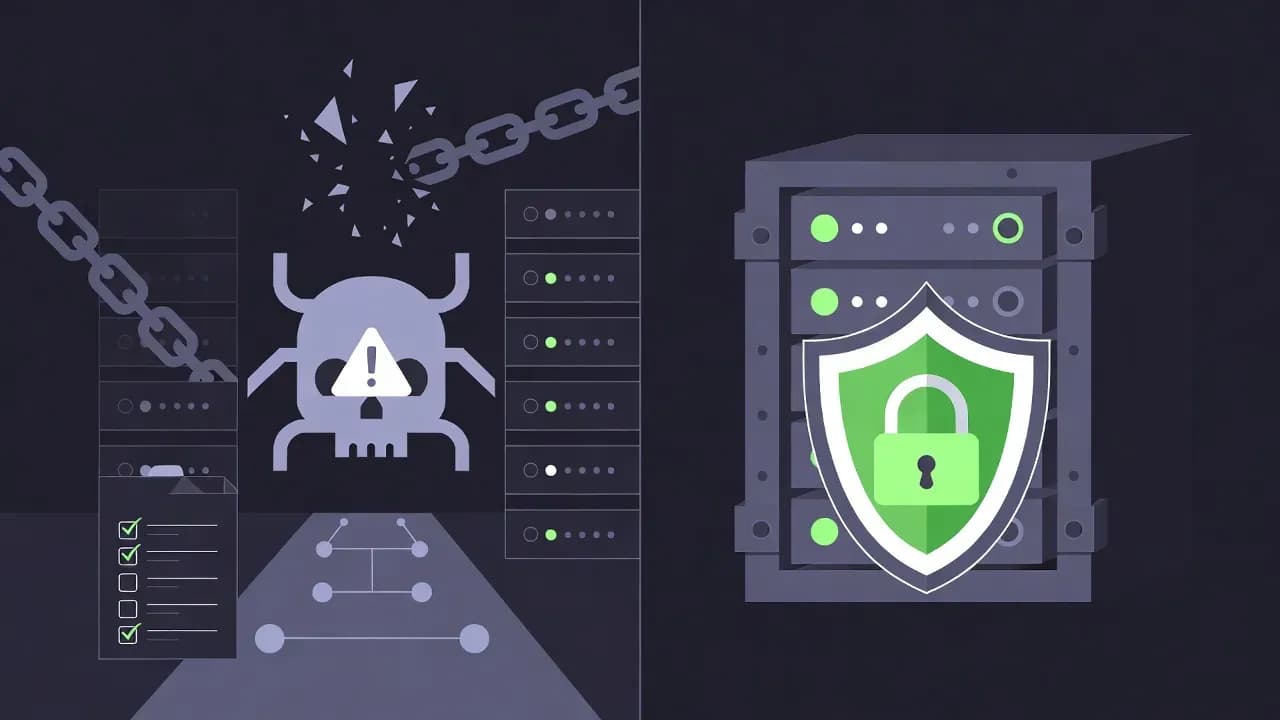
Remote Desktop Protocol enables graphical access to Windows systems over a network, but its widespread use has made it a favorite entry point for ransomware operators. According to Sophos research, RDP was abused in 90% of attacks they investigated in 2023, with 65% of initial breaches occurring through exposed remote desktop services. This guide explains how RDP works technically while addressing the security challenges that make it one of the most critical attack vectors in modern cybersecurity.

Summary
Remote Desktop Protocol (RDP) is Microsoft's proprietary solution for remote graphical access to Windows systems. While indispensable for IT administration and remote work, RDP has become one of the most exploited attack vectors in cybersecurity. Sophos incident response data from 2023 revealed that attackers abused RDP in 90% of investigated breaches, and 65% of initial network compromises occurred through exposed remote desktop services. This explanation covers RDP's technical architecture, authentication mechanisms, and the security landscape that has made it a primary target for ransomware groups like LockBit, Akira, and RansomHub.
The Ransomware Gateway Problem
Before diving into technical details, consider this: scanning services like Shodan consistently identify over 4.8 million systems worldwide with TCP port 3389 exposed directly to the internet. Each of these represents a potential entry point for attackers armed with credential stuffing tools, brute force scripts, or stolen passwords purchased on dark web marketplaces.
In 2024, ransomware attacks reached 5,414 reported incidents globally, an 11% increase from the previous year. Remote Desktop Protocol compromise was responsible for approximately 30% of intrusions in small and medium businesses, particularly in manufacturing and logistics sectors. The Mandiant M-Trends 2025 report identified brute-force attacks targeting RDP and VPN endpoints as the most common initial infection vector for ransomware at 26% of cases.
Understanding how RDP works is essential not just for using it effectively, but for recognizing why it requires careful security consideration in any environment.
What Is Remote Desktop Protocol?
Remote Desktop Protocol is a proprietary network protocol developed by Microsoft in the late 1990s that provides users with a graphical interface to connect to another computer over a network connection. The protocol transmits the remote system's display to the client while relaying keyboard and mouse input back to the host, creating an interactive remote session that feels like sitting in front of the distant machine.
RDP has evolved significantly since its introduction. Modern implementations support features including multi-monitor configurations, clipboard sharing between local and remote systems, local drive and printer redirection, audio streaming, and USB device passthrough. These capabilities make RDP invaluable for IT administrators managing servers, support technicians troubleshooting user issues, and employees accessing office workstations from home.
The protocol is built into Windows client and server operating systems, with the Remote Desktop Connection client (mstsc.exe) available on every Windows installation. Microsoft also provides RDP clients for macOS, iOS, and Android, while third-party implementations exist for Linux and other platforms.
RDP Architecture and Communication Flow
Understanding RDP's architecture helps explain both its capabilities and its security considerations. The protocol operates on a client-server model with multiple layers handling different aspects of the remote session.
Client and Server Components
The RDP client initiates connections and renders the remote desktop experience for the user. On Windows, this is typically the built-in Remote Desktop Connection application, though organizations may deploy alternative clients or web-based access through Remote Desktop Gateway. The client handles local input capture, session display rendering, and management of redirected resources like printers and drives.
The RDP server component runs on the target Windows system and is implemented as the Remote Desktop Services role (formerly Terminal Services). This service listens for incoming connections, manages user sessions, captures screen updates for transmission, and processes input received from clients. By default, the RDP server listens on TCP port 3389, though administrators can configure alternative ports.
Session Establishment Process
When a user initiates an RDP connection, a multi-stage process establishes the secure session.
The client first performs a TCP connection to the server's RDP port. Once the transport connection is established, the client and server exchange capability information through an RDP negotiation phase. This handshake determines the security protocols to use, graphical capabilities, supported features, and bandwidth optimization settings.
Authentication occurs next, with modern configurations using Network Level Authentication (NLA) to verify user credentials before the full RDP session initializes. This is a critical security feature discussed in detail later.
Upon successful authentication, the RDP session begins. The server starts transmitting graphical updates while the client sends input events. Virtual channels activate to handle clipboard synchronization, device redirection, and other extended features.
Protocol Layers
RDP encapsulates multiple functional layers within its communication stream. The transport layer handles the underlying TCP (and optionally UDP for performance optimization) network communication. A security layer manages encryption and authentication using TLS and credential providers. The graphics layer compresses and transmits screen updates using various codecs optimized for different content types. Finally, virtual channels carry auxiliary data streams for clipboard content, audio, device redirection, and other features.
This layered architecture allows RDP to adapt to different network conditions and security requirements while maintaining a consistent user experience.
Authentication and Security Mechanisms
RDP implements several security mechanisms that, when properly configured, provide robust protection for remote sessions.
Network Level Authentication
Network Level Authentication represents the most important security improvement in modern RDP implementations. NLA requires clients to authenticate before the server creates a full RDP session, fundamentally changing the security posture of exposed RDP services.
Without NLA, the server creates a session and presents a login screen to any connecting client. This consumes server resources and exposes the authentication interface to potential attackers. With NLA enabled, the client must provide valid credentials during the connection negotiation phase, before the server allocates session resources.
This authentication-first approach provides several security benefits. It reduces the attack surface by preventing unauthenticated users from reaching the Windows login screen. It mitigates denial-of-service attacks that attempt to exhaust server resources by initiating numerous sessions. It also prevents attackers from exploiting potential vulnerabilities in the login interface itself.
NLA uses the Credential Security Support Provider (CredSSP) protocol to securely transmit credentials from client to server. CredSSP leverages TLS for transport encryption and supports various authentication mechanisms including passwords, smart cards, and Windows Hello for Business.
Transport Encryption
All RDP communications should be encrypted using TLS to protect session data from interception. The server presents a certificate during connection establishment, and the client should verify this certificate to prevent man-in-the-middle attacks.
In domain environments, servers typically use certificates issued by the organization's internal certificate authority. For standalone systems, self-signed certificates are generated automatically, though these provide weaker security guarantees since clients cannot verify server identity against a trusted authority.
Administrators can configure the minimum TLS version and cipher suites accepted by RDP servers through Group Policy or registry settings. Modern configurations should require TLS 1.2 or higher and disable legacy cipher suites vulnerable to known attacks.
Additional Security Settings
Beyond NLA and encryption, Windows provides additional RDP security configurations. Account lockout policies can limit brute force attempts by temporarily disabling accounts after failed login attempts. The "Allow connections only from computers running Remote Desktop with Network Level Authentication" setting enforces NLA requirements. Firewall rules can restrict which IP addresses or networks may connect to RDP services.
Verifying and Managing RDP Configuration
Administrators can use PowerShell to audit and configure RDP settings across their environment.
Check RDP Service Status
# Verify Remote Desktop Services is running
Get-Service -Name "TermService" | Select-Object Name, Status, StartType

# Check if RDP is enabled in the registry
$rdpEnabled = Get-ItemProperty -Path "HKLM:\System\CurrentControlSet\Control\Terminal Server" -Name "fDenyTSConnections"
if ($rdpEnabled.fDenyTSConnections -eq 0) {
    Write-Host "RDP is ENABLED" -ForegroundColor Green
} else {
    Write-Host "RDP is DISABLED" -ForegroundColor Yellow
}
Verify NLA Configuration
# Check if Network Level Authentication is required
$nlaStatus = Get-ItemProperty -Path "HKLM:\System\CurrentControlSet\Control\Terminal Server\WinStations\RDP-Tcp" -Name "UserAuthentication"
if ($nlaStatus.UserAuthentication -eq 1) {
    Write-Host "NLA is REQUIRED (Secure)" -ForegroundColor Green
} else {
    Write-Host "NLA is NOT required (Less Secure)" -ForegroundColor Red
}
List Current RDP Sessions
# Display active RDP sessions
qwinsta /server:localhost

# Or using PowerShell for more detail
Get-CimInstance -ClassName Win32_LogonSession |
    Where-Object { $_.LogonType -eq 10 } |
    ForEach-Object {
        $session = $_
        $user = Get-CimAssociatedInstance -InputObject $session -ResultClassName Win32_UserAccount
        [PSCustomObject]@{
            User = $user.Name
            LogonTime = $session.StartTime
            SessionId = $session.LogonId
        }
    }
Check for Exposed RDP Port
# Verify which port RDP is listening on
$rdpPort = Get-ItemProperty -Path "HKLM:\System\CurrentControlSet\Control\Terminal Server\WinStations\RDP-Tcp" -Name "PortNumber"
Write-Host "RDP is configured on port: $($rdpPort.PortNumber)"

# Check if the port is listening
Get-NetTCPConnection -LocalPort $rdpPort.PortNumber -State Listen -ErrorAction SilentlyContinue |
    Select-Object LocalAddress, LocalPort, State
Audit RDP Security Settings
# Comprehensive RDP security audit
Write-Host "=== RDP Security Audit ===" -ForegroundColor Cyan

# TLS/SSL Settings
$securityLayer = Get-ItemProperty -Path "HKLM:\System\CurrentControlSet\Control\Terminal Server\WinStations\RDP-Tcp" -Name "SecurityLayer" -ErrorAction SilentlyContinue
$minEncryption = Get-ItemProperty -Path "HKLM:\System\CurrentControlSet\Control\Terminal Server\WinStations\RDP-Tcp" -Name "MinEncryptionLevel" -ErrorAction SilentlyContinue

Write-Host "`nSecurity Layer: " -NoNewline
switch ($securityLayer.SecurityLayer) {
    0 { Write-Host "Native RDP (Less Secure)" -ForegroundColor Red }
    1 { Write-Host "Negotiate" -ForegroundColor Yellow }
    2 { Write-Host "TLS (Recommended)" -ForegroundColor Green }
    default { Write-Host "Unknown" }
}

Write-Host "Min Encryption Level: " -NoNewline
switch ($minEncryption.MinEncryptionLevel) {
    1 { Write-Host "Low" -ForegroundColor Red }
    2 { Write-Host "Client Compatible" -ForegroundColor Yellow }
    3 { Write-Host "High" -ForegroundColor Green }
    4 { Write-Host "FIPS Compliant" -ForegroundColor Green }
    default { Write-Host "Unknown" }
}
The Threat Landscape: Why Attackers Target RDP
Remote Desktop Protocol has become a preferred initial access vector for cybercriminals for several interconnected reasons.
Prevalence and Exposure
RDP is ubiquitous in Windows environments. Nearly every Windows server and many workstations have the capability enabled or easily activated. The shift to remote work accelerated RDP exposure as organizations quickly enabled remote access without implementing adequate security controls. This created millions of potential entry points accessible from anywhere on the internet.
Direct Access Value
Unlike phishing attacks that require user interaction or vulnerability exploits that may provide limited initial access, successful RDP compromise gives attackers immediate interactive access to a system with the privileges of the compromised account. An attacker with RDP access can browse the filesystem, execute commands, install software, and pivot to other systems on the network. This makes RDP compromise extremely valuable for ransomware deployment.
Attack Simplicity
Exploiting exposed RDP requires no sophisticated tools or techniques. Attackers scan the internet for systems with port 3389 open using services like Shodan or Censys, then launch automated credential attacks using tools freely available on hacking forums. Common attack methods include brute force attacks testing common username and password combinations, credential stuffing using credentials leaked from other breaches, and purchasing valid RDP credentials from initial access brokers on dark web marketplaces.
Ransomware Group Tactics
Major ransomware operations have incorporated RDP compromise as a standard tactic. Groups including LockBit, Akira, RansomHub, and others routinely use RDP for initial access or lateral movement within compromised networks. The Sophos Active Adversary Report found that external remote services (primarily RDP) were the initial access method in 65% of incident response cases they handled in 2023.
Once inside a network through RDP, attackers typically disable security software, escalate privileges, move laterally to additional systems, exfiltrate sensitive data, and finally deploy ransomware across the environment. The interactive nature of RDP access makes all these activities straightforward for attackers familiar with Windows administration.
Defensive Best Practices
Securing RDP requires a layered approach combining network controls, authentication hardening, and monitoring.
Eliminate Direct Internet Exposure
The most effective mitigation is removing RDP from direct internet accessibility. Organizations should route remote access through VPN connections requiring authentication before reaching internal RDP services. Alternatively, Remote Desktop Gateway provides HTTPS-based tunneling with centralized access policies. Zero-trust network access solutions offer another option for authenticating and authorizing connections before permitting RDP access.
For situations where internet-accessible RDP cannot be avoided, strict IP allowlisting should limit connections to known source addresses. However, this approach provides limited protection against compromised credentials from allowed locations.
Enforce Strong Authentication
Network Level Authentication must be enabled on all RDP servers to prevent unauthenticated session creation. Multi-factor authentication should be required for RDP access, implemented through Azure AD MFA, third-party MFA solutions integrated with Windows authentication, or smart card requirements.
Account lockout policies should activate after a small number of failed authentication attempts to defeat brute force attacks. Organizations should also audit which accounts have RDP access permissions and apply the principle of least privilege.
Harden Systems and Monitor Access
Keep RDP-accessible systems fully patched, as Microsoft periodically addresses RDP vulnerabilities that attackers actively exploit. The BlueKeep vulnerability (CVE-2019-0708) demonstrated how critical RDP security patches can be.
Enable detailed Windows Security event logging for logon events (Event IDs 4624, 4625) and audit special logon events that indicate potential attacks. Feed these logs to a SIEM or monitoring solution configured to alert on suspicious patterns such as failed login spikes, logins from unusual locations, or after-hours access.
Consider implementing Remote Desktop Gateway even for internal access to centralize logging and apply consistent security policies across all RDP connections.
Segment and Isolate
Network segmentation limits the blast radius if an attacker compromises an RDP-accessible system. Place RDP jump hosts in isolated network segments with restricted access to production resources. Require additional authentication steps when pivoting from RDP hosts to sensitive systems.
Common Use Cases in Enterprise Environments
Despite security considerations, RDP remains essential for legitimate IT operations across several scenarios.
Server administration represents the traditional use case, with IT teams managing Windows servers through RDP sessions rather than requiring physical or console access. This is particularly important for servers in remote data centers or cloud environments where physical access is impractical.
Help desk and technical support operations rely heavily on RDP for troubleshooting user issues. Support technicians connect to employee workstations to diagnose problems, install software, or configure settings without requiring physical presence.
Virtual Desktop Infrastructure deployments use RDP as the underlying protocol for delivering centralized desktops to end users. Microsoft's Azure Virtual Desktop and third-party VDI solutions rely on RDP for session connectivity.
Remote work scenarios involve employees accessing office workstations from home locations, though this use case increasingly shifts toward VPN or zero-trust access solutions rather than direct RDP exposure.
Conclusion
Remote Desktop Protocol provides powerful remote access capabilities essential for managing Windows environments. Its ability to deliver full graphical sessions with device redirection and multi-monitor support makes it invaluable for IT operations and remote work scenarios.
However, RDP's widespread deployment and the valuable access it provides have made it a primary target for ransomware operators and other threat actors. The statistics are stark: RDP abuse appeared in 90% of attacks investigated by Sophos incident response teams, and exposed RDP services remain one of the most common initial access vectors for network compromises.
Securing RDP requires acknowledging this threat landscape and implementing appropriate controls. Network Level Authentication, transport encryption, and strong credential policies provide baseline protection. Eliminating direct internet exposure through VPN or gateway solutions significantly reduces risk. Comprehensive monitoring enables detection of compromise attempts and successful breaches.
For IT professionals and system administrators, understanding RDP's architecture and security mechanisms is essential for deploying it safely. The protocol will remain a cornerstone of Windows remote management, but its use must be balanced against the security responsibilities that come with enabling remote access to critical systems.
Frequently Asked Questions
By default RDP listens on TCP port 3389, but administrators can change the port via registry or policy to obscure services from casual scanning.
NLA requires clients to authenticate before a session is fully established, reducing attack surface and resource consumption.
Direct exposure of RDP to the internet is risky; VPNs, jump hosts, or RDP Gateways are strongly recommended for secure access.
Yes. RDP uses TLS encryption natively, and session encryption can be enforced through policy to provide confidentiality.

Comments
Want to join the discussion?
Create an account to unlock exclusive member content, save your favorite articles, and join our community of IT professionals.
New here? Create a free account to get started.